

Chapter 1 Types and components of computer systems.

Presentation
•
Computers
•
10th Grade
•
Practice Problem
•
Easy

David Kang
Used 6+ times
FREE Resource
18 Slides • 11 Questions
1
Types and components of computer systems.
2
Poll
How confident are you in identifying and explaining the functions of key hardware components such as the CPU, RAM, ROM, and various internal/external devices?
Not Confident At All
Slightly Confident
Moderately Confident
Very Confident
Extremely Confident
3
Multiple Choice
Which of the following best describes hardware?
Intangible instructions that tell the computer what to do.
Physical components of a computer system that you can touch.
Programs and applications used for specific tasks.
The operating system of a mobile device.
4
5
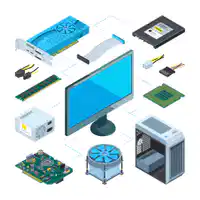
Hardware refers to the physical components of a computer system. These are the tangible parts you can touch and see
6
Hardware refers to the physical components of a computer system. These are the tangible parts you can touch and see
7
8
Open Ended
Go to https://www.ictlounge.com/html/computercomponents_new.htm and list out the Hardware you see. Don't forget to briefly explain it's function.
9
Form pairs or groups of three.
Visit the following webpage: https://www.ictlounge.com/html/computercomponents_new.htm
On the webpage, you'll find pictures of various computer components.
For each picture:
Identify the computer component.
Describe its primary function within a computer system. Ensure you list at least three points for each component.
Cut out the pictures.
Paste each picture onto the papers provided.
Beneath each pasted picture, write:
The name of the component.
The three points describing its function.

10
Introduction: Start by introducing your group members and giving a brief overview of what you'll be presenting.
Body: For each computer component:
Show the picture.
Name the component.
Describe its primary functions (at least three points).
Conclusion: Summarize the main points you've covered. You can also share any interesting facts or observations you made during the activity.
Questions: Open the floor for any questions. If you don't know the answer, that's okay! It's a learning opportunity for everyone.
11
Open Ended
Write down what you think "hardware" means in the context of computers. Think about the physical aspects of a computer you've interacted with.
12
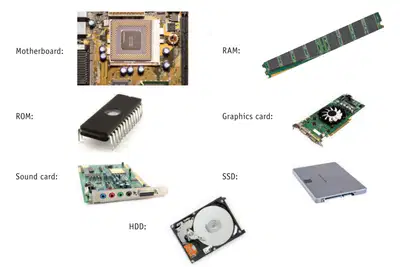
Central Hub: The motherboard is like the main highway or central hub of a computer, connecting all other components together.
Provides Power & Communication: It distributes power to different parts and allows them to communicate with each other.
Slots & Sockets: Contains various slots and sockets for components like the CPU, RAM, and expansion cards.

13
Short-term Memory: RAM is the computer's short-term memory, temporarily storing data that the CPU is currently processing.
Volatile Storage: When the computer is turned off, all data in RAM is lost.
Speeds Up Processing: The more RAM a computer has, the faster it can run multiple applications simultaneously.

14
Permanent Instructions: ROM contains permanent data and instructions that the computer needs to boot up.
Non-volatile Storage: Unlike RAM, data in ROM remains even when the computer is turned off.
Not Easily Modified: As the name suggests, data in ROM is "read-only" and isn't typically changed or written to by the user.

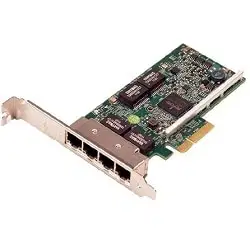
15
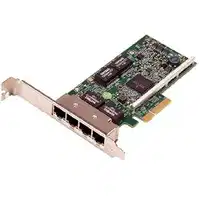
Connectivity: The NIC allows a computer to connect to networks, including local area networks (LAN) or the internet.
Physical Port: Typically has an Ethernet port where network cables are plugged in.
Wireless Variants: Some NICs are wireless, enabling connections to Wi-Fi networks.
16
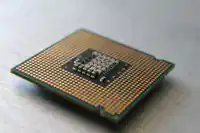
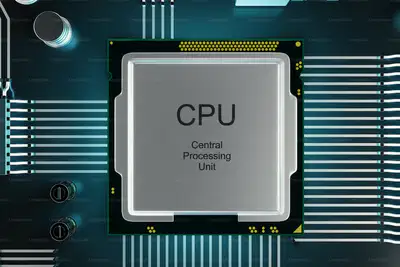
Brain of the Computer: The CPU processes instructions and performs calculations, making it the central "thinking" part of the computer.
Handles Tasks: Every action, from typing a letter to playing a game, is processed by the CPU.
Speed Matters: Measured in GHz, a CPU's speed determines how quickly it can process information.
17
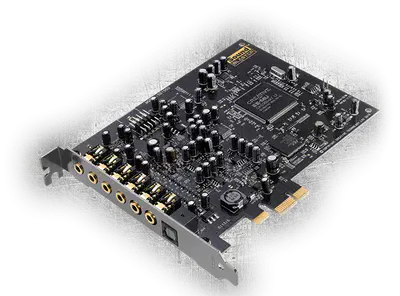
Audio Processing: Converts digital data into audible sound that's sent to speakers or headphones.
Inputs & Outputs: Has ports for microphones (input) and speakers or headphones (output).
Enhances Audio: Advanced sound cards can provide better audio quality and support for surround sound setups.
18
Visual Processing: Handles rendering images and videos, ensuring they display correctly on the monitor.
Enhances Gaming & Design: Especially important for tasks like gaming or graphic design, where detailed visuals are crucial.
Own Memory: Many graphics cards have their own RAM, known as VRAM (Video RAM), dedicated to storing visual data.

19
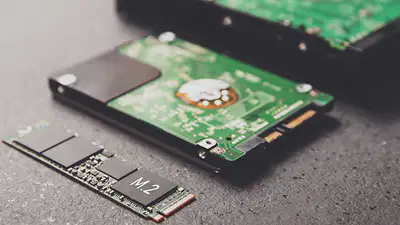
Long-term Storage: Both HDDs and SSDs store the computer's files, documents, and the operating system.
Moving vs. No Moving Parts: HDDs have spinning disks and moving read/write heads, while SSDs have no moving parts, using flash memory instead.
Speed & Durability: SSDs are generally faster and more durable than HDDs but tend to be more expensive per GB of storage.
20
Poll
How confident are you in identifying and explaining the functions of key hardware components such as the CPU, RAM, ROM, and various internal/external devices?
Not Confident At All
Slightly Confident
Moderately Confident
Very Confident
Extremely Confident
21
22
Poll
How confident are you in differentiating between application software and system software, and providing examples of each?
Not Confident At All
Slightly Confident
Moderately Confident
Very Confident
Extremely Confident
23
Multiple Choice
What is software?
The physical parts inside a computer, like the CPU and RAM.
The screen where you view content on a computer.
The set of digital instructions that guide the computer's hardware.
The power supply that provides electricity to a computer.
24
Software refers to the collection of instructions and data that tell a computer how to perform specific tasks. Unlike hardware, which is tangible and physical, software is intangible and cannot be touched.
25
Imagine a computer as a musical instrument, like a piano. The hardware is the physical piano itself, while the software is like the sheet music that tells the musician (or computer) what notes to play and when.
26
Open Ended
Write down your definition of "software." Consider the programs and applications you use daily.
27
Poll
How confident are you in differentiating between application software and system software, and providing examples of each?
Not Confident At All
Slightly Confident
Moderately Confident
Very Confident
Extremely Confident
28
Poll
How confident are you in distinguishing between analogue and digital data, and explaining the need for their conversion in computer systems?
Not Confident At All
Slightly Confident
Moderately Confident
Very Confident
Extremely Confident
29
Poll
How confident are you in distinguishing between analogue and digital data, and explaining the need for their conversion in computer systems?
Not Confident At All
Slightly Confident
Moderately Confident
Very Confident
Extremely Confident
Types and components of computer systems.
Show answer
Auto Play
Slide 1 / 29
SLIDE
Similar Resources on Wayground

22 questions
G6D: Cellular Transport
Presentation
•
10th Grade
20 questions
Perangkat lunak Pengolah Kata
Presentation
•
10th Grade
21 questions
Molecular Geometry
Presentation
•
10th Grade
22 questions
Manuscript with Continuation Sheet
Presentation
•
10th Grade
24 questions
Simple present - 2° série
Presentation
•
10th Grade
22 questions
ติว o-net ม.3
Presentation
•
KG
20 questions
Recount Text
Presentation
•
10th Grade
22 questions
Dimensional Analysis
Presentation
•
10th Grade
Popular Resources on Wayground
10 questions
How much do you know about our Portrait of an Eagle?

Quiz
•
10th Grade
10 questions
Fast Food Slogans
Quiz
•
6th - 8th Grade
21 questions
Continents and Oceans
Quiz
•
6th Grade
20 questions
Parts of Speech
Quiz
•
5th Grade
16 questions
Subject & Predicate
Quiz
•
5th Grade
25 questions
Multiplication Facts
Quiz
•
5th Grade
12 questions
Map Skills
Quiz
•
3rd Grade
22 questions
Continents and Oceans
Quiz
•
5th Grade
Discover more resources for Computers
10 questions
Exploring Digital Citizenship Essentials

Interactive video
•
6th - 10th Grade
20 questions
[AP CSP] Python Coding: Functions, Parameters, Return
Presentation
•
9th - 12th Grade
40 questions
Introduction to Microsoft Word
Quiz
•
8th - 12th Grade
20 questions
APCS Unit 1A
Quiz
•
9th - 12th Grade
24 questions
Binary
Quiz
•
9th - 12th Grade