

Systems Software

Presentation
•
Computers
•
University
•
Hard

Dr. Diotay
FREE Resource
43 Slides • 0 Questions
1

1
Systems Software
2
2
Using System Software:
The Operating System, Utility
Programs, and File Management
3
3
Topics
◼
System software
◼
Operating systems (OS):
•
Kinds of systems
•
Common desktop systems
•
User interaction
•
How the OS manages the processor
•
How the OS manages memory
4
4
Topics
◼
Operating systems:
•
How the OS manages hardware
•
How the OS manages interacts with
application software
•
How the OS helps to start the computer
•
How the OS helps you keep the
computer organized
◼
Desktop and windows features
◼
Utility programs
5
5
System Software
Operating
systems
◼
Control computer
functions:
•
Hardware
•
Memory
•
Application
programs
•
System
maintenance
◼
Provide user
interface
System utilities
◼
Programs that perform
computer
housekeeping tasks:
•
Manage system
resources
•
Improve efficiency
•
Virus prevention
6
6
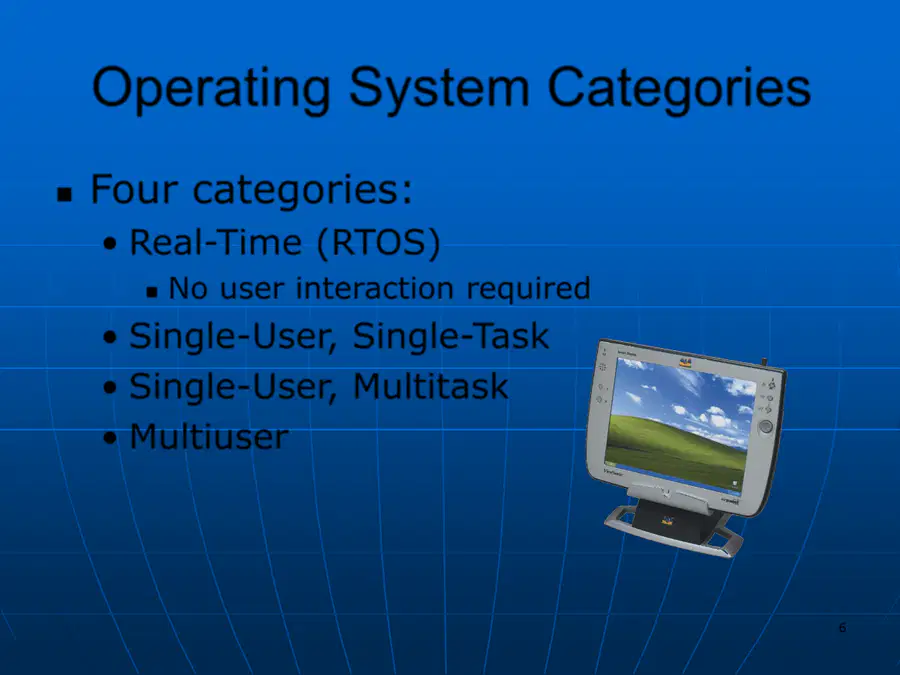
Operating System Categories
◼
Four categories:
•
Real
-
Time (RTOS)
◼
No user interaction required
•
Single
-
User, Single
-
Task
•
Single
-
User, Multitask
•
Multiuser
7
7
Real
-
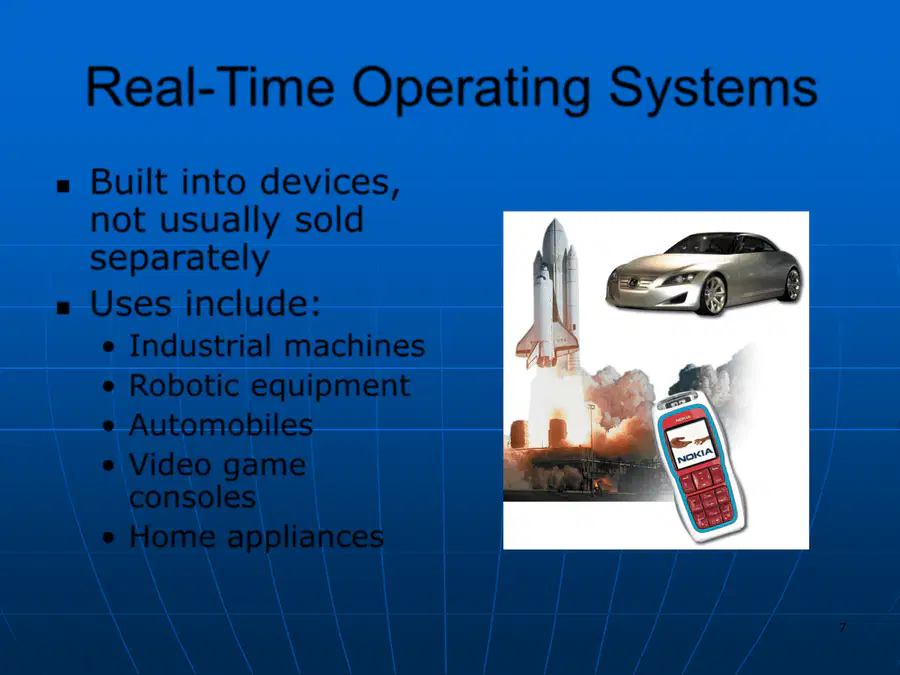
Time Operating Systems
◼
Built into devices,
not usually sold
separately
◼
Uses include:
•
Industrial machines
•
Robotic equipment
•
Automobiles
•
Video game
consoles
•
Home appliances
8
8
Single
-
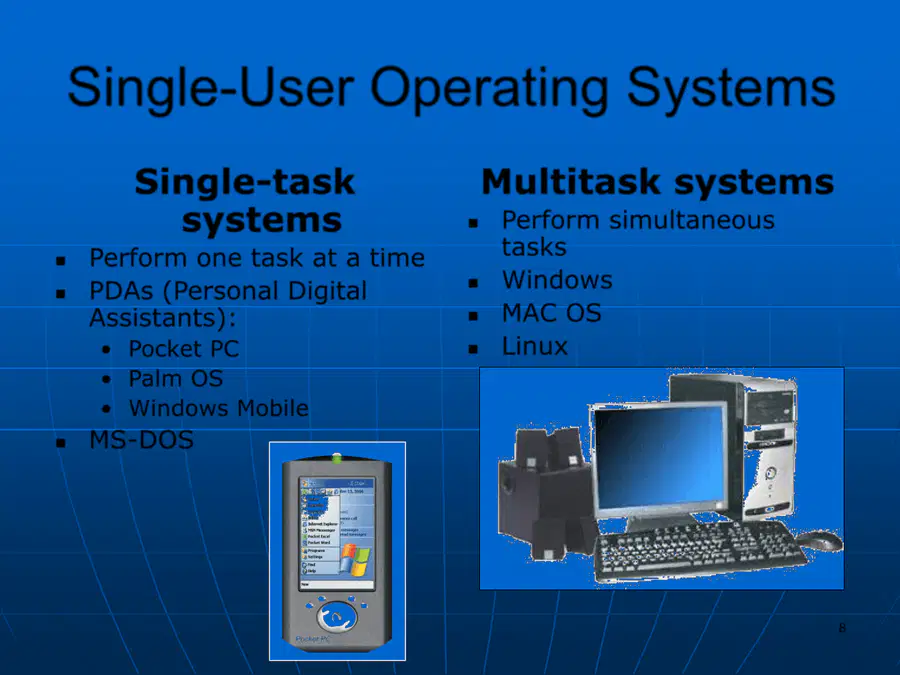
User Operating Systems
Single
-
task
systems
◼
Perform one task at a time
◼
PDAs (Personal Digital
Assistants):
•
Pocket PC
•
Palm OS
•
Windows Mobile
◼
MS
-
DOS
Multitask systems
◼
Perform simultaneous
tasks
◼
Windows
◼
MAC OS
◼
Linux
9
9
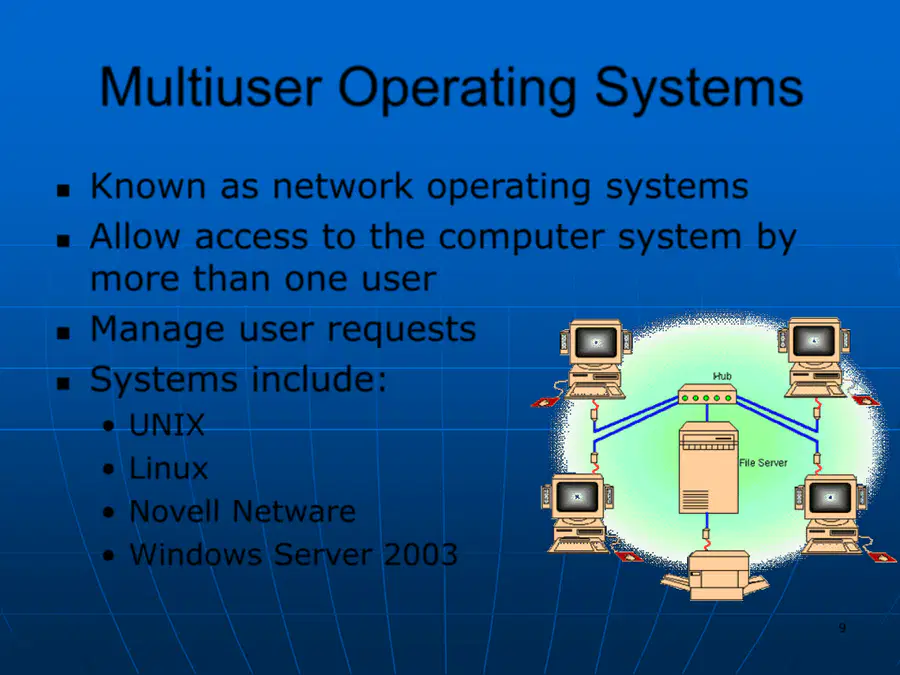
Multiuser Operating Systems
◼
Known as network operating systems
◼
Allow access to the computer system by
more than one user
◼
Manage user requests
◼
Systems include:
•
UNIX
•
Linux
•
Novell Netware
•
Windows Server 2003
10
10
Desktop Operating Systems
◼
Operating system combined with the
processor is known as a platform
•
Microsoft Windows / Intel
•
Apple Macintosh / Motorola in older versions
•
Now Apple also uses the Intel processor
◼
Desktop operating systems include:
•
Microsoft Windows
•
MAC OS
•
UNIX
•
Linux
11
11
Microsoft Windows
◼
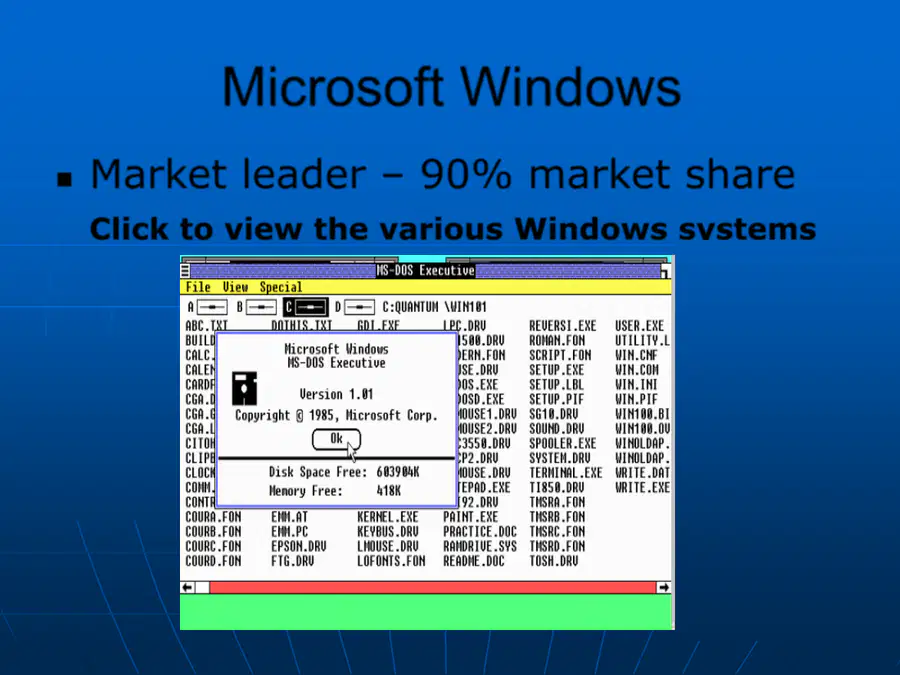
Market leader
–
90% market share
Click to view the various Windows systems
Windows
XP
(2001)
Offers a new
multi-user
desktop as
well as
improved
digital media
features and
Internet
capabilities.
Windows
ME
(2000)
This upgrade
to Windows
95 and
Windows 98
includes
system
backup and
multimedia
capabilities
(such as
Media Player).
Windows
2000
(2000)
This upgrade
to Windows NT
offers
improvements
to file security
and Internet
support.
Windows
98
(1998)
This upgrade
includes
additional file
protection and
incorporates
Internet
Explorer 4.0, a
customizable
taskbar, and
desktop
features
Windows
95
(1995)
This operating
system runs
faster
and more
efficiently,
introduces Plug
and Play
capabilities,
long file names,
short-cut
right-click
menus, and a
cleaner
desktop.
Windows
NT
(1993)
Fundamentally
different
operating
system with
increased
security, power,
performance,
and
multitasking
scheduler.
Windows
3.x
(1990-
1992)
First widely
used PC
graphical user
interface (GUI)
operating
system.
Improved
point-and-click
mouse
operations and
multitasking
capabilities.
Windows
2.0
(1987)
Includes better
graphics
capabilities and
introduces
keyboard
shortcuts and
the ability to
overlap
windows.
Windows
1.0
(1985)
Introduces
point-and-click
commands with
a mouse and
includes modest
multitasking
capabilities and
desktop
applications.
12

12
Windows Vista
◼
Introduced in 2007
Versions
Description
Windows XP
Comparable
Version
Windows Vista Home Basic
Low-level, budget home users.
Windows XP Home Edition
Windows Vista Home
Premium
Combines media features of to support advanced home
media uses such as HDTV and DVD authoring.
Windows XP Home Edition
with features from
Windows XP Media
Center Edition
Windows Vista Business
As its name implies, this version is aimed at the
business market. Similar to Windows XP
Professional, this version has added support for
networking capabilities. This product comes
bundled with a new version of Internet
Information Services (IIS), the most widely used
Web server for corporate Web sites.
Windows XP Professional
Windows Vista Enterprise
This edition is aimed at the enterprise segment of the
business market and is not be available through
retail stores or OEMs (Original Equipment
Manufacturers). It comes with Microsoft Virtual PC,
which enables it to run on any platform, and has a
multilingual user interface.
Windows Vista Ultimate
This is the “ultimate” operating system for high-end PC
users, gamers, multimedia professionals, and PC
enthusiasts. Vista Ultimate comes with RSS (Real-
time Simple Syndication) support for easy access
to podcasts and weblogs, a game performance
tweaker, DVD ripping capabilities, and other
online capabilities for downloading media.
13

13
MAC OS
◼
First operating system with point
-
and
-
click
technology (Graphical User Interface)
◼
Excellent in:
•
Graphics display
•
Processing capabilities
•
System reliability
•
Document recovery
◼
Fewer software applications
MAC OS X
14
14
UNIX
◼
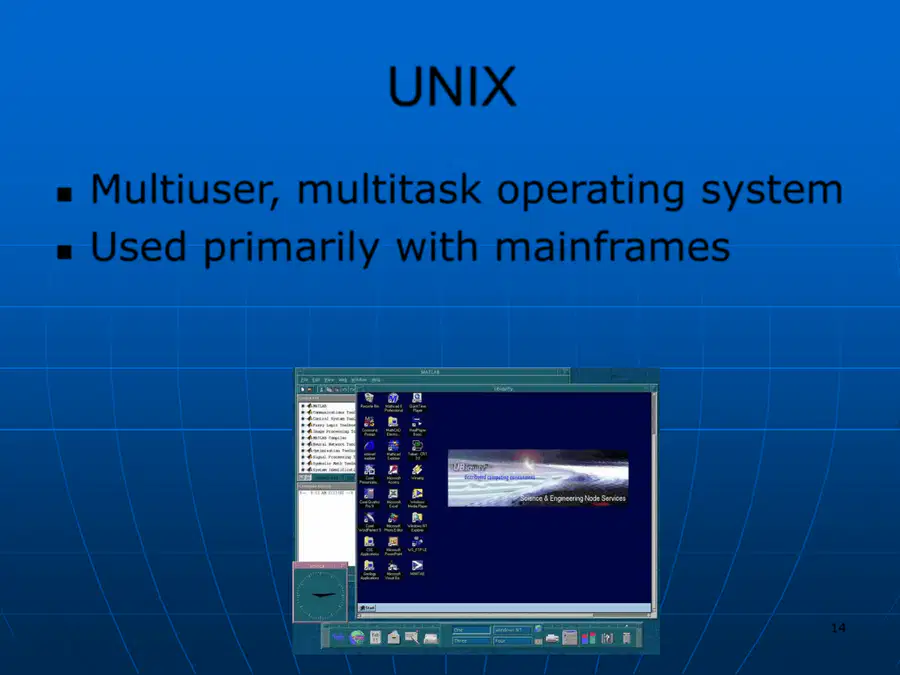
Multiuser, multitask operating system
◼
Used primarily with mainframes
15
15
Linux
◼
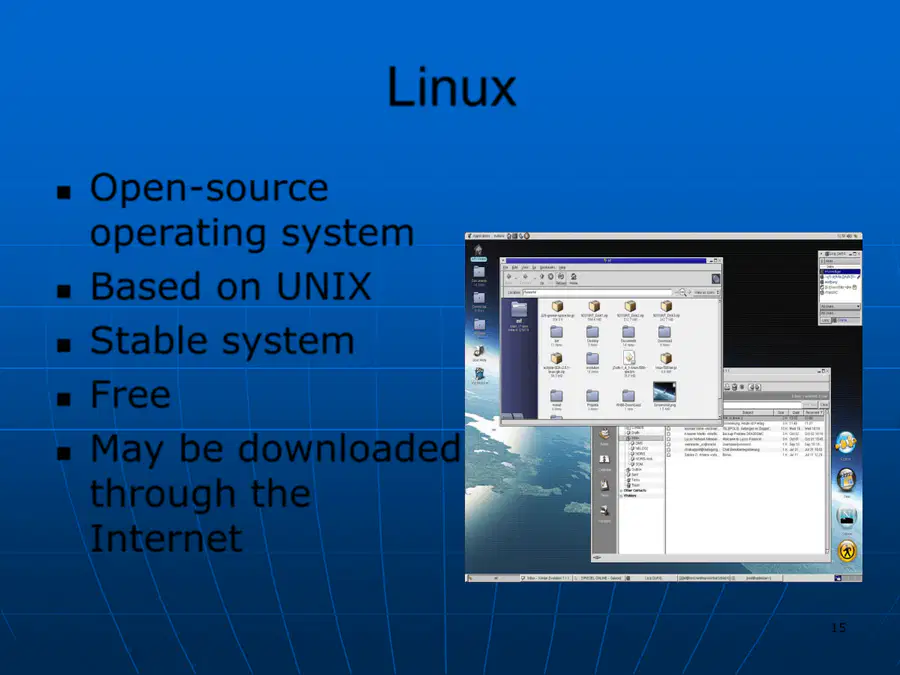
Open
-
source
operating system
◼
Based on UNIX
◼
Stable system
◼
Free
◼
May be downloaded
through the
Internet
16

16
What the Operating System Does
◼
Provides user
interface
◼
Manages the CPU
◼
Manages memory
◼
Manages hardware
◼
Coordinates
application
software with the
CPU
17
17
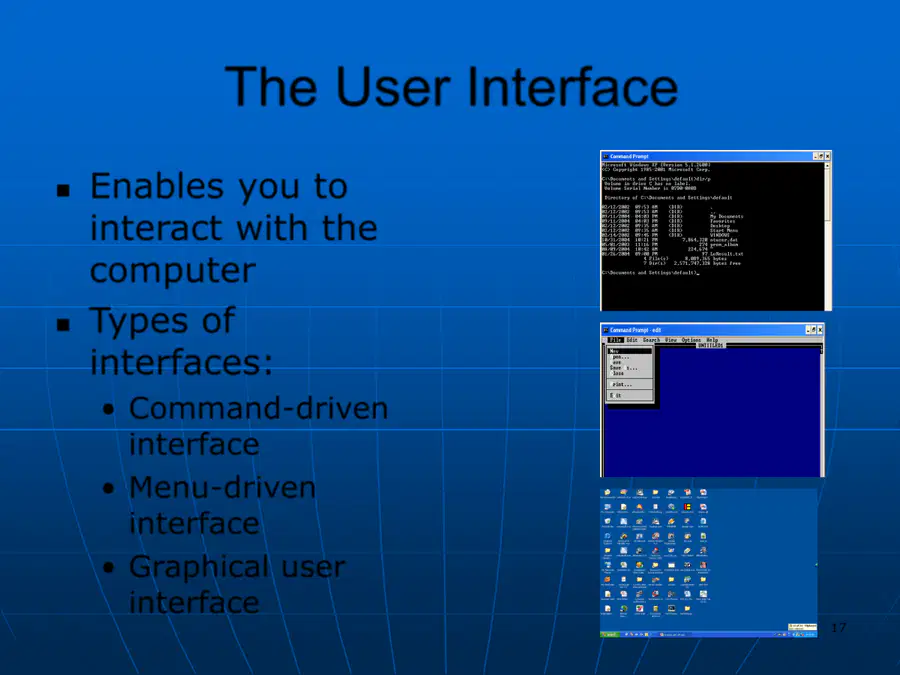
The User Interface
◼
Enables you to
interact with the
computer
◼
Types of
interfaces:
•
Command
-
driven
interface
•
Menu
-
driven
interface
•
Graphical user
interface
Command-
driven
Menu-driven
Graphical
18
18
Process
4th
Process
3rd
Process
2nd
Process
1st
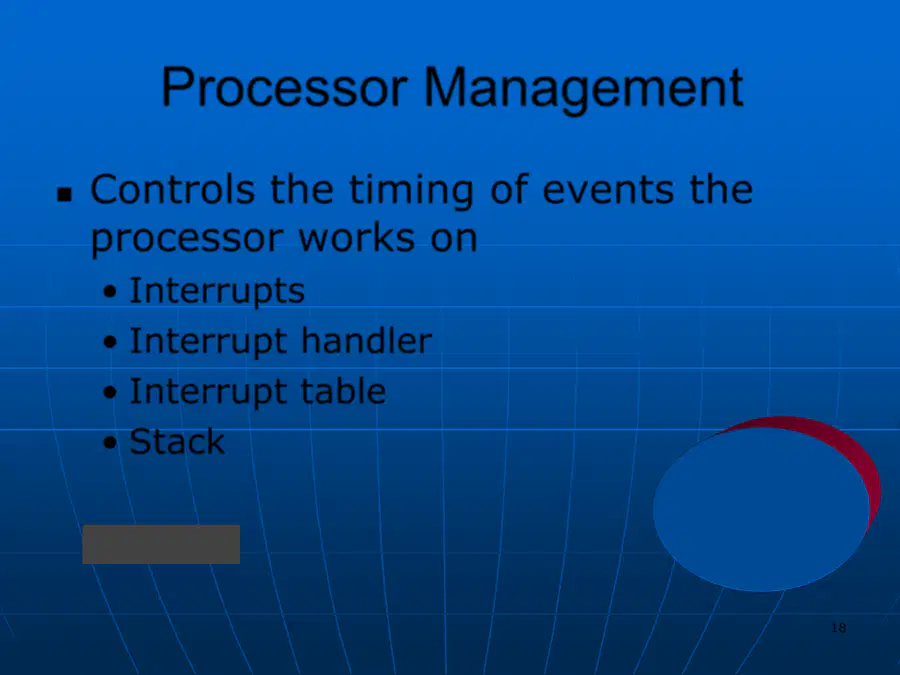
Processor Management
◼
Controls the timing of events the
processor works on
•
Interrupts
•
Interrupt handler
•
Interrupt table
•
Stack
REQUEST
Operatin
g
System
19
19
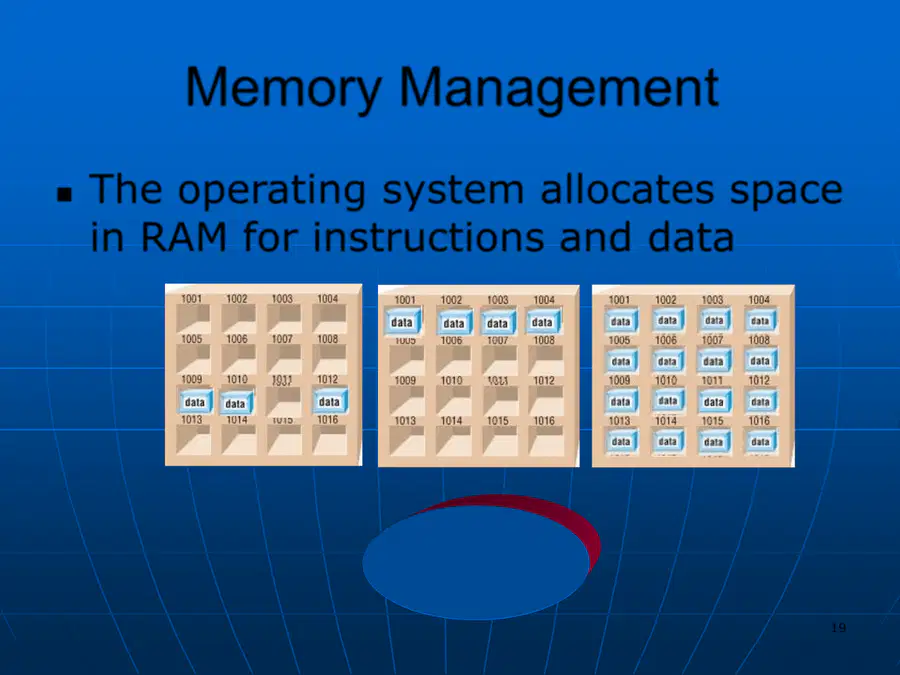
Memory Management
◼
The operating system allocates space
in RAM for instructions and data
RAM
Operating
System
20
20
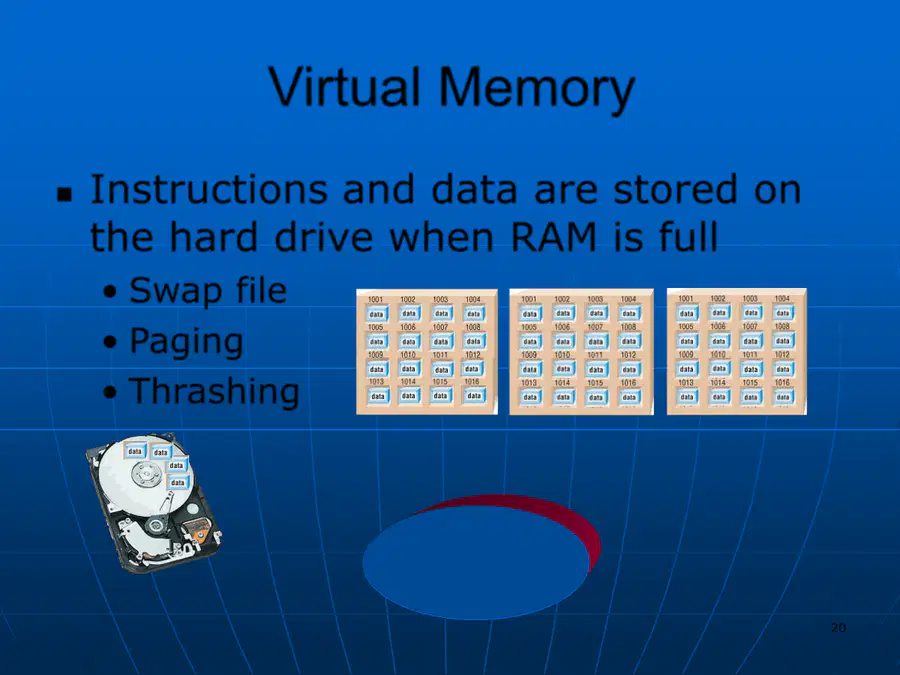
Virtual Memory
◼
Instructions and data are stored on
the hard drive when RAM is full
•
Swap file
•
Paging
•
Thrashing
Operating
System
FULL
21
21
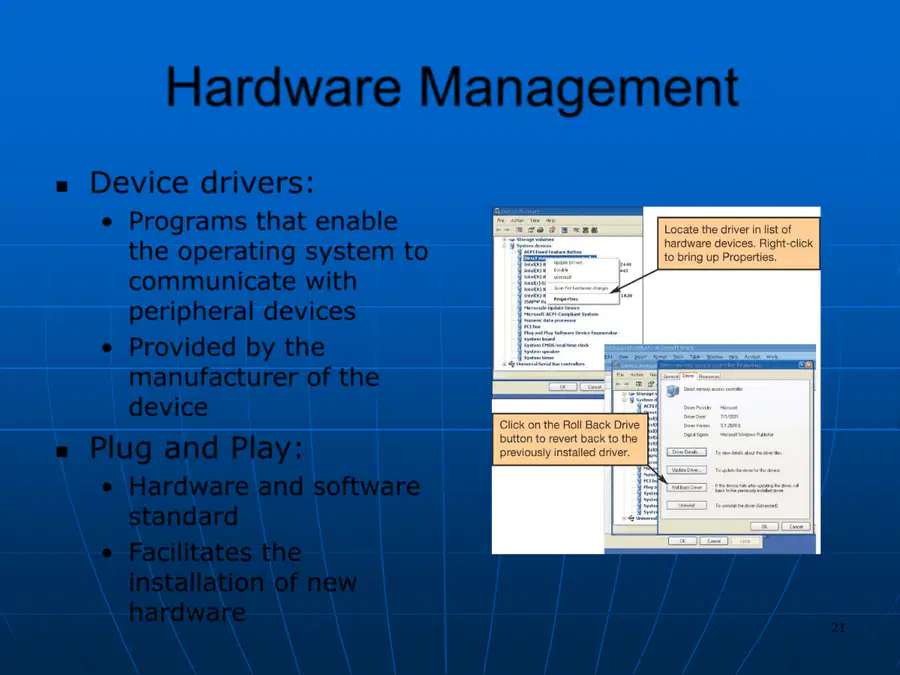
Hardware Management
◼
Device drivers:
•
Programs that enable
the operating system to
communicate with
peripheral devices
•
Provided by the
manufacturer of the
device
◼
Plug and Play:
•
Hardware and software
standard
•
Facilitates the
installation of new
hardware
22
22
Software Application Coordination
◼
Application programming interfaces
(APIs):
•
Blocks of code contained in the
operating system
•
Coordinates the operating system with
software applications
◼
Similar toolbars and menus
•
Microsoft Direct X
23

23
Starting the Computer
The Boot Process
◼
Step 1:
The basic
input/output system (BIOS)
is activated
◼
Step 2:
A Power
-
on self
-
test
(POST) checks attached
hardware
◼
Step 3:
The operating
system loads into memory
◼
Step 4:
Configuration and
customization settings are
checked
1
2
3
4
24

24
Handling Errors in the
Boot Process
◼
Non
-
system disk or disk
error
•
Remove the floppy from
the drive and press any
key
◼
POST errors
•
Single beep: Everything is
loading properly
•
Series of beeps: Hardware
problem
◼
Safe mode
•
Windows does not boot
properly
•
Uninstall any new devices
or software
25
25
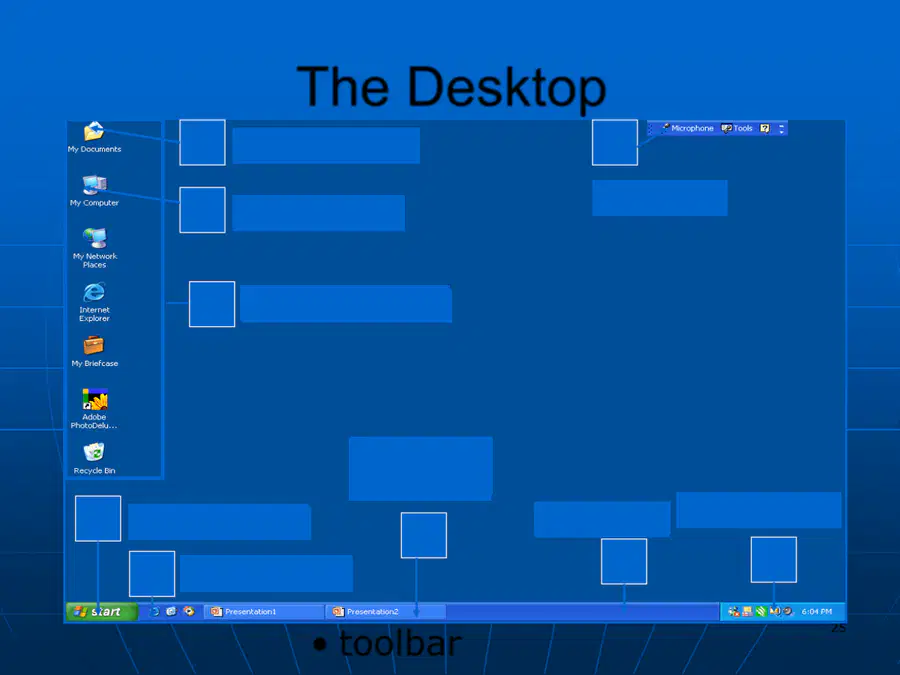
The Desktop
◼
Desktop
features:
•
Shortcut icons
•
My Documents
•
Start button
•
Quick launch
•
Open programs
•
Taskbar
•
System tray
•
toolbar
SHORTCUT ICONS
A
B
C
D
E
G
H
I
_______________
MY DOCUMENTS
MY COMPUTER
START BUTTON
QUICK LAUNCH
TASKBAR
SYSTEM TRAY
TOOLBAR
____________
____________
____________
____________
_________
___________
_________
F
OPEN
PROGRAMS
_________
_________
Click to view
Desktop features
26
26
G
PINNED ITEMS LIST_______________
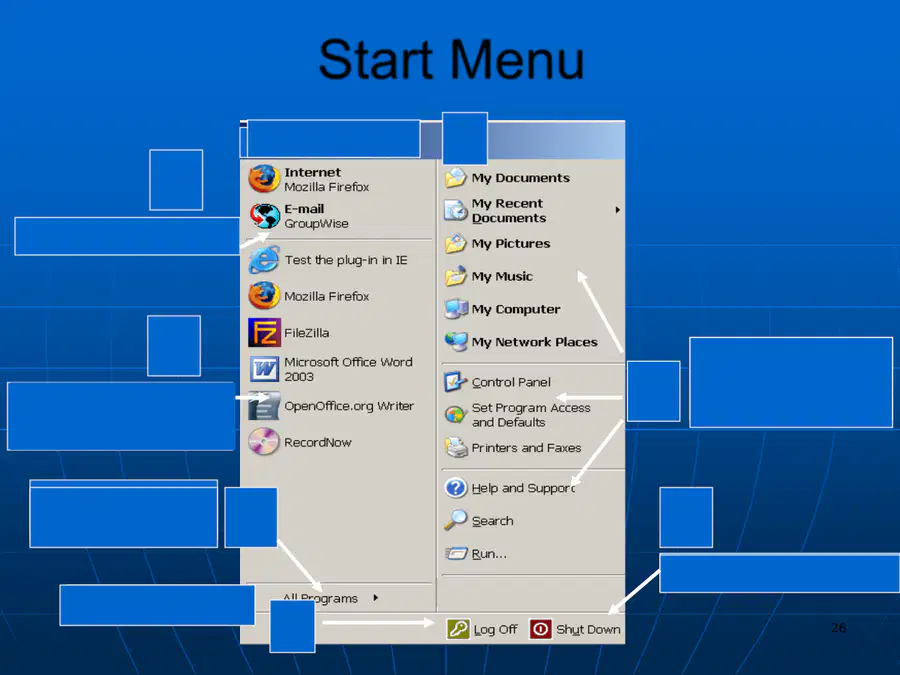
Start Menu
A
USER NAME
ALL PROGRAMS
BUTTON
SPECIAL FOLDERS
SYSTEM AREA
HELP
MOST FREQUENTLY
USED LIST
USER LOG OFF
SHUT DOWN/RESTART
F
E
D
C
B
_____________
___________
_______________
____________
_______________
_______________
_______________
_______________
Click to view Start
menu features
27
27
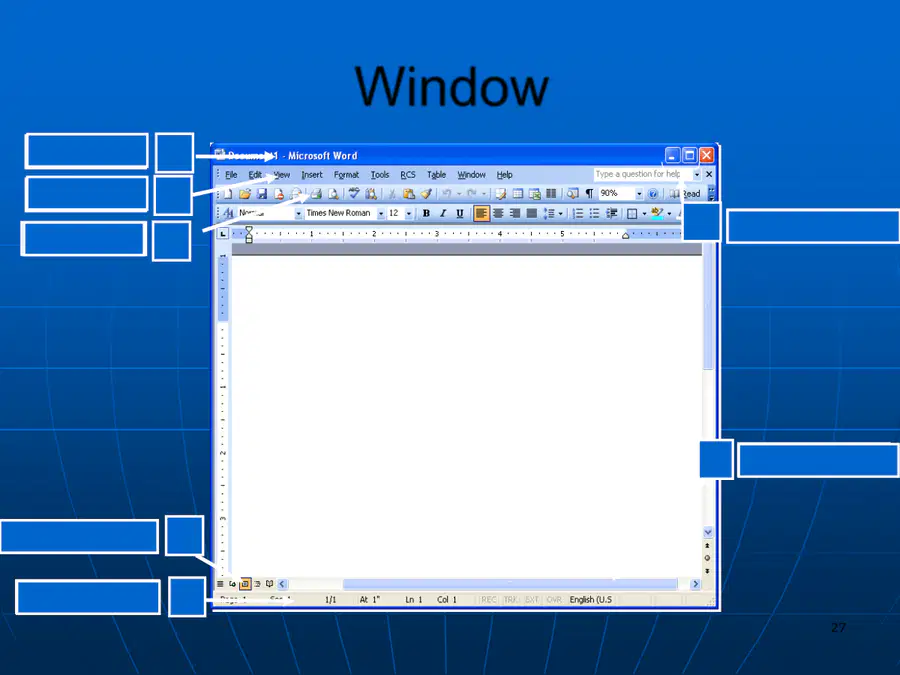
Window
A
B
C
D
E
F
G
SCROLLBARS
STATUS BAR
VIEW OPTIONS
TOOLBARS
MENU BAR
TITLE BAR
SIZING BUTTONS
__________
__________
__________
______________
____________
____________
_______________
Click to view
Window features
28
28
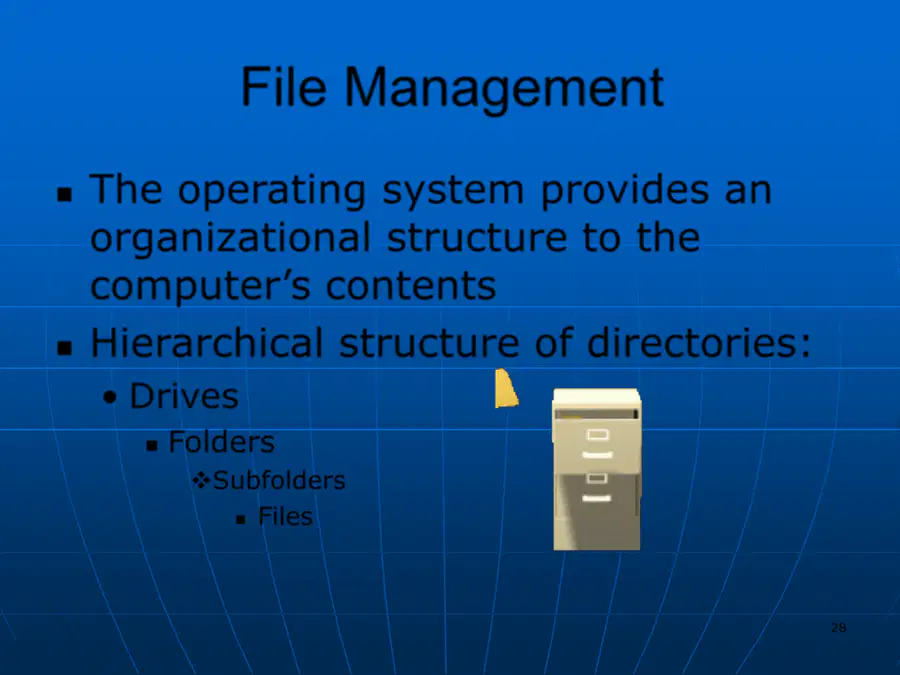
File Management
◼
The operating system provides an
organizational structure to the
computer’s contents
◼
Hierarchical structure of directories:
•
Drives
◼
Folders
❖
Subfolders
◼
Files
29
29
Viewing and Sorting
Files and Folders
◼
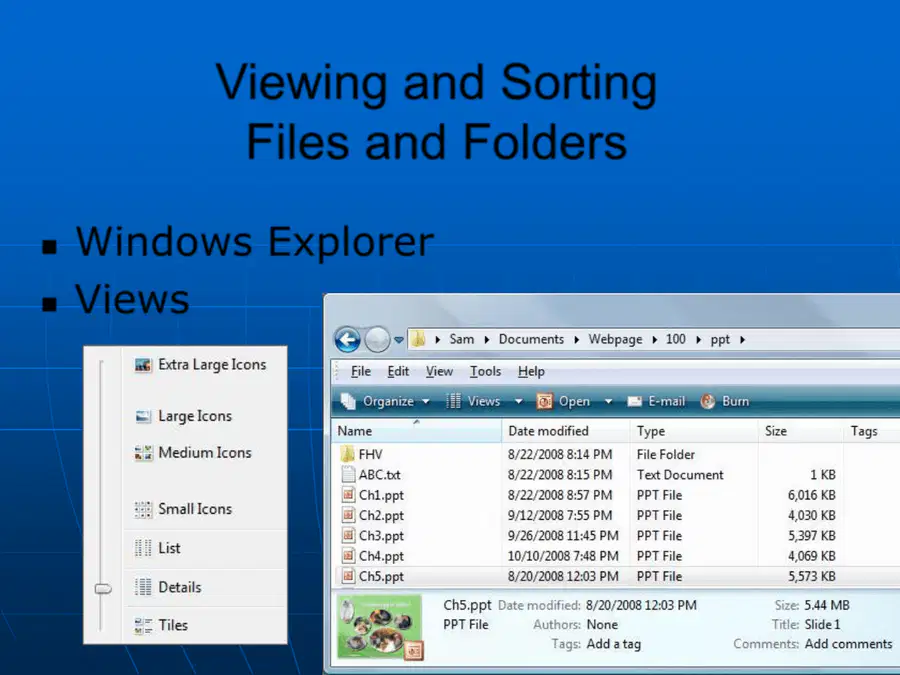
Windows Explorer
◼
Views
30
30
Viewing and Sorting
Files and Folders
◼
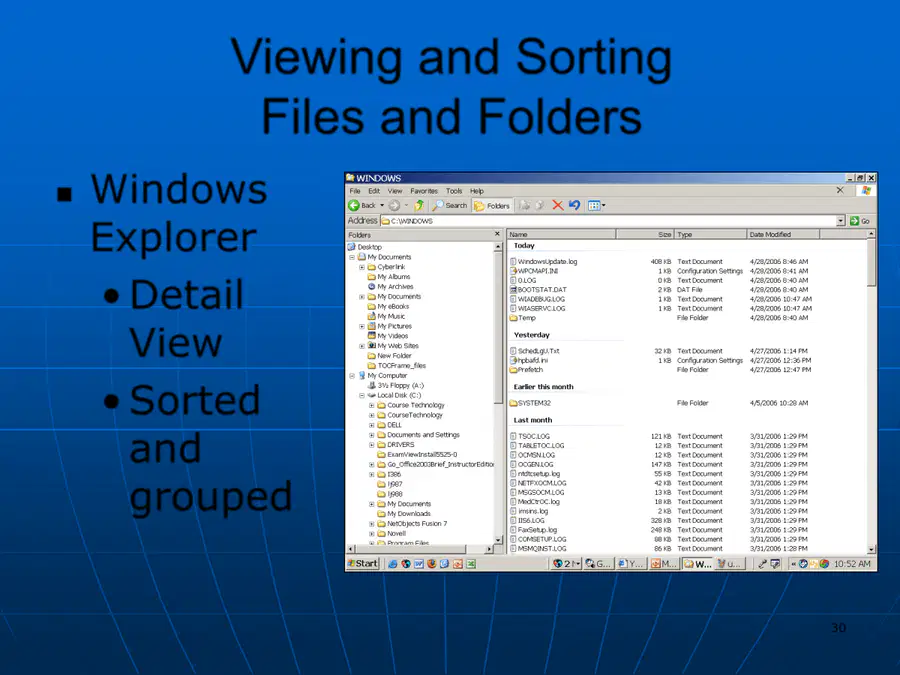
Windows
Explorer
•
Detail
View
•
Sorted
and
grouped
31
31
Naming Files
◼
Filename:
•
Name assigned plus
filename extension
◼
only characters not
legal in filenames
are:
\
⁄
:
*
?
"
<
>
¦
◼
all others are
allowed
Bioreport.doc
or
Bioreport.doc
32

32
Filename Extensions
◼
Filename
extensions:
•
Used by
programs
Extension
Type of Document
Application
.doc
Word processing
document
Microsoft Word;
Corel WordPerfect
.xls
Workbook
Microsoft Excel
.ppt
PowerPoint
presentation
Microsoft
PowerPoint
.mdb
Database
Microsoft Access
.bmp
Bitmap image
Windows
.zip
Compressed file
WinZip
Portable Document
Format
Adobe Acrobat
.htm or
.html
Web page
Hypertext Markup
Language
33
33
File path
◼
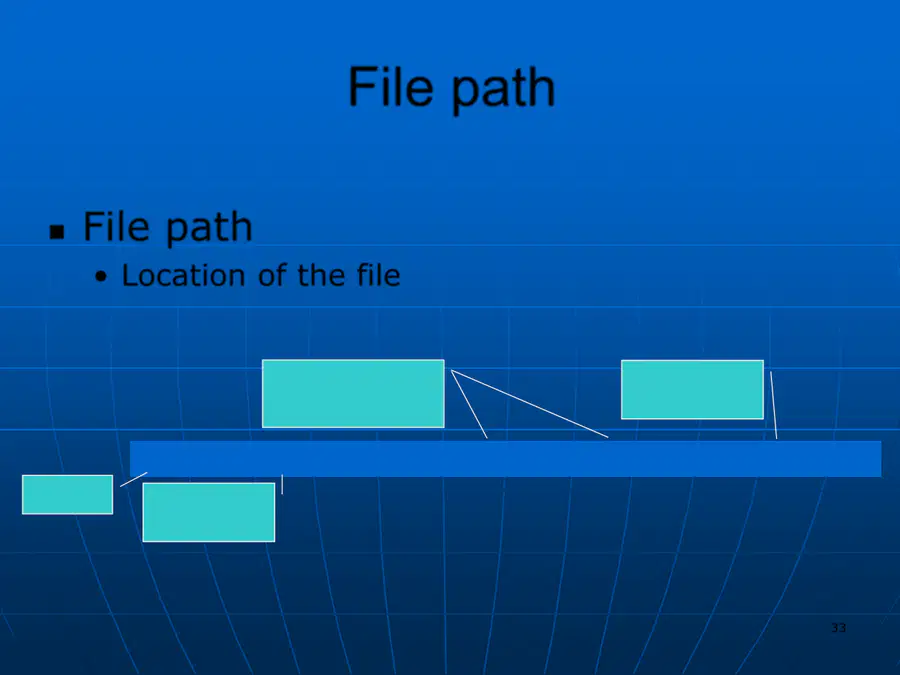
File path
•
Location of the file
C:
Tech in Action\TIA Pics\
\My Documents\
dotmatrix.gif
Drive
Primary
folder
Subfolders
Filename
34
34
Working with Files
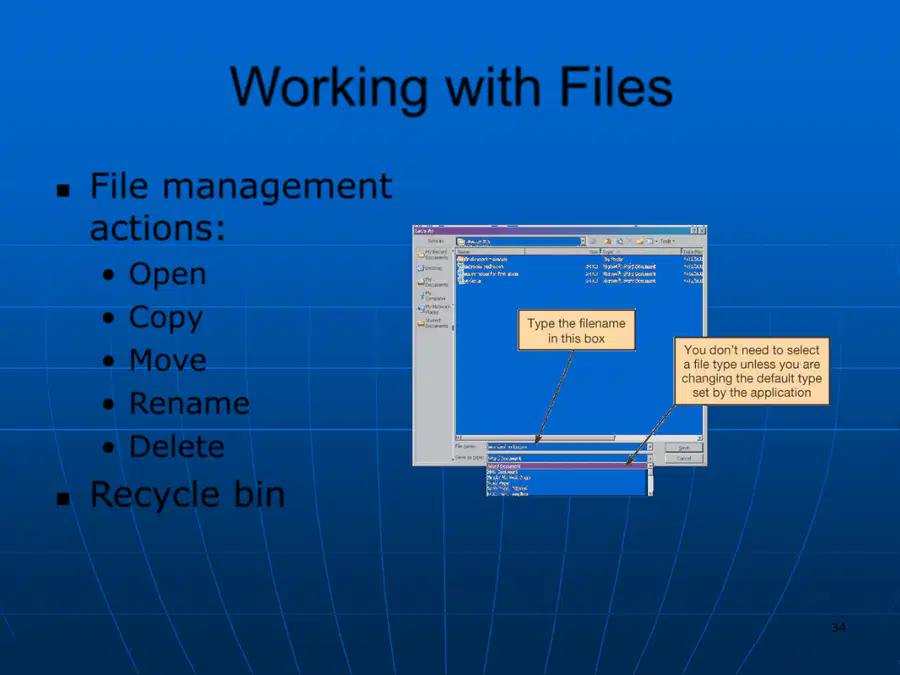
◼
File management
actions:
•
Open
•
Copy
•
Move
•
Rename
•
Delete
◼
Recycle bin
Savingfiles
35
35
Utility Programs
◼
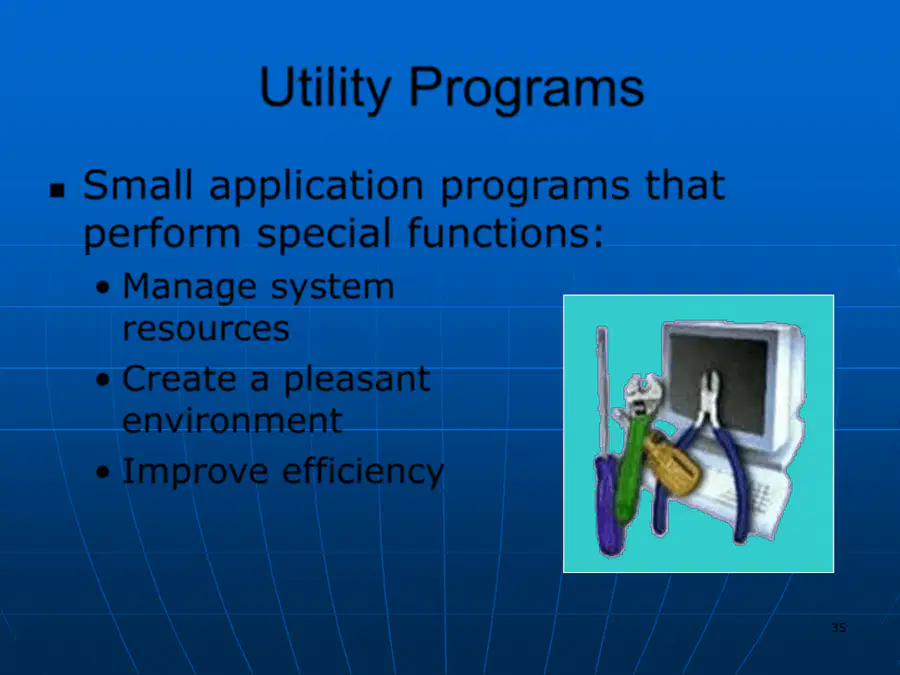
Small application programs that
perform special functions:
•
Manage system
resources
•
Create a pleasant
environment
•
Improve efficiency
36
36
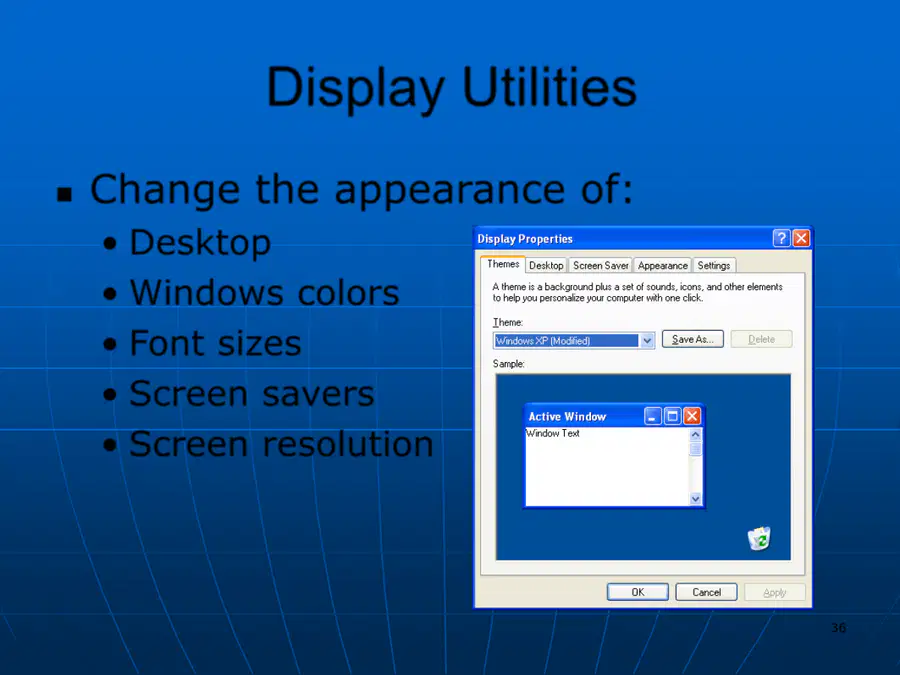
Display Utilities
◼
Change the appearance of:
•
Desktop
•
Windows colors
•
Font sizes
•
Screen savers
•
Screen resolution
37
37
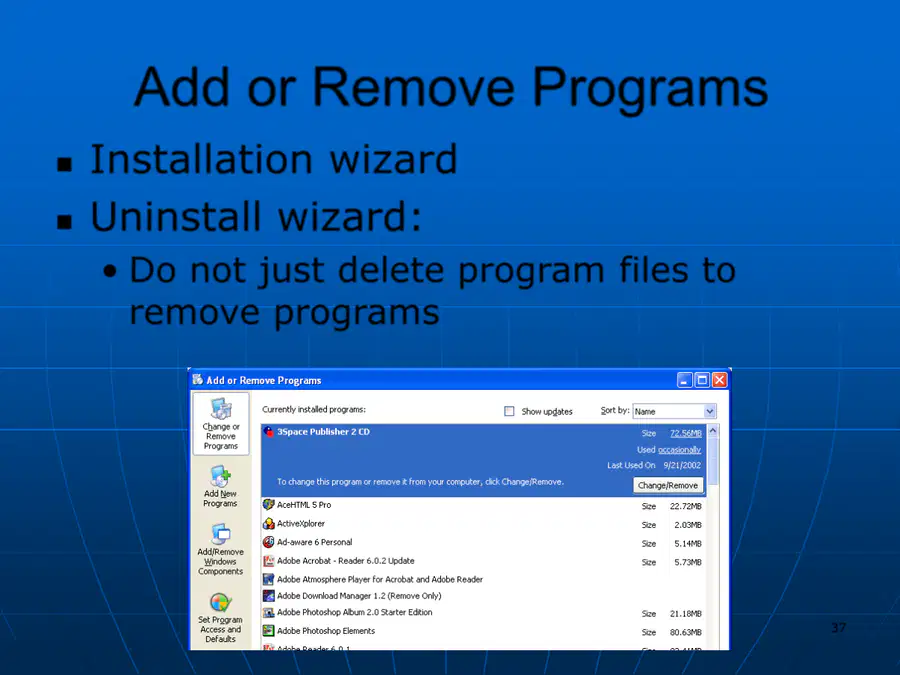
Add or Remove Programs
◼
Installation wizard
◼
Uninstall wizard:
•
Do not just delete program files to
remove programs
38
38
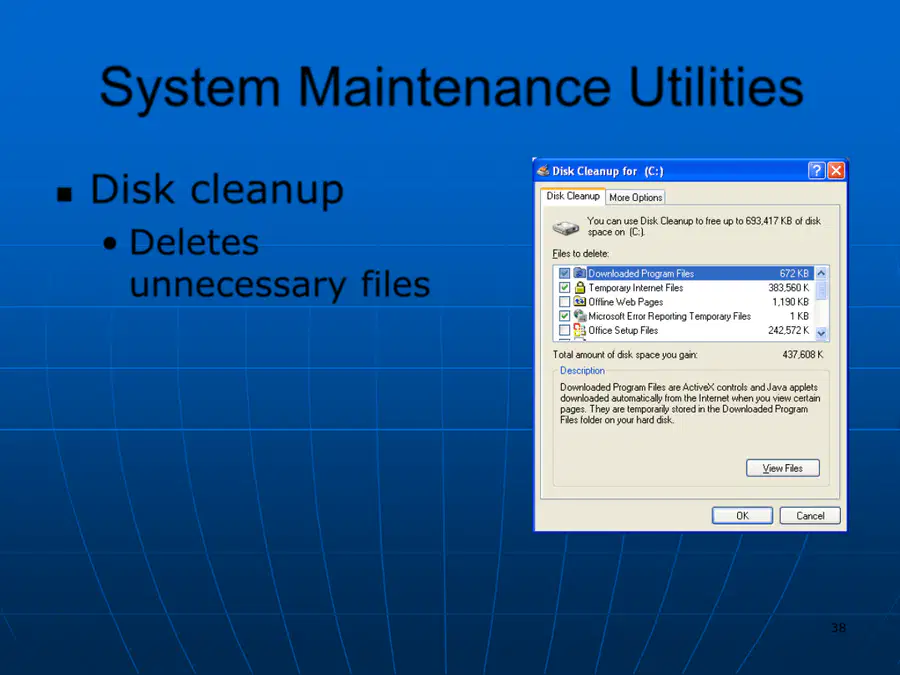
System Maintenance Utilities
◼
Disk cleanup
•
Deletes
unnecessary files
39
39
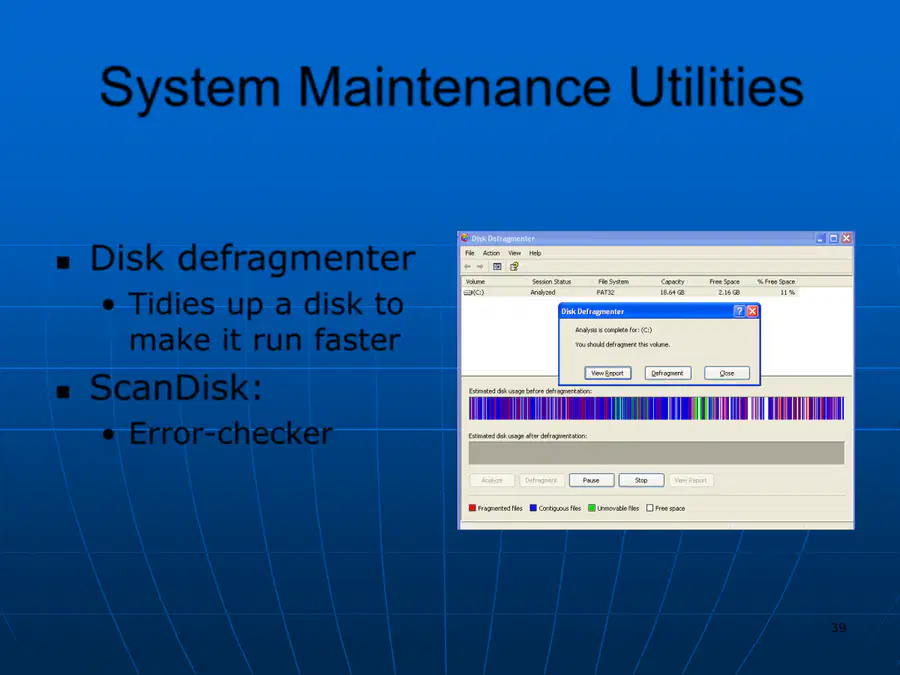
System Maintenance Utilities
◼
Disk defragmenter
•
Tidies up a disk to
make it run faster
◼
ScanDisk:
•
Error
-
checker
40
40
System Maintenance Utilities
◼
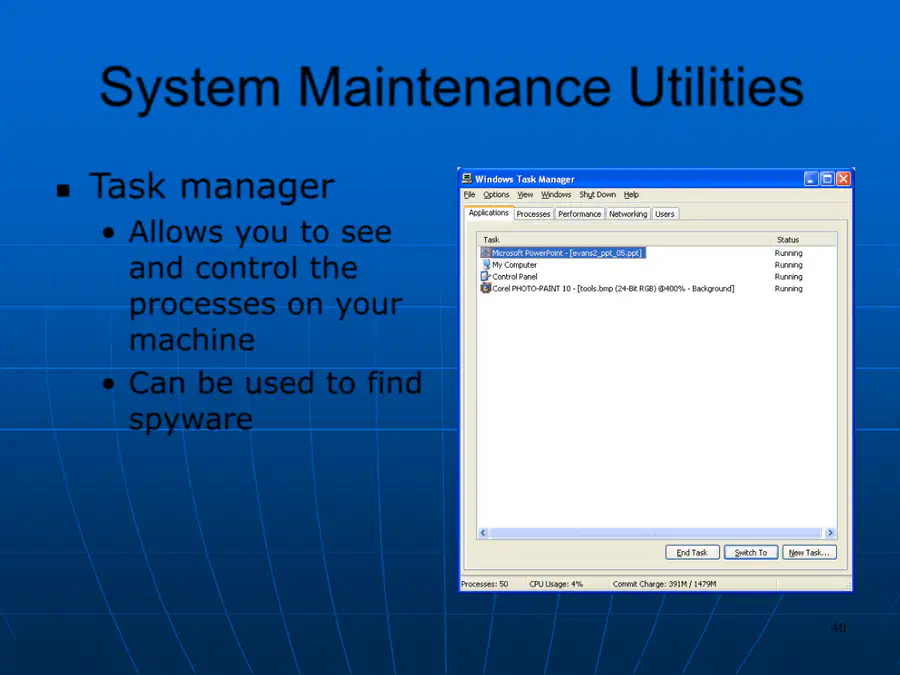
Task manager
•
Allows you to see
and control the
processes on your
machine
•
Can be used to find
spyware
41

41
System Restore
◼
System
Restore:
•
Restores the
system settings
back to a
specific date
42
42
System Backup
◼
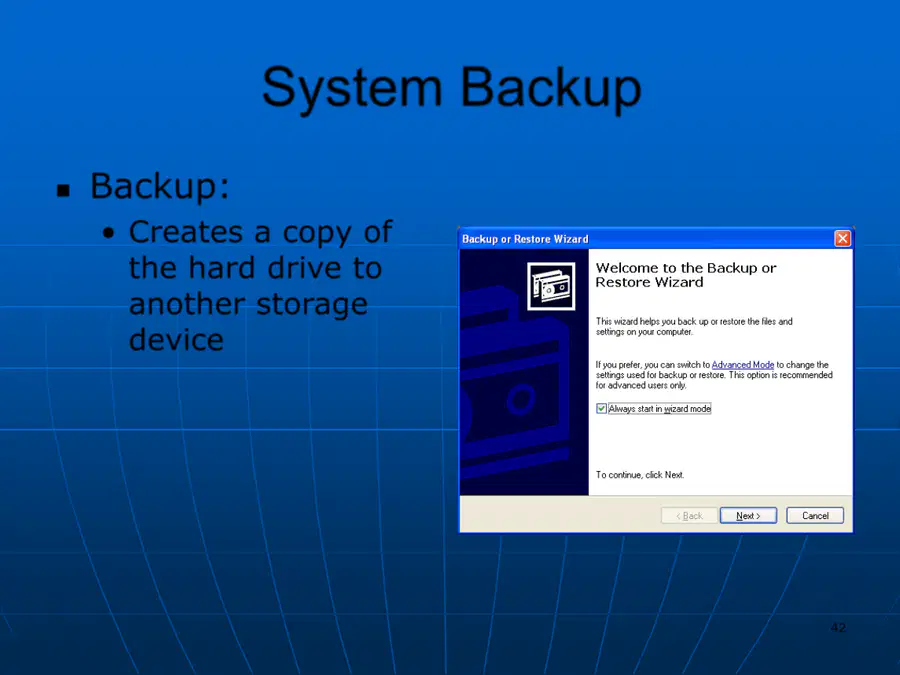
Backup:
•
Creates a copy of
the hard drive to
another storage
device
43
43
Accessibility Utilities
◼
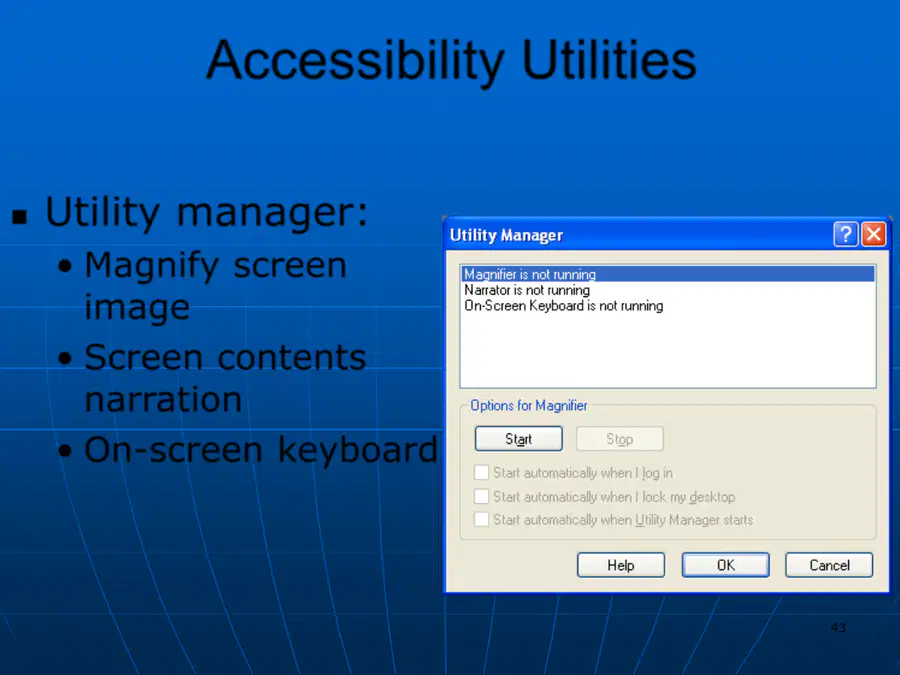
Utility manager:
•
Magnify screen
image
•
Screen contents
narration
•
On
-
screen keyboard
1
Systems Software
Show answer
Auto Play
Slide 1 / 43
SLIDE
Similar Resources on Wayground

38 questions
Lecture 2-DSTR
Presentation
•
University
38 questions
Business English - Workplace Materials
Presentation
•
University
37 questions
DCS2101 - Week 11 (Practical Applications)
Presentation
•
University
39 questions
2022-09-15 Software Testing
Presentation
•
University
41 questions
Image Formation
Presentation
•
University
41 questions
Scientific Method Lesson and Practice
Presentation
•
KG - University
37 questions
BBB3013 Adjectives & Adverbs
Presentation
•
University
Popular Resources on Wayground
10 questions
Safety Day 2026 – Student Review

Quiz
•
9th Grade
21 questions
Continents and Oceans
Quiz
•
6th Grade
20 questions
Parts of Speech
Quiz
•
5th Grade
16 questions
Subject & Predicate
Quiz
•
5th Grade
25 questions
Multiplication Facts
Quiz
•
5th Grade
12 questions
Map Skills
Quiz
•
3rd Grade
22 questions
Continents and Oceans
Quiz
•
5th Grade
15 questions
Rounding Decimals
Quiz
•
5th Grade
Discover more resources for Computers
20 questions
Disney Trivia
Quiz
•
University
10 questions
Spanish Greetings and Goodbyes!
Presentation
•
6th Grade - University
20 questions
Physical or Chemical Change/Phases
Quiz
•
8th Grade - University
39 questions
Unit 7 Key Terms
Quiz
•
11th Grade - University
25 questions
SER and Subject Pronouns
Quiz
•
8th Grade - University
38 questions
Unit 6 Key Terms
Quiz
•
11th Grade - University
19 questions
Key Concepts in Buddhism
Quiz
•
University
0 questions
Cell Domain Basic Review (Biology)
Quiz
•
University