

chap 10

Presentation
•
Computers
•
University
•
Practice Problem
•
Hard

Sue Ismail
FREE Resource
19 Slides • 0 Questions
1

Designing the User Interface : Strategies
for Effective Human-Computer Interaction
Sixth Edition
Chapter 10
Devices
Copyright © 2017 Pearson Education, Inc. All Rights Reserved
Slides in this presentation
contains hyperlinks. JAWS
users should be able to get
the list of links by using
INSERT+F7
2

Copyright © 2017 Pearson Education, Inc. All Rights Reserved
Devices
Topics
1. Introduction
2. Keyboards and Keypads
3. Pointing Devices
4. Displays
3

Copyright © 2017 Pearson Education, Inc. All Rights Reserved
Introduction
• Input and output devices represent the physical medium through
which users operate computers
• Only two decades ago, the standard computer platform was the
desktop or laptop personal computer equipped with a screen, a
mouse, and a keyboard
• Mobile devices have revolutionized the face of computing
– Many people do not realize that their ever-present smartphones,
tablets, or portable MP3 players are, indeed, powerful computers
• The explosion of new and exciting computing technology has
increased the importance of interaction design so as to
accommodate such a wide diversity of input and output modalities
4

Copyright © 2017 Pearson Education, Inc. All Rights Reserved
Device example
Indian IT minister Kapil Sibal announcing the Aakash, a $35 tablet for the Indian market
5
Copyright © 2017 Pearson Education, Inc. All Rights Reserved
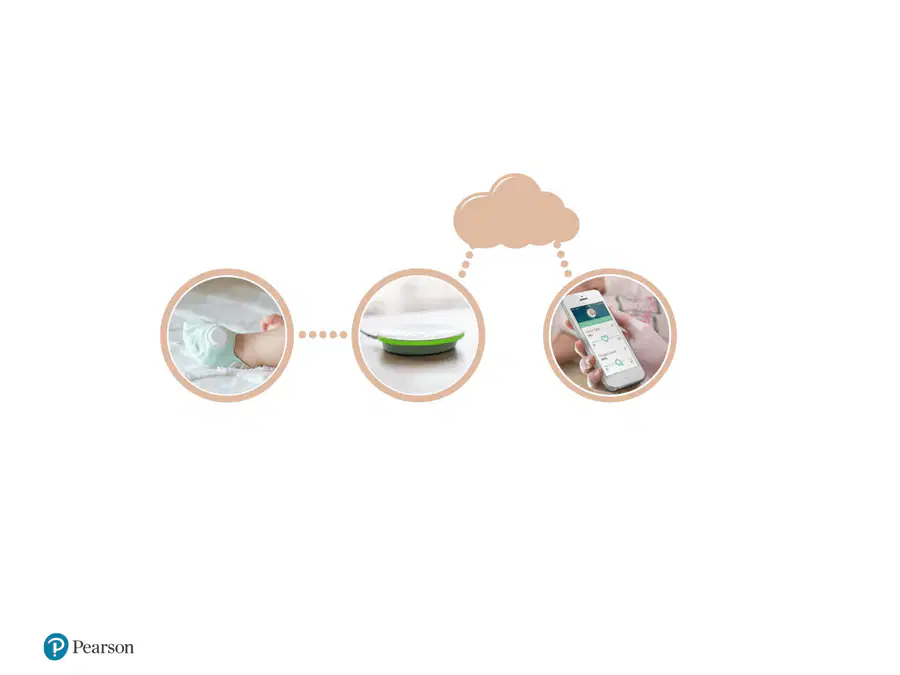
Another device example
• The Owlet wearable baby monitor that continuously tracks a baby’s
heart rate and oxygen saturation using a so-called “smart sock” (left)
and wirelessly sends the information to a base station (center)
• The base station is in contact with the internet, and uploads data that
parents can access using their smartphone (right)
6

Copyright © 2017 Pearson Education, Inc. All Rights Reserved
Keyboards and keypads
• An Apple Macbook Air laptop with a QWERTY keyboard (left) showing the
inverted T movement keys at the bottom right and function keys across the
top
• A multi-touch trackpad supports pointing
• On the right, a detail photograph of a Lenovo laptop keyboard shows a
pointing stick (also called a trackpoint) mounted between the G and H keys
on the keyboard
7

Copyright © 2017 Pearson Education, Inc. All Rights Reserved
Accessible “keyboard”
• orbiTouch Keyless Keyboard with integrated mouse functionality
• The orbiTouch requires no finger or wrist motion to operate, yet
supports high-performance typing and pointing
• (http://orbitouch.org/)
8

Copyright © 2017 Pearson Education, Inc. All Rights Reserved
Pointing tasks and control
• Select - Choosing from a set of items.
• Position - Choosing a point in a one-, two-, three-, or
higher-dimensional space
• Orient - Choose a direction in a two-, three-, or higher-
dimensional space.
• Path - Define a series of positioning and orientation
operations
• Quantify - Specify a numeric value
• Gesture - Perform an action by executing a predefined
motion
• Text - Enter, move, and edit text in two-dimensional
space
9

Copyright © 2017 Pearson Education, Inc. All Rights Reserved
Pointing devices
http://www.logitech.com/
http://www.apple.com/
http://www.leapmotion.com/
10

Copyright © 2017 Pearson Education, Inc. All Rights Reserved
Characteristics of displays
• Physical dimensions (usually the diagonal dimension
and depth)
• Resolution (the number of pixels available)
• Number of available colors and color correctness
• Luminance, contrast, and glare
• Power consumption
• Refresh rates (sufficient to allow animation and
video)
• Cost
• Reliability
11

Copyright © 2017 Pearson Education, Inc. All Rights Reserved
Display example (1 of 5)
The seventh-generation Amazon Kindle Voyage book reader (http://www.amazon.com/)
is a six-inch grayscale display with a 330 pixels per inch resolution
12

Copyright © 2017 Pearson Education, Inc. All Rights Reserved
Another Display example (2 of 5)
•Users discussing and pointing at details on the Stony Brook University Reality Deck
(Papadopoulos et al., 2014), an immersive giga-pixel display consisting of 416 thin-
bezel LCD displays and powered by 18 graphics workstations connected using a high-
speed network (https://labs.cs.sunysb.edu/labs/vislab/reality-deck-home/)
13

Copyright © 2017 Pearson Education, Inc. All Rights Reserved
Another Display example (3 of 5)
Two users collaboratively control a lens on a gigapixel image of Paris, France using a
tablet touchscreen as well as an interactive cursor (Chapuis et al., 2014)
14

Copyright © 2017 Pearson Education, Inc. All Rights Reserved
Another Display example (4 of 5)
•Two people collaborating on a real estate task using a tabletop display and mobile
table
•The tabletop serves as a shared and public display where changes affect all
collaborators, whereas the tablet is perceived as a private display that allows users to
work independently (McGrath et al., 2012)
15

Copyright © 2017 Pearson Education, Inc. All Rights Reserved
Another Display example (5 of 5)
•The Apple Watch on the left supports both fitness as well as personal information
management applications, such as email, calendar, and electronic payment
•The Fitbit Surge smartwatch on the right is designed mainly for personal fitness
applications, and contains a step counter, heart rate monitor, and GPS
16

Copyright © 2017 Pearson Education, Inc. All Rights Reserved
Responsive Design
The monitor layout on the left is automatically adapted to the smaller display space of a
tablet (middle) and a smartphone (right). Also see Chapter 8.
17

Copyright © 2017 Pearson Education, Inc. All Rights Reserved
Deformable and shape-changing display
examples
• The left image shows a physical bar chart visualization displaying complex
data (Jansen et al., 2013)
• The middle shows the tilt display that consists of multiple small displays
mounted on actuators (Alexander et al., 2012)
• On the right is the PaperPhone, a flexible smartphone prototype that
supports bending interaction (Lahey et al., 2011)
18

Copyright © 2017 Pearson Education, Inc. All Rights Reserved
DISCUSSION
Explain the difference between direct-
control and indirect-control pointing
devices. Name a task when the one type is a
more appropriate device than the other.
19

Copyright © 2017 Pearson Education, Inc. All Rights Reserved
Copyright
Designing the User Interface : Strategies
for Effective Human-Computer Interaction
Sixth Edition
Chapter 10
Devices
Copyright © 2017 Pearson Education, Inc. All Rights Reserved
Slides in this presentation
contains hyperlinks. JAWS
users should be able to get
the list of links by using
INSERT+F7
Show answer
Auto Play
Slide 1 / 19
SLIDE
Similar Resources on Wayground

17 questions
MICROSOFT POWERPOINT
Presentation
•
University
15 questions
Blackboard
Presentation
•
University
11 questions
DAFTAR PUSTAKA
Presentation
•
University
14 questions
IHRLT
Presentation
•
University
15 questions
Purpose, Tone, Bias
Presentation
•
University
14 questions
Actores Internacionales 1
Presentation
•
University
13 questions
Text 10: Ethnic differences in Employment and Unemployment
Presentation
•
University
12 questions
Fuentes de información en internet
Presentation
•
University
Popular Resources on Wayground
19 questions
Naming Polygons

Quiz
•
3rd Grade
10 questions
Prime Factorization
Quiz
•
6th Grade
20 questions
Math Review
Quiz
•
3rd Grade
15 questions
Fast food
Quiz
•
7th Grade
20 questions
Main Idea and Details
Quiz
•
5th Grade
20 questions
Context Clues
Quiz
•
6th Grade
20 questions
Inferences
Quiz
•
4th Grade
19 questions
Classifying Quadrilaterals
Quiz
•
3rd Grade
Discover more resources for Computers
50 questions
ELA EOG Prep 7th Grade
Quiz
•
KG - University
20 questions
Guess The App
Quiz
•
KG - Professional Dev...
11 questions
dog breeds
Quiz
•
3rd Grade - Professio...
11 questions
NFL Football logos
Quiz
•
KG - Professional Dev...
19 questions
Minecraft
Quiz
•
6th Grade - Professio...
20 questions
Block Buster Movies
Quiz
•
10th Grade - Professi...
10 questions
Would you rather...
Quiz
•
KG - University
49 questions
AP Environmental Science Final Exam Review
Quiz
•
10th Grade - University