

95% Training

Presentation
•
English
•
3rd Grade
•
Practice Problem
•
Hard

ELISA SKOUSEN
Used 2+ times
FREE Resource
11 Slides • 0 Questions
1
95 Phonics Lesson Library 2.0
NVLA January 2026
2
Direct from 95 Percent Group
Introducing 95 Phonics Lesson Library™ 2.0 for Intervention
Building on over 15 years of customer feedback and outcomes, 95 Phonics Lesson Library™ 2.0 takes our original science-aligned curriculum to the next level, enhancing its usability for educators and students. This 2.0 version is designed to transform small group instruction with:
enhanced print and digital solutions for more instructional flexibility
expanded routines for scaffolding, corrective feedback, and supporting English Language Learners
new digital Student Activity Modules to expand student practice opportunities, and
interactive presentation files to support an “I Do, We Do, You Do” gradual release model
3

Direct from CCSD
HMH Into Reading
95 Phonics Intervention Program
Phonics Lesson Library 2.0
4
Skills 2.1-5.12
Basic Phonics
Skills 6.1-9.8
Advanced Phonics
Skills 10.1-15.3
Multisyllable Phonics
Start in Clever and look for this tile:
Along the left side look and click on this "resources" tile:

5
Groups
If you are teaching a PSI group, look for your group in 95
These students are assigned to you
You can ONLY see these students
You can assign Student Activity Manuals (SAM's) to these students

6
Click on the eyelashes at the top of the column to make a sub-skill visible for the group of students.
Step 1
Click Yes, Please Continue to assign the sub-skill to the entire group.
Step 2
The open eye icon should appear down the green column for each student, indicating that they have been assigned the sub-skill lesson activities.
Step 3
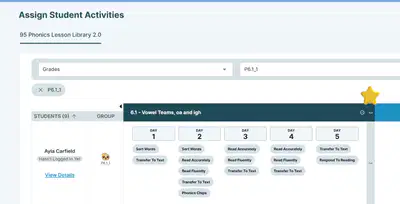
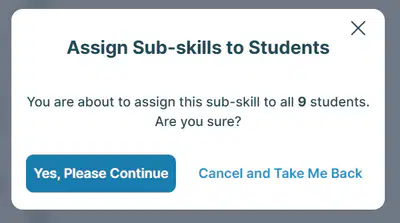
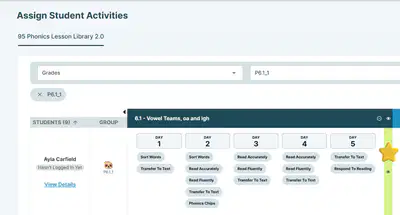
Setting up Student Activities before delivering instruction
7
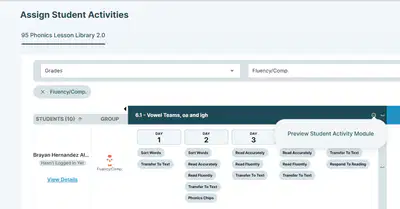
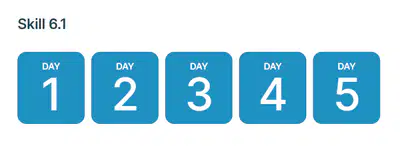
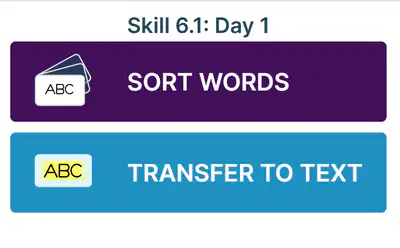
Preview
Student
Activities
8
--Have Google Meet open and visible to interact with students
--Split screen or use multiple screens to open the 95 PLL 2.0 Presentation and Teacher Guide simultaneously
How to set up the teacher's device
--Google Meet
--95 PLL 2.0 Presentation
--95 PLL 2.0 Teacher's Guide
What is open on the teacher's device
Teacher Preparation and Setup for delivering instruction
9
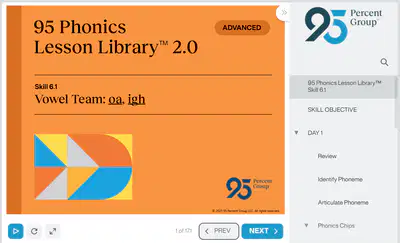
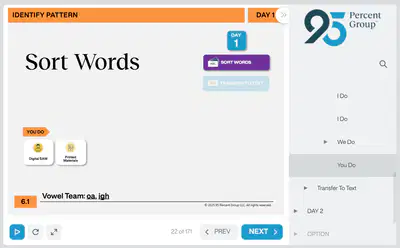
Present these Slides in the Google Meet. Use the blue Next arrow to advance through the components of the lesson.
Presentation Slides
When you reach a point in the lesson Slides that shows the Digital SAM icon, this is an opportunity for students to go to 95 via Clever and access the student activity that matches what is displayed on the Presentation screen.
Student Activity Module(s)
Lesson Delivery
10
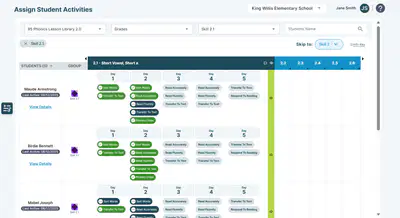
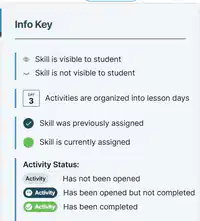
Access "Activities" on the left side menu, and check students' progress with assigned activities.
Monitoring student completion of assigned activities
11
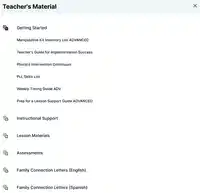
For additional, very detailed information about the use of the 95 Phonics Lesson Library, please access the Ancillary Files located within each level.
Under the "Getting Started" heading, there are helpful resources for teachers related to Implementation and Lesson Support.
95 Phonics Lesson Library 2.0
NVLA January 2026
Show answer
Auto Play
Slide 1 / 11
SLIDE
Similar Resources on Wayground

10 questions
CENTRAL IDEA
Presentation
•
3rd Grade
10 questions
Commas in a series
Presentation
•
3rd Grade
10 questions
Functional Text-Play Dough
Presentation
•
3rd Grade
10 questions
Object pronouns
Presentation
•
2nd - 3rd Grade
11 questions
AUTHORS PURPOSE
Presentation
•
3rd Grade
11 questions
Regular Past Tense Verbs
Presentation
•
3rd Grade
8 questions
Possessive nouns
Presentation
•
2nd - 4th Grade
9 questions
Poems, Plays, and Prose
Presentation
•
3rd Grade
Popular Resources on Wayground
24 questions
PBIS-HGMS Day 10

Quiz
•
6th - 8th Grade
10 questions
HCS SCI 03 Summer School Review 3
Quiz
•
3rd Grade
11 questions
Home Scope
Quiz
•
7th - 8th Grade
15 questions
HCS SCI 05 Summer School Assessment 3 Review
Quiz
•
5th Grade
35 questions
Lufkin Road Middle School Student Handbook & Policies Assessment
Quiz
•
7th Grade
18 questions
Geo 11.3 Area of Circles and Sectors
Quiz
•
9th - 11th Grade