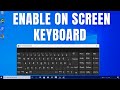
Using On-Screen Keyboard in Windows 10

Interactive Video
•
Computers, Instructional Technology
•
4th - 8th Grade
•
Practice Problem
•
Hard

Emma Peterson
FREE Resource
Read more
5 questions
Show all answers
1.
MULTIPLE CHOICE QUESTION
30 sec • 1 pt
What is the main purpose of this video tutorial?
To teach how to use a physical keyboard
To show how to install Windows 10
To demonstrate how to use the on-screen keyboard in Windows 10
To explain how to update Windows 10
2.
MULTIPLE CHOICE QUESTION
30 sec • 1 pt
Where do you need to go first to access the on-screen keyboard settings?
Task Manager
File Explorer
Settings
Control Panel
3.
MULTIPLE CHOICE QUESTION
30 sec • 1 pt
Which option should you select after opening the 'Ease of Access' settings?
Sound
Keyboard
Mouse
Display
4.
MULTIPLE CHOICE QUESTION
30 sec • 1 pt
How can you close the on-screen keyboard once it is open?
Right-click and select 'Close'
Click the cross icon
Swipe down with three fingers
Press the 'Esc' key
5.
MULTIPLE CHOICE QUESTION
30 sec • 1 pt
What is the final step to enable the on-screen keyboard?
Restart the computer
Enable the 'Use on-screen keyboard' option
Install additional software
Log out and log back in
Access all questions and much more by creating a free account
Create resources
Host any resource
Get auto-graded reports

Continue with Google

Continue with Email

Continue with Classlink

Continue with Clever
or continue with

Microsoft
%20(1).png)
Apple

Others
Already have an account?
Similar Resources on Wayground

6 questions
Mastering the Format Painter Tool in Microsoft Word
Interactive video
•
6th - 8th Grade
6 questions
CLEAN : Separatists protest in Barcelona as Spain's king visits
Interactive video
•
6th - 8th Grade
6 questions
CLEAN : Brasil celebra a sus barrenderos
Interactive video
•
6th - 8th Grade
6 questions
Thailand - Cremation Ceremony For Princess Mother
Interactive video
•
6th - 8th Grade
6 questions
CLEAN : Haiti votes for new president amid security concerns 2
Interactive video
•
6th - 7th Grade
9 questions
Travel Experiences and Visual Impairments
Interactive video
•
6th - 8th Grade
6 questions
UK: Aerial views of Gatwick Airport during the Coronavirus epidemic.
Interactive video
•
6th - 8th Grade
9 questions
Simplifying Expressions on the T89 Graphing Calculator
Interactive video
•
6th - 10th Grade
Popular Resources on Wayground
15 questions
Fractions on a Number Line

Quiz
•
3rd Grade
20 questions
Equivalent Fractions
Quiz
•
3rd Grade
25 questions
Multiplication Facts
Quiz
•
5th Grade
54 questions
Analyzing Line Graphs & Tables
Quiz
•
4th Grade
22 questions
fractions
Quiz
•
3rd Grade
20 questions
Main Idea and Details
Quiz
•
5th Grade
20 questions
Context Clues
Quiz
•
6th Grade
15 questions
Equivalent Fractions
Quiz
•
4th Grade