Wayground logo

Free Printable Worksheets

Font size

S
M
L
XL
Worksheets

Google Docs Review

Total questions: 30

Worksheet time: 15mins

Name
Class
Date
1.

Google Docs and Microsoft Word are used to

a)

Type Documents

b)

Play

c)

Eat

d)

Swimmig

2.

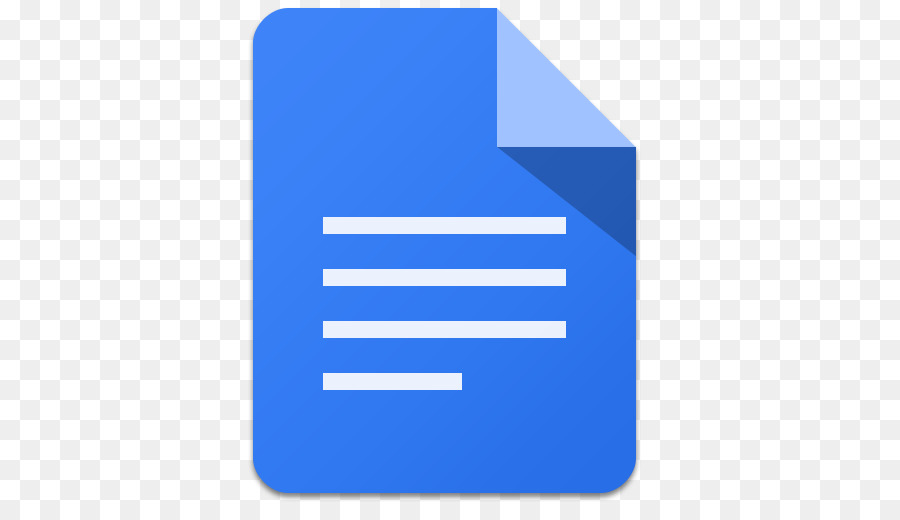
Select the icon to Google Docs

a)
b)
c)
d)
3.

What function does this icon represent?

a)

Font name

b)

Font size

c)

Font color

d)

Save

4.

What function does this icon represent?

a)

Font size

b)

Increase Font

c)

Font color

d)

Font Name

5.

What function does this icon represent?

a)

Bold

b)

Underline

c)

Italic

d)

Font name

6.

What function does this icon represent?

a)

Italic

b)

Bold

c)

Underline

d)

Center align

7.

What function does this icon represent?

a)

Undo

b)

Underline

c)

Center

d)

Bold

8.

What function does this icon represent?

a)

Left align

b)

Font size

c)

Font name

d)

Save

9.

What function does this icon represent?

a)

Font color

b)

Font name

c)

Increase font

d)

Bold

10.
What is the first thing you should do when you create a new Google doc?  
a)
Start typing your report
b)
Decide which font to use
c)
Name it
d)
Set margins
11.
When starting a new paragraph, you should always ____.  Using the tab button will do this for you automatically.
a)
Underline the first word
b)
Get a new font
c)
Use a new color
d)
Indent
12.
This button helps with ____.
a)
Inserting a link
b)
Indentation
c)
Capitalization
d)
Line spacing
13.
The shortcut to Copy is:
a)
Ctrl +  V
b)
Ctrl + S
c)
Ctrl + C
d)
Shift + C
14.
The shortcut to Cut is:
a)
Ctrl +  V
b)
Ctrl + S
c)
Ctrl + X
d)
Shift + C
15.
The shortcut to Paste is:
a)
Ctrl +  V
b)
Ctrl + S
c)
Ctrl + X
d)
Shift + C
16.
Documents you create using Google Docs are stored:
a)
On your computer
b)
In your Google Drive.
c)
In a file cabinet.
d)
On your iPad.
17.
You can share documents you create using Docs by:
a)
Sending a link
b)
Sharing directly with a person's email address.
c)
Both
d)
Neither
18.
Let's say you want to add tab stops to your document. What is the next step after selecting your text?
a)
Click the location on the Ruler where you want the text to appear.
b)
Click the Increase Indent button.
c)
Press the Tab key on the keyboard to move the text to the desired location.
d)
Press the Spacebar on the keyboard until the text moves to the desired location.
19.
Which command would you use to double space the text in your document?
a)
Line spacing
b)
Bulleted list
c)
Justify
d)
Increase Indent
20.

The blank white space around your document and text is called...

a)

margins

b)

frame

c)

blank space

d)

there is no blank space

21.

If you accidentally delete text or do something you didn't mean to, you can hit what button on Google Docs?

a)

Backspace

b)

Undo

c)

Redo

d)

Oh No

22.

What is the line of icons called?

a)

The Toolbar

b)

The Menu Bart

c)

The Formatting Toolbar

d)

The Untitled Document

23.
What is the standard size font used in Google Docs?
a)
11
b)
13
c)
16
d)
18
24.
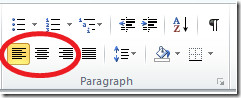
Which one of the icons will center text?
a)
The first one
b)
The second one
c)
The third one
d)
The fourth one
25.

Which icon lets you insert an image?

a)
b)
26.

In order to find your document quickly and easily you should always...

a)

Color code the document

b)

Name your document

c)

Print it out and carry it around with you

d)

Send yourself an email

27.

What will happen to your Google Doc if you forget to save?

a)

Nothing because Google Docs auto saves

b)

Your document will be lost forever

c)

Google Docs will send you an email

d)

Who knows?

28.

Under the _________ Menu Bar, looks for Bulleted Lists or Numbered Lists to make your document lists appear organized.

a)

file

b)

tools

c)

format

d)

insert

29.

What are the three editing modes on the Google Docs toolbar?

a)

Editing, Suggesting, and Viewing

b)

Editing, Redoing, Fixing

c)

Editing, Restarting, Viewing

d)

Editing, Viewing, and Start Over

30.

What are the three levels of access you can give someone when Sharing a document?

a)

Can Edit, Can Change, Can View

b)

Can Edit, Can Begin, Can View

c)

Can Edit, Can Comment, Can View

d)

Can Edit, Can Comment, Can Fix