
 Worksheets
Q4EthanComputer
Total questions: 87
Worksheet time: 49mins
It allows you to turn off your computer properly.
search box
shut down button
restart button
This can be moved up or down to see the contents of a window.
menu bar
scroll bar
title bar
Lists the programs and commonly used folders in a computer.
taskbar
start menu
notification area

maximize
close
minimize

minimize
close
maximize

title bar
menu bar
scroll bar

minimize
close
maximize

maximize
minimize
restore down

title bar
menu bar
scroll bar
You use the search box to find programs and files in a computer.
TRUE
FALSE
The close button lets you hide a window.
TRUE
FALSE

This item is known as the ______ button.
close
minimize

This item is known as the ______ button.
maximize
minimize

This item is known as the ______ button.
maximize
Restore

This item is known as the ______ button.
maximize
Restore
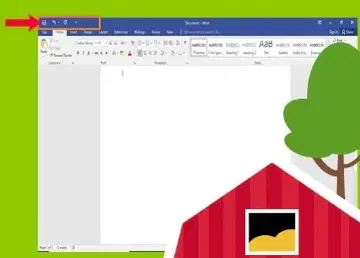
Appears at the left side of the title bar. It has commands that are often used while we work on our documents.
Quick Access Toolbar
Title Bar
Ribbon
Document Window
Is found at the top of the window. It shows the name of the document followed by the name of the program.
Quick Access Toolbar
Title Bar
Ribbon
Document Window
Is found at the top of the window. It is directly below the title bar and contains tabs with related commands grouped together.
Quick Access Toolbar
Title Bar
Ribbon
Document Window
Is our working area. It appears below the Ribbon and displays what the document is about.
Quick Access Toolbar
Title Bar
Ribbon
Document Window
Is a small blinking vertical line. It shows where the text will be put or where objects will be moved.
Cursor
Scroll Bar
Status Bar
Control Menu Button
Are the bars that are seen at the right side and bottom of the document window. They allow us to move the document up or downward left and right.
Cursor
Scroll Bar
Status Bar
Control Menu Button
Appears at the bottom of the program window. It shows the information about our documents such as pages, numbers of words, etc.
Cursor
Scroll Bar
Status Bar
Control Menu Button
It appears at the right side of the title bar. Allows you to close, hide or restore window.
Cursor
Scroll Bar
Status Bar
Control Menu Button
This button, when clicked, makes the window occupy the entire monitor or screen.
Maximize
Minimize
Restore
Close
This button, when clicked, hides the window from the desktop. The window becomes a button on the taskbar.
Maximize
Minimize
Restore
Close
This button, when clicked, returns the window to its previous size.
Maximize
Minimize
Restore
Close
This button, when clicked, closes the window.
Maximize
Minimize
Restore
Close
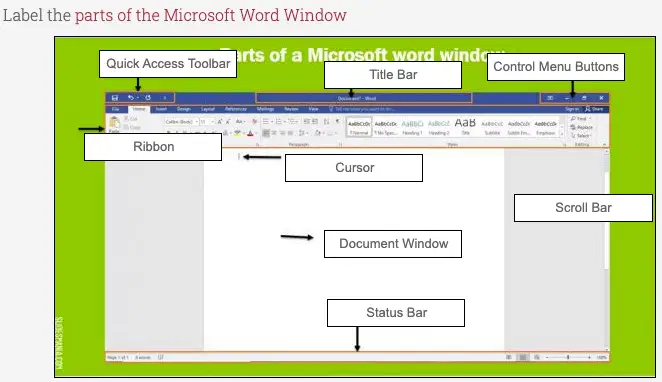
Review and memorize the parts of the Microsoft Window.
Keyboard is used to type letters, numbers and symbols. It looks like a typewriter, but it has more keys that can do more work.
true
false
Consists of letters of the alphabet and the number 0-9.
It also consists of special symbols.
This part of the keyboard allows you to type and enter letters, numbers and special symblols.
Alphanumeric keypad
Numeric keypad
Arrow keys
Function keys
Consist of the numbers 0-9.
It also consists of math symbols.
Alphanumeric keypad
Numeric keypad
Arrow keys
Function keys
What will you press before working with numeric keypad?
Num Lock
Function Keys
Four keys together at the bottom right side of your keyboard.
They are used for pointing up, down, left and right.
It moves the cursor around.
Alphanumeric keypad
Numeric keypad
Arrow keys
Function keys
The arrow keys are also called cursor keys.
true
false
This the blinking line that you see on your screen.
cursor
arrow
Are labeled with an F and numbers 1-12.
They are used to enter commands quickly.
Alphanumeric keypad
Numeric keypad
Arrow keys
Function keys
Pressing this key will make all letters you type big or capital letters.
Caps Lock
↑ Shift
⏎ Enter
This key is used to capitalize a letter. Hold down this key while pressing the letter to capitalize it.
Caps Lock
↑ Shift
⏎ Enter
This key allows you to move down the next line when you are typing words. Pressing this key also gives a blank line.
Caps Lock
↑ Shift
⏎ Enter
This is the longest key on the keyboard. It is used to put a space between words.
Space
Backspace
Delete
This key allows you to erase the letter or number to the left of the cursor.
Space
Backspace
Delete
This is used to erase the letter or number perform specific functions.
Space
Backspace
Delete
This key is usually used with other keys to perform specific functions.
Ctrl (Control)
Esc (Escape)
This key is used to exit or leave a program quickly. It also lets you stop working on a part of a program and go back to the beginning.
Ctrl (Control)
Esc (Escape)
Look at the keys below. Click A in the box if the key is an alphanumeric key, F if it is a function key, and N if it is a numeric key.
F2
A (alphanumeric)
F (function key)
N (numeric key)
Look at the keys below. Click A in the box if the key is an alphanumeric key, F if it is a function key, and N if it is a numeric key.
E
A (alphanumeric)
F (function key)
N (numeric key)
Look at the keys below. Click A in the box if the key is an alphanumeric key, F if it is a function key, and N if it is a numeric key.
4
A (alphanumeric)
F (function key)
N (numeric key)
Look at the keys below. Click A in the box if the key is an alphanumeric key, F if it is a function key, and N if it is a numeric key.
F
A (alphanumeric)
F (function key)
N (numeric key)
Look at the keys below. Click A in the box if the key is an alphanumeric key, F if it is a function key, and N if it is a numeric key.
F7
A (alphanumeric)
F (function key)
N (numeric key)
Look at the keys below. Click A in the box if the key is an alphanumeric key, F if it is a function key, and N if it is a numeric key.
7
A (alphanumeric)
F (function key)
N (numeric key)
Look at the keys below. Click A in the box if the key is an alphanumeric key, F if it is a function key, and N if it is a numeric key.
C
A (alphanumeric)
F (function key)
N (numeric key)
Look at the keys below. Click A in the box if the key is an alphanumeric key, F if it is a function key, and N if it is a numeric key.
8
A (alphanumeric)
F (function key)
N (numeric key)
Look at the keys below. Click A in the box if the key is an alphanumeric key, F if it is a function key, and N if it is a numeric key.
F12
A (alphanumeric)
F (function key)
N (numeric key)
Look at the keys below. Click A in the box if the key is an alphanumeric key, F if it is a function key, and N if it is a numeric key.
J
A (alphanumeric)
F (function key)
N (numeric key)
Deletes the letter to the left of the cursor.
J
Backspace key
Caps Lock key
Space bar
Capitalizes letters
Backspace key
Caps Lock key
Space bar
Puts a space between words
Backspace key
Caps Lock key
Space bar
Lets you go to the next line
Enter key
Escape key
Space bar
Lets you exit a program quickly
Enter key
Escape key
Space bar
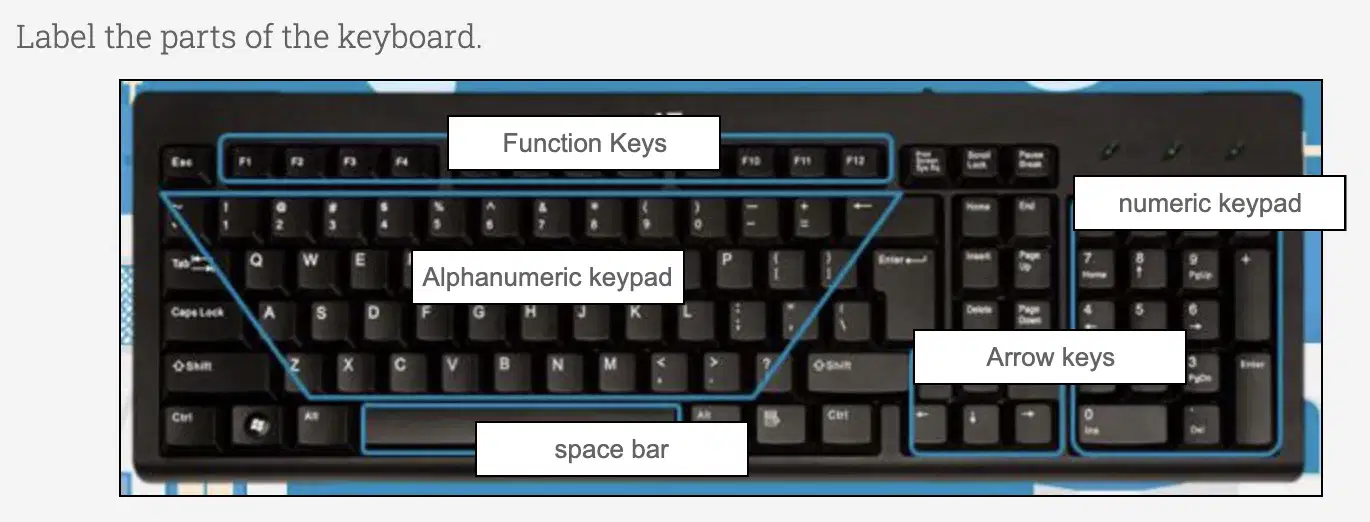
Parts of a keyboard
Click the START BUTTON when you want to open a window.
true
false
Click the close button if you want to minimize the window.
true
false
Maximizing a window allows you to make a full use of the monitor screen.
true
false
You can maximize a window by clicking on the Maximize button.
true
false
You can make a window go back to its original size after it has been closed.
true
false
Double headed arrow tells you that you can already resize the window.
true
false

Name the button.
RESTORE BUTTON
MAXIMIZE BUTTON
MINIMIZE BUTTON
CLOSE BUTTON
Name the button.
RESTORE BUTTON
MAXIMIZE BUTTON
MINIMIZE BUTTON
CLOSE BUTTON
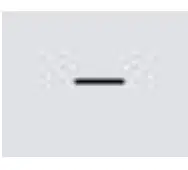
Name the button.
RESTORE BUTTON
MAXIMIZE BUTTON
MINIMIZE BUTTON
CLOSE BUTTON

Name the button.
RESTORE BUTTON
MAXIMIZE BUTTON
MINIMIZE BUTTON
CLOSE BUTTON
Ctrl means delete.
true
false
Escape key will close the opened window.
true
false
Caps Lock key will make all the letters you type big or capital letters.
true
false
The numeric keypad has letter F and numbers 1-12.
true
false
The keyboard is used to type letters, numbers and symbols.
true
false
Let’s you view more of its contents.



Let’s you work on another window.
This will exit the program.
Match the picture to its name:
Undo





Match the picture to its name:
Cut
Match the picture to its name:
New Blank Document
Match the picture to its name:
Save
Match the picture to its name:
Copy
Allows you to work on another window.
Minimizing a window
Maximizing a window
Restoring a window
Closing a window
Allows you to make a full use of the monitor screen and view more of its contents.
Minimizing a window
Maximizing a window
Restoring a window
Closing a window
Make the window go back to its original size.
Minimizing a window
Maximizing a window
Restoring a window
Closing a window
This involves exiting a program.
Minimizing a window
Maximizing a window
Restoring a window
Closing a window

