
 Worksheets
Microbit Review
Total questions: 36
Worksheet time: 27mins

What is the device pictured here?
Arduino
Raspberry Pi
MicroBit
USB drive

What coding environment is pictured here?
JavaScript
Python
MakeCode
hex file

Identify this part is used for?
LED Grid
Input/Output Connectors
Processor
USB

What is outlined with the red squares?
Processor
Compass
Push Button A and B
Battery Connector

What is located inside the red square?
I/O Connectors
USB
Reset
LED Grid

What is the button for inside the red square?
Push Button A and B
USB
Battery Connector
Reset

What goes where the red square is?
Battery Connector
Reset
USB
Compass

When will this piece of code start?
When you shake the MicroBit
When you turn on the MicroBit
When you press the A and B buttons on the MicroBit

When will this code stop?
When the A button is pressed
It won't!
When B button is pressed
When you shake it

This block is a type of...
variable
input
output

This block is a ______________ block.
input
variable
conditional
Which is an example of a conditional?
Looping a sound
Set the score to 10
If the microbit is shaken, then display the word "Hi."

What will happen on the microbit when this code is run?
When button A is pressed it will display a sun
When the light level is more than 100 it will display a sun
When the light level is exactly 100 it will not show a sun
What will the block "show string" do?
Display words
Play music
Display images

What value will show on the microbit when this program runs?
5
4
9
How many programs can the MicroBit hold?
none
one
two
more than two
True or False: the MicroBit is a computer.
True
False
Which is the file type for MicroBit files?
.jpg
.bit
.hex

Based on the code shown, what will happen when the MicroBit starts?
It will show a heart, then an X on the LEDs
It will show a heart and and X, but only when the A button is pressed
Nothing will happen because the code has no way to start.

Which code block would make scrolling text like this?


These blocks are known as
inputs
event handlers
variables
Pressure sensor - can detect Force


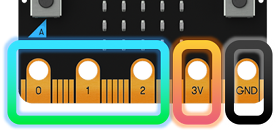
Match the word to the picture.
Pins
Radio
Bluetooth
LEDs


These blocks are found in the _______ drawer.
input
variables
output

You can find these blocks in the ___ drawer
math
logic
basic

These blocks are located in the ___ drawer.
math
logic
variables

How often will the message "Hello Year 7" be displayed?
All the time
Once

When will this piece of code start?
When you shake the MicroBit
When you turn on the MicroBit
When you press the A button on the MicroBit
When will this piece of code start?
When you shake the MicroBit
When you turn on the MicroBit
When you press the A and B buttons on the MicroBit
What shape is used to show decisions in a flowchart?
A square
A rectangle
A diamond
An oval
What shape is used at the beginning and end of a flowchart?
A square
A rectangle
A diamond
An Oval
What shape is used for all other actions in a flowchart?
squares
rectangles
diamonds
ovals
What do we use to connect shapes in a flowchart?
squares
circles
lines
arrows
What are your favorite activities in this class?
(Select as many as you want.)
Using Makecode to program the Microbit.
Using Draw.io to create a flowchart.
Completing the digital dive where we acted out how a computer works.
Watching videos on Edpuzzle and answering those questions for credit.
Playing Blooket or Kahoot.

