
 Worksheets
Computer 2 1st Quarter
Total questions: 70
Worksheet time: 36mins
The first computing device developed by Chinese.

abacus

Napier's bones

Oughtred's Slide Rule

Pascaline Machine
It can perform multiplication and division. Contains a set if 11 bone sticks.
Invented by John Napier in year 1614.
abacus
Napier's bones
Oughtred's Slide Rule
Pascaline Machine
By sliding the ruler it can do multiplication and division, Developed by William Oughtred in year 1632
abacus
Napier's bones
Oughtred's Slide Rule
Pascaline Machine
It can add and subtract by means of rotating 10-toothed wheels and cogs.
Invented by Blaise Pascal in year 1642
abacus
Napier's bones
Oughtred's Slide Rule
Pascaline Machine
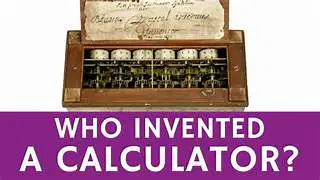
Who invented the first calculator?
Blaise Pascal
Williiam Oughtred
Gottfried Wilhem vin Leibniz
Charles Babbage
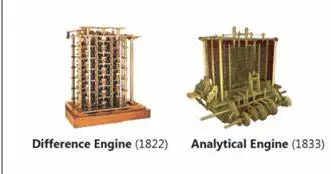
Who is the Father of Modern Computer? He is an English Mathematician invented a steam driven calculating machine that can be as big as a room.
Blaise Pascal
Williiam Oughtred
Gottfried Wilhem vin Leibniz
Charles Babbage

Who invented the intergrated circuit, known as computer chip.

Robert Noyce and Jack Kilby

Steve Jobs and Steve Wozniak

Bill Gates
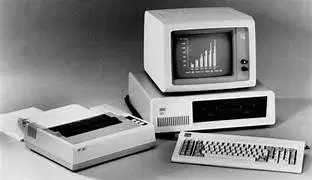
Who start Apple Computers and roll out the Apple 1, the first computer with a single-circuit board?
Robert Noyce and Jack Kilby

Steve Jobs and Steve Wozniak
Bill Gates
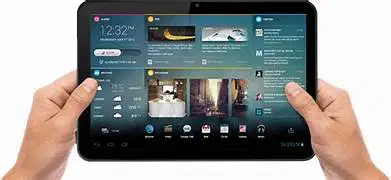
In year ___ the birth of many touch-driven devices like tablet computer.

Year 2010

Year 2015
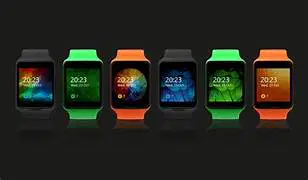
The year when Apple release the Apple watch and Microsoft release Windows 10.
Year 2010
Year 2015
What are the 4 uses of computers?

Use for Academic

Use for profession
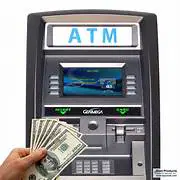
Use for Business

Use for leisure and entertainment

Use for fishing
They are known as personal computers. They are the cheapest and most widely used type of computers.

Super computer
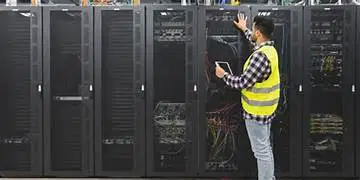
Mainframe Computer
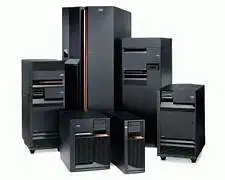
Midrange Computer
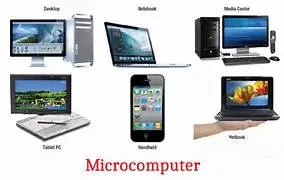
Micro-computer
The most powerful computers in terms of performance and date processing.
Used by NASA and PAGASA.
Super computer
Mainframe Computer
Midrange Computer
Micro-computer
Not as powerful as supercomputers, but they are used by many large firms and government organizations to run their business operations like BSP, PLDT and Meralco
Super computer
Mainframe Computer
Midrange Computer
Micro-computer
Small computers or servers use by small businesses and firms,
like Shopping malls, department stores or even schools
Super computer
Mainframe Computer
Midrange Computer
Micro-computer
What do you call the information in the form of words, numbers, or pictures used by the computer to perform a task.
Data
Language
We use this to enter data and instructions into the computer.
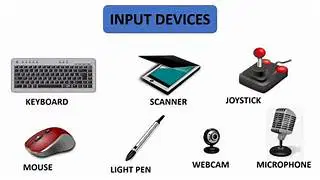
Input
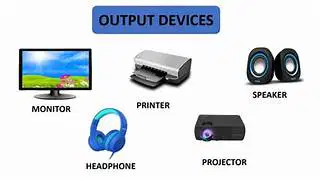
Output
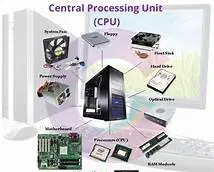
Process
We use these to view or print the result/product of the work or data we entered in the computer.
Input
Output
Process
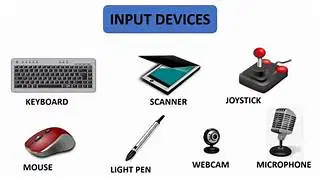
What are the most common input devices?
Keyboard and Mouse
Webcam and Joystick
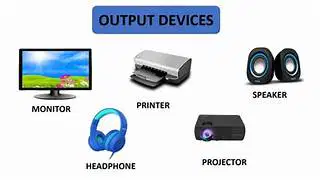
What are the most common output devices?
Headphone and Speaker
Monitor and Printer
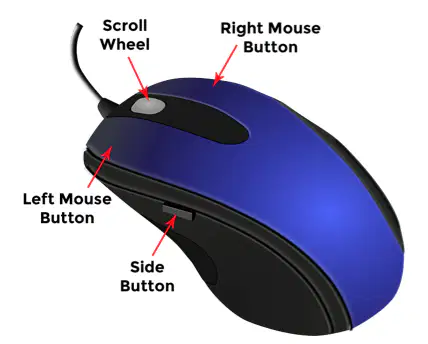
It is the part of the mouse that attached to and send signal to the CPU.
Scroll wheel
Long wire
Left mouse button
Right mouse button
Known as the primary button.
Used to select, drag and move objects and choose from the menus displayed if any.
Scroll wheel
Long wire
Left mouse button
Right mouse button
Known as the secondary button.
By clicking this button while pointing at an object on the screen, it usually bring out a "Menu Bar" where you can choose more commands.
Scroll wheel
Long wire
Left mouse button
Right mouse button
Mouse is the hand in the computer environment. By moving and clicking your mouse you will be able to select, move, drag, open, close, and even change object in your computer environment.

true
false
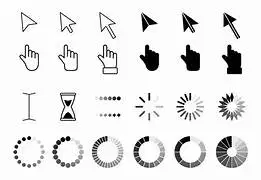
The pointer represents where your mouse is in your screen. It changes in appearance depending on the object your pointer pointed at.
true
false

Place the tip of the mouse pointer to a desired object on the screen.
point
click
drag

This is done by pressing either the left or right mouse button.
point
click
drag
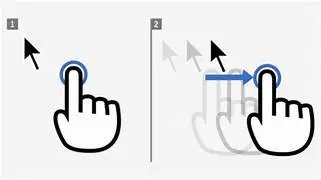
This is done by selecting an object on the screen and pressing the left mouse button while moving the object to your desired location.
point
click
drag
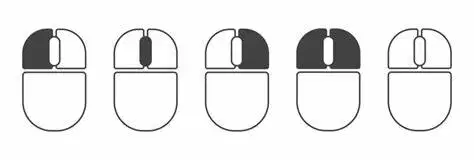
This is done by pressing on the left-click mouse button.
left-click
right-click
double-click
This is done by pressing on the right-click mouse button.
left-click
right-click
double-click
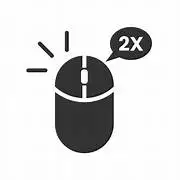
This is done by pressing the mouse button twice quickly.
left-click
right-click
double-click
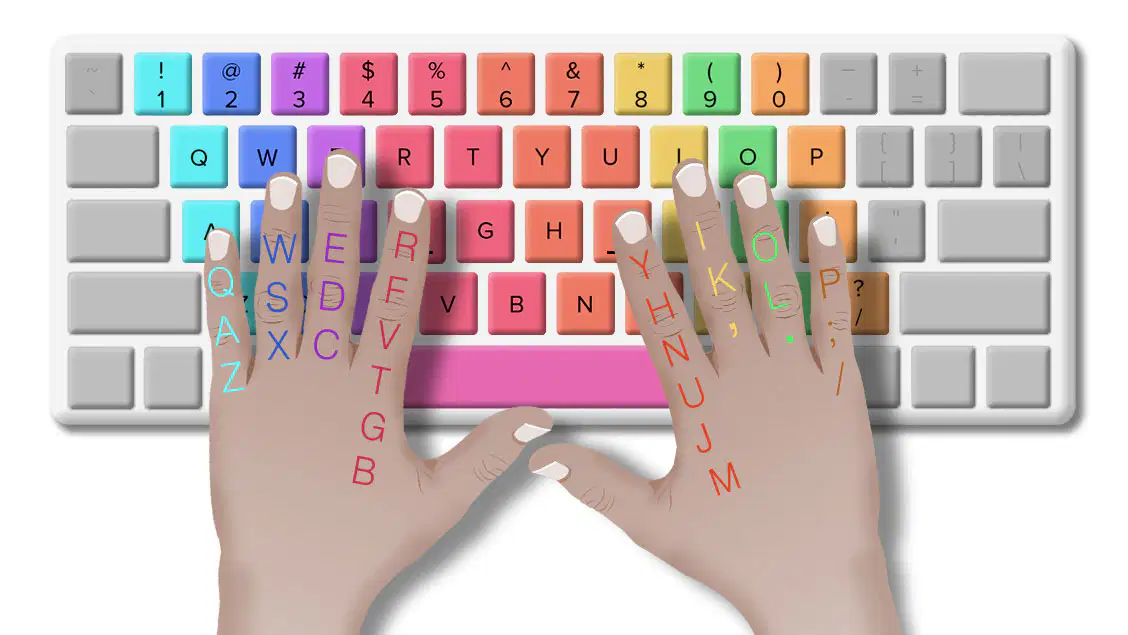
These keys include the letter keys (A-Z) and above them are the number keys (1-0).
Typing Keys
Numeric Keys
Function Keys
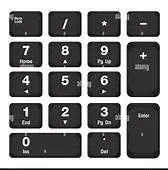
This is found at the far-right side of the keyboard. It is used to enter numeric data.
Typing Keys
Numeric Keys
Function Keys
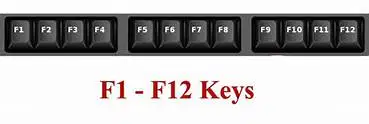
The twelve function keys are found at the top of the arranged in a row (F1 - F12).
Typing Keys
Numeric Keys
Function Keys
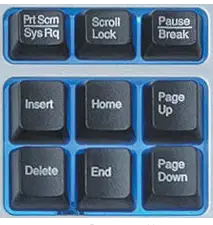
These keys provide cursor and screen control. It includes the four arrow keys, Home, End, Insert, Delete, Page Up, Page Down, Control(Ctrl), Alternate (Alt), and Escape (Esc)
Control Keys
Special Purpose Keys
Arrow Keys

These keys are used for special purposes, like Enter, Shift, Caps lock, Num Lock, Space Bar, Tab, Print Screen.
Control Keys
Special Purpose Keys
Arrow Keys
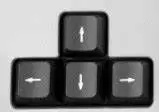
These keys allow you to move the insertion point for typing.
Control Keys
Special Purpose Keys
Arrow Keys
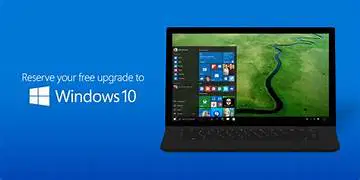
Windows 10 is one of the fastest operating system after the Windows 8 version.


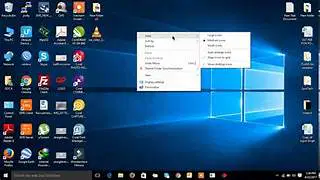
This is the common screen in the previous versions of Windows.
Desktop Screen
Tablet Mode Settings
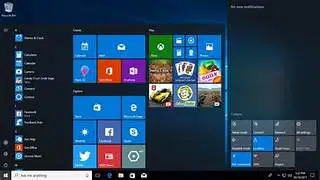
It is a setting where you can see the apps in tiles. It is the full screen of the apps.
Desktop Screen
Tablet Mode Settings
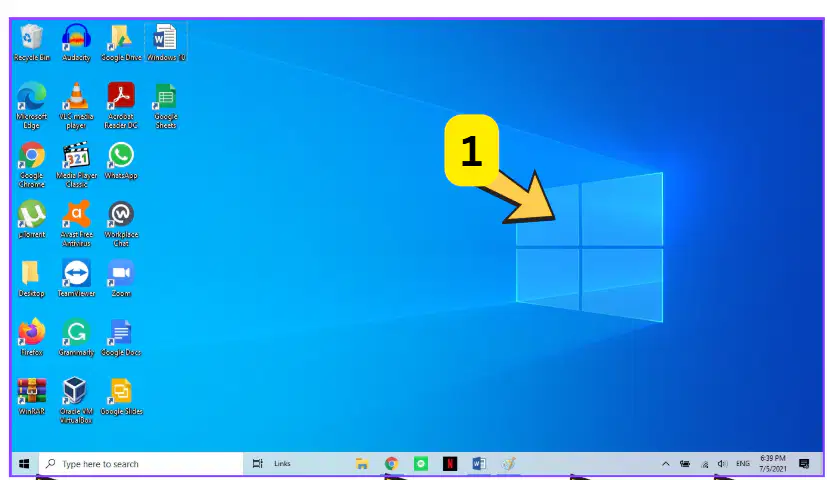
1. The opening screen in start menu, it allows you to personalize your computer.
Background
Desktop icons
Windows button

2. It is a pictorial representation of a program or file
Background
Desktop icons
Windows button
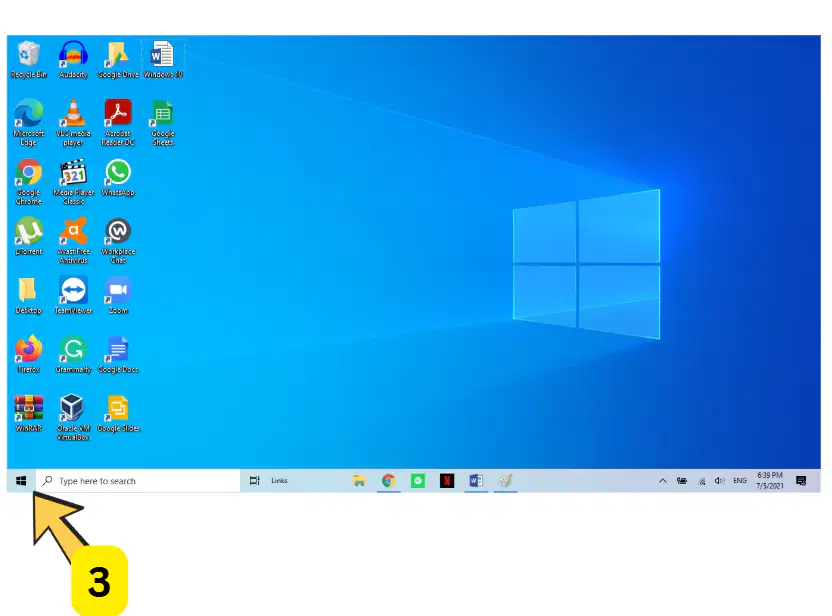
3. It contains different programs and applications available in your computer.
Background
Desktop icons
Windows button
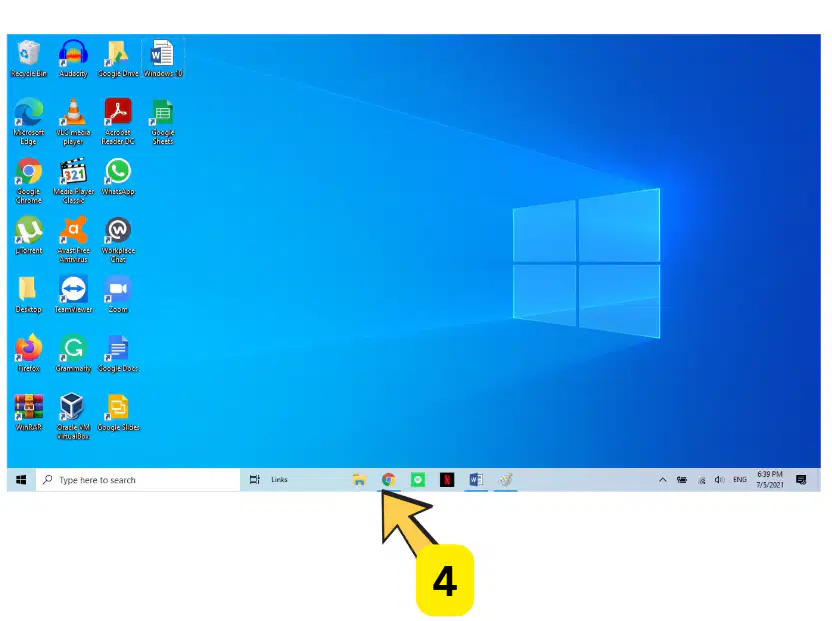
4. It includes buttons to launch favorite programs. It also contains the search and task view.
Jump List
Taskbar
System tray
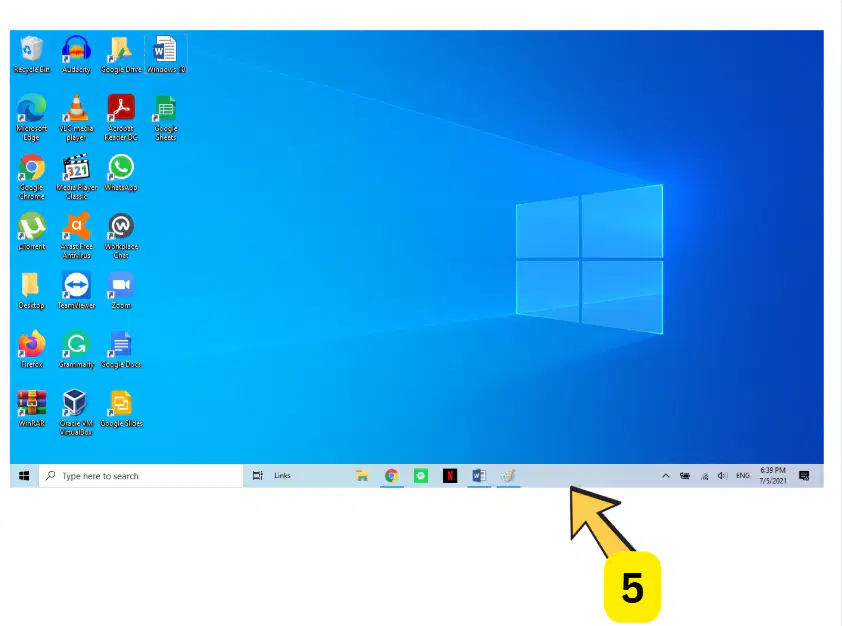
5. It contains the Start Button, shortcuts to applications, the date and time, and more. It also contains buttons/icons of running (currently open) programs.
Jump List
Taskbar
System tray
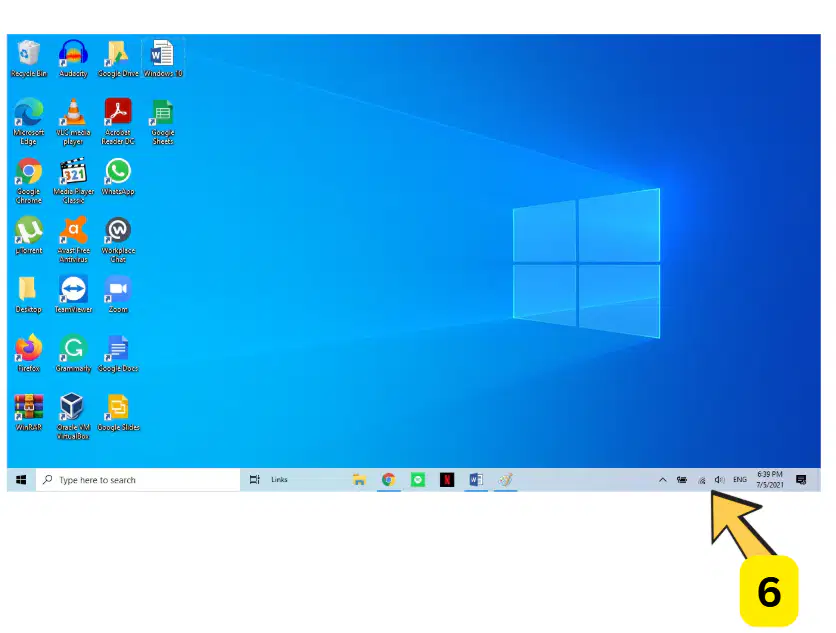
6. It contains icons for easy access to system functions such as printer, modem, volume, time, date and more.
Jump List
Taskbar
System tray
What are the commonly used windows accessories?
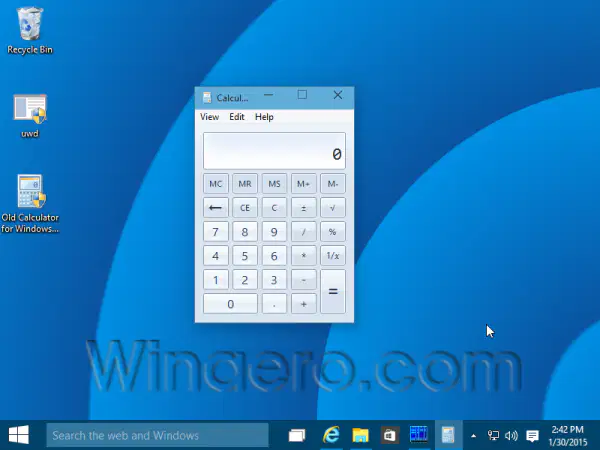
Calculator
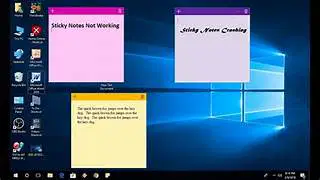
Stickynotes
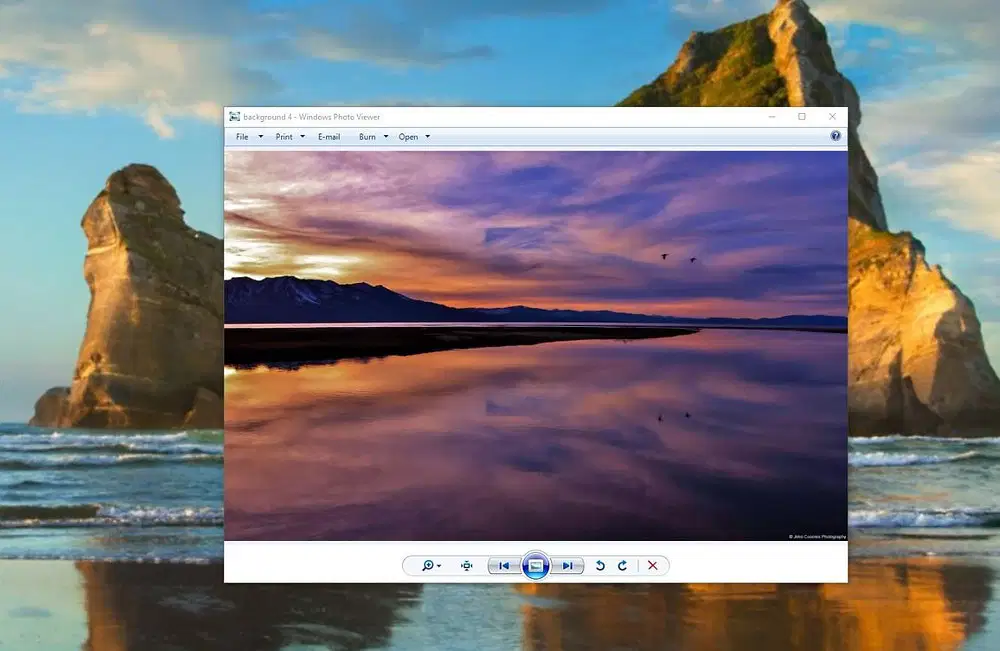
Photo Viewer
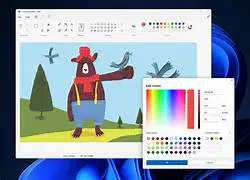
Paint
Use to view digital photos in different ways
Calculator
Photo Viewer
Paint
A window accessories designed to perform basic mathematical calculations such as addition, multiplication, subtraction, or division
Calculator
Stickynotes
Photo Viewer
A window accessories that allows you to make reminders for yourself and stick them on your desktop.
Stickynotes
Photo Viewer
Paint
Photo viewer option that allows you to duplicate several times the picture currently viewed.
Make a Copy
Copy
Properties
Photo viewer option that you can click to copy the image to another program.
Make a Copy
Copy
Properties
Photo viewer option that when you click, you can see the details about the currently viewed photo.
Make a Copy
Exit
Properties
Photo viewer option use to exit this menu.
Make a Copy
Exit
Properties
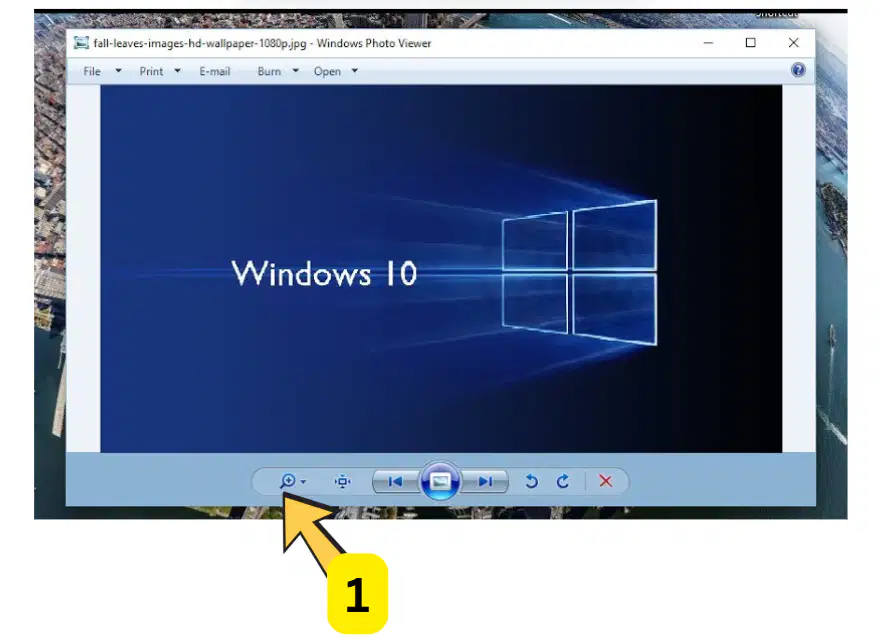
It changes the display size. It allows you to get close-up view of people or objects in your picture.
Zoom
Fit to Window
Previous and Next Arrows
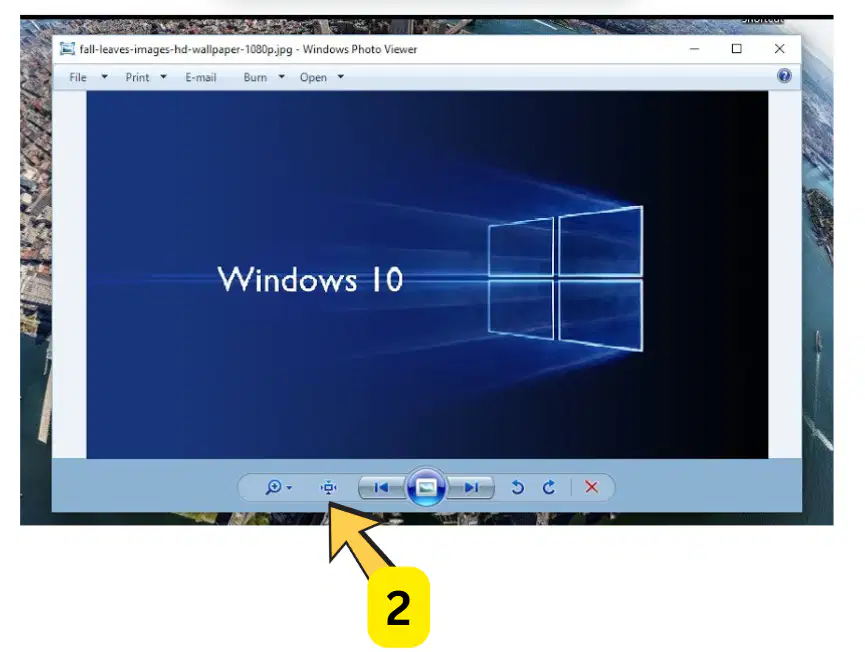
Click this to view the picture at it actual size.
Rotate
Fit to Window
Previous and Next Arrows
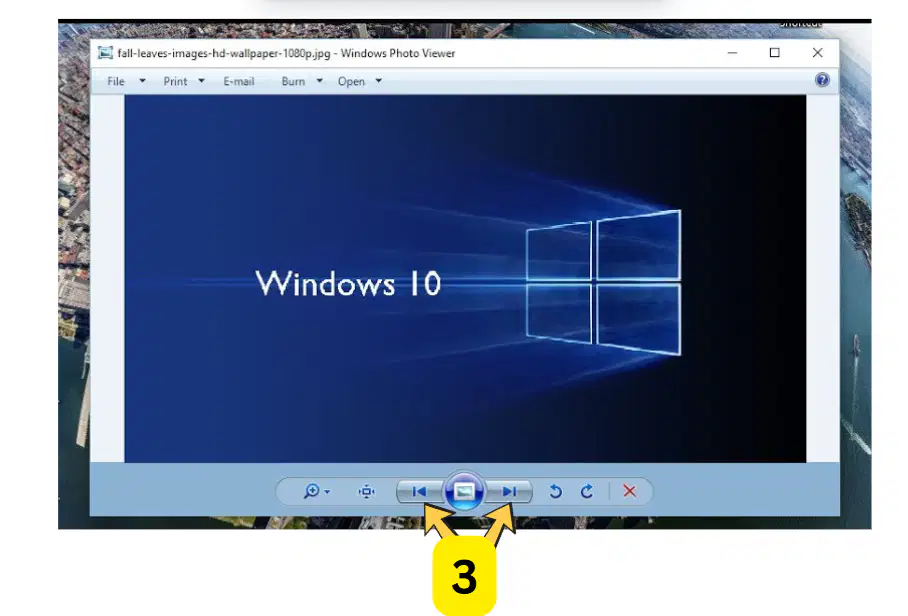
Click on this to navigate through pictures.
Rotate
Fit to Window
Previous and Next Arrows
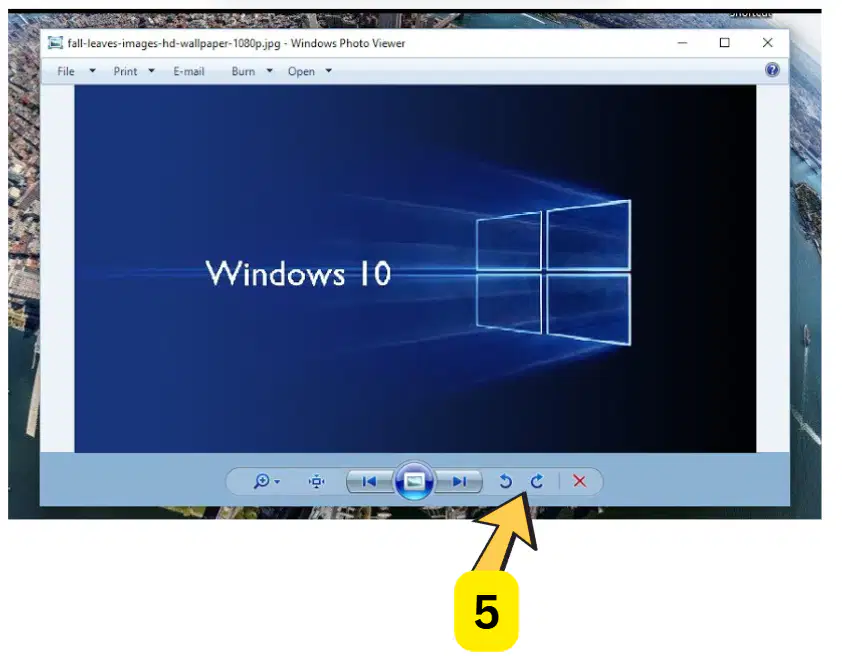
You can rotate the picture either counter clockwise or clockwise.
Rotate
Fit to Window
Previous and Next Arrows
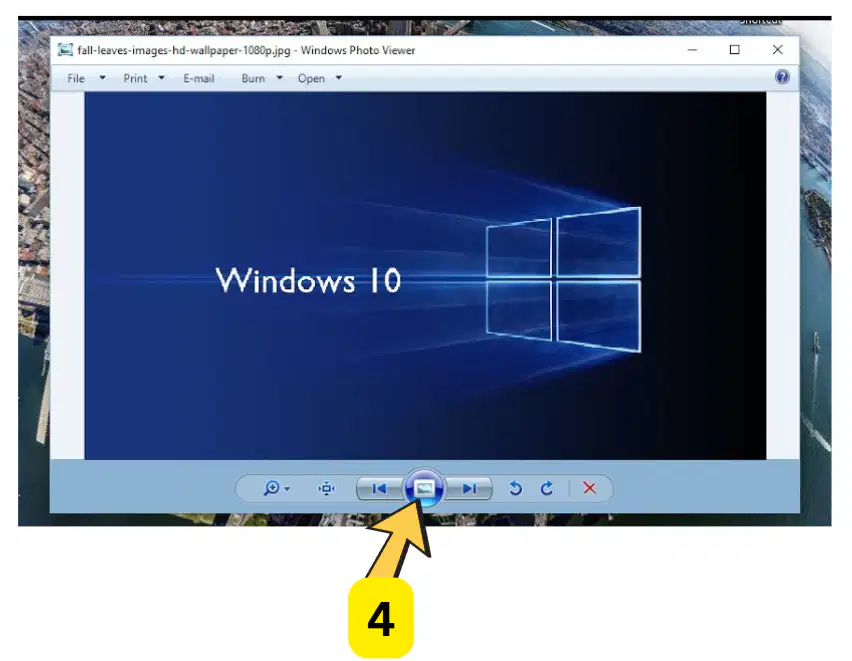
Click this to view your pictures via slideshow.
Rotate
Fit to Window
Slideshow
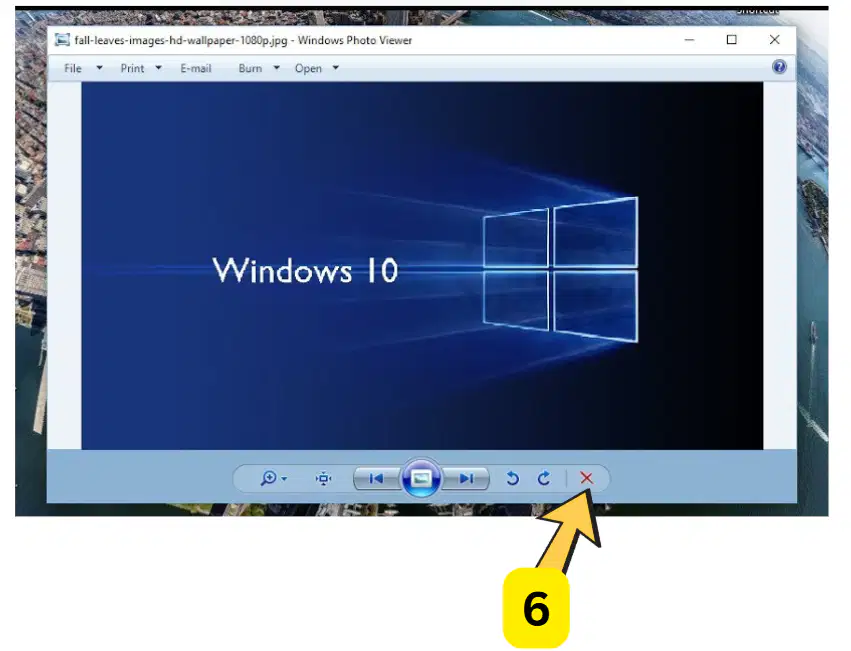
Click this to delete the currently viewed picture.
Delete
Fit to Window
Slideshow
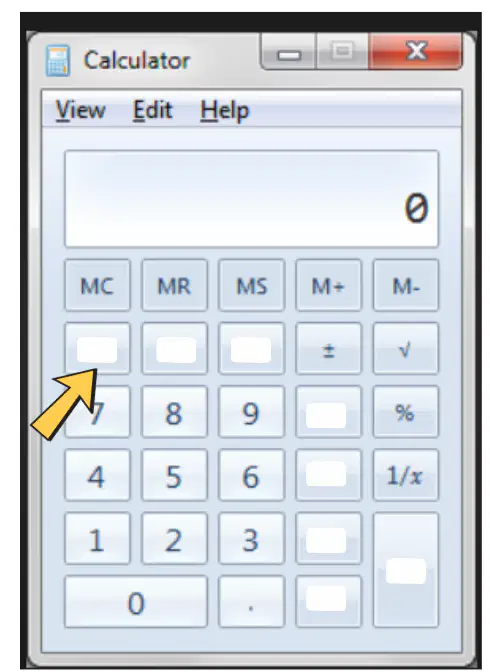
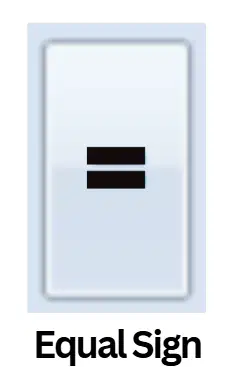
Complete the missing parts of the calculator.
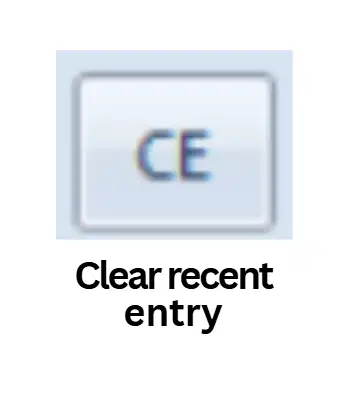
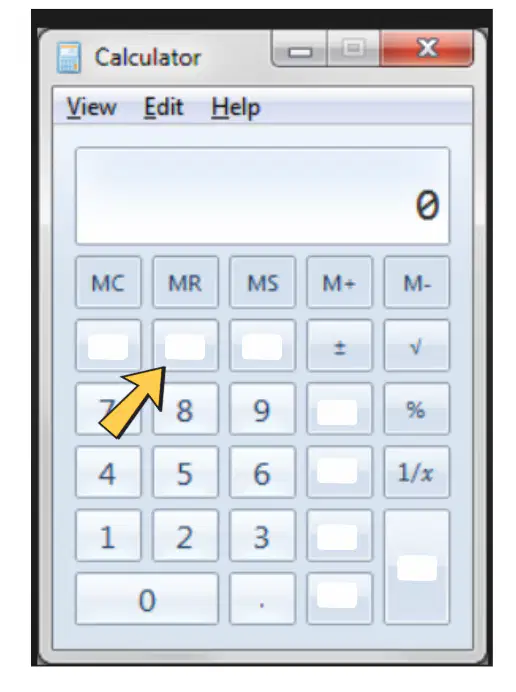
Complete the missing parts of the calculator.
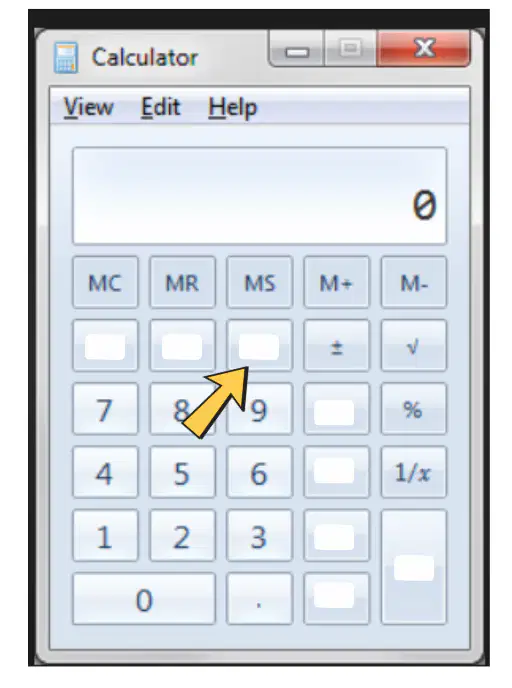
Complete the missing parts of the calculator.
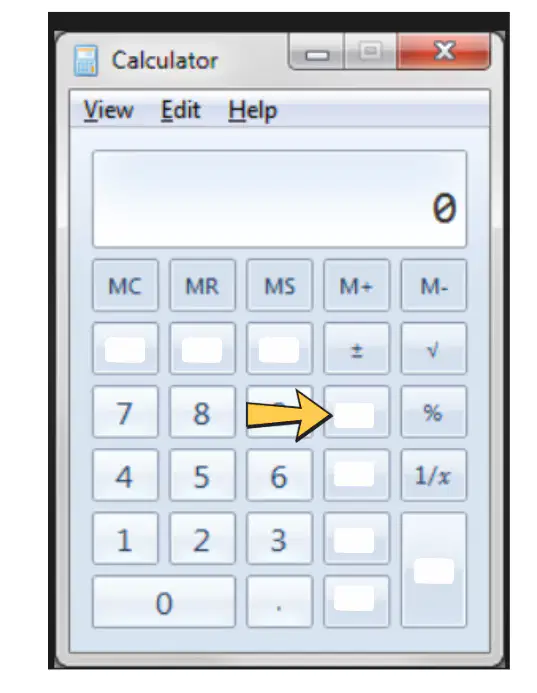
Complete the missing parts of the calculator.
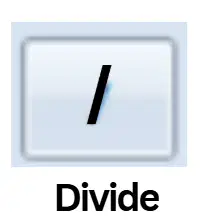
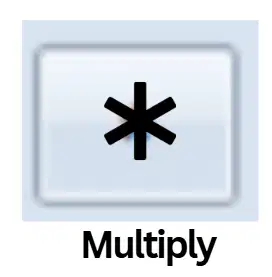
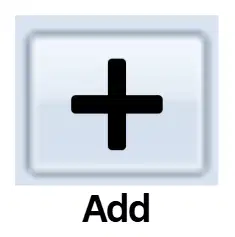
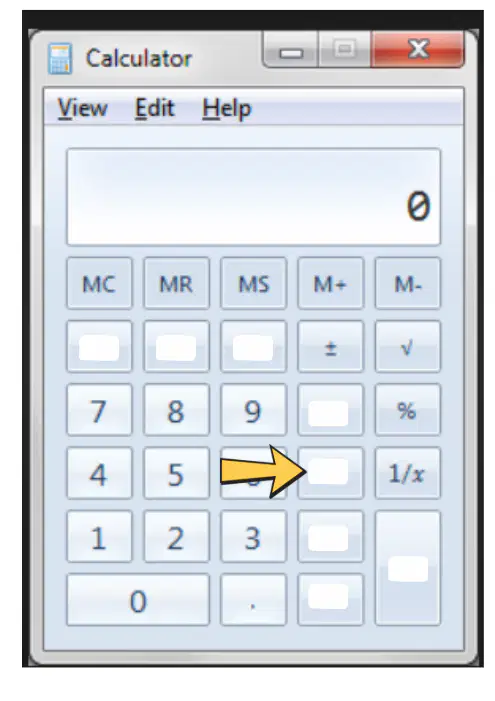
Complete the missing parts of the calculator.
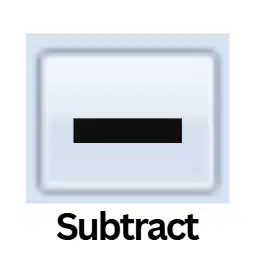
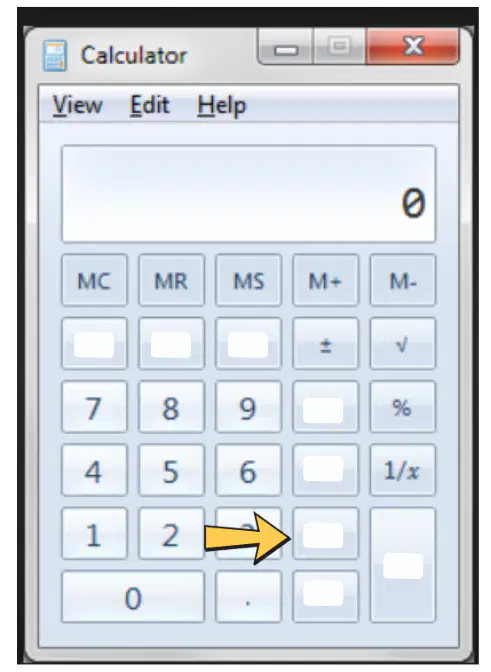
Complete the missing parts of the calculator.

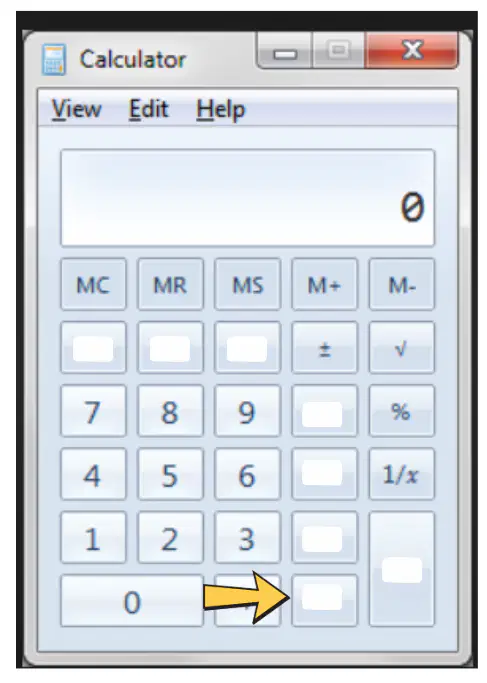
Complete the missing parts of the calculator.
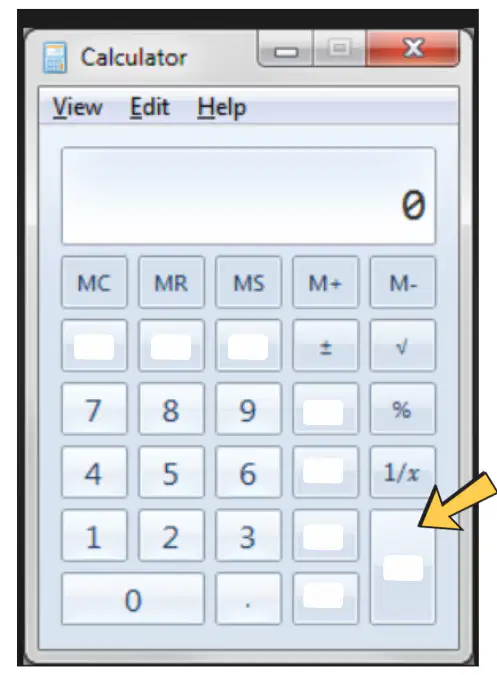
Complete the missing parts of the calculator.
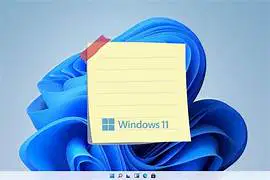
How to create sticky notes on your desktop?
1. Click on the Start Button.
2. Choose Programs/All Programs.
3. Click on Accessories.
4. Click in Sticky Notes
1. Click on the Start Button.
2. Click on Accessories.
3. Click in Sticky Notes
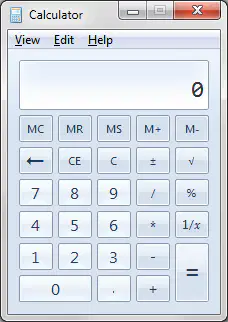
How to open the Calculator?
1. Click on the Start Button.
2. Choose All Programs.
3. Click on Accessories.
4. Click on Calculator.
1. Click on the Start Button.
2. Choose Programs.
3. Click on Accessories.
4. Click on Calculator.

