
 Worksheets
THE ZENITH CHALLENGE
Total questions: 9
Worksheet time: 24mins

The Control Panel Glitch
Scenario: The emergency override labels are overlapping and unreadable on the monitor. You need to adjust the text properties so the operators can read the buttons quickly.
The Challenge: Which setting should you adjust to fix the space between two specific, overlapping letters, and which should you use to expand the space across the entire word to improve readability?
Adjust Kerning for the two letters and Tracking for the whole word.
Adjust Tracking for the two letters and Kerning for the whole word.
Use Text Effects for the two letters and Internal Margins for the word.
Use the Eyedropper on the two letters and Justified Alignment for the word.

The Distress Signal
Scenario: You are sending a text-based distress signal to a nearby satellite. The text must be perfectly legible on a low-resolution projection screen.
The Challenge: Based on professional design standards for projection, how should you format this block of body text?
Justified alignment with 1.0 line spacing.
Left Align with 1.2 or 1.5 line spacing.
Center Align with 0.5 line spacing.
Right Align with Hanging Indents.
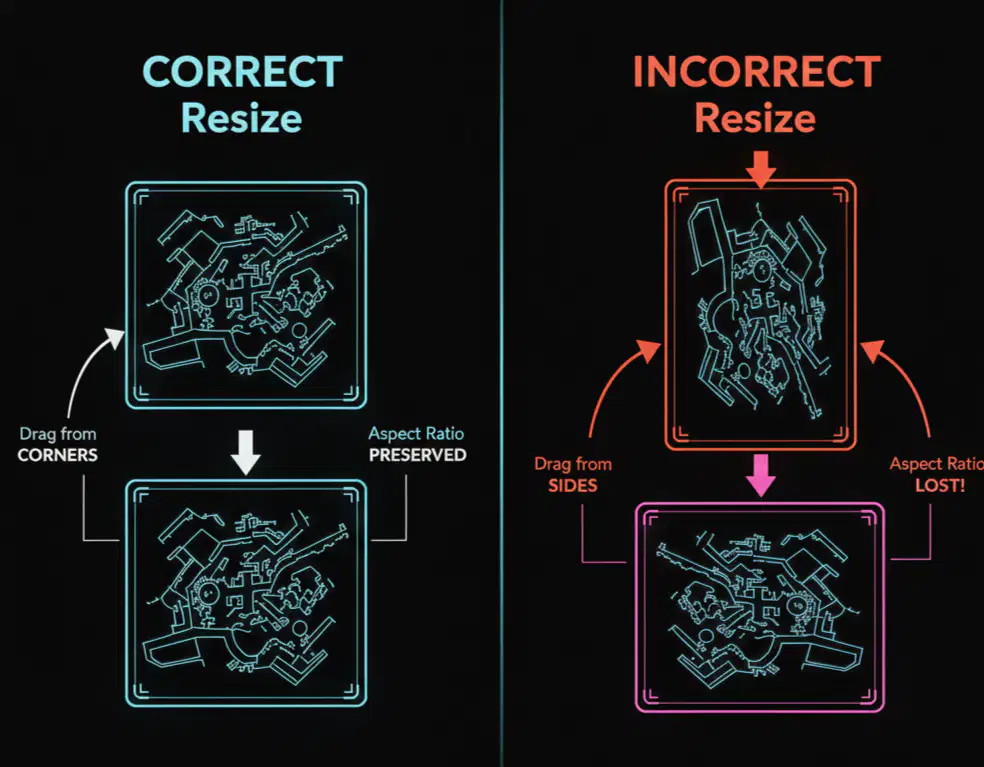
The Area Map
Scenario: You’ve found a digital map of the outpost’s oxygen vents. You need to enlarge it to fit the main screen without making the map look "squashed" or distorted.
The Challenge: What is the correct way to resize the image to maintain its Aspect Ratio?
Drag the handles on the top or bottom edges of the image.
Drag the handles on the left or right sides of the image.
Drag the handles located on the corners of the image.
Use the "Auto-Detect" magenta tool to resize the map.
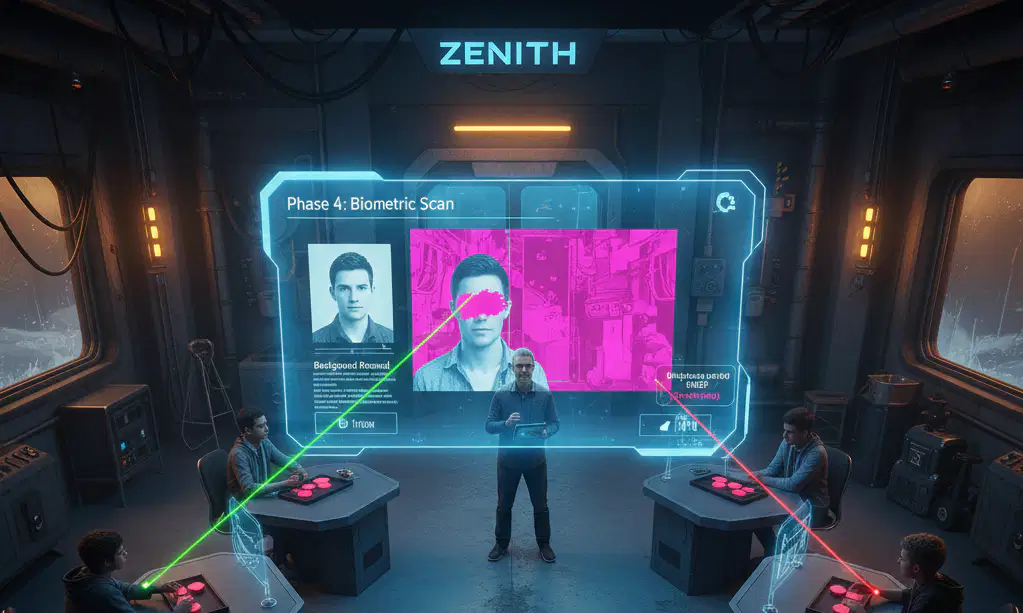
The Biometric Scan
Scenario: To bypass security, you must upload a photo of your ID badge. However, the background of your photo is too distracting for the "Auto-Detect" sensor to handle alone.
The Challenge: The computer’s magenta "Auto-Detect" area has accidentally marked part of your face to be removed. How do you fix this for a precision scan?
Use the Red pen (Mark Areas to Remove).
Use the Green pen (Mark Areas to Keep).
Increase the Internal Margins of the image.
Apply a Shadow text effect to the magenta area.
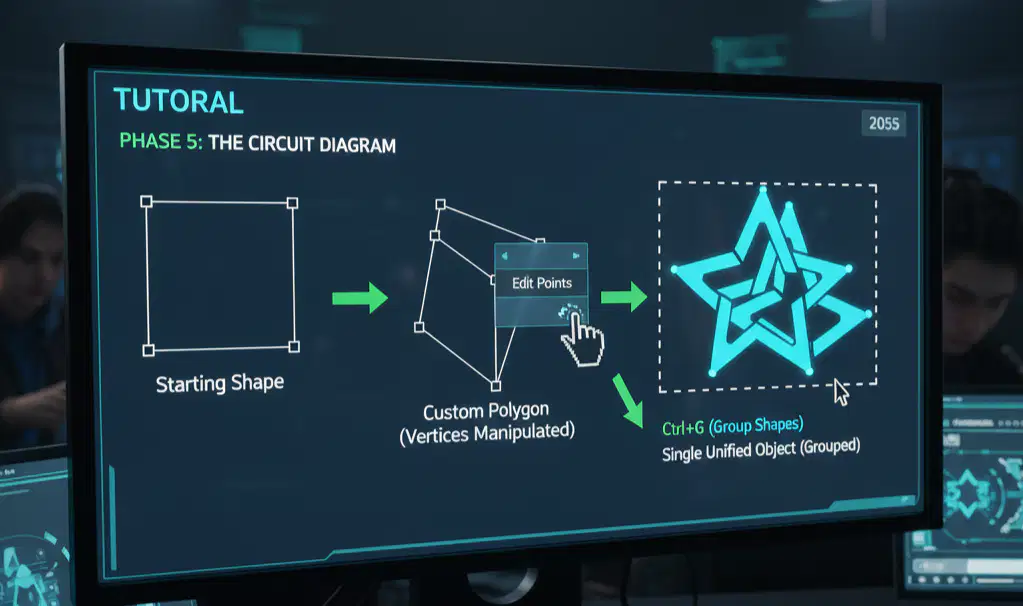
The Circuit Diagram
Scenario: You need to draw a custom icon for a bridge circuit. You only have basic squares and circles available in the system’s shape library.
The Challenge: How can you transform a standard square into a custom-angled polygon, and how do you ensure the final icon can be moved as one single object without falling apart?
Use Edit Points to modify vertices and Ctrl+G to group.
Use Tracking to modify vertices and Ctrl+C to group.
Use the Eyedropper to modify vertices and Ctrl+V to group.
Use Text Direction to modify vertices and Ctrl+Z to group.

The Emergency Log
Scenario: The captain left a high-priority message, but it’s buried in a wall of plain text. You need to create a visual "call-out box" and make the header stand out immediately.
The Challenge: How do you make the header "pop" and convert the text container into a professional sidebar?
Use Text Effects (Shadows/Glows) and the Fill & Outline box settings.
Use Condensed Kerning and Hanging Indents.
Use Justified Alignment and Text Direction.
Use Vector Scaling and Edit Points.

The Navigation Chart
Scenario: You are labeling the vertical axes on a structural chart. The labels are currently horizontal and overlapping the data. Additionally, the text inside your warning boxes is touching the borders, making it hard to read.
The Challenge: How do you fix the label orientation and the "crowded" look of the text boxes?
Rotate text 90 or 270 degrees and increase Internal Margins.
Rotate text 180 degrees and increase Line Spacing.
Use Reflections on the text and decrease Internal Margins.
Use Expanded Tracking and Left Alignment.
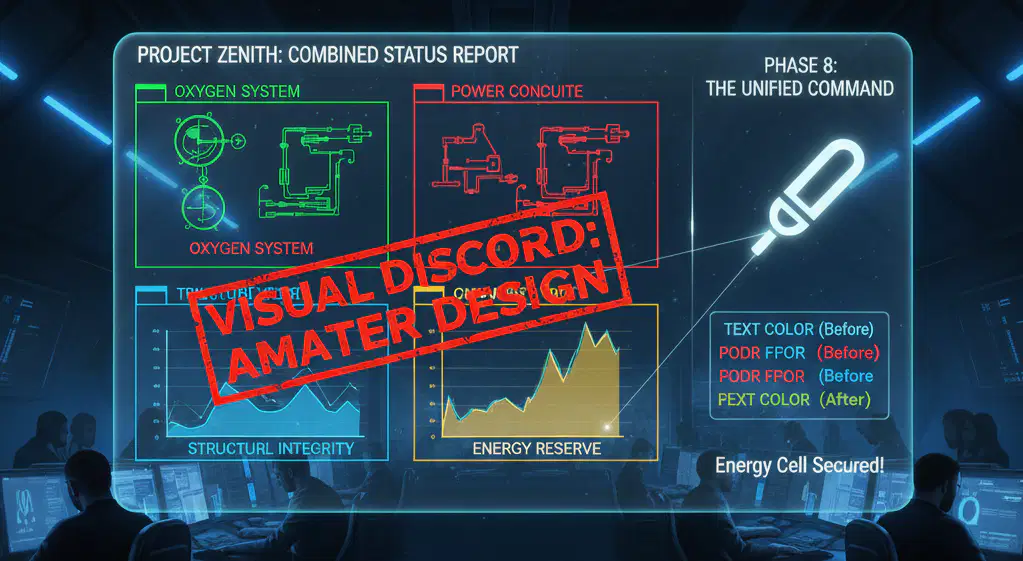
The Unified Command
Scenario: You’ve successfully combined several charts and images into one status report. However, the report looks "amateur" because the text colors don't match the colors in the diagrams.
The Challenge: How can you quickly achieve "cohesion" and ensure your text color perfectly matches a prominent color from a system image?
Use the Eyedropper to sample the color from the image.
Use the Magenta Auto-Detect tool to find the color.
Use Ctrl+D to open the font dialog and guess the hex code.
Apply a Glow Effect to the text until it matches.
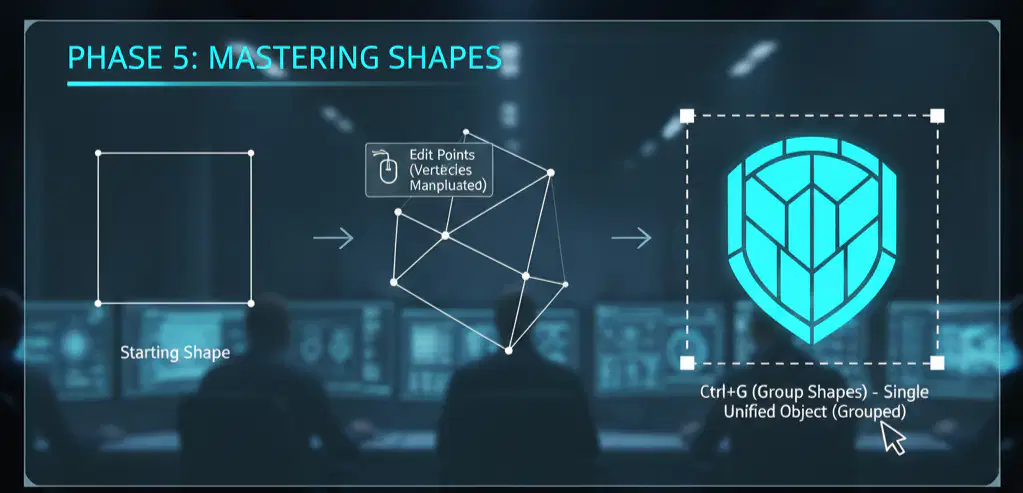
The Structural Shield
Scenario: You need to design a complex shield icon. You've built it by combining several simple shapes, but every time you try to move it to the "Defense" slide, the pieces fall apart and lose their arrangement.
The Challenge: What is the most efficient way to treat these combined shapes as a single object, and why are shapes preferred over standard images for this task?
Shapes are Vectors, meaning they scale infinitely without quality loss.
Shapes are Bitmaps, meaning they have higher resolution than images.
Shapes use Alpha Masks, which automatically remove backgrounds.
Shapes have Automatic Kerning, which keeps them together.

