

We the Digital Citizens

Presentation
•
Computers
•
3rd Grade
•
Easy

Gillea Millama
Used 14+ times
FREE Resource
11 Slides • 8 Questions
1

Introduction to
Block-based Programming
2
Open Ended
In your own words, what is programming and briefly explain its importance in the human society?
3
Word Cloud

Let's create a word cloud by answering the question below:
What word comes to your mind when you hear the word "programming" or "coding"?
4
What is Programming?
Computer programming or coding is the act of giving instructions to execute a task correctly.

5
Poll

Do you have a prior idea/experience in coding?
Yes
No
6
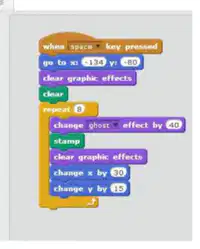
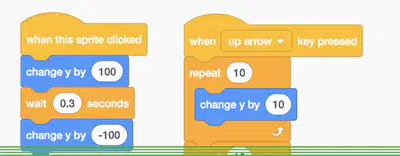
What is Block-based Coding?
Block-based programming employs a visually intuitive approach where codes are represented by dynamic blocks that you can click and drag.
For our class, we will use the platform called mBlock 5.
7
Open Ended
8
What is mBlock 5?
It is a software tool for STEAM education to allow students to create engaging stories, games and animations, and program hardware like Makeblock robots, Arduino and micro:bit.
Allows you to sync programs across the platforms on Web, mobile devices or PC.
You may type mblock.cc to look it up on the internet.

9
About the Interface
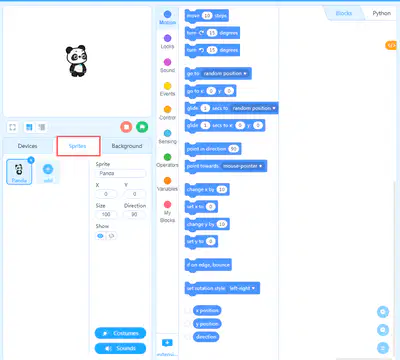
Stage Area: You can present your designs, connect devices, set your sprites and backgrounds here.
Blocks Area: You can find the blocks you need by category and color in Blocks area.
Scripts Area: You can program in the Scripts area by dragging blocks to this area.
Menu: In this area, you can change the language, open and save files, go to Example Programs and Help.
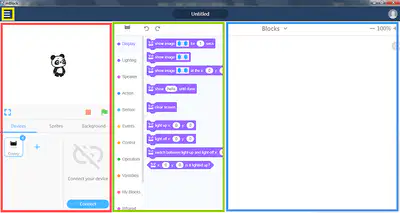
Red: Stage Area Green: Blocks Area Blue: Scripts Area Yellow: Menu
10
Create your "Stage"
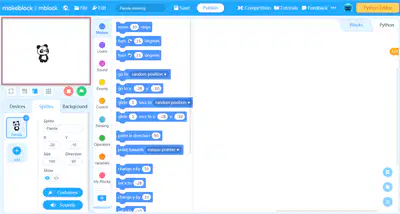
In stage programming, you can add backdrops, costumes, and sounds for a stage. In addition, you can design your own sprites.
11
What is a "Sprite?"
Sprites are objects on the stage. You can operate a sprite by programming it.
On mBlock 5, device programming is separate from stage programming.
Click the Sprites tab to start stage programming.
12
How to Add a Sprite
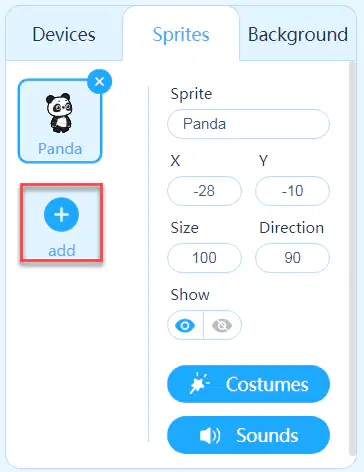
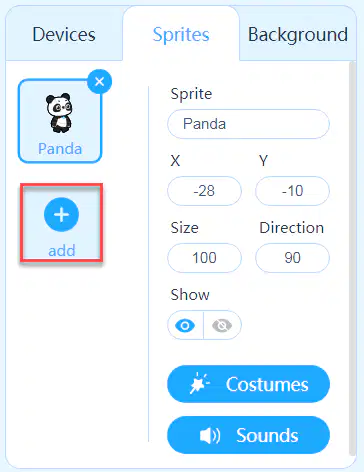
Click the Sprites tab and click + add.
13
How to Add a Sprite
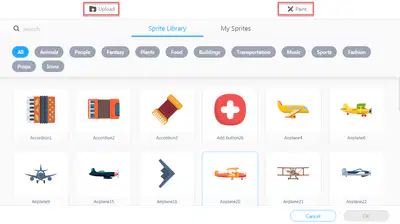
If no sprite in the sprite library interests you, you can paint or upload your own sprite. In the Sprite Library page that appears, you can see Upload and Paint at the top.
14
How to Upload a Sprite
Click Upload and select a file from the local disk in the window that appears.
Note: Currently, only JPG, PNG, and SVG files with a maximum size of 2 MB can be uploaded.
15
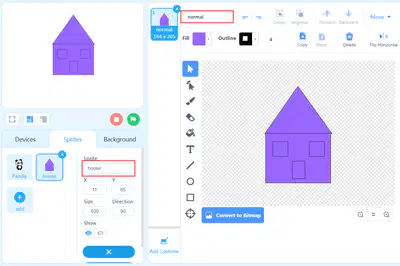
How to Draw Your Own Sprite
Click Paint.
Draw your Sprite (in our example, it's a house)
Name the sprite house, draw the first costume for it, and name the costume normal, as shown in the following figure.
16
Multiple Choice
Which version of mBlock are we going to use in our class?
Scratch 2.0
mBlock 3.0
mBlock 4.0
mBlock 5.0
17
Multiple Choice
Which among the following is NOT a part of the mBock interface?
Blocks
Ribbon
Stage
Script
18
Multiple Choice
What is the default Sprite in mBlock 5?
Cat
Robotic Car
Panda
A Person
19
Open Ended
In your own opinion, why is it important to learn how to program or create a code? How is it related to Robotics? How can it help the human society?
Introduction to
Block-based Programming
Show answer
Auto Play
Slide 1 / 19
SLIDE
Similar Resources on Wayground

14 questions
Types of Soil (Review)
Presentation
•
3rd Grade
15 questions
Easter
Presentation
•
3rd Grade
13 questions
Character Analysis
Presentation
•
3rd Grade
15 questions
A City From The Past
Presentation
•
3rd Grade
13 questions
listen and choose the correct answer
Presentation
•
3rd Grade
13 questions
Poster Comprehension 1_Grade 3 2021
Presentation
•
3rd Grade
15 questions
prefixes
Presentation
•
3rd Grade
14 questions
Commas in Dates
Presentation
•
3rd Grade
Popular Resources on Wayground
5 questions
A Home on the Shore

Quiz
•
3rd Grade
28 questions
US History Regents Review
Quiz
•
11th Grade
6 questions
A Horse Tale
Quiz
•
3rd Grade
20 questions
Math Review
Quiz
•
3rd Grade
10 questions
Juneteenth History and Significance

Interactive video
•
5th - 8th Grade
20 questions
Dividing Fractions
Quiz
•
5th Grade
55 questions
A Long Walk to Water Final Review
Quiz
•
6th - 8th Grade
10 questions
Equation Word Problems
Quiz
•
7th Grade
Discover more resources for Computers
5 questions
A Home on the Shore
Quiz
•
3rd Grade
6 questions
A Horse Tale
Quiz
•
3rd Grade
20 questions
Math Review
Quiz
•
3rd Grade
5 questions
Dramatic Dream
Quiz
•
3rd Grade
10 questions
Area
Quiz
•
3rd Grade
10 questions
3rd grade Context Clues
Quiz
•
2nd - 3rd Grade
20 questions
Parts of Speech
Quiz
•
3rd Grade
40 questions
Flags of the World
Quiz
•
KG - Professional Dev...