

How to use Quizizz

Presentation
•
Professional Development
•
Professional Development
•
Practice Problem
•
Hard

Vijaya Aswani
Used 20+ times
FREE Resource
17 Slides • 0 Questions
1
How to use Quizizz
A simple testing and teaching tool

2
There are 2 ways to use Quizizz
Host a Quiz
Teach with a presentation (like this one) It is called LESSONS

3
STEP 1: Open the link www.quizizz.com/signup
Sign up as a TEACHER (not as a student)

4
STEP 2: You will get these options
Create a quiz or lesson
Start a live session (after creating a quiz or lesson)
Assign a (pre-made) quiz (they have a library of quizzes made by teachers) CLICK HERE!

5

STEP 3: You can click on the search bar on the top of the page and find quizzes of the topic you need
(For example: digestive system 7th grade)
6

You can access a gallery of quizzes on the topic, pick the relevant one
(you can see the questions on the right hand side)
and click PLAY (purple button on the right)
7

click on LIVE SESSION >> Classic >> Then you have 3 options to share with students
8

Ask students to join using the app or browser on their phone
9
STEP 3: OR Click on the purple botton on the left that says 'Create'
You can create a Quiz from scratch with this option

10

This is what the quiz editor looks like. You can
1. Teleport questions: ADD questions in your quiz from other quizzes
2. Select from 5 different types of question types
11
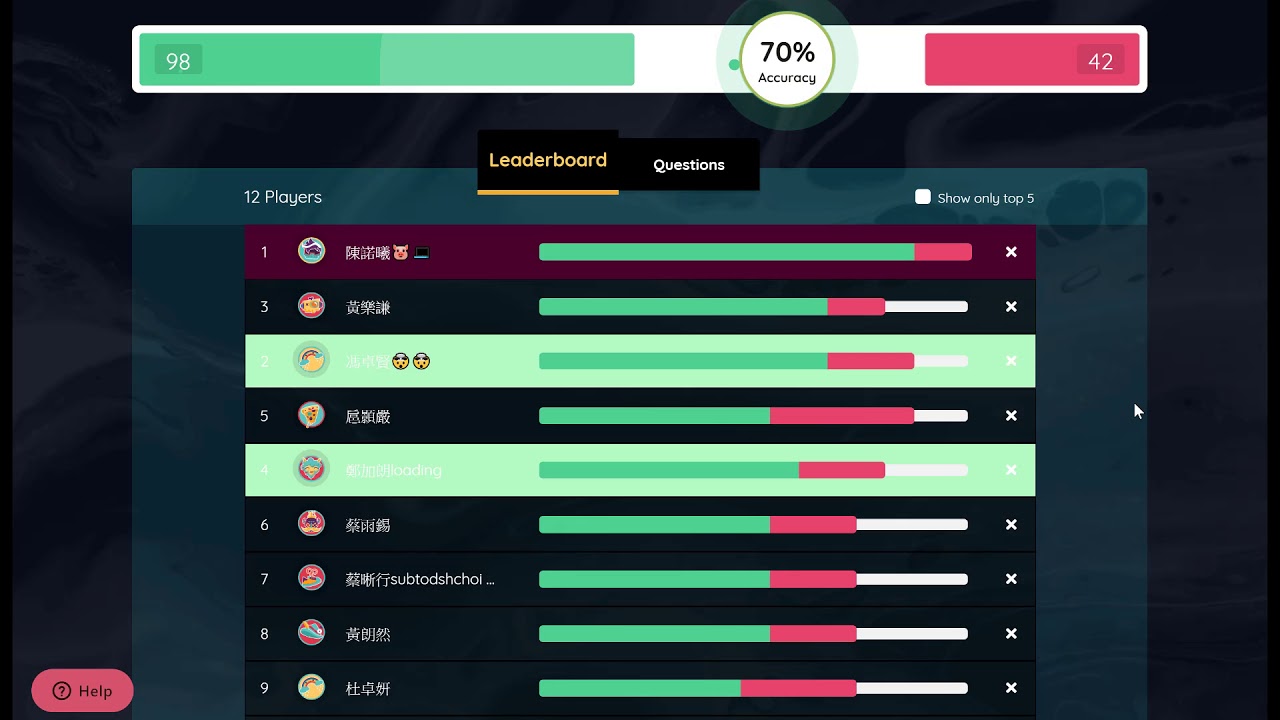
LEADERBOARD / live score board on the Teacher's screen
(visible to students on google meet/ zoom if screen is shared, more exciting for students!)
12

13

After playing the quiz the scores/ reports directly go to your google classroom.
You can download/print or email results to parents too!
14
On the home page, you can access these anytime:
Large library of pre-made quizzes in 'Explore'
All the Quizzes that you have created in 'My Library'
All the reports of the quizzes played with your students in 'Reports'

15

Your students will concentrate in a virtual class like never before since they are thoroughly engaged and having fun!
16

Teachers do not have to spend hours correcting papers and trying to analyse weak areas in class.
They have all the reports of each student in an organised data format.
17
How to use Quizizz
A simple testing and teaching tool
Show answer
Auto Play
Slide 1 / 17
SLIDE

