

Intro to Quizizz

Presentation
•
Professional Development
•
Professional Development
•
Hard

Dan Groves
FREE Resource
33 Slides • 8 Questions
1

Make your life easier by saving your time and sanity!
What Quizizz can do for you!
2
This is a lesson, you have control!
The teacher determines the slide on the students' screens.
Creating a lesson is as easy as creating a power point.
You can even import a power point or google doc. that will be turned into a quiz or lesson.
3
There are many question types
Both open and close ended.
Students can work independently or with a group.
Questions banks can even be adaptive


4
Multiple Choice
Teaching should...
take up every second of your life.
be a rewarding calling.
cause unlimited grey hair.
5
Fill in the Blanks
Grading all types of assessments should be
6
Categorize
quiz
test
lesson
essay
research paper
homework
assignment
practice
study guide
group work
create a quiz for you using AI
pizza
school bus
7
You can even do this:

8
Training Aims
Intro to quizizz live lessons
Adding questions and assessment
How to import existing Ppts
Exporting data and AFL

9
Quizizz Types
Live Quiz - In Class Game Mode. Great for pre-assessment or as a review before a summative assessment. Can be used to deliver a live lesson
Assign Homework - Students can do at any time and do multiple times. Recommended to leave on Classcharts for students to review for tests.

10
When you set a question you can add audio, video, equations to the question or individual answers

11
It is easy to import questions from your previous lessons or select from a bank of other quizizz

12
Benefits for Online Learning
Records and tracks students who have logged on
Can use Google Slides and PowerPoint Slides
Allows questioning during the class to gage students learning and comprehension.
Students can access for review
13

You can see how each student did, or get an overview for each question easily seeing what needs recapping or what they know.
Reporting
14
15
CREATING QUIZIZZ
LESSONS
16

Create a Quizizz
account, if you
haven’t done so
already.
17


First thing needed:
Multiple devices that have access to Quizizz.
18

Open a
PowerPoint File
you currently
teach.
19

Save the
PowerPoint
file as a
PDF.
20


Return to Quizizz and select
“create”.
21

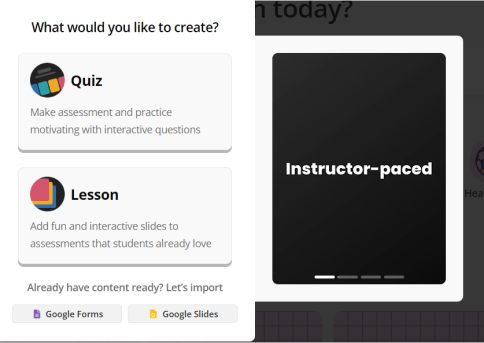
Tap or
click
“Lesson”.
22


Select
“Import
Slides from
Google Drive”
23


Select
“Upload a
PDF file”.
24


Select your
PDF file,
then press
“open”.
25


You now have the
option of selecting
which slides you
want to keep or
delete.
Press “Import”
once you have
made your
decision.
26
Poll
How easy has the steps been for you so far?
Extremely easy
Easy enough
Somewhat challenging
Difficult
27

I would advise that you
always select “Editable
Slides" in the event you
need to make an
adjustment to a slide.
28


29


Everything is uploaded
30

Time to add
some
questions!
31


Select “Add new slide”
32


You can “teleport” a question
related to your topic.
Or create your own question
related to the topic.
33


Creating your own Multiple-Choice question
34


Or teleporting a question. Simply select “Add
question”.
35

Here is how your
added question
should look.
36


Don’t forget to name your
lesson.
37


Select “Save” then “Continue”
38
Multiple Choice
Which learning application are you using?
Kahoot
Educaplay
Quizizz
Live Worksheets
39
Fill in the Blanks
Which button should you select when beginning a new lesson or quiz?
Type answer...
40
Multiple Choice
Which type of file do you need to convert to PDF?
Microsoft Word
Microsoft PowerPoint
Microsoft Publisher
Microsoft Excel
41
Poll
Would you incorporate this into your lessons?
Yes
No
Make your life easier by saving your time and sanity!
What Quizizz can do for you!
Show answer
Auto Play
Slide 1 / 41
SLIDE
Similar Resources on Wayground

42 questions
Mi 10T & Mi 10T Pro
Presentation
•
Professional Development
32 questions
Adjectives and Adverbs
Presentation
•
Professional Development
33 questions
How to Pray!
Presentation
•
Professional Development
37 questions
Pelatihan 18 Tipe Soal Quizizz
Presentation
•
University - Professi...
40 questions
Metacognition
Presentation
•
Professional Development
34 questions
Webinar 2 - Secondary Training (Non tutors)
Presentation
•
Professional Development
37 questions
Secondary AY21/22 - Mathematics in line with the UK Curriculum
Presentation
•
Professional Development
37 questions
Expressing Wishes with Querer & Gustaría
Presentation
•
KG - University
Popular Resources on Wayground
6 questions
PRIDE Always and Everywhere
Presentation
•
12th Grade
20 questions
Lab Safety Quiz

Quiz
•
6th Grade
26 questions
KOR Review Kahoot Questions
Quiz
•
8th Grade
21 questions
Continents and Oceans
Quiz
•
6th Grade
12 questions
Unit Zero lesson 2 cafeteria
Presentation
•
9th - 12th Grade
20 questions
Parts of Speech
Quiz
•
5th Grade
10 questions
Riddles Riddles fun Riddles
Quiz
•
6th - 12th Grade
16 questions
Subject & Predicate
Quiz
•
5th Grade