
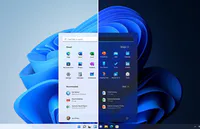
Computer Customization

Presentation
•
Computers
•
University
•
Practice Problem
•
Hard

Seddrico Ferguson
Used 5+ times
FREE Resource
18 Slides • 0 Questions
1


OPERATING SYSTEM
CUSTOMIZATION
2

AREAS WE WILL COVER
01
02
04
05
03
3

CHANGING THE START SCREEN
BACKGROUND
•
•
•


4
CHANGING THE START SCREEN
BACKGROUND
•
•
•
5

USING THE PC SETTING
•PC and devices
Change the appearance settings, display a list of devices connected to your computer, and add a new
device.
•Accounts
Add a user and change your password and other settings for your user account.
•SkyDrive
Select settings for working with SkyDrive, a location on a Microsoft server that Windows and some
applications can access.
•Search and apps
Change how Windows searches when you use the search charm. Also, display information about
apps, such as those that can display notifications, which are messages that appear in the upper-right
corner of the screen
•Privacy
Allow or block apps from sharing your geographic location and other personal information.
•Network
Select network settings, such as which wireless network connection to use if any.
•Time and language
Change the date, time, region, and language on your computer,
•Ease of Access
Make Windows easier to use for people with vision, hearing or other physical impairments.
•Update and recovery
Select settings for Windows Update, file backups, and system recovery,
7

USING THE CONTROL PANEL
• Control Panel is a window that contains specialized tools
you use to change the way Windows looks and behaves.
• All Control Panel tools provide access to dialog boxes that
let you select or change the properties or characteristics of
an object or group of related objects.
• Most control panel tools affect the entire system.
• Some tools apply to the desktop only. For example, you
use the personalized tool to change the theme, which is a
desktop background and a set of colors, sounds, and
other elements that appear by default in the desktop
environment only.
8

USING THE CONTROL PANEL
•Category
Set options for maintaining the system, such as by using Windows Update, and for
keeping the system secure.
• System and Security
Set Internet options, view network status, and perform other network tasks
• Network and Internet
Change the sounds on your computer, and change the settings for your printer,
keyboard, mouse, camera, and other hardware,
• Hardware and Sound
Install and uninstall desktop applications and Windows features, set options for default
settings and applications
• Programs
Change user account settings and passwords
• User Accounts and Family Safety
Change the appearance of desktop items, apply a theme or screen saver, and
customize the taskbar. This applies only to the desktop
• Appearance and Personalization
Change the date, time, region, and language you use on your computer; and the
format for numbers, currencies dates, and time.
Clock, Language, and Region
• Ease of access
Change computer settings for vision, hearing, and mobility
9

PERSONALIZING THE DESKTOP APPEARANCE
The easiest way to personalize the desktop Windows is to select a
theme.
• Four elements: The desktop background image, the colors for
window borders, and the taskbar (called a color scheme)the
collection of sounds that play to signal system tasks, such as
shutting down Windows and the screen saver.
• Some themes are classified as Windows themes, which contain
high resolutions of the photogenic image.
• Windows also provides a few high-contrast themes that make
the items on your screen easier to see, especially if you have
impaired vision.
11

CUSTOMIZING DESKTOP AND FOLD ICONS
Besides changing the desktop theme, you can
change the appearance of the icons on the
desktop. By default, the Recycle Bin icons appear
on the desktop. You can use the Desktop icon
setting dialog box to add other icons for tools you
use often, such as the Control Panel, to the
desktop. From this dialog box, you can open the
Change Icon dialog box to change the
appearance of the desktop Icons.
12

WORKING WITH REGIONAL SETTING
• The time displayed in the notification area of the
taskbar, which is called the system time, should
reflect the time zone for your location.
•
The operating system uses the system time to mark
when files and folders are created and modified.
• In Windows, you can change the regional setting and
localize your computer, which means it uses settings
appropriate for a particular location.
• In the time and language category of the PC settings
screen and the clock settings, the date, your location,
and the format windows use to display dates and
times.
13

SETTING ACCESSIBILITY
•
Accessibility refers to features that make a computer easier to use for
people who might otherwise have trouble viewing the screen, hearing
system sounds, or using a mouse and keyboard. Devices with touch
screens are easier to use for most people because you can interact
with them directly by touch, rather than manipulating a mouse or
other pointing device.
•
Personal operating systems include accessibility features that can
heighten the contrast between colors on the screen, making objects
easier to see.
•
Personal and Mobile operating systems provide tools that Narrate
text displayed on the screen and provide text or visual alternatives to
sound, such as captions for speech in videos.
14

CUSTOMIZING POWER OPTION
•
Computers consume power when you run them and even when
they’re idle. You should use only the power your computer needs to
complete your current task so you can conserve energy in general.
If you use a mobile computer, such as a laptop, tablet, or
smartphone, power is a greater concern. Although mobile devices
use far less electricity than desktop computers, mobile computers
get the power they need from a battery, and you can draw power
from the battery only for a limited time before you need to recharge
it.
For this reason, mobile computers display battery icons that show
how much charge is left in the battery.
15

CUSTOMIZING POWER OPTION
•
You use the power management features in the
operating system to change the power state of a
computer.
A power state is a set of conditions that determines how
much power the computer is using.
Common power states range from fully awake
(consuming the most power), to sleep or standby,
hibernation, and shut down ( consuming no power),
16

CUSTOMIZING POWER OPTION
• Sleep: Windows saves your data and system settings in temporary memory, blank screen, and does
not perform any activities, which conserves power. When you’re ready to use the computer again,
Windows quickly wakes up and resumes operations. Because your data is saved in temporary memory,
you could lose it if the power fails. So it’s best to save your work before letting your computer go to
sleep.
•
Hibernation: Ideal for mobile computers, hibernation saves your work to your hard disk, reduces
the power for a specified amount of time, and then turns off your computer. Windows puts a
mobile computer into hibernation when the battery charge is critically low.
•
Hybrid Sleep: As an alternative to sleep designed for desktop computers, windows includes a
power state called Hybrid Sleep, which saves your data on the hard disk ( not temporary memory)
before putting your computer to sleep, Using hybrid sleep your computer quickly resumes
running your computer to sleep.
Shut down: This power state turns off the power completely to save wear and tear on your electronic
components and conserve energy.
To work with the full set of power options in Window 8, you open the power options window in the
control panel. You can use the power options window to set what windows does in certain conditions.
These basic options vary on whether you are using a desktop or a mobile computer.
17

SETTING UP A NEW USER ACCOUNT
• Administrator account or a Standard account in Windows you must
provide your user credentials, which consist of a least a username and an
optional password.
A Password is a series of letters, numbers, spaces, and symbols that you
provide to access your files, applications, and other resources on the
computer.
Window password cases are sensitive, so Alincolon212 is different from
alincolon212.
If an account is no longer being used on a computer, the Administrator
account can delete it.
If you using an administrator account take care before deleting another
user account.
You can use the Account category on the PC settings screen or the User
Accounts and Family Safety in the control panel to delete an account.
18

THANK YOU!
OPERATING SYSTEM
CUSTOMIZATION
Show answer
Auto Play
Slide 1 / 18
SLIDE
Similar Resources on Wayground

12 questions
Programming Language
Presentation
•
12th Grade
15 questions
Historia del computador
Presentation
•
12th Grade - University
13 questions
ACCOUNTING
Presentation
•
University
13 questions
Changing fractions to decimals; decimals to fractions
Presentation
•
University
14 questions
Quantifiers
Presentation
•
University
14 questions
Discuss career choices
Presentation
•
University
14 questions
Electron Math
Presentation
•
9th - 12th Grade
14 questions
HEALTH PROBLEMS
Presentation
•
University
Popular Resources on Wayground
10 questions
Safety Day 2026 – Student Review

Quiz
•
9th Grade
21 questions
Continents and Oceans
Quiz
•
6th Grade
20 questions
Parts of Speech
Quiz
•
5th Grade
16 questions
Subject & Predicate
Quiz
•
5th Grade
25 questions
Multiplication Facts
Quiz
•
5th Grade
12 questions
Map Skills
Quiz
•
3rd Grade
22 questions
Continents and Oceans
Quiz
•
5th Grade
15 questions
Rounding Decimals
Quiz
•
5th Grade
Discover more resources for Computers
20 questions
Disney Trivia
Quiz
•
University
10 questions
Spanish Greetings and Goodbyes!
Presentation
•
6th Grade - University
20 questions
Physical or Chemical Change/Phases
Quiz
•
8th Grade - University
39 questions
Unit 7 Key Terms
Quiz
•
11th Grade - University
25 questions
SER and Subject Pronouns
Quiz
•
8th Grade - University
38 questions
Unit 6 Key Terms
Quiz
•
11th Grade - University
19 questions
Key Concepts in Buddhism
Quiz
•
University
0 questions
Cell Domain Basic Review (Biology)
Quiz
•
University