

Word processing - Tables 2

Presentation
•
Computers
•
9th Grade
•
Practice Problem
•
Medium

Aakifah Rahman
Used 2+ times
FREE Resource
17 Slides • 3 Questions
1

2

3
Multiple Choice
Is it possible to specify the number of rows and columns you want to make in a Table in Microsoft Word?
Yes
No
4
Multiple Choice
Once a table is created in Microsoft Word, you cannot add any more rows or columns.
True
False
5

6

7

8

9
10

11
1.Using a suitable software package, load the file M2017WOODSTORE.RTF
12
3. Set the page orientation to portrait.
13
5. Save the newsletter with a newfile name as M2017_Yourname_Yourclass.RTF
14
•Your name right aligned
•Your class left aligned
15
8. Format the title with a sans-serif font, 36 points, right aligned.
16
10. Format the subtitle with a sans-serif font, 18 points, center aligned and underlines
11. After the subtitle, format the rest of the document into 2 columns of equal width with 1 centimeter space in between them.
17
13. Identify the 9 subheadings in the document and format each one with a serif font, 16 points, left aligned, bold, italic.
18
•Immediately after the paragraph which ends: ………..some currently planned exhbitions:
•Format the text in the table with a serif font, 12 points, left aligned
•Merge the cells in the first row
•Make the first row text only centered and bold
•Make sure that words are not split where the text is wrapped
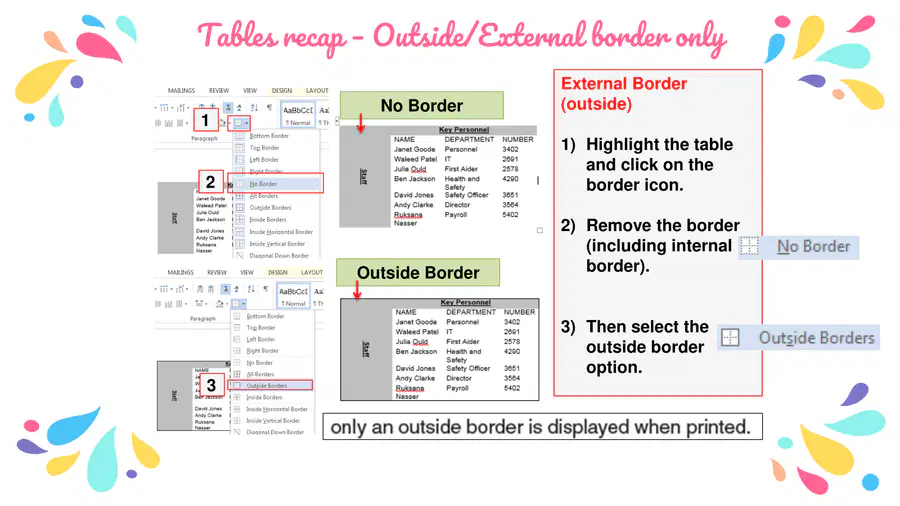
•Make sure that all borders and gridlines are displayed when printed
15. Format The Wood Store Catalogue table so that it matches the formatting of the Exhibitions table.
19
20
Poll
How do you feel about Tables in Microsoft Word?
Show answer
Auto Play
Slide 1 / 20
SLIDE
Similar Resources on Wayground

16 questions
Troubleshooting
Presentation
•
9th Grade
15 questions
SEX DETERMINATION
Presentation
•
9th Grade
15 questions
Perpendicular and Parallel Lines
Presentation
•
9th Grade
15 questions
Ordering Rational Numbers
Presentation
•
9th Grade
15 questions
Differentiation & Specialization
Presentation
•
9th Grade
16 questions
Combining Like Terms with Exponents
Presentation
•
9th Grade
16 questions
Lewis Electron Dot Structure
Presentation
•
9th Grade
14 questions
Author's Purpose
Presentation
•
9th Grade
Popular Resources on Wayground
10 questions
How much do you know about our Portrait of an Eagle?

Quiz
•
10th Grade
10 questions
Fast Food Slogans
Quiz
•
6th - 8th Grade
21 questions
Continents and Oceans
Quiz
•
6th Grade
20 questions
Parts of Speech
Quiz
•
5th Grade
16 questions
Subject & Predicate
Quiz
•
5th Grade
25 questions
Multiplication Facts
Quiz
•
5th Grade
12 questions
Map Skills
Quiz
•
3rd Grade
22 questions
Continents and Oceans
Quiz
•
5th Grade
Discover more resources for Computers
10 questions
Exploring Digital Citizenship Essentials

Interactive video
•
6th - 10th Grade
20 questions
[AP CSP] Python Coding: Functions, Parameters, Return
Presentation
•
9th - 12th Grade
40 questions
Introduction to Microsoft Word
Quiz
•
8th - 12th Grade
20 questions
APCS Unit 1A
Quiz
•
9th - 12th Grade
24 questions
Binary
Quiz
•
9th - 12th Grade