Search Header Logo
Windows and Chrome Interface

Windows and Chrome Interface

Assessment

Presentation

Computers

8th Grade

Practice Problem

Medium

Created by

Shanta Smith

Used 38+ times

FREE Resource

0 Slides • 40 Questions

1

Multiple Choice
Question image

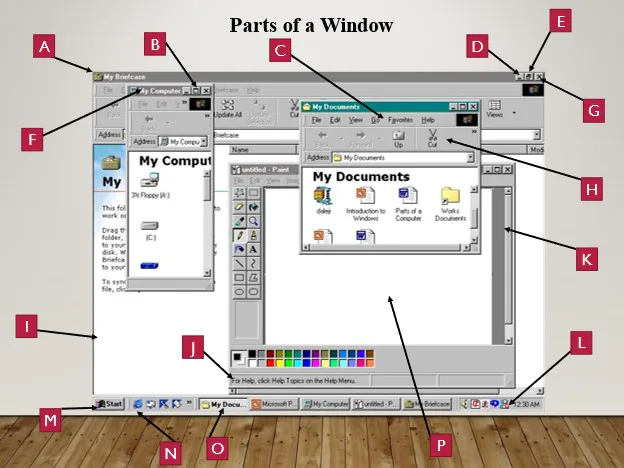
What item is labeled B?

1

Minimize

2

Restore

3

Maximize

4

Close

2

Multiple Choice

What are the 4 stages of a computer system?

1

Input, output, hardware and software

2

Input, output, processing and hardware

3

Input, output, storage and processing

4

Input, output, storage and software

3

Multiple Choice

How do you split screens on a Windows device?

1

Press and hold down the windows key and click an arrow key

2

Press and hold down the ALT + [ or ]

3

Press Alt + Show Windows

4

You can't split screens on a windows device.

4

Multiple Choice

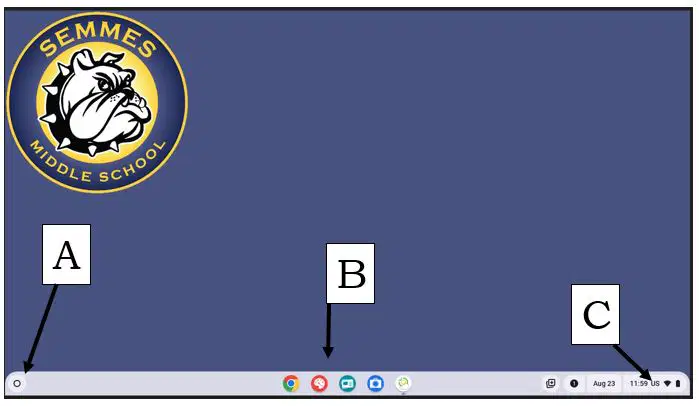
This is typically in the lower right corner of the screen and shows the current state of the device's battery, network and time.

1

App Launcher

2

Shelf

3

Taskbar

4

System Tray

5

Multiple Choice

This is typically located on the bottom left corner, and is use to open apps and navigate your computer and internet.

1

App Launcher

2

Shelf

3

Taskbar

4

System Tray

6

Multiple Choice

This is typically is the bar at the bottom of the screen and can be used to store various apps.

1

App Launcher

2

Shelf

3

Taskbar

4

System Tray

7

Multiple Choice

How do you split screens on a Chromebook?

1

Press and hold down the windows key and click an arrow key

2

Press and hold down the ALT + [ or ]

3

Press Alt + Show Windows

4

You can't split screens on a chromebook device.

8

Multiple Choice

What is the best way to capture the entire screen on a chromebook?

1

Press and hold the Ctrl + Alt + Show windows, then click full screen

2

Press and hold the Ctrl + Show windows key

3

Press and hold the Ctrl + the Shift key

4

Press and hold the Ctrl + the Alt key

9

Multiple Choice

To move a window you click and hold down the title bar then drag the title bar to its new location and release the mouse.

1

True

2

False

10

Multiple Choice

The best way to resize a window is to double click on the corner of the window.

1

True

2

False

11

Multiple Choice

What is the technique to move a window?

1

Move a window

2

Relocate a Window

3

Drag and drop

12

Multiple Choice

Question image

What item is labeled D?

1

Minimize

2

Restore

3

Maximize

4

Close

13

Multiple Choice

Question image

What item is labeled E?

1

Minimize

2

Restore

3

Maximize

4

Close

14

Multiple Choice

Question image

What item is labeled G?

1

Minimize

2

Restore

3

Maximize

4

Close

15

Multiple Choice

Question image

What item is labeled F?

1

Title Bar

2

Menu Bar

3

Toolbar

4

Status Bar

16

Multiple Choice

Question image

What item is labeled C?

1

Title Bar

2

Menu Bar

3

Toolbar

4

Status Bar

17

Multiple Choice

Question image

What item is labeled H?

1

Title Bar

2

Menu Bar

3

Toolbar

4

Status Bar

18

Multiple Choice

Question image

What item is labeled J?

1

Title Bar

2

Menu Bar

3

Toolbar

4

Status Bar

19

Multiple Choice

Question image

What item is labeled O?

1

Taskbar

2

Active Window

3

Start Button

4

System Tray

20

Multiple Choice

Question image

What item is labeled M?

1

Taskbar

2

Active Window

3

Start Button

4

System Tray

21

Multiple Choice

Question image

What item is labeled N?

1

Taskbar

2

Active Window

3

Start Button

4

System Tray

22

Multiple Choice

Question image

What item is labeled L?

1

Taskbar

2

Active Window

3

Start Button

4

System Tray

23

Multiple Choice

Question image

What item is labeled A?

1

App Launcher

2

Taskbar

3

Shelf

4

System Tray

24

Multiple Choice

Question image

What item is labeled B?

1

App Launcher

2

Taskbar

3

Shelf

4

System Tray

25

Multiple Choice

Question image

What item is labeled C?

1

App Launcher

2

Taskbar

3

Shelf

4

System Tray

26

Multiple Choice

What are the 2 basic components of a computer?

1

Input and output

2

hardware and software

3

input and processing

4

output and processing

27

Multiple Choice

The entire screen area that displays windows and icons.

1

Icon

2

Window

3

Desktop

4

Graphic User Interface

28

Multiple Choice

The boxed in area of the screen.

1

Icon

2

Window

3

Desktop

4

Graphic User Interface

29

Multiple Choice

Labeled pictures along the left side of the screen which provide easy access to various aspects of windows.

1

Icon

2

Window

3

Desktop

4

Graphic User Interface

30

Multiple Choice

Displays the name of the window or the document in the window.

1

Title Bar

2

Menu Bar

3

Window

4

Dialogue Box

31

Multiple Choice

Located at the top of the window. Displays a list of options you can choose from.

1

Title Bar

2

Menu Bar

3

Window

4

Dialogue Box

32

Multiple Choice

A special type of window that presents groups of related options from which you can make selections.

1

Title Bar

2

Menu Bar

3

Window

4

Dialogue Box

33

Multiple Choice

Increases the size of the window.

1

Minimize

2

Restore

3

Close

4

Maximize

34

Multiple Choice

Keeps the window contents in RAM and reduces the window to a button on the taskbar/shelf.

1

Minimize

2

Restore

3

Close

4

Maximize

35

Multiple Choice

Returns the window to its original size.

1

Minimize

2

Restore

3

Close

4

Maximize

36

Multiple Choice

Offers shortcuts to places you visit frequently.

1

Window

2

Dialogue Box

3

Navigation Pane

4

Application Icon

37

Multiple Choice

This means to select or highlight an application or document.

1

Click

2

Double Click

38

Multiple Choice

This means to open an application/document.

1

Click

2

Double Click

39

Multiple Choice

This means to keep new changes to a document.

1

Save

2

Save As

40

Multiple Choice

This means to make a copy of a document and rename the document.

1

Save

2

Save As

Question image

What item is labeled B?

1

Minimize

2

Restore

3

Maximize

4

Close

Show answer

Auto Play

Slide 1 / 40

MULTIPLE CHOICE