

Autodesk Maya Lessons

Presentation
•
Education
•
Professional Development
•
Practice Problem
•
Hard

Mr Gabriel
Used 9+ times
FREE Resource
18 Slides • 0 Questions
1
Autodesk Maya
Introduction to 3D modeling.

2


Lists of toolbars
Shelfs
Tool Box
Status Line

Important Toolbars
3
Basic Camera Control

ALT + Left click
ALT + Middle click
ALT + Right click/Scroll wheel
Camera control is done by utilizing the keyboard and mouse
ALT + Left click
Rotates around selected objects
ALT + Middle click
Pans the camera positions
ALT + Right click/Scroll wheel
Zooms in and out
4

Changing values in either will alter the shape or position of the object, depending on which tab you have open.

Attribute Editor

Note:
(hightlight blue)
5
Attribute Editor
(hightlight blue)

6
Placing & Modifying Shapes/Objects

Step 1: Locate the Shelf Menu
Step 2: Select the Polygons Tab
Step 3: Find the Cube Icon
Step 4: Create a Cube
Step 5: Modify the Cube
REMEBER - If you don't see the Polygons tab in the Shelf, you can enable it:
Go to Display > UI Elements > Shelf to ensure the Shelf is visible.
Right-click on the tabs in the Shelf and check Polygons to enable it.

7
Edge, Vector, and Face tools
In Autodesk Maya, Edge, Vertex, and Face selectors are essential tools used in component mode for working with the individual parts of a 3D mesh. These tools allow precise modeling, enabling you to reshape, refine, and edit geometry effectively.
8
What Is an Edge?
An edge is the line segment connecting two vertices on a polygonal mesh.
Edges define the shape and structure of your 3D model.
Using the Edge Selector:
Activate Edge Mode:
Right-click on the object and select Edge from the marking menu.
Alternatively, press F10 to enter Edge selection mode.
Selection:
Click on an edge to select it.
Shift+Click to add multiple edges to the selection.
Edge Loops:
Double-click an edge to select an entire loop (a continuous ring of connected edges).
Editing:
Move, rotate, or scale edges to modify the mesh shape.
Edge Selector
9
What Is a Vertex?
A vertex is a point in 3D space where edges meet.
Vertices are the building blocks of a polygonal mesh.
Using the Vertex Selector:
Activate Vertex Mode:
Right-click on the object and select Vertex from the marking menu.
Alternatively, press F9 to enter Vertex selection mode.
Selection:
Click on a vertex to select it.
Shift+Click to select multiple vertices.
Editing:
Move vertices to adjust the mesh's shape.
Snap vertices to align them or merge overlapping points.
Vertex Selector
10
What Is a Face?
A face is the flat surface bounded by edges in a polygonal mesh.
Faces form the visible surface of 3D objects.
Using the Face Selector:
Activate Face Mode:
Right-click on the object and select Face from the marking menu.
Alternatively, press F11 to enter Face selection mode.
Selection:
Click on a face to select it.
Shift+Click to select multiple faces.
Drag a selection box over an area to select multiple faces.
Editing:
Extrude faces to add volume to the mesh.
Delete unwanted faces.
Face Selector
11
Edge, Vector, and Face tools
Tips for Using Edge, Vertex, and Face Selectors
Switch Between Modes:
Quickly switch between component modes using the right-click marking menu.
Soft Selection:
Enable Soft Selection to affect surrounding components for smoother edits.
Shortcut: Press B to toggle Soft Selection on/off.
Snap Tools:
Use snap tools (e.g., to grid, vertex, or edge) for precise alignment.
Symmetry:
Enable symmetry to ensure changes are mirrored across an axis.
12
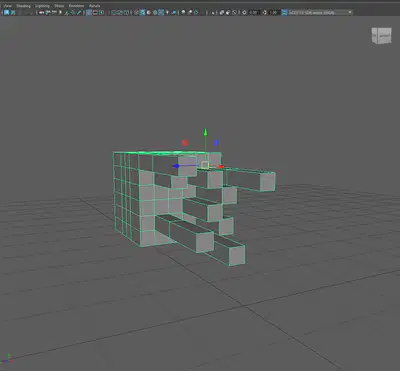
Extrude/Extrusion
13
Extrude/Smart Extrude
What is Extrusion?
Extrusion is the process of extending geometry from an existing surface to create new shapes.
It's commonly used for modeling walls, pipes, handles, or intricate designs.
Where Can It Be Applied?
Faces: Extend a surface outward or inward.
Edges: Create strips or additional geometry.
Curves: Generate 3D objects like tubes or paths.
14
Extruding:
In Face Mode, click on the face(s) you want to extrude.
Use Shift+Click to select multiple faces.
Activate Extrude Tool:
Go to Edit Mesh > Extrude.
Alternatively, use the shortcut Ctrl+E.
Adjust Extrusion:
After activating the tool, you'll see a manipulator handle.
Drag the blue arrow to extrude the face outward or inward.
Use the scale handles to adjust the size of the extrusion.
Rotate or reposition the extrusion if needed.
Finalize the Shape:
Once satisfied, press Enter or click away to finalize the extrusion.
15
Extruding:
In Face Mode, click on the face(s) you want to extrude.
Use Shift+Click to select multiple faces.
Activate Extrude Tool:
Go to Edit Mesh > Extrude.
Alternatively, use the shortcut Ctrl+E.
Adjust Extrusion:
After activating the tool, you'll see a manipulator handle.
Drag the blue arrow to extrude the face outward or inward.
Use the scale handles to adjust the size of the extrusion.
Rotate or reposition the extrusion if needed.
Finalize the Shape:
Once satisfied, press Enter or click away to finalize the extrusion.
16
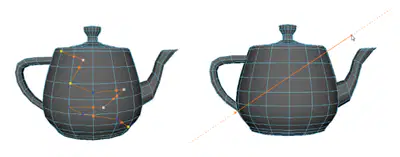
Multi-Cut Tool
How to Access the Multi-Cut Tool
From the main menu bar:
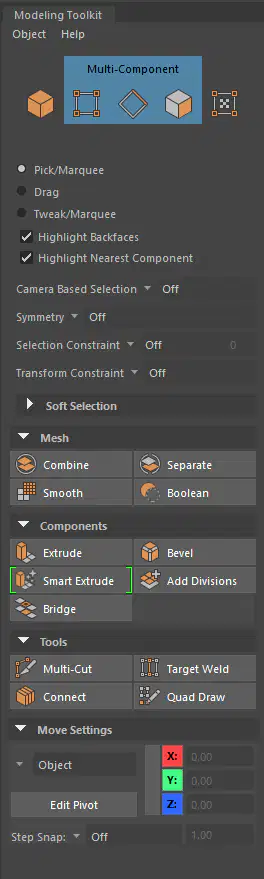
Modeling Toolkit > Multi-Cut Tool.
From the Edit Mesh menu:
Go to Mesh Tools > Multi-Cut.
Shortcut:
Shift + Right-Click in the viewport and select Multi-Cut Tool from the marking menu.
17
Multi-Cut Tool
How to Use the Multi-Cut Tool
1. Adding Edges
Activate the Multi-Cut Tool.
Click on an edge or face to place the starting point of the cut.
Move the cursor and click again to place the endpoint, creating a new edge.
2. Snapping
Hold Ctrl to snap the cut to edge divisions (e.g., 25%, 50%, 75%).
3. Adding Edge Loops
Hold Shift and move the cursor over an edge to preview an edge loop.
Click to confirm the placement of the edge loop.
4. Cutting Across Multiple Faces
Click and drag from one side of the mesh to the other.
This creates cuts that span across all intersecting faces.
5. Adjusting Existing Geometry
Use the tool to refine edge flow or adjust topology by adding new cuts selectively.
18
Multi-Cut Tool
Shortcuts and Tips for the Multi-Cut Tool
Toggle Cut Modes:
While cutting, press Ctrl to switch to snapping mode and Shift for edge loop preview.
Precision Cuts:
Hold Shift for clean edge loops and Ctrl for snapping cuts to specific percentages.
Undo Cuts:
If a cut isn’t satisfactory, press Ctrl+Z to undo.
Use with Wireframe Mode:
Press 4 to see the wireframe clearly when making cuts.
Autodesk Maya
Introduction to 3D modeling.
Show answer
Auto Play
Slide 1 / 18
SLIDE
Similar Resources on Wayground

15 questions
Monitoring and Evaluation course
Presentation
•
Professional Development
13 questions
TED classical music
Presentation
•
Professional Development
14 questions
Training Technologies. Structure
Presentation
•
Professional Development
12 questions
OFERTA: DESPLAZAMIENTOS
Presentation
•
KG
10 questions
PRESENT CONTINUOUS
Presentation
•
Professional Development
11 questions
GROUP DYNAMICS
Presentation
•
Professional Development
14 questions
Electron Math
Presentation
•
9th - 12th Grade
12 questions
TIKTOK
Presentation
•
Professional Development
Popular Resources on Wayground
6 questions
Secondary Safety Quiz
Presentation
•
9th - 12th Grade
10 questions
Afterschool Activities & Sports

Quiz
•
6th - 8th Grade
19 questions
ROAR Week 2026
Quiz
•
9th - 12th Grade
20 questions
Lab Safety Quiz
Quiz
•
6th Grade
15 questions
Cool Tool:Chromebook
Quiz
•
6th - 8th Grade
22 questions
would you rather
Quiz
•
3rd - 11th Grade
21 questions
Continents and Oceans
Quiz
•
6th Grade
20 questions
Parts of Speech
Quiz
•
5th Grade