

BOY Quizizz Presentation ( Draft)

Presentation
•
Other
•
Professional Development
•
Practice Problem
•
Hard

Marcel Wells
Used 2+ times
FREE Resource
14 Slides • 0 Questions
1
A tool for all teachers, across all subjects!
By Marcel Wells & Travis Michna
2
Multifaceted
Engages Students: Fun, game-like quizzes with leaderboards and memes.
Saves Time: Automatic grading and clear reports.
Easy to Use: Simple setup, works on any device.
Prepares for Tests: Varied question types mimic real exams.
3
Boosting Engagement
Game features (avatars, points) make learning fun.
Live or homework modes fit any classroom.
Instant feedback keeps all students motivated.
Example: Add images to history quizzes or puzzles to math.
4
Grading Made Easy
Auto-grades multiple-choice and short answers.
Standards Tracking
Reports show who needs help (e.g., fractions or vocabulary).
Syncs with Classlink / Canvas
5
Simple to Use
Create a quiz in minutes or use pre-made ones.
Students join with a code on any device.
AI generates questions from a topic or document.
Free library with quizzes for all subjects.
6
Varied Question Types
Multiple-choice, true/false, fill-in-the-blank, open-ended.
Mimics standardized test formats for practice.
Customize for your subject (e.g., grammar or science).
Adjust difficulty for all learners. (accommodations can be added as well
7
Let's Get Started
Sign up free at wayground.com. (Sign in with SSO / Classlink)
Create a short quiz: Add 5 questions, use AI if needed.
Travis and I will walk you through making your first assessment, lesson, etc. As well as finding reports and how to transfer grades!
8
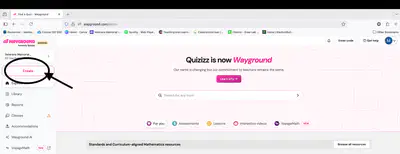
From the main screen, look for the "create" button and click on it
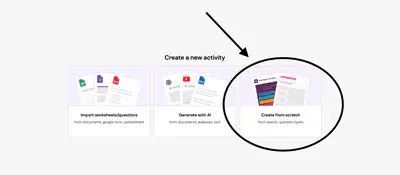
Choose "assessment"
Creating Your Activity

9
Question types will vary based on personal need and content, of course. For the sake of time I would suggest using the options listed under "basic"
Choose Your Question Type

10
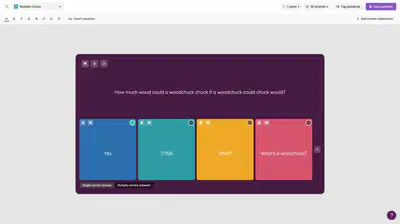
You have the freedom to edit your question as you see fit. You can even implement TEKS, timers, and answer explanations.
Once you've finished the question, click on "save question" in the top right corner.
Creating Your Question
11
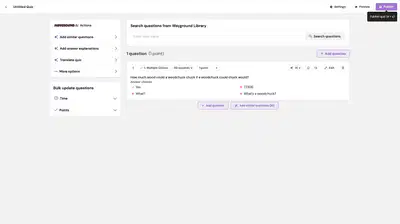
This is where your completed questions live, as well as tools to add more questions if you don't feel like making more on your own.
Question Library
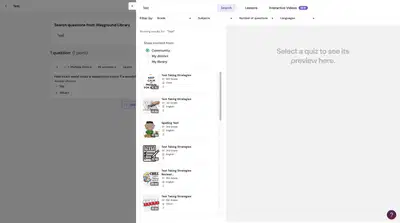
12
Clicking on the search bar will bring you to this directory, where you can type in keywords to find any question you want.
Adding Questions from the Library
13
Use this time to complete your (maybe) first Quiz!
Finish Your Quiz!
14
Let's see what else we can do with Quizizz.
Im Done.....Now What?

A tool for all teachers, across all subjects!
By Marcel Wells & Travis Michna
Show answer
Auto Play
Slide 1 / 14
SLIDE
Similar Resources on Wayground

10 questions
Countryballs Potato Mayhem
Presentation
•
KG
9 questions
GC PitStop PD - 9/14
Presentation
•
Professional Development
9 questions
08 - La valorisation des données
Presentation
•
Professional Development
6 questions
Quizizz dan IKM
Presentation
•
Professional Development
10 questions
Emerging Technologies
Presentation
•
Professional Development
10 questions
REVIEW GUIDE FOR PROJECT INITIATION P AND SA
Presentation
•
Professional Development
10 questions
RN Preceptor 101
Presentation
•
Professional Development
10 questions
Chess Major Lesson 5: Intermediate Checkmate Patterns
Presentation
•
KG
Popular Resources on Wayground
10 questions
Safety Day 2026 – Student Review

Quiz
•
9th Grade
21 questions
Continents and Oceans
Quiz
•
6th Grade
20 questions
Parts of Speech
Quiz
•
5th Grade
16 questions
Subject & Predicate
Quiz
•
5th Grade
25 questions
Multiplication Facts
Quiz
•
5th Grade
12 questions
Map Skills
Quiz
•
3rd Grade
22 questions
Continents and Oceans
Quiz
•
5th Grade
15 questions
Rounding Decimals
Quiz
•
5th Grade