
 Worksheets
Adobe video: D4 Lesson 1
Total questions: 11
Worksheet time: 13mins
Where do you find your 'Additive Editing' button options?
Where do you find your 'Subtractive Editing' button options?
When a video clip is dragged into the (a) , it is not (b) or rescaled to the sequence settings. However, Videos CAN be resized or rescaled by clicking on the (c) menu and clicking the (d) option. Once the preferences are set, other videos added be resized or rescaled.
The (a) to Sequence button is in the (b) panel. This button adds multiple clips to the timeline in the order they are (c) . Remember that when creating a sequence through adding a clip or clips to the timeline, the (d) added will dictate the sequence settings.
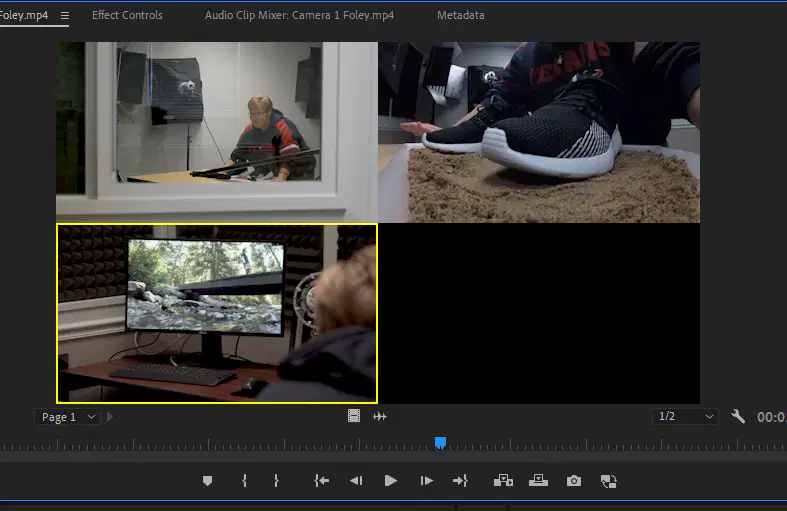
A (a) sequence is created by moving (b) from multiple cameras into
one (c) . The clips need to be selected and then (d) to access the
'Create Multi-Camera Source Sequence' option.
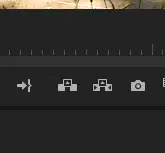
The (a) option deletes the selected portion of the video and leaves an empty space. This requires In and Out points to be selected on the (b) monitor first.
The (c) option also deletes a selected portion of a video. However, this function shifts the remaining timeline back to cover the empty (d) remaining from the removal .
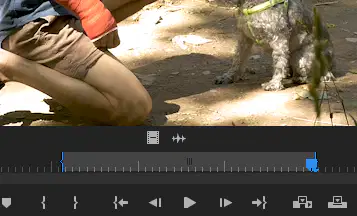
Prior to adding an entire (a) to a timeline, you can mark (b) points in the (c) monitor. Doing so will give you a (d) clip when added to the (e) .

You can add (a) clips to your timeline easily if you know the (b) you want them to appear. Simply hold down the (c) button while clicking the clips you want in the order in which you want them to appear. Then simply (d) to your timeline.

Located in the (a) monitor, you will find the 'insert' and ' (b) ' function buttons. 'Insert' will push all clips over to the (c) of your timeline, while 'overwrite' will (d) any existing clips with the one you are placing.

