
 Worksheets
2nd Qr. Mastery Computer
Total questions: 71
Worksheet time: 36mins
Word processing software known for its features and ease of use. It is practically available on all computers. It is also called MS Word.
Microsoft Word
Contextual tab
Dialog Box
Launcher opens a related window containing different options as found in the old version of Word.
Microsoft Word
Contextual tab
Dialog Box
A menu that contains the different Word commands arranged into groups.
Microsoft Word
Contextual tab
Tab
Contains commands put together in a logical manner. Example are equation,symbol commands.
Group
Contextual tab
Tab
The action you want to execute in Word, such as copy or paste.
Dialog Box
Contextual tab
Command
A tab that appears depending on the selected item. An example is picture tools.
Dialog Box
Contextual tab
Command
This hides all elements except the text. This is useful in quick editing.
Split view
Draft View
Outline view
It hides the Ribbon and task panes so you can concentrate on reading the document.
Split view
Read mode
Outline view
Displays your document in an outline format.
Split view
Read mode
Outline view
Particularly useful if you are designing a web page using Word.
Split view
Web layout
Print layout view
This is the default view when you open the word and shows how your document will look like when printed.
Split view
Web layout
Print layout view
This allows you to create a duplicate window of your current document.
New window
View side by side
Split view
This helps you compare different documents for any changes.
New window
View side by side
Split view
This is an advance tool that allows you to have a split view of the same document so you can review and compare different parts of the document.
New window
View side by side
Split view
This is used to arrange all open documents so you can easily jump from one document to another.
templates
Arrange all
Ribbon
Preformatted, professional-looking documents with text that you can replace with your own. Using this can save you plenty of time formatting documents.
templates
Arrange all
Ribbon
This is a customizable tool that shows you as well as allows you to add the commands that you always use.
templates
Quick access toolbar (QAT)
Ribbon
This is a toolbox, where you access from can the commands you need to accomplish your task in Word.
templates
Quick access toolbar (QAT)
Ribbon
This allows you to group a set of commands that you use most often.
templates
Custom tab
Ribbon
This means to switch between one setting and another.
Toggle
Custom tab
Zoom slider
This is use to enlarge or reduce the size of the document view for viewing purposes only and does not affect the actual size of the text.
Toggle
Custom tab
Zoom slider
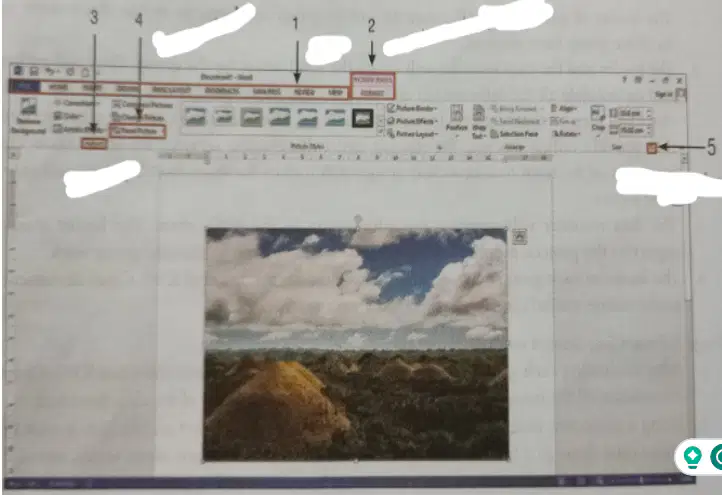
Named the word environment commands
Number 1
Tab
Contextual tab
dialog box
command
group
Named the word environment commands
Number 2
Tab
Contextual tab
dialog box
command
group
Named the word environment commands
Number 3
Tab
Contextual tab
dialog box
command
group
Named the word environment commands
Number 4
Tab
Contextual tab
dialog box
command
group
Named the word environment commands
Number 5
Tab
Contextual tab
dialog box
command
group
Document properties, also called ________, are information about a file such as its title, author’s name, subject, number of pages, number of words, creation date, editing date and keywords.
Document Library Properties
Metadata
Standard properties
Custom properties
Automatically Updated Properties
These properties, such as file size, creation date, and date last modified are automatically updated by word.
Document Library Properties
Metadata
Standard properties
Custom properties
Automatically Updated Properties
Word documents are associated with this properties, such as author, title, and subject.
Document Library Properties
Metadata
Standard properties
Custom properties
Automatically Updated Properties
Aside from standard and automatically properties, these properties lets you add more information to the default for easy identification and searching.
Document Library Properties
Metadata
Standard properties
Custom properties
Automatically Updated Properties
These are properties that are associated with documents in a document library on a website or in a public folder.
Document Library Properties
Metadata
Standard properties
Custom properties
Automatically Updated Properties
Display the open file window.
Ctrl + O Open
Ctrl + F Find
Ctrl + N New
Find context within the document
Ctrl + O Open
Ctrl + F Find
Ctrl + N New
Creates a new blank document
Ctrl + O Open
Ctrl + F Find
Ctrl + N New
Pastes the cut or copied content
Ctrl + V Paste
Ctrl + F Find
Ctrl + N New
Opens the print dialog box used for printing the document.
Ctrl + V Paste
Ctrl + P Print
Ctrl + N New
Saves the current document
Ctrl + V Paste
Ctrl + P Print
Ctrl + S Save
Saves the selected content to the clipboard for later pasting.
Ctrl + C Copy
Ctrl + P Print
Ctrl + S Save
Deletes selected content and temporarily saves it to the Clipboard for later pasting.
Ctrl + C Copy
Ctrl + X Cut
Ctrl + S Save
Cancel the last change made to the document
Ctrl + C Copy
Ctrl + X Cut
Ctrl + Z Undo
Repeats the last command executed.
Ctrl + Y Repeat
Ctrl + X Cut
Ctrl + Z Undo
Shortcut keys make executing commands like copying and pasting fast and simple this are also called
Ctrl + Y Repeat
Hotkey
Ctrl + Z Undo
It is a customizable tool that allows you to add the commands that you always use.
Quick access toolbar
Standard Properties
Automatically updated properties
Word documents are associated with these properties, such as author, title, and subject.
Quick access toolbar
Standard Properties
Automatically updated properties
Aside from standard and automatically updated properties, you can add these properties to word documents.
Custom Properties
Standard Properties
Automatically updated properties
This option controls the size of your printout.
Custom Properties
Print Scaling
Automatically updated properties
You assign a macro to this icon if you want to run a macro when you click a button.
Custom Properties
Print Scaling
hammer
This command allows you to show formatting marks on the screen.
Show/Hide
Print Scaling
hammer
These are a set of symbols that provide a visual representation of specific formatting in a document.
Show/Hide
Formatting marks
hammer
You can put a series of commands and instructions into a single command by creating this.
Show/Hide
Formatting marks
Macro
If your file contains confidential or sensitive data, you may want to protect it with this.
Password
Formatting marks
Macro
Is a part of Word document that has its own formatting.
Password
Section
Macro
This ables you to check the compatibility between versions of your Word document to see if the features in your original document are supported by older version of office
Password
Section
Compatibility
This line indicates word might be grammatically incorrect.
Green wavy line
Red wavy line
Compatibility
This line indicated potential spelling errors.
Green wavy line
Red wavy line
Compatibility
Tab Characters

⇁
→
…
abc
Spaces

⇁
→
…
abc
Paragraph marks

⇁
→
…
abc
Hidden text

⇁
→
…
abc
Object Anchors

⇁
→
…
abc
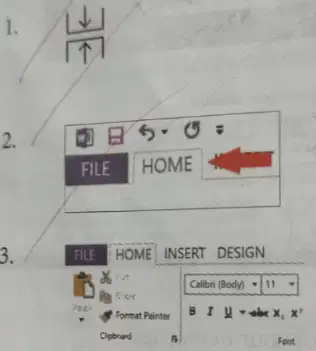
picture number 1
Hide white Space
tab
Ribbon
picture number 2
Hide white Space
tab
Ribbon
picture number 3
Hide white Space
tab
Ribbon
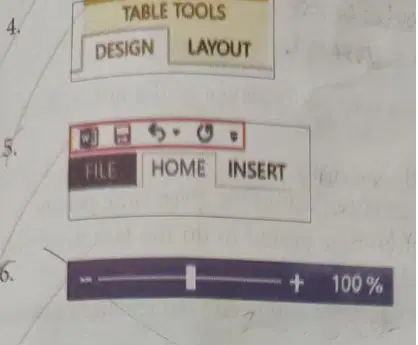
picture number 4
Contextual tab
Quick access toolbar
zoom slider
picture number 5
Contextual tab
Quick access toolbar
zoom slider
picture number 6
Contextual tab
Quick access toolbar
zoom slider
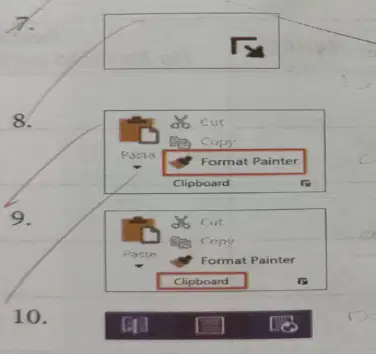
picture number 7
Dialog box Launcher
Comand
Group
Document view
picture number 8
Dialog box Launcher
Comand
Group
Document view
picture number 9
Dialog box Launcher
Comand
Group
Document view
picture number 10
Dialog box Launcher
Comand
Group
Document view
Identify the correct sequence of customizing the ribbon


2

3

4

