
Font size
 Worksheets
Mastering Excel Basics
Total questions: 140
Worksheet time: 2hrs 45mins
Naira is trying to calculate the total amount of money she has saved in her piggy bank. She has saved the amount in cell A1 and the amount in cell A2. What formula would she use to add the values in cells A1 and A2?
=A1 - A2
=A1 * A2
=A1 + A2
=SUM(A1,A2)
Aditi is trying to find out the average score of her last 10 math tests in Excel. How does she calculate the average of a range of cells in Excel?
Count the cells with =COUNT(A1:A10).
Use the SUM function, e.g., =SUM(A1:A10).
Calculate the median with =MEDIAN(A1:A10).
Use the AVERAGE function, e.g., =AVERAGE(A1:A10).
Vanya is analyzing the scores of her classmates in a recent math test. She wants to find out which student scored the highest. Which function would she use to find the maximum value in the range of scores?
MIN
SUM
MAX
AVERAGE
Neha is trying to determine if she has passed her math exam. She wants to use the IF function in Excel to evaluate her score and return different messages based on whether her score is above or below the passing mark.
To evaluate a condition and return different values based on whether the condition is true or false.
To calculate the sum of a range of cells.
To create a chart from data in a worksheet.
To format cells based on their values.
Krish is trying to reference a cell in another worksheet for his project. How does he do it?
Use 'SheetName.CellReference' format.
Reference cells by 'CellReference@SheetName' syntax.
Use 'SheetName!CellReference' format.
Use 'CellReference:SheetName' format.
Sanya is working on a project in a spreadsheet and wants to add a new line within a cell to separate her notes. What keyboard shortcut should she use?
Ctrl + Enter (Windows) / Command + Enter (Mac)
Shift + Enter (Windows) / Shift + Return (Mac)
Alt + Enter (Windows) / Option + Enter (Mac)
Alt + Shift + Enter (Windows) / Option + Shift + Enter (Mac)
Eesha is analyzing her monthly expenses and wants to highlight any amounts greater than 100. How can she apply conditional formatting to highlight those cells?
Select cells, go to Data > Sort > Sort Largest to Smallest.
Select cells, go to Home > Conditional Formatting > New Rule > Format cells that contain > greater than > 100 > choose format > OK.
Right-click on the cells and choose Format Cells > Number > Custom > OK.
Select cells, go to Home > Conditional Formatting > Clear Rules > All Rules > OK.
Avyaan is analyzing the scores of his classmates in a math test. He wants to count how many students scored a number greater than zero. What is the formula to count the number of cells that contain numbers in the range of scores?
SUM(range)
AVERAGE(range)
COUNT(range)
MAX(range)
Akhil is trying to calculate the total cost of items he wants to buy. If the price of item B is in cell B1 and the quantity he wants to buy is in cell C1, how does he create a formula that multiplies the values in cells B1 and C1?
=B1-C1
=B1*C1
=B1/C1
=B1+C1
Ananya is working on a project where she needs to combine the names of her team members from different cells in a spreadsheet. What is the function she should use to concatenate text from multiple cells?
CONCATENATE or &
APPEND
MERGE
JOIN
Krish wants to change the color of a cell in his spreadsheet based on its value. How can he do this?
Change the cell color manually using the paint bucket tool.
Adjust the cell color in the page layout settings.
Use a formula to set the cell color directly.
Use conditional formatting to change the cell color based on its value.
Ishika is trying to calculate the total score of her assignments from A1 to A10. What formula would she use to find the sum of cells A1 through A10?
=SUM(A1:A10)
=SUMMATION(A1:A10)
=TOTAL(A1:A10)
=ADD(A1:A10)
Vanya is trying to apply a data bar conditional formatting rule to her sales data in Excel. How does she do it?
Select the range, go to Data Bars > Conditional Formatting, and choose a style.
Right-click the range, select Format Cells, and apply a color fill.
Select the range, go to Conditional Formatting > Data Bars, and choose a style.
Select the range, go to Home > Styles > Conditional Formatting, and pick a color.
Ananya is trying to understand how to use formulas in her spreadsheet for her school project. She learns that there are two types of cell references: relative and absolute. What is the difference between relative and absolute cell references?
Both types of references are the same and do not affect calculations.
Relative references are always fixed; absolute references change based on position.
Absolute references adjust based on the position; relative references do not change.
Relative references adjust based on the position; absolute references do not change.
How can Dia use conditional formatting to highlight duplicate values in a range of student scores?
Use conditional formatting to highlight duplicate values by selecting the range, then applying 'Highlight Cells Rules' > 'Duplicate Values'.
Select the range and apply 'Data Validation' > 'List' to filter duplicates.
Use 'Sort' to arrange the values and manually highlight duplicates.
Apply 'Conditional Formatting' > 'Color Scales' to visualize the data.
features of MS excel
Riya wants to create a formula that calculates the average of her test scores located in cells B1 to B5. What formula should she use?
=AVERAGE(B1:B5)
=AVG(B1:B5)
=MEAN(B1:B5)
=SUM(B1:B5)/5
Arjun is trying to find the total number of entries in a list of names in cells A1 to A20. Which function should he use?
SUM(A1:A20)
COUNT(A1:A20)
COUNTIF(A1:A20)
COUNTA(A1:A20)
Meera wants to create a drop-down list in her spreadsheet for selecting a category. Which feature should she use?
Sort
Filter
Conditional Formatting
Data Validation
How is the COLUMN in a MS Excel Spreadsheet named?
Numbers
Letters
Cells
Columns
How are ROWS in MS EXCEL spreadsheet named?
numbers
letters
cells
columns
What is a rectangular box in a MS EXCEL Spreadsheet called?
row
column
cell
What does every formula in MS EXCEL start with?
+
-
=
*
What is the symbol for division when using MS EXCEL.
/
+
*
-

What is the name of the cell that is colored blue?
A
B
2B
B2

What is a multiplication formula for MS Excel using the picture ?
=1Ax1B
=B1*G1
=C3xD3
=B4*C4
What is an example of a RANGE in MS Excel.
B2-F5
F5:B2
B2:5F
(B2:F5)
When is a MS Excel Spreadsheet used?
Making a Drawing
When Reading
For Collecting Information
For Baking a Cake
The intersection of a row and a column is called this.
Active Cell
Chart
Column
Row
In Excel, rows are identified by this
Letters
Numbers
Which is NOT a term used in Excel?
Workbook
Worksheet
Cell
Document
You are not able to open, save, rename and close a file in Excel the way you would in MS Word.
TRUE
FALSE
The first cell in a worksheet is what?
A1
1A
FX
Cell Name
Rows go in what directions?
Vertical
Horizontal
A program using a table comprising of rows, columns and cells.
MS Word
MS PowerPoint
MS Outlook
MS Excel


Excel file is saved as a ____________
Document
workbook
worksheets
Presentation
Name of the workbook is displayed in the ___________
Menu bar
Title bar or ribbon
Tool bar
option bar
Name of the workbook is displayed in the ___________
Menu bar
Title bar or ribbon
Tool bar
option bar

This is a_____________?
Column
Row
Cell
Range

This is a_____________?
Row
Column
Cell
Range

The area within the red box is called_______?
Fill Handle
Active Cell
Cell
Row

These are called___________?
Sheet Tabs
Spread sheets
Work books
Sheets Menu
An Excel file is called_____________?
Workbook
Worksheet
Spread sheets
Excel

A Cell is___________________?
Where a row and column intersect
Cell running vertically
Cell runnung horizontally
All of above

This is a ___________?
Group
Ribbon
Tab
None of above

This is the __________?
Title bar
Entry bar
Tab
None of above

Name the active cell______?
C5
B4
C6
D6
Ctrl + N is a shortcut for_________?
Creating a new Workbook
Saving a workbook
Insert a new worksheet
Opening an existing worksheet
Which short cut is used to close excel application?
Alt + F4
Alt + F5
Ctrl + F4
Alt + Q
Shortcut key for bringing a disappeared ribbon?
Ctrl + F1
Alt + F1
Ctrl + Alt + F1
Alt + F4
How many Rows and Columns are there in an excel?
1048576R and 16384C
16384R and 1048576C
Unlimited
One Lakh Row and Columns
What is the Key to activate ribbon?
Alt
Ctrl
Alt + R
Fn
Short Cut key to open an existing Excel file?
Ctrl + O
Ctrl + N
Windows + R
Alt + O
Every Formula in MS Excel must begin with _______?
An Equal Sign
An () sign
A Plus Sign
A > Sign
What are the shortcut keys for AutoSum?
Alt + =
Ctrl + =
Ctrl +S
Alt + A
What are the keyboard shortcut keys to edit formula in a cell?
F2
F1
Alt + F2
Ctrl + F2
What would be a correct formula for sum in excel?
=SUM(B3:B9)
=SUMB3+B9
SUM(B3:B9)
=ADD(B3:B9)
Microsoft Excel is what type of software?
Spreadsheet
Drawing
Word Processing
Presentation
What is the shortcut key for bolding text in MS Word?
Alt + B
Ctrl + I
Ctrl + U
Ctrl + B
How can you insert an image into a Word document?
Use the 'File' menu and select 'Open' to add an image.
Drag and drop the image directly onto the document.
Use the 'Insert' tab and select 'Pictures' to add an image.
Right-click the image and select 'Copy' to insert it.
What steps do you follow to create a table in MS Word?
Choose 'Table' from the 'Home' tab.
Go to 'View' tab and select 'Table'.
Open MS Word and click 'File'.
1. Open MS Word. 2. Go to 'Insert' tab. 3. Click 'Table'. 4. Choose 'Insert Table' or select a grid. 5. Specify rows and columns. 6. Click 'OK'.
What is the purpose of using styles in MS Word?
To create complex tables and charts.
To insert images and graphics easily.
To enable real-time collaboration with others.
The purpose of using styles in MS Word is to apply consistent formatting and improve document management.
What is mail merge and how is it used in MS Word?
Mail merge is a feature in MS Word used to create personalized documents by combining a template with a data source.
Mail merge is a tool for sending emails directly from MS Word.
Mail merge is a feature that allows users to create spreadsheets in MS Word.
Mail merge is used to format images in MS Word documents.
What are the key components of a newsletter created in MS Word?
Title and subtitle only
Only images and links
Key components of a newsletter in MS Word include header, date, introduction, main content sections, images, footer, and links.
Main content without a footer
How do you create a project certificate in MS Word?
Create a project certificate in MS Word by using a template or a blank document, adding the necessary details, formatting the text, and saving or printing the final version.
Print a blank page and write by hand
Create a project certificate using Google Docs
Use Excel to create the certificate
How can you change the font size of selected text in MS Word?
Use the 'Page Layout' tab to adjust font size.
Select the text, then use the 'Font' group in the 'Home' tab to change the font size.
Change the font size in the 'Insert' tab.
Right-click the text and select 'Change Font Size' from the menu.
How can you create a header or footer in a Word document?
Right-click on the document to insert a header or footer.
Use the 'Home' tab to add a header or footer.
Use the 'Insert' tab to add a header or footer.
Select 'Page Layout' to create a header or footer.
short cut key for open menu
ctrl+0
ctrl+a
ctrl+n
ctrl+s
what is software
its a collection of programs
collection of physical devices
application software
collection of devices
1TB=
1020MB
ONE BYTE
1024GB
1024PB
MAIL MERGE CONTAINS TOTAL HOW MANY STEPS
4
6
5
10
WHAT IS HYPER LINK
LINKING BETWEEN PAGES OR DOCUMENTS
ITS A SOFTWARE
ITS A LINK
NONE OF THE ABOVE
TABLE PROPERTIES
INSERT AND DELETE CELLS AND MERGING,SPLITTING
GO TO INSERT MENU ADD TABLE
MERGING CELLS
DELETING CELLS
What is the "Active Cell" in Excel?
The Bottom cell in a worksheet. It is indicated by a dark border onscreen.
The current cell in a worksheet. It is indicated by a dark border onscreen.
The top cell in a worksheet. It is indicated by a dark border onscreen.
The past cell in a worksheet. It is indicated by a dark border onscreen.
Define Cell?
The dark bordered box in excel.
A box in Excel that has formulas.
The intersection of a column or row in a worksheet or table.
Fx Bar where you input data.
Define Formula Bar?
I don't know
I don't care
Don't miss this one!
An element in Excel that appears below the Ribbon and to the right of the Insert command that shows the contents of the active cell so that you edit the text, value, date, formula, or function.
What is a spreadsheet?
An electronic file that contains a grid of columns and rows to organize related data and to display results of calculations.
An electronic file that contains a grid of negatives and positives to organize related data and to display results of calculations.
An electronic file that contains a grid of numbers and data to organize related data and to display results of calculations.
An electronic file that contains a grid of pages and sheets to organize related data and to display results of calculations.
What is a sheet in Excel?
A single document that typically contains labels, values, formulas, functions, and graphical representations of data.
A single spreadsheet that typically contains labels, values, formulas, functions, and graphical representations of data.
A single template that typically contains labels, values, formulas, functions, and graphical representations of data.
A single file that typically contains labels, values, formulas, functions, and graphical representations of data.
When starting a formula what is the first thing you type in the cell?
+
-
%
=
When you open Excel you are viewing Excel in the ____ View?
Backstage
Frontstage
Spreadsheet
Template
Excel spreadsheets that are already created and ready for you to edit are known as?
spreadsheets
templates
data inputs
pages
What is the green bar at the top of Excel referred to as?
the data bar
the function bar
the ribbon
the row
The letters in Excel represent the _______?
columns
rows
data
functions
The numbers in Excel represent the _____?
columns
rows
data
functions
Where is the zoom function located in Excel?
Bottom right of spreadsheet document
Bottom left of spreadsheet document
Top right of spreadsheet document
Top left of spreadsheet document
How would you write a cell reference formula for cell A1 subtracted by Cell C3?
A1-C3
A1-C3=
=A1-C3
=C3-A1
What version of Excel are we using in class?
Excel 2016
Excel 2017
Excel 2018
Excel 2015
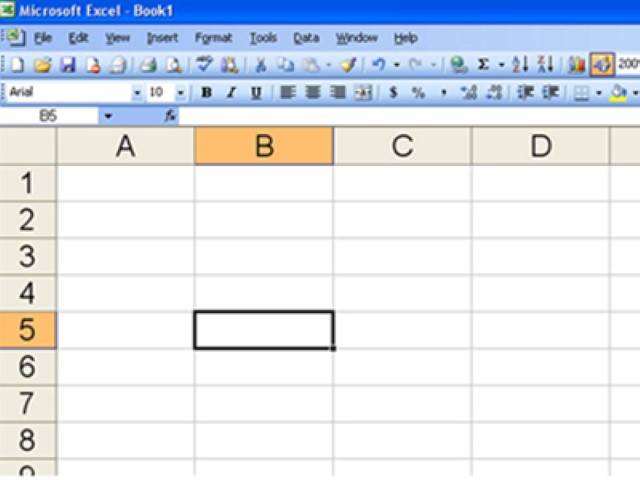
How do you add a new row in Excel?
Click on the 'File' menu and select 'New Row'.
Press Ctrl + N to create a new row.
Drag the bottom border of the row to duplicate it.
Right-click on the row number and select 'Insert'.
What is the shortcut to delete a column in Excel?
Ctrl + Shift + X
Shift + Delete
Ctrl + -
Alt + D
Which option would you use to make text bold in Excel?
Press Ctrl + I
Use the 'Bold' button or Ctrl + B.
Select 'Underline' from the menu
Use the 'Italic' button
How can you italicize text in a cell?
Use Ctrl + U to underline text.
Press Alt + F to format text.
Right-click and select 'Bold' from the menu.
Use Ctrl + I or the italic button in the formatting toolbar.
What is the purpose of the 'Merge and Center' feature?
To combine cells and center the content.
To split cells and align the content to the left.
To add borders around selected cells.
To change the font style of the text in a cell.
How do you align text to the center of a cell?
Use 'text-align: left;' in CSS.
Select right alignment in Excel.
Use 'text-align: center;' in CSS or select center alignment in Excel.
Apply 'text-align: justify;' in CSS.
What does the 'Wrap Text' option do in Excel?
It adjusts the cell size to fit the text.
It merges multiple cells into one.
It allows text in a cell to be displayed on multiple lines.
It changes the font style of the text.
How can you change the font size of text in a cell?
Select the cell, then adjust the font size from the toolbar.
Adjust the font size in the page layout settings.
Use the keyboard shortcut Ctrl + Shift + F.
Change the font size by right-clicking the cell.
What is the effect of using the 'Underline' option?
It highlights text by changing its color.
It increases the font size of the text.
It adds a background color to the text.
It emphasizes text by drawing a line beneath it.
How do you change the orientation of text in a cell?
Use the 'Insert' menu to add a text box.
Right-click the cell and select 'Change Text' option.
Select the cell, go to 'Format' > 'Text rotation', and choose the orientation.
Double-click the cell and type the text in a different orientation.
What steps do you take to apply currency formatting to a number?
Use a formatting function to combine the currency symbol with the number, ensuring proper decimal places.
Convert the number to a string without any formatting.
Add a background color to the number display.
Use a text editor to manually insert the currency symbol.
How can you delete multiple rows at once in Excel?
Click on 'File' and select 'Remove Rows'.
Select the rows, then press 'Delete' key.
Highlight the rows and choose 'Cut'.
Select the rows, right-click, and choose 'Delete'.
What happens when you merge cells in Excel?
Merging cells duplicates the content of all selected cells.
Merging cells creates a new worksheet with the combined data.
Merging cells combines them into one cell, retaining only the upper-left cell's content.
Merging cells splits them into multiple smaller cells.
How do you align a table to the right in Excel?
Select the table, go to the View tab, and click 'Align Left' in the Alignment group.
Right-click the table and choose 'Center Align' from the context menu.
Select the table, go to the Insert tab, and click 'Align Top' in the Alignment group.
Select the table, go to the Home tab, and click 'Align Right' in the Alignment group.
What is the difference between left alignment and right alignment in Excel?
Left alignment aligns text to the left; right alignment aligns text to the right.
Left alignment is used for headers; right alignment is for footers.
Left alignment is for numbers; right alignment is for text.
Left alignment centers text; right alignment centers text.
A program using a table comprising of rows, columns and cells.
MS Word
MS PowerPoint
MS Outlook
MS Excel
The intersection of a row and a column is called this.
Active Cell
Chart
Column
Row
Which is NOT a term used in Excel?
Workbook
Worksheet
Cell
Document
The first cell in a worksheet is what?
A1
1A
FX
Cell Name
What is a rectangular box in a MS EXCEL Spreadsheet called?
row
column
cell
What does every formula in MS EXCEL start with?
+
-
=
*
What is the name of the cell that is colored blue?
A
B
2B
B2


Excel file is saved as a ____________
Document
workbook
worksheets
Presentation
Name of the workbook is displayed in the ___________
Menu bar
Title bar or ribbon
Tool bar
option bar

What do you call the blank boxes on a excel sheet
cell
info
Squares
Spots
Microsoft Excel is what type of Software ?
Drawing
Word processing
Spreadsheet
Presentation
Which symbol must you use to begin a formula ?
$
#
@
=
How do you make a cell into the active cell
Cells are always active
Click INSERT Cell
Click on the Cell
Click the ACTIVE button

What is the name of this Cell ?
6B
A5
6A
B6
What is the formula sign for multiply?
/
*
=
-
To sort names in a worksheet, we can use ____ button


You want to enter a series of numbers down a column. what would be the best tool for the job?
Find & replace
Autofill
Cut & Paste
Spelling Checker

Here in Excel, Which button will you select to calculate total marks ?


In Excel,what would be a correct formula for changing a text from lower case to upper case ?
=UPPER B1
=PROPER(B1)
=UPPER(B1)
UPPER(B1)
What function can be used to find the maximum value in a range of cells in Excel?
=LARGEST(range)
=HIGHEST(range)
=MAX(range)
=TOP(range)
Which of the following is a valid way to create a chart in Excel?
Select data and go to Insert > Chart.
Right-click on the data and choose 'Create Chart'.
Use the formula =CHART(data).
Charts cannot be created in Excel.
How can you freeze the top row in an Excel worksheet?
It is not possible to freeze rows in Excel.
Use the shortcut Ctrl + F.
Right-click on the top row and select 'Freeze'.
Go to View > Freeze Panes > Freeze Top Row.

