
Font size
 Worksheets
CHA Worflow Service Appointment Quiz
Total questions: 44
Worksheet time: 30mins
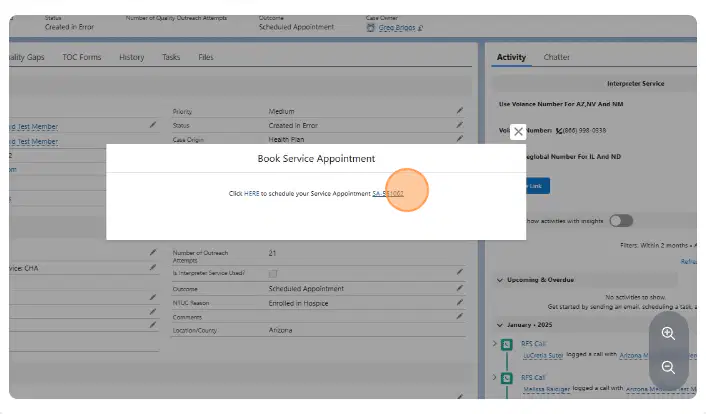
How do you copy the SA-Number# ?
Right-click and highlight to Copy only the SA-number
"Can also be copied by pressing "CTRL + C"Press 'Alt+C' to copy the SA-Number#"
Highlight the SA-Number#
Click on the SA-Number# then go to next screen
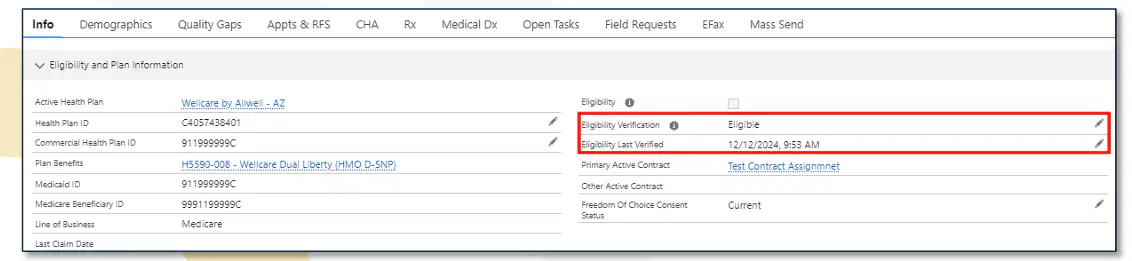
Please show by "circling" how an agent would update and time stamped in “Info” section of A360.
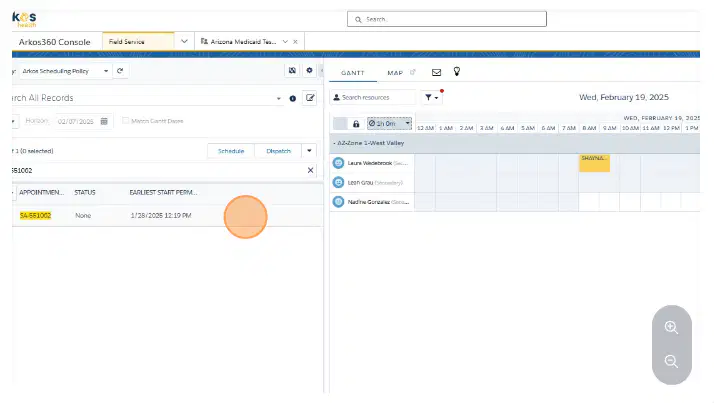
Using your mouse please draw a line to simulate how to drag and drop the SA-NUMBER to open timeslot " (white open timeslot"
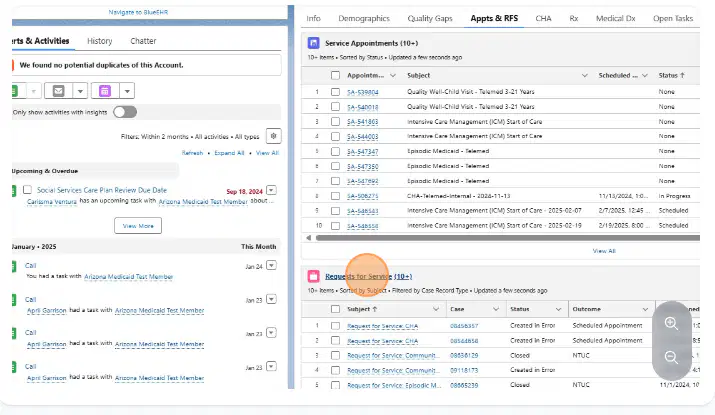
Where can you find the "Requests for Service" section in the system?
Under the "Home" tab
Within the "Appts & RFS" tab (Red Suitcase option"
In the "Settings" menu
What icon represents the "Requests for Service" section?
Blue folder icon
Green checkmark icon
Red suitcase icon
If a "CHA" RFS is not present, what is the first step to create one?
Click on "Create Request for Service"
Select "New Appointment"
Navigate to "Service Settings"
An agent is calling on a campaign and the member does not answer so the agent leaves a voicemail for the agent to return Arkos Call. Using the image please "circle" where you would go to leaves notes and input the Documentation for this call?
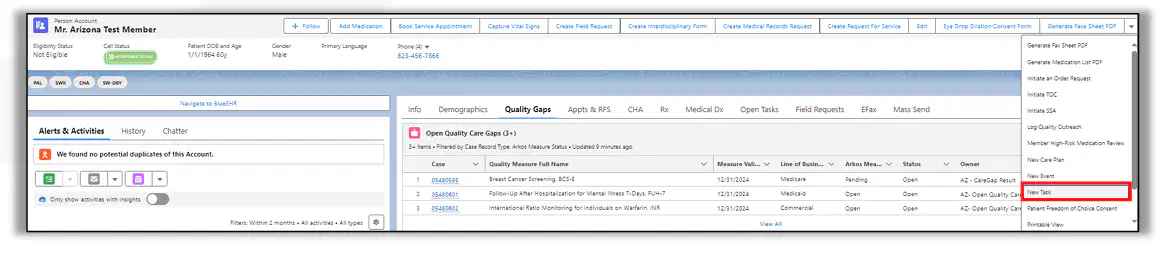
After selecting "Create Request for Service," what should you choose as the Service Type?
General Consultation
CHA
Follow-up
Which information is required in the "Notes for Provider" field?
Patient's medical history
Campaign name and details regarding the services requested
System configuration settings
What should you do after verifying the "Address for Appointment"?
Click "Previous"
Select "Next"
Log out of the system
To book a service appointment, which option should you select after opening the "CHA" RFS?
"Schedule Meeting"
"Book Service Appointment"
"Assign Task"
When selecting the Appointment Preference, what information must be provided?
Patient's insurance details
Primary language and notification preference
Preferred payment method
If "Both" is chosen as the notification preference, what additional information is needed?
Member's email and text-capable phone number
Emergency contact details
Mailing address
What should be attached during the "Selecting Care Gaps" step?
Patient's billing information
Open Care Gaps
System error logs
How should the appointment duration be adjusted for an in-person appointment in Arizona?
Change from 90 minutes to 60 minutes
Keep it at 90 minutes
Extend to 120 minutes
What is the final step after confirming the service appointment details?
Log out of the system
Click "Confirm Service Appointment"
Print the appointment summary
After confirming the appointment, what should you do with the Service Appointment Number (SA-number)?
Delete it
Copy it using CTRL + C
Ignore it
What action should be taken after copying the SA-number?
Click the "HERE" hyperlink to open a new window to the Field Service
Close the browser
Restart the computer
What is the first step to locate a Service Appointment (SA) number?
Navigate to the GANTT view.
Paste the SA number into the Search Service Appointment search bar.
Select "Skills" from the filter options.
What should you do after pasting the SA number into the search bar?
Click on the SA number ribbon to expand it.
Navigate to the Member Account.
Apply the "CHA" skills filter.
Where can you find the "Edit" option when expanding the SA number ribbon?
At the top of the box.
At the bottom of the box.
In the middle of the box.
What is the purpose of the "Service Territory" field in the pop-up window?
To select the correct provider based on the "Zone" listed.
To adjust the duration of the appointment.
To change the appointment type.
Which icon should be clicked to filter territories?
The Map Icon labeled as "Territory Filtering."
The GANTT view icon.
The Filter icon next to the Search Resources search bar.
After selecting the correct territory, what should you do next?
Click "Edit."
Click "Save."
Click "Next."
Where do you navigate to after filtering for the correct territory?
The GANTT view calendar
The Requests for Service tab.
The Member Account.
Which filter should be applied to adjust the provider list based on skills?
The "Service Type" filter.
The "Skills" filter.
The "Territories" filter.
Which skill should be selected when filtering for CHA appointments?
"CHA"
"Service Territory"
"Appointment Type"
How do you assign the SA number to an available appointment slot?
Drag and drop the SA number to the time slot.
Click "Edit" and manually enter the time slot.
Select the time slot from a dropdown menu.
What must you consider when scheduling the appointment?
The provider's availability.
The drive time, indicated by a small black line.
The patient's insurance provider.
What should you do if the drive time overlaps with another appointment?
Adjust the service appointment to a different time slot.
Assign a different provider.
Cancel the overlapping appointment.
Where should you navigate after scheduling the appointment to document the details?
The Field Service tab.
The Member Account. (next to Field service Tab)
The GANTT view.
In the Member Account, which section contains the "Requests for Service" tab?
The first section with a blue folder icon.
The second section with a red suitcase icon.
The third section with a green checkmark icon.
What should you do within the "Request for Service" tab when scheduling an appointment to log an outreach attempt?
Click "Log Outreach Attempt." and Document the call / Leave notes (use Documentation guide
Click "Edit."
Click "Schedule Appointment."
What should be selected for the "Outcome" dropdown when logging an outreach attempt?
Scheduled Appointment.
Call Attempted.
No Answer.
What information should be included in the "Comments" section when logging an outreach attempt?
Only the appointment date and time.
All details from the call, including the appointment information.
The provider's name and contact information.
How do you document the member’s preferred language?
Select it from a dropdown menu in the documentation screen.
Type it manually in the comments section.
Add it under "Service Type."
True or False: To locate the "CHA" Request for Service (RFS), you should first click on the "Appts & RFS" tab.
True
False
True or False: If a "CHA" RFS is not found, you must create one by selecting "Service Type" as "CHA" and then clicking "Next."
True
False
True or False: When creating a new "CHA" RFS, it's unnecessary to add details in the "Notes for Provider" section.
True
False
True or False: After creating a "CHA" RFS, you should verify the "Address for Appointment" before proceeding.
True
False
True or False: In the "Book Service Appointment" process, selecting the "Appointment Type" is optional.
True
False
True or False: When booking a service appointment, you should choose "Both" for the notification preference and provide the member's email and text-capable phone number.
True
False
True or False: Attaching "Open Care Gaps" is a mandatory step when booking a service appointment.
True
False
True or False: For in-person appointments in AZ and NV, the default duration is 90 minutes, which should be changed to 60 minutes.
True
False

