
 Worksheets
Level 2 Unit 02 - Navigation & Preferences
Total questions: 35
Worksheet time: 24mins
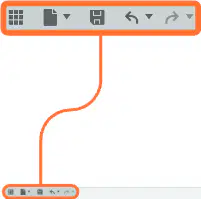
Which buttons are used for accessing the Data Panel, File, Save, Undo, and Redo in the user interface?
Toolbar buttons on the left
Buttons at the top left of the interface
ViewCube in the top right corner
Timeline at the bottom
What is the main function of the Toolbar in the user interface?
To display account details and preferences
To change the view of the workspace
To provide tools that change depending on whether you are in the 2D or 3D workspace
To list all operations chronologically
Where can you find your account details and preferences in the user interface?
In the Navigation bar
In the Toolbar
In the top right corner of the interface
In the Timeline
What does the Navigation bar control in the user interface?
The order of operations
Zoom, pan, and orbit for canvas manipulation
Account settings
The default home view
What is the purpose of the ViewCube in the user interface?
To save your work
To change the view and return to the default home view
To undo and redo actions
To display the list of operations
What information does the Timeline provide in the user interface?
A list of available tools
A chronological list of operations, with each icon being clickable and re-orderable
Account preferences
Display settings
If you want to adjust the appearance of the workspace, such as environment style, shadows, and grids, which part of the user interface should you use?
Toolbar
Timeline
Display settings in the Navigation bar
ViewCube
How does the Toolbar typically guide your workflow in the user interface?
You work from right to left
You work from left to right
You work from top to bottom
You work from bottom to top
What does the Browser in the user interface do?
Groups and lists all the subsections in a design
Edits the color of 3D models
Exports files to the cloud
Runs simulations
Which of the following is NOT included in the Browser’s list of subsections?
3D Bodies
2D Sketches
Joints
Rendering Settings
How can you expand or collapse sections in the Browser?
By clicking the ▶ icon
By double-clicking the section name
By dragging the section
By right-clicking and selecting "Expand"
What happens if you create more 3D objects in Fusion?
They will populate in the Bodies folder as Body2, Body3, Body4, etc.
They will be deleted automatically
They will be hidden from the Browser
They will be exported to a new file
Why might a user want to organize projects into different categories in the Data Panel?
To keep projects organized and manage collaboration with peers
To increase the rendering speed
To change the file format
To hide files from the interface
What icon is used to hide or show sections in the Browser?
Eye icon
Star icon
Lock icon
Arrow icon
Fusion is an example of what type of software?
Desktop-based software
Cloud-based software
Mobile-only software
Offline software
What happens when you click the blue New Projects button at the top of the screen?
You delete all files
You create a new project and can name it
You log out of your account
You open a web browser
What is the benefit of having previous versions (V2, V3, V4) of your project available?
You can open and restore earlier versions if needed
You can delete them to save space
You can print them automatically
You can share them on social media
What should you do to view a folder in a web browser in Fusion?
Click on the folder and notice the web browser view
Double-click the desktop icon
Email the folder to yourself
Print the folder contents
What is the primary function of the Timeline in a CAD software interface?
To show the history of actions and allow editing of previous steps
To display the navigation options
To manage user accounts
To provide a 3D orientation tool
Which UI feature helps users orient and rotate the 3D model in the workspace?
Data Panel
Toolbar
ViewCube
Layout grid
If a student wants to access saved projects and resources, which UI feature should they use?
Navigation Bar
Data Panel
Timeline
Account
What is the main purpose of the Navigation Bar in a CAD software interface?
To provide quick access to different areas and tools within the software
To display the 3D orientation of the model
To show the history of actions
To manage saved projects
Which menu option should you select to access Preferences in the software?
File menu
Edit menu
Profile icon in the top right corner
View menu
Which shortcut should you set for Pan, Zoom, and Orbit in the Preferences?
Blender
Maya
Tinkercad
SketchUp
Why is it important to verify the Default Modeling Orientation and Pan, Zoom, Orbit Shortcut in Preferences before starting a project?
It changes the color scheme
It ensures the controls match your workflow and software expectations
It increases the computer speed
It saves your project automatically
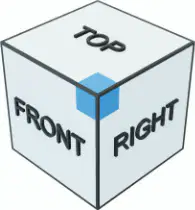
When three faces of a cube meet at a single point, what is this point called?
Edge
Corner
Face
Side
Why is it important to correctly identify faces, edges, and corners on a 3D object like a cube?
It helps in understanding 3D geometry and spatial relationships.
It makes the cube look more colorful.
It is only important for artists.
It is not important at all.
Why is it important to design a coffee mug standing up rather than on its side or upside down?
It saves more material.
It makes the design look more realistic and logical.
It is easier to color.
It uses less computer memory.
What should you expect as you practice choosing planes for your projects, according to the text?
The skill will become more confusing.
The skill will improve with more practice.
You will need less practice over time.
The skill will not change.
Which plane is labeled as "YZ" in the diagram?
Label the parts of the UI (user interface).
Match the mouse buttons.
Label the axes
Match the name to the highlighted feature.
Label the planes

