
 Worksheets
TinkerCAD Keychain Quiz
Total questions: 20
Worksheet time: 10mins
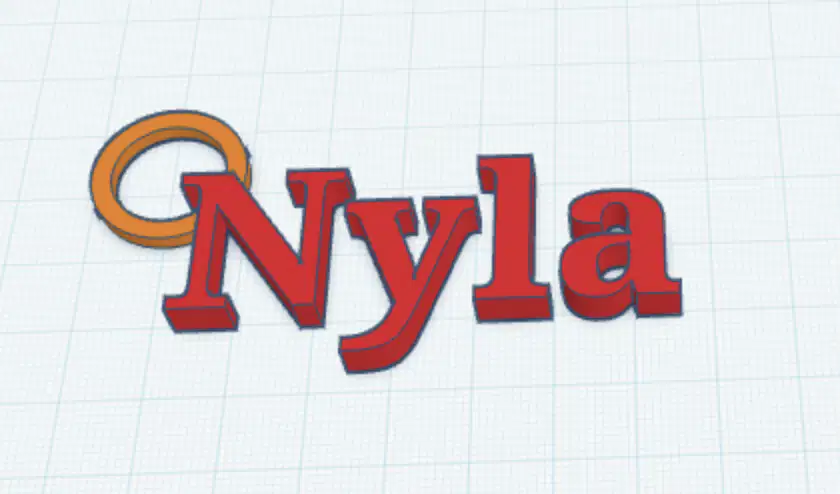
What is wrong with this keychain?
The letters are not connected.
The color of the letters is incorrect.
The letters are too large.
The keychain has too many letters.
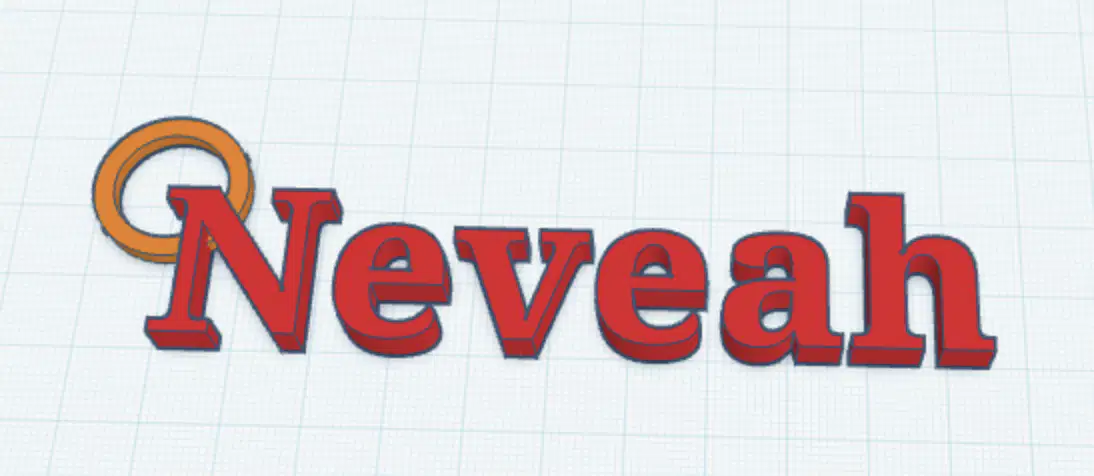
Why might this keychain not stay together?
The letters are not securely attached.
The keychain is too small.
The keychain is too colorful.
The letters are made of metal.
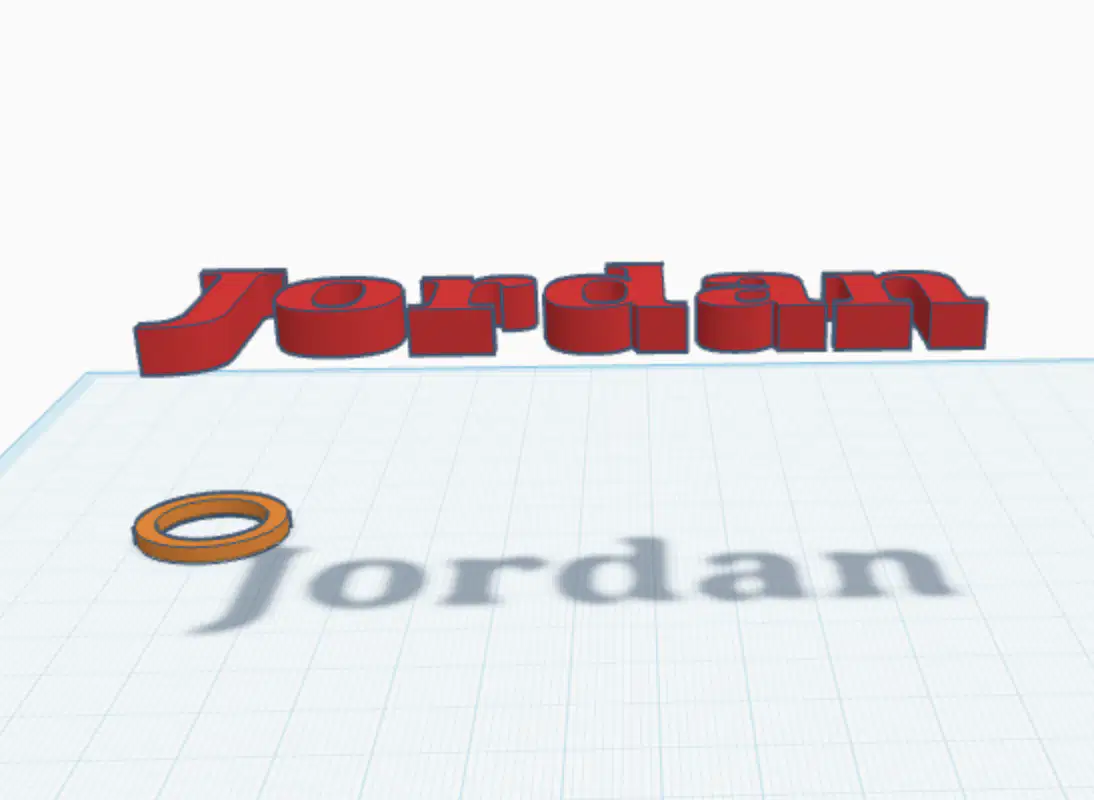
The name “Jordan” is floating in the air. How can you move it down so that it touches the workplane?
Change the color to blue.
Make the letters smaller.
Move the view to look from above.
By clicking the "d" key - It will drop down.
Which of the following options will help prevent the keychain from breaking?
Make the letters very thin.
Make the letters float above the workplane.
Connect each letter to the next one.
Use different colors for each letter.
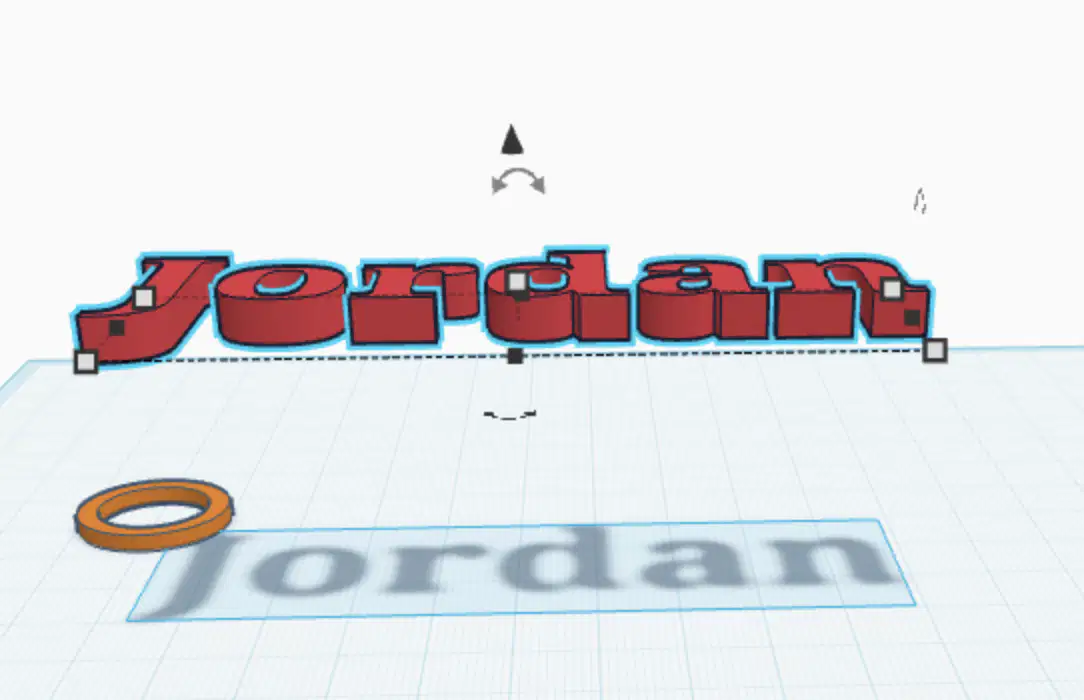
Which element will help you move the object up and down? (Another way to fix the floating object)
Black triangle
White square
Black square
Arrows
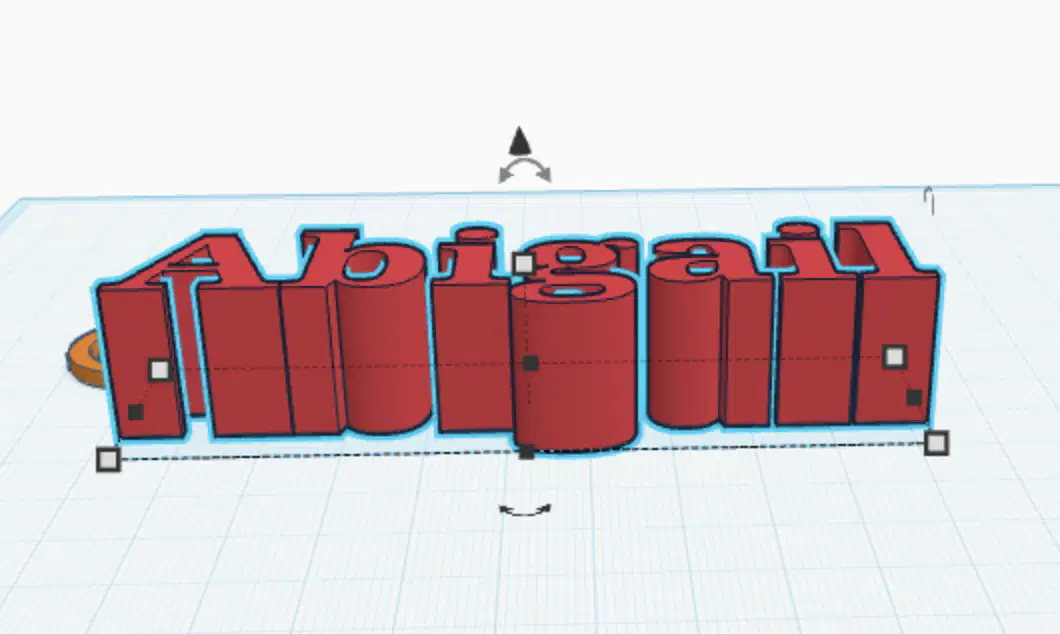
The letters are too tall. How can I fix this?
Change the color of the letters.
Move the letters to a new workspace.
Use the white box at the top to make the letters shorter.
Use the black triangle at the top to move the object up and down.
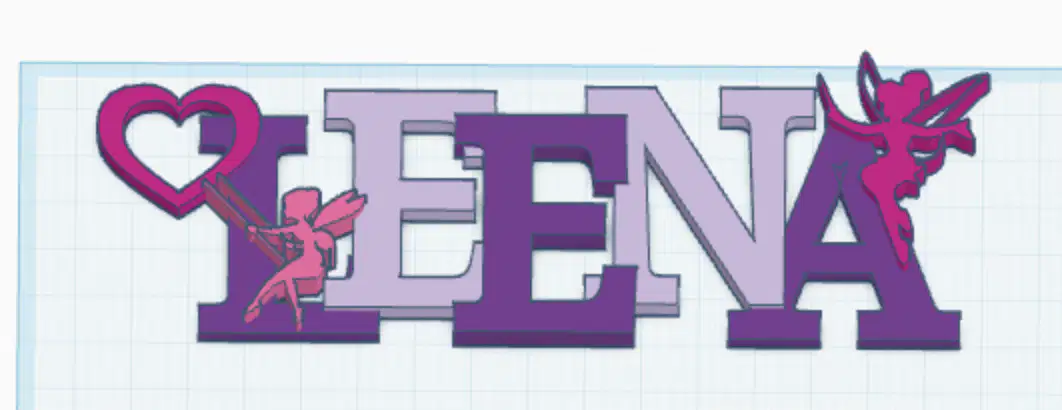
What must you do first before you can import an image into Tinkercad?
Make it bigger.
Change it to an SVG file.
Add color to it.
Save it as a picture of your keychain.
How can you make sure that your keychain design is flat on the work area before printing?
Group the letters.
Make the letters taller.
Use the 'Drop' tool or press the letter 'd'.
Change the color to red.
What type of image works best when importing an image into Tinkercad?
A solid black and white silhouette
A colorful real-life photo
An image with many small details
A random screenshot from the Internet

Which goat will print better?
The goat on the LEFT
The goat on the RIGHT
None
Both
You made a keychain with letters and a base. How do you combine them into a single shape so that it prints as one piece?
Change the color of the letters
Move the letters to the top of the screen
Use the group tool
Make the letters bigger
You want to make a hole in your keychain for the key ring. How do you do this in Tinkercad?
Move the keychain off the workplane
Change the color of the keychain
Delete part of the keychain with the eraser
Create a shape, change it to hole and group it with the keychain
The letters on your keychain are too small. How can you make them bigger?
Change the color of the letters
Click on the white box and drag to resize
Delete the letters and start over
Move the letters to a new workspace
How can you add new objects to your Tinkercad project?
By writing code
By importing images
By dragging them from the shapes library
By drawing them freehand
What is Tinkercad mainly used for?
Writing software code
3D modeling and CAD design
Video editing
Spreadsheet calculations
How can you group several shapes together in Tinkercad?
By painting them the same color
By aligning them horizontally
By selecting them and using the 'Group' function
By moving them to the same layer
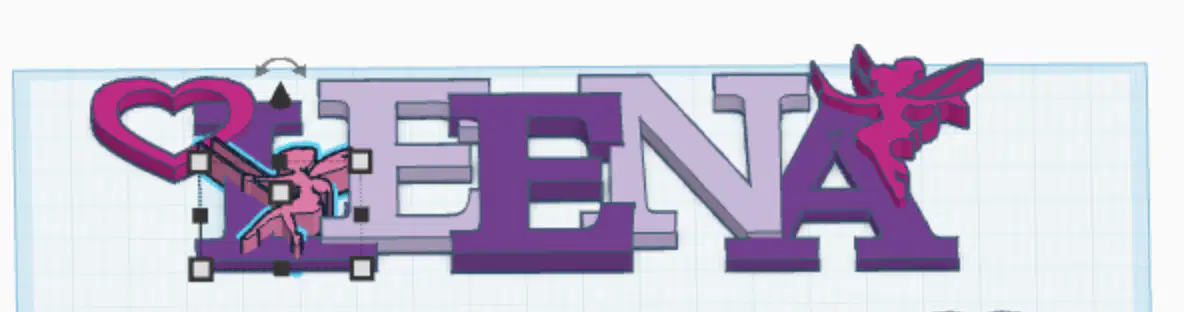
Inspect this design. Mark all items that are TRUE.
THE HEIGHT OF THE LETTERS IS APPROPRIATE
ALL THE LETTERS ARE TOUCHING
THE IMPORTED IMAGES (FAIRIES) ARE SOLID
The letters are floating.
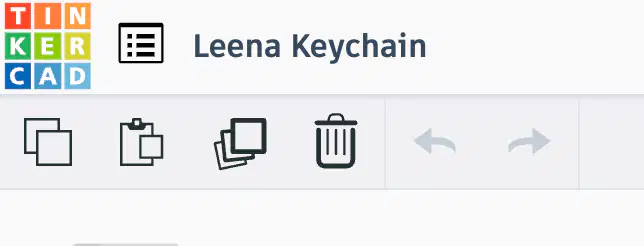
The icon with the squares stacked on top of each other is used to ...
DELETE
DUPLICATE/ COPY
CUT
UNDO

Before sending to Mrs. Hamilton, make sure that
Add more colors
Change the workplane
Change the title to your name + keychain.
Crop the image
When you send your Tinkercad link to Mrs. Hamilton, what should you do with the subject of the email?
Do not write anything
Paste the link as the subject
Write something polite, like "please print."
Leave it blank

