
NEW
Font size
 Worksheets
WG:U3L16: Keyboard Input Quiz
Total questions: 30
Worksheet time: 15mins

What is the main focus of Lesson 16 in "Interactive Animations and Games"?
Learning how to create animations without user input
Understanding how to use mouse input for animations
Learning how to move sprites and use conditionals with keyboard input
Exploring advanced game design techniques

Which of the following is a learning goal of Lesson 16?
Create animations using mouse clicks
Move sprites in response to keyboard input
Design 3D models for games
Use advanced programming languages for animations

What is one way students will use conditionals in Lesson 16?
To create random animations
To react to keyboard input
To design game levels
To change the color of sprites

What type of input is emphasized in Lesson 16 of "Interactive Animations and Games"?
Mouse input
Voice input
Keyboard input
Touchscreen input
How might adding user interaction make your programs more useful, effective, or entertaining?
It allows users to customize the program to their needs.
It makes the program run faster.
It reduces the need for coding.
It eliminates the need for debugging.
How might a user provide input into your program?
By using a keyboard or mouse.
By watching the program run.
By turning off the computer.
By deleting the program files.
How can our programs react to user input?
By ignoring user input completely
By using predefined responses to user actions
By shutting down the program
By displaying random outputs
What is the first step in the Code Prediction activity?
Run the program.
Read the program carefully.
Press the space bar on your keyboard.
Discuss with a classmate.
What should you do after making a prediction about the program's behavior?
Press the space bar on your keyboard.
Discuss with a classmate.
Run the program.
Write the prediction in the box below.
What is the final step in the Code Prediction activity?
Run the program.
Press the space bar on your keyboard.
Discuss with a classmate.
Write the prediction in the box below.

What should you do if you get stuck while working on Code Studio Level 2-4?
Skip the level and move to the next one.
Use the Help and Tips Tab or Code Documentation.
Restart the entire project.
Ask a friend to complete it for you.

What is the recommended action if you make a big mistake while working on Code Studio Level 2-4?
Use version history to go back.
Delete the entire project and start over.
Skip the level and move to the next one.
Ask for help from a teacher.
What is the first step to follow when working on Code Studio Level 2-4?
Follow the instructions on each level.
Skip the instructions and experiment freely.
Ask a friend for their code.
Use the version history immediately.
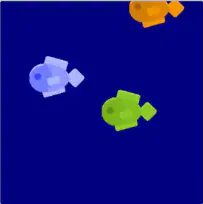
What is the task in the "Fish With Arrows" activity in Code Studio, Level 5?
Make the fish move up when the up arrow key is pressed.
Make the fish move left only when the left arrow key is pressed.
Make the fish move right when the right arrow key is pressed.
Make the fish move down when the down arrow key is pressed.
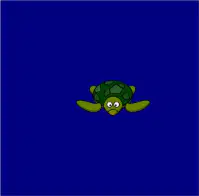
What is the goal of the "Debug Turtle Movement" activity in Code Studio, Level 5?
Debug why the turtle moves too fast.
Debug why the turtle does not move at all and leaves after images.
Debug the bug that breaks the program when the turtle tries to move left.
Debug why the turtle moves in the wrong direction.
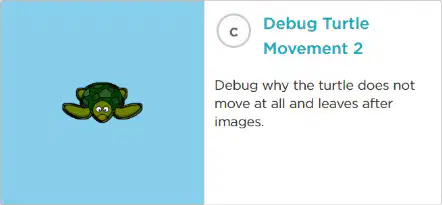
What is the purpose of the "Debug Turtle Movement 2" activity in Code Studio, Level 5?
Debug why the turtle moves too fast.
Debug why the turtle does not move at all and leaves after images.
Debug the bug that breaks the program when the turtle tries to move left.
Debug why the turtle moves in the wrong direction.
What should students do before moving on from Code Studio, Level 5?
Skip the activities and move to the next level.
Practice their new skills and check with their teacher.
Memorize the instructions for each activity.
Complete only one activity and move on.
What is the first step mentioned in the "Do This" section of the learning material?
Check out the Help & Tips tab
Follow the instructions in Code Studio
Read the "Rubric" tab
Complete the assessment level
What does the "Rubric" tab describe according to the learning material?
How to navigate Code Studio
How to demonstrate your understanding
How to use the Help & Tips tab
How to complete the activity
Where can students go if they need help while completing the activity?
The "Rubric" tab
The Help & Tips tab
The Code Studio instructions
The Assessment Level section
What is the main purpose of the "Assessment Level" in the learning material?
To provide instructions for Code Studio
To test students' understanding of the activity
To explain the "Rubric" tab
To offer help and tips for students
What is the purpose of the "keyWentDown: Click Counter" activity in Code Studio Level 7?
To count how many times someone clicks the space bar and learn a new block.
To change the animation for different directions of movement.
To use nested if statements to boost sprite speed.
To make music when keys are pressed.
Which activity in Code Studio Level 7 teaches you to use a separate image for each direction of movement?
Speed Boost!
Changing Animation
Play Music
Simple Game
What concept is introduced in the "Speed Boost!" activity in Code Studio Level 7?
Using nested if statements and key presses to boost sprite speed.
Counting space bar clicks.
Making music when keys are pressed.
Using a separate image for each direction of movement.
What is the goal of the "Play Music" activity in Code Studio Level 7?
To count space bar clicks.
To make music using favorite instruments when keys are pressed.
To boost sprite speed using nested if statements.
To create a simple version of a favorite game.
What does the "Simple Game" activity in Code Studio Level 7 encourage students to do?
To count space bar clicks.
To make music using favorite instruments.
To create a simple version of a favorite game when keys are pressed.
To use nested if statements to boost sprite speed.
How might you use user interaction to improve one of your programs from past lessons?
By adding more colors to the program.
By allowing users to input their preferences to customize the program.
By making the program run faster without user input.
By removing all user interaction features.
What condition would you check, and how would you handle it in your program?
Check if the program is running and restart it if not.
Check if the user input is valid and provide feedback if it is not.
Check if the computer is turned on and turn it off if not.
Check if the program is colorful and add more colors if it is not.
Which shortcut key is used to undo an action
Ctrl-S
Shift-J
Ctrl-C
Ctrl-Z
During a computer science class, Daniel is asked to demonstrate how to enter data into a computer. Which of the following devices should he use?
Monitor
Speaker
Keyboard
Printer

