

FRESHDESK QUIZ

Presentation
•
•
Practice Problem
•
Easy

Joey De Sahagun
Used 1+ times
FREE Resource
64 Slides • 10 Questions
1

Customer Service
Tools
Freshdesk
2

Training Agenda
Introduction
What is Freshdesk?
Important Points to Remember
Freshdesk Features
Freshdesk Productivity hacks
Your Dashboard
How Are Tickets Created in Freshdesk?
Tickets initiated via Email
Tickets initiated via Live Chat
Tickets initiated via ATMB Website
How to Manually Create Freshdesk Ticket
How to Find Tickets Assigned to you
Ticket Statuses
Ticket Priority and SLA
Ticket Ownership and Handling
Merging Tickets
3

Training Agenda
By taking this training, you'll be equipped with all the knowledge you need
to perform your role successfully. So let's dive in and get started!
This training is going to be super helpful for you to understand another
one of the main tools you will be working with here with Anytime Mailbox,
Freshdesk!
It'll give you a comprehensive understanding of how to navigate this
system, create tickets and correctly log all interactions with renters &
operators.
4

Lets Start!
What is Freshdesk?
5

Omnichannel help desk
Team collaboration
Multi-channel communication management
Self-service support portal for support agents
Freshdesk is an online cloud-based customer support software providing help
desk support with all smart automations to get things done faster.
Freshdesk supports pretty useful features for customer engagement, such as:
Here at Anytime Mailbox, we use freshdesk mainly for tickets.
These tickets are created, assigned and tracked through Freshdesk & are also
linked to our internal system, Gobu.
What is Freshdesk?
6

Whats Next?
Important Points to Remember
7

Important Points to Remember
All emails sent to support@anytimemailbox.com,
help@anytimemailbox.com, service@anytimemailbox.com,
applications@anytimemailbox.com are converted into a Freshdesk ticket.
Tickets are automatically assigned by the system based on predefined
rules.
You get email notifications from Freshdesk when:
A customer responds to a ticket that’s assigned to you.
A fellow ATMB staff member sends you a private note on a ticket that
requires your attention.
A ticket has been assigned to you
Some Key Points to remember regarding Freshdesk:
8

Whats Next?
Freshdesk Features
9

Freshdesk Features
Chat support
Freshdesk is integrated with Freshchat. This means that you can
convert conversations into tickets once the chat has been completed.
Email support
When emails are sent to our support emails, Freshdesk converts
those emails into tickets.
Phone support
Freshdesk is integrated with Freshcaller. This means that you will get
notified whenever a customer calls. Also, any missed or unanswered
calls get listed as tickets.
Freshdesk provides you with a wide range of features, including the
integration with other Customer Support channels we use:
10

Whats Next?
Freshdesk Productivity hacks
11

Whats Next?
Freshdesk Productivity hacks
12

Ticket Statuses
Open
Default status for New tickets
A ticket that has not been responded to
The goal is always to change the ticket status to something other
than Open
Set to Open if you are handing over ticket responsibility to another
ATMB employee
Pending
Only set to Pending when all other ticket statuses don’t apply
Resolved
The Requester’s issue is Resolved
You can also set to Resolved if you think your response to the
Requester should already resolve their issue. Examples:
A renter asks you for their mail center’s business hours
Basic service inquiry questions (How to apply, what is
required? What forms of payment do you accept?)
13

Freshdesk Productivity hacks
Tags
Use tags to classify tickets so that other agents can find the issue
type quickly.
Automatic email notification
Agents are automatically notifed when changes happen in a ticket.
Canned responses
Create reply templates for specific situations and categorize them
into folders, which are easily usable when replying to tickets.
Customizable help desk
Ticket assignments are automated based on agents’ current
workload, skills, or channels.
Public and private notes in tickets
You are able to add private notes for your support team or inform
customers with public notes.
Freshdesk as has some handy features to make your work day with tickets
much easier:
14

Freshdesk Productivity hacks
Tags
Use tags to classify tickets so that other agents can find the issue
type quickly.
Automatic email notification
Agents are automatically notifed when changes happen in a ticket.
Canned responses
Create reply templates for specific situations and categorize them
into folders, which are easily usable when replying to tickets.
Customizable help desk
Ticket assignments are automated based on agents’ current
workload, skills, or channels.
Public and private notes in tickets
You are able to add private notes for your support team or inform
customers with public notes.
Freshdesk as has some handy features to make your work day with tickets
much easier:
15

Ticket Statuses
Closed
Only set to Close if the Requester confirms that the issue is
Resolved.
Other special-use cases may apply including, but not limited to:
Make sure a refund goes through and to follow up with the
customer first before closing the ticket
If there is more than one party involved in the issue, make
sure they both confirm that the issue is resolved
Waiting on Operator
An issue that needs a response from a Third Party (usually the
Operator)
Tickets like this should have a Forward note to the Operator/Third
Party
Always make sure that your note to the Third Party is attached to
the original Requester’s ticket so any ATMB staff can follow the
issue
Waiting for Management Approval
A ticket that is waiting for a note response from a Manager
Refund approval
Management escalations
16

Freshdesk Productivity hacks
Ticket activities
You are able to view the history of a ticket from the day it was
created.
Team inbox
Collaborate with team members using a shared inbox.
Merge tickets
Merge all the tickets from different channels in chronological order.
Also, add/remove tickets from the merge.
To-do
Add a to-do task within the ticket or add it to your dashboard.
Prioritize work and mark the checkbox when a task is done.
17

Freshdesk Productivity hacks
Ticket activities
You are able to view the history of a ticket from the day it was
created.
Team inbox
Collaborate with team members using a shared inbox.
Merge tickets
Merge all the tickets from different channels in chronological order.
Also, add/remove tickets from the merge.
To-do
Add a to-do task within the ticket or add it to your dashboard.
Prioritize work and mark the checkbox when a task is done.
18

Ticket Statuses
Refund Request
A ticket that needs to be reviewed and work on by the
management team or billing team.
You have to put details on why a refund was requested or what the
refund was for.
For Cancellation
A ticket that needs to be escalated to the cancellation team, for
manual cancellation of their mailbox account.
Waiting for Response
A ticket that is waiting for a response from the renter or third
party.
19

Whats Next?
Your Dashboard
20

Whats Next?
Your Dashboard
21

Whats Next?
Ticket Priority and SLA
22

Your Dashboard
How many tickets in your
ticket bucket are still
unresolved?
How long have they been
waiting?
How many tickets are past
due based on the service-level
timeframes we've
established?
When you are logged into
Freshdesk, you are able to view
the dashboard for your tickets.
This dashboard is essentially a
summary of what you need to do
for the day.
It gives you some ideas for:
23

Your Dashboard
How many tickets in your
ticket bucket are still
unresolved?
How long have they been
waiting?
How many tickets are past
due based on the service-level
timeframes we've
established?
When you are logged into
Freshdesk, you are able to view
the dashboard for your tickets.
This dashboard is essentially a
summary of what you need to do
for the day.
It gives you some ideas for:
24

Whats Next?
How Are Tickets Created in Freshdesk?
25

Whats Next?
How Are Tickets Created in Freshdesk?
26

How Are Tickets Created in Freshdesk?
To begin, you should be aware that you should not use your Anytime
Mailbox Gmail account when communicating with a client.
Please do not use Outlook or any other email channels. If you need to
communicate with a client via email, Freshdesk is the way to go!
The most common method is to contact support via email.
All emails sent to support@anytimemailbox.com, help@anytimemailbox.com,
service@anytimemailbox.com, applications@anytimemailbox.com are
converted into a Freshdesk ticket.
The second option is to manually create the ticket after a phone call or you
can convert your live chat conversation into a ticket.
27

How Are Tickets Created in Freshdesk?
To begin, you should be aware that you should not use your Anytime
Mailbox Gmail account when communicating with a client.
Please do not use Outlook or any other email channels. If you need to
communicate with a client via email, Freshdesk is the way to go!
The most common method is to contact support via email.
All emails sent to support@anytimemailbox.com, help@anytimemailbox.com,
service@anytimemailbox.com, applications@anytimemailbox.com are
converted into a Freshdesk ticket.
The second option is to manually create the ticket after a phone call or you
can convert your live chat conversation into a ticket.
28

Whats Next?
Tickets initiated via Email
29
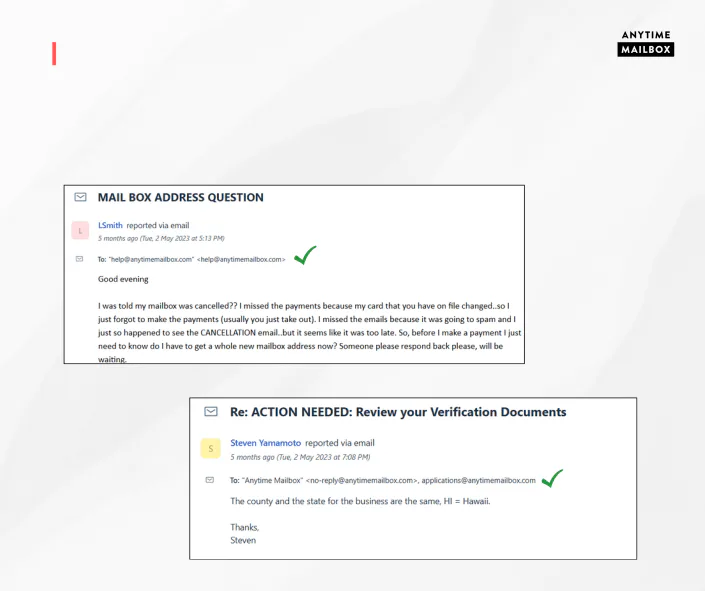
Tickets initiated via Email
If someone sends us an email to help@anytimemailbox.com,
service@anytimemailbox.com or applications@anytimemailbox.com, it will
automatically come through to Freshdesk as an open ticket.
30

Tickets initiated via Email
Check if there is an active renter using the email address used to send the
email
Respond to the renter to verify their account only if the email is
associated with multiple accounts
There is no need to verify with the renter if there's only one account
pulled up in Gobu
Update all the needed ticket properties
Renter ID
Site ID
Category (issue type)
Respond to the ticket accordingly and reassign accordingly if needed
after adding notes to the ticket.
If you are assigned a ticket like this, please follow these steps:
31

Whats Next?
Tickets initiated via Live Chat
32

Tickets initiated via Live Chat
When you have completed your conversation via Live Chat, you should use
the option to end the chat & create a ticket.
Also, if a chat has not been resolved within a certain amount of time, it will
auto-resolve & be converted into a ticket.
33

Tickets initiated via Live Chat
Update all the needed ticket properties
Renter ID
Site ID
Category (issue type)
Update the subject line for the ticket accordingly
Click the three-button tab
Select Edit ticket details
Edit Subject box
Click the SAVE button to update
Respond to the ticket accordingly and re-assign accordingly if needed
after adding notes to the ticket.
When you have created the ticket from the chat, please follow these steps:
34

Whats Next?
Tickets initiated via ATMB Website
35

Tickets initiated via ATMB Website
On our website, people have the option to reach out to us:
https://www.anytimemailbox.com/contact.
When this happens, a ticket will be created in Freshdesk.
36

Tickets initiated via ATMB Website
Check if there is an active renter using the email address used to send the
email
Respond to the renter to verify their account only if the email is
associated with multiple accounts
there is no need to verify with the renter if there's only one account
pulled up in Gobu
Update all the needed ticket properties
Renter ID
Site ID
Category (issue type)
Update the subject line for the ticket accordingly
Click the three-button tab
Select Edit ticket details
Edit Subject box
Click the SAVE button to update
Respond to the ticket accordingly and re-assign accordingly if needed
after adding notes to the ticket.
If you are assigned a ticket like this, please follow these steps:
37

Whats Next?
How to Create Freshdesk Ticket
38

How to Create Freshdesk Ticket
Firstly, on the Dashboard, click New on the left side and select New Ticket on
its drop down menu.
39

Customer Type
Select the customer type based on your
caller. It can be a Renter, Operator, or
Potential Renter/Operator.
Category
Select the category based on the
renter/operator’s concern, for example,
Applications, Billing, or Cancellation.
Sub-Category
Select a specific category based on the
initial category selected, for example,
Application > Application Follow Up
(Status).
You will need to fill in the Ticket Properties as
stated below:
How to Create Freshdesk Ticket
40

RntUsrId (Renter ID)
State the renter ID as it appears in
Gobu (if applicable)
This may not always be needed in the
ticket, if it is Operator issue that is NOT
attached or relevant to any specific
renter
SitId (Site ID)
State the site ID as it appears in Gobu
This must always be stated for any
renter concerns
Contact
State the email address of who
contacted
Subject
State a brief subject of the issue
(example: Pending Open & Scan
Request)
This will be the line item/title of the
ticket
You will need to fill in the Ticket Properties as
stated below:
How to Create Freshdesk Ticket
41

Note: When you enter the email address
of the Renter/Operator under 'Contact'
and no suggested result is provided, it
indicates that this is a new contact.
In such cases, you should proceed to
add the caller's name and email
address.
How to Create Freshdesk Ticket
42

How to Create Freshdesk Ticket
Type
Here you can choose from the
dropdown the issue type
(billing/applications/cancellation)
Status
Set the ticket status
Most cases it should be Open, unless
not action is needed & the ticket is just
being created for documentation
reasons
Priority
Set the priority
(Low/Medium/High/Urgent) depending
on the severity of the issue
Group
Set the group the assignment of the
ticket belongs to
(billing/cancellations/phone group)
Agent
Set the agent who should be assigned
the ticket
This should be set to you by default,
unless the ticket needs to be assigned
to someone else, such as
cancellations or a supervisor.
43

How to Create Freshdesk Ticket
After filling out the ticket properties, you will need to then enter the details of
the call/chat/contact with the customer under the Description box.
The details should be a brief description of the issue.
Note: Full detailed notes should be added to the ticket after creation
44

How to Create Freshdesk Ticket
Once a description has been added, click on Create to finish & create the
ticket.
45

Whats Next?
How to Find Tickets Assigned to you
46

How to Find Tickets Assigned to you
Freshdesk has Team Dashboards as well as
your own Dashboard.
When you are logged into Freshdesk, you
can click the sort icon:
This is located in the top left of the screen
and select your Team’s Dashboard.
47

How to Find Tickets Assigned to you
You will then see your own Dashboard as well as others in your team.
You will also see your ticket volume, what is Overdue, and what is Due Today.
48

Whats Next?
Ticket Statuses
49

Ticket Statuses
One of the most important ticket fields in Freshdesk is the Ticket Status.
It assists us in managing the lifecycle of a ticket from the time it is recorded in
our system to the time it is closed.
There are a total of 9 ticket statuses you can choose from.
Let's go through them!
50

Ticket Statuses
Open
Default status for New tickets
A ticket that has not been responded to
The goal is always to change the ticket status to something other
than Open
Set to Open if you are handing over ticket responsibility to another
ATMB employee
Pending
Only set to Pending when all other ticket statuses don’t apply
Resolved
The Requester’s issue is Resolved
You can also set to Resolved if you think your response to the
Requester should already resolve their issue. Examples:
A renter asks you for their mail center’s business hours
Basic service inquiry questions (How to apply, what is
required? What forms of payment do you accept?)
51

Ticket Statuses
Closed
Only set to Close if the Requester confirms that the issue is
Resolved.
Other special-use cases may apply including, but not limited to:
Make sure a refund goes through and to follow up with the
customer first before closing the ticket
If there is more than one party involved in the issue, make
sure they both confirm that the issue is resolved
Waiting on Operator
An issue that needs a response from a Third Party (usually the
Operator)
Tickets like this should have a Forward note to the Operator/Third
Party
Always make sure that your note to the Third Party is attached to
the original Requester’s ticket so any ATMB staff can follow the
issue
Waiting for Management Approval
A ticket that is waiting for a note response from a Manager
Refund approval
Management escalations
52

Ticket Statuses
Refund Request
A ticket that needs to be reviewed and work on by the
management team or billing team.
You have to put details on why a refund was requested or what the
refund was for.
For Cancellation
A ticket that needs to be escalated to the cancellation team, for
manual cancellation of their mailbox account.
Waiting for Response
A ticket that is waiting for a response from the renter or third
party.
53

Whats Next?
Ticket Priority and SLA
54

Ticket Priority and SLA
The response time and the resolution time of a ticket are set based on a
ticket’s priority.
A ticket can be prioritized as Urgent, High, Medium or Low based on its
content, its requester or issue.
Ticket priority is also the basis of the SLA policy.
55
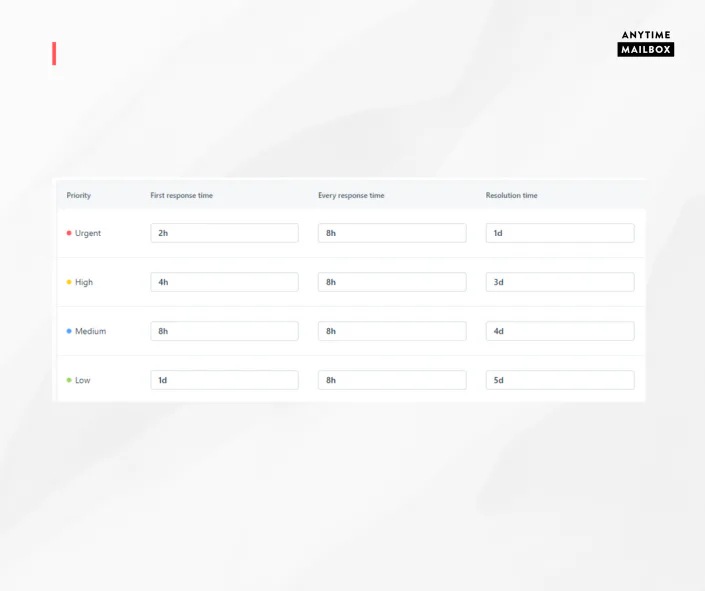
Ticket Priority and SLA
Below is stated the Anytime Mailbox Ticket SLA (in business hours)
56

Whats Next?
Ticket Ownership and Handling
57

Ticket Ownership and Handling
It is important that you take ownership of a ticket you create and/or
was assigned to you originally.
You can change ticket assignment to a Manager if the issue needs to
be escalated, and that the escalation is documented as a Note in the
ticket.
You can change ticket assignment to somebody else if it was
mistakenly assigned to you, but make sure you properly hand over the
ticket by creating a Note in the ticket to the person you are assigning
the ticket to.
You can also ask the help of an internal staff member by adding a
note, and assigning the ticket to both you and that staff member. This
is known as Ticket collaboration, where a single ticket is assigned to
two staff members at the same time, with one of them still being the
“main” agent responsible for the ticket.
Here are some important reminders and best practices when handling
and taking ownership of tickets:
58

Ticket Ownership and Handling
Make it a habit to update Ticket Properties every time you are handling
a ticket. (Renter ID, Operator ID, Application Status, Category, etc.).
When you adding notes to a ticket, you are able to use the ‘@’ to
mention another team member or manager, if they need to see the
notes you stated on the ticket. They will sent an email if you do this.
Make sure Requester’s Contact Details are accurate. You have the
option & ability to edit this information if needed.
Don’t use “Add a Public note” unless otherwise directed by a manager
59

Whats Next?
Merging Tickets
60

Merging Tickets
Note: Always merge duplicate tickets or tickets related to each other for
that specific Renter or Operator.
When someone contact us, sometimes they can contact us serval times
via different channels for the same issue.
When this happens, sometimes multiple tickets are created for the same
issue and resolution.
Freshdesk has the option for you to merge the tickets together for proper
tracking.
If it important that you always merge to the ORIGINAL ticket that you
have found for that same concern.
61

Select the ticket you wish to view and merge.
Copy the email address found on the right side, under contact details.
Click “Merge”.
To merge tickets together, please follow the steps below:
How to Merge Freshdesk Tickets
62

Paste the email address under “Contact” box.
Select the ticket you wish to merge with the original ticket.
To merge tickets together, please follow the steps below:
.
How to Merge Freshdesk Tickets
63

Click “Continue”.
Click "Merge".
A note will be added once the tickets have been merged successfully.
To merge tickets together, please follow the steps below:
.
NOTE: Always check the status of the ticket after merging and update the rest
"Properties" accordingly.
How to Merge Freshdesk Tickets
64

What happens to all emails sent support@anytimemailbox.com,
help@anytimemailbox.com, service@anytimemailbox.com,
applications@anytimemailbox.com?
You must always ensure your tickets have the correct Site ID,
Category and ….. ?
What does the following ticket property mean? Category
What does the following ticket property mean? Customer Type
True or False: Tickets can also be initiated via the ATMB website.
How many ticket statuses are there to choose from?
What does the following ticket status mean? For Cancellation
What does the following ticket status mean? Pending
Tickets can be prioritized by Urgent, Low, High or…..?
If a ticket is set to Urgent priority, what time frame should it be
resolved by?
If a ticket is set to Low priority, what time frame should it be resolved
by?
True or False: Don’t use “Add a Public note” unless otherwise directed
by a manager
When merging tickets, which ticket should you use as the main one?
1.
2.
3.
4.
5.
6.
7.
8.
9.
10.
11.
12.
13.
Knowledge Check
65
Multiple Choice
What happens to all emails sent support@anytimemailbox.com, help@anytimemailbox.com, service@anytimemailbox.com, applications@anytimemailbox.com?
Converted to a FD ticket
66
Hotspot
Please select the appropriate box or section to indicate where the concerns of operators or renters regarding applications, billing, or cancellations should be placed.
67
Multiple Choice
Can tickets be initiated via the ATMB website?
68
Multiple Choice
How many ticket statuses are there to choose from?
The correct answer is 9 ticket statuses to choose from.
69
Fill in the Blanks
When the ticket is in for
70
Multiple Choice
FreshChat offers canned responses.
TRUE
FALSE
71
Fill in the Blanks
You must always ensure your tickets have the correct Site ID, Type and
72
Fill in the Blanks
Only set to
73
Match
Please rearrange the following timeframe according to ticket priority.
URGENT
HIGH
MEDIUM
LOW
1 DAY
2 DAYS
3 DAYS
5 DAYS
1 DAY
2 DAYS
3 DAYS
5 DAYS
74
Multiple Choice
When merging tickets, which ticket should you use as the main one?
The main one.
Customer Service
Tools
Freshdesk
Show answer
Auto Play
Slide 1 / 74
SLIDE
Similar Resources on Wayground

69 questions
Central Dogma: DNA-RNA-Protein
Presentation
•
9th Grade
70 questions
Lesson 3- Roles of the President/NC Executive Branch
Presentation
•
9th - 12th Grade
68 questions
Archetypes
Presentation
•
8th Grade
67 questions
Chapter 11: Digestive System
Presentation
•
11th Grade - University
72 questions
Unit 1 and Unit 2 Review
Presentation
•
9th Grade
73 questions
The Byzantine Empire
Presentation
•
7th Grade
71 questions
Law of Demand
Presentation
•
11th - 12th Grade
68 questions
Short Words, Short Vowel Sounds
Presentation
•
KG - 1st Grade
Popular Resources on Wayground
10 questions
Safety Day 2026 – Student Review

Quiz
•
9th Grade
21 questions
Continents and Oceans
Quiz
•
6th Grade
20 questions
Parts of Speech
Quiz
•
5th Grade
16 questions
Subject & Predicate
Quiz
•
5th Grade
25 questions
Multiplication Facts
Quiz
•
5th Grade
12 questions
Map Skills
Quiz
•
3rd Grade
22 questions
Continents and Oceans
Quiz
•
5th Grade
15 questions
Rounding Decimals
Quiz
•
5th Grade
Discover more resources for
10 questions
Safety Day 2026 – Student Review
Quiz
•
9th Grade
21 questions
Continents and Oceans
Quiz
•
6th Grade
20 questions
Parts of Speech
Quiz
•
5th Grade
16 questions
Subject & Predicate
Quiz
•
5th Grade
25 questions
Multiplication Facts
Quiz
•
5th Grade
12 questions
Map Skills
Quiz
•
3rd Grade
22 questions
Continents and Oceans
Quiz
•
5th Grade
15 questions
Rounding Decimals
Quiz
•
5th Grade