

Microsoft Word Basics

Presentation
•
Computers
•
12th Grade
•
Practice Problem
•
Hard

DANIEL RANGEL
Used 2+ times
FREE Resource
50 Slides • 0 Questions
1

Microsoft® Word 2019 Basics – Welcome to Microsoft® Word
2

2
Objectives
• To examine the document creation
process.
• To understand the use of Microsoft®Word
in the workplace.
• To identify the layout of Microsoft®Word.
• To explore methods of customizing the
program window.
3

3
Main Menu
Creating Professional Documents
Word in the Workplace
Layout & Inside the Ribbon &
Backstage View
Customizing the Word Window
4

Creating Professional Documents
5

5
Microsoft®Word
• Is a word processing software which allows
users to create polished, professional
documents
−word processing
• act of creating, editing and producing a text
document
6

6
Steps for Document Creation
• Includes:
−plan
−create and edit
−format
−distribute
7

7
Planning
• Involves:
−determining what to say
−organizing information in a logical manner
−determining how the document should look
8

8
Creating & Editing
• Involves:
−typing the text of the document
−reading the document
−adding, deleting or moving text
−correcting errors
9

9
Formatting
• Involves:
−enhancing readability and organization
• adjusting margins
• setting line spacing
• applying font styles
10

10
Distributing
• Involves:
−printing the document
−sending the document electronically
−sharing the document
11
Word in the Workplace
12

12
Play iCEV Video
Instructions:
Show the Word in the Workplace video segment
13

Layout and Inside the Ribbon and Backstage View
14

14
Word Window Layout
15

15
Ribbon
• Is the major organizational unit of the
programs
• Contains tabs, groups and commands
16

16
File Tab
• When clicked, opens Backstage View
• Holds the following options:
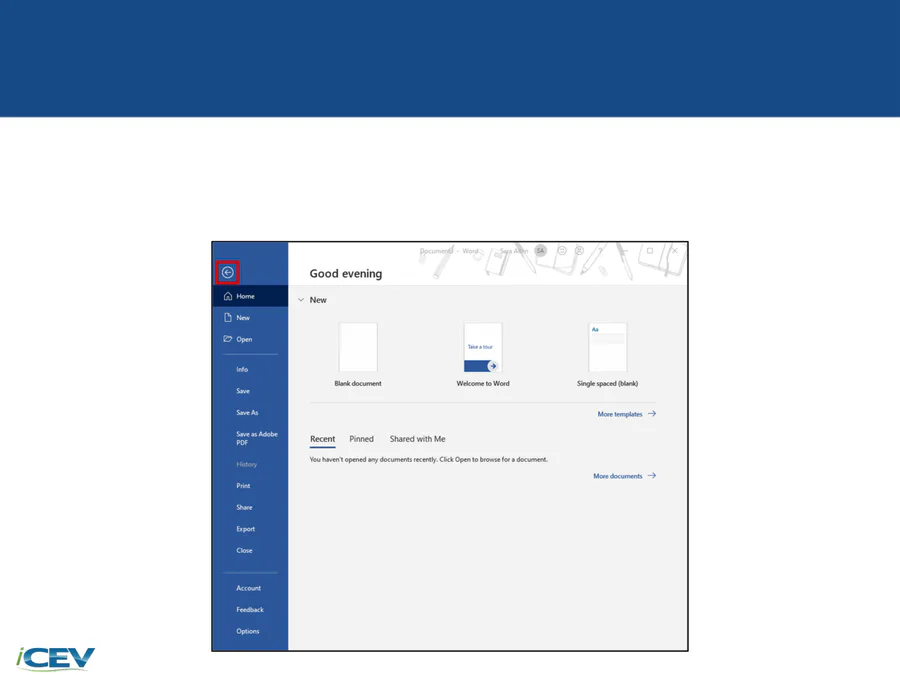
−Home, New, Open,
Info, Save, Save As,
History, Print, Share,
Export, Close,
Account, Feedback,
Options
17

17
File Tab/Backstage View
• Includes:
−New
• contains:
− thumbnails which can be clicked to create a
new document from:
• a blank
document
• a template
− search box for
more templates
18

18
File Tab/Backstage View
• Includes:
−Open
• contains the commands for:
− opening previously saved documents in a
variety of locations such as:
• recent locations
• cloud-based
storage
• locations on the
computer
− browsing for files
− opening recently
opened files
19

19
File Tab/Backstage View
• Includes:
−Info
• contains commands to protect, inspect and
manage the document
• shows properties of the document
20

20
File Tab/Backstage View
• Includes:
−Save
• if the file has been saved before, when clicked,
the command saves the file in its current
location
• if not previously
saved, when
clicked, it opens
the Save As
screen
21

21
File Tab/Backstage View
• Includes:
−Save As
• shows sites where files can be stored
such as:
− the computer
− recently used
locations
• offers the command
to browse for other
available locations
22

22
File Tab/Backstage View
• Includes:
• shows properties associated with printing the
document such as:
− preview of the file
− number of copies
− selected printer
and properties
− settings to be
applied to the
printed file
• contains the Print
button to start
printing
23

23
File Tab/Backstage View
• Includes:
−Share
• contains commands to share the document by:
− sharing to a
cloud-based
location
− e-mailing
− sending to Adobe®
PDF for review
− presenting online
− posting to a blog
24

24
File Tab/Backstage View
• Includes:
−Export
• contains the commands for:
− creating an Adobe®PDF
− creating a PDF/XPS version of the document
− changing the file type
25

25
File Tab/Backstage View
• Includes:
−Close
• if clicked will exit the program
26

26
File Tab/Backstage View
• Includes:
−Account
• shows:
− user information
− customization
options for Office
programs
− connected cloud
services
− product information
27

27
File Tab/Backstage View
• Includes:
−Options
• opens the Word Options window where users
can edit various program settings
28
28
File Tab/Backstage View
• Can be exited by clicking on the arrow at
the top left corner
29

29
Home Tab
• Contains the following groups:
−Clipboard
• holds commands for cutting, copying, pasting,
formatting painter and opening the clipboard
−Font
• contains commands for formatting text such as
specifying font type, size, case, color, effects
and highlight
30

30
Home Tab
• Contains the following groups:
−Paragraph
• holds commands for formatting paragraphs such
as adding bulleted or numbered lists, alignment,
paragraph indent and spacing, paragraph
background color and borders and visibility of non-
printing characters
−Styles
• contains styles which can be applied to text
−Editing
• holds commands to find, replace and select text
31

31
Insert Tab
• Is composed of the following groups:
−Pages
• holds commands to insert various types of pages
and page breaks
−Tables
• contains commands to insert tables
−Illustrations
• holds commands to insert pictures, shapes, icons,
3-D models, SmartArt, charts and screenshots
−Add-ons
• contains custom commands to edit a document
32

32
Insert Tab
• Is composed of the following groups:
−Media
• consists of the command to locate online videos to
add to documents
−Links
• contains commands to insert hyperlinks, bookmarks
and cross-reference lists
−Comments
• holds the command for inserting a comment
−Header & Footer
• consists of commands to add a headers and footers
33
33
Insert Tab
• Is composed of the following groups:
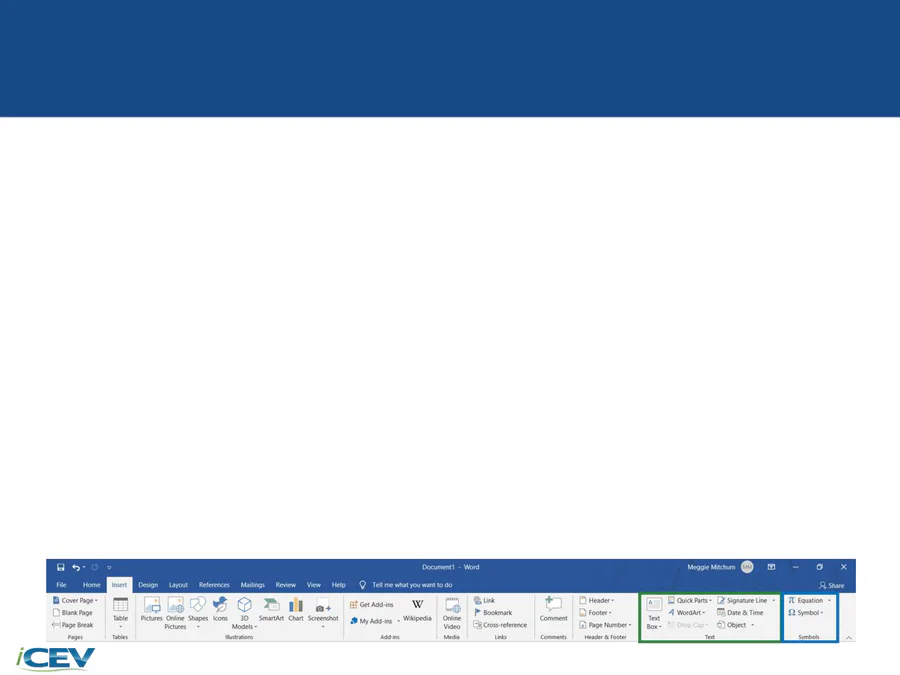
−Text
• holds commands to insert text boxes, quick
parts, WordArt, drop caps, signature lines, time
stamps and objects
−Symbols
• contains commands to insert equations and
symbols
34

34
Design Tab
• Contains the following groups:
−Document Formatting
• consists of commands which can be used for
editing document themes, styles, colors, fonts
and paragraph spacing as well as set default
document formatting settings
−Page Background
• holds commands which can add a watermark,
page background color and page borders
35

35
Layout Tab
• Is composed of the following groups:
−Page Setup
• contains commands to set page margins, page
orientation, page size, columns, insert page
breaks and line numbers and specify
hyphenation settings
−Paragraph
• holds commands to adjust the left and right
paragraph indents as well as specify the
spacing before and after paragraphs
36

36
Layout Tab
• Is composed of the following groups:
−Arrange
• consists of commands which can be used to
position objects in a document, wrap text
around objects in a document, align objects,
group objects and rotate objects in a document
37

37
References Tab
• Contains the following groups:
−Table of Contents
• holds commands to create a table of contents
−Footnotes
• contains commands to insert and edit footnotes and
endnotes
−Smart Lookup
• looks up words or phrases instantly
−Citations & Bibliography
• holds commands to insert citations, manage
sources and create a bibliography
38

38
References Tab
• Contains the following groups:
−Captions
• consists of commands to insert captions, create a
table of figures and cross-reference materials
−Index
• holds commands to create an index and mark
entries for the index
−Table of Authorities
• contains commands to create a table of authorities
and mark citations for the table of authorities
39

39
Mailings Tab
• Is composed of the following groups:
−Create
• contains commands to develop personalized
envelopes and labels
−Start Mail Merge
• holds commands to start a mail merge and select
and edit a recipient list
−Write & Insert Fields
• contains commands to highlight fields, add an
address block, insert a greeting, add merge field,
create rules for the merge, match fields and update
the merge
40

40
Mailings Tab
• Is composed of the following groups:
−Preview Results
• contains commands to preview how the mail
merge will look when the merge fields are
replaced with the recipient’s information
−Finish
• holds the command to complete the merge
41

41
Review Tab
• Contains the following groups:
−Proofing
• holds the spelling and grammar check tool,
thesaurus and word count tool
−Speech
• holds the command to read a document aloud
−Accessibility
• holds the command to check a document’s
accessibility
42

42
Review Tab
• Contains the following groups:
−Language
• consists of commands to translate words or
paragraphs and set other language options
−Comments
• holds commands to add, edit, navigate through
and show comments
43

43
Review Tab
• Contains the following groups:
−Tracking
• contains commands to track changes made to
a document as well as open the Reviewing
Pane
−Changes
• holds commands to accept or reject changes
as well as navigate through changes in the
document
44

44
Review Tab
• Contains the following groups:
−Compare
• consists of the command to compare versions
of a document
−Protect
• contains commands which allows users to
place restrictions on the types of changes
which can be made to a document
−Ink
• holds the command to hide any ink contained
in the document
45
45
View Tab
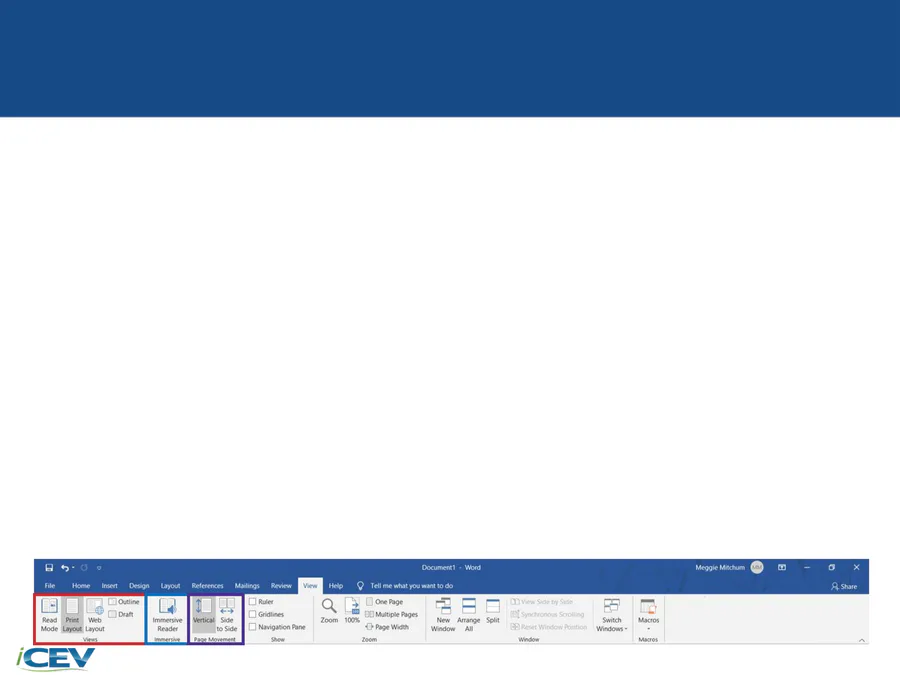
• Consists of the following groups:
−Views
• contains different viewing options which can be
applied
−Immersive
• contains an assistive reading tool to make
documents easier to read
−Page Movement
• contains commands to change the page
movement from vertical to side to side
46

46
View Tab
• Consists of the following groups:
−Show
• holds commands to show rulers, gridlines and
the Navigation Pane
−Zoom
• contains commands to view the file at different
zoom levels and the number of pages viewed
at once
47

47
View Tab
• Consists of the following groups:
−Window
• holds commands for viewing a document in the
program window
−Macros
• consists of the command to create a macro
48

Customizing the Word Window
49

49
Play iCEV Video
Instructions:
Show the Customizing the Word Window video segment
50

50
Acknowledgements
Production Coordinator
Sara Allen
Videography/Post Production
Jake Saye
Video Narrator
Jason Kappus
Graphic Editors
Hilary Jasper, Megan O’Quinn,
Merah Barbee
Director of Brand Management
Megan O’Quinn
Quality Control Director
Angela Dehls
Executive Vice President
Clayton Franklin
Executive Producer
Gordon W. Davis, Ph.D.
© MMXXI
CEV Multimedia, Ltd.
Microsoft® Word 2019 Basics – Welcome to Microsoft® Word
Show answer
Auto Play
Slide 1 / 50
SLIDE
Similar Resources on Wayground

50 questions
L1: Flowcharts-and-pseudoco
Presentation
•
12th Grade
45 questions
Software development T3 Programming paradigms
Presentation
•
12th Grade
49 questions
Utility Program
Presentation
•
University
47 questions
How a Bill Becomes a Law
Presentation
•
11th - 12th Grade
43 questions
T3 SA1 Reviewer
Presentation
•
12th Grade
45 questions
Polynomial Classifying by Degrees, Zeros, and Multiplicities
Presentation
•
11th - 12th Grade
40 questions
ESB Domain 3
Presentation
•
12th Grade
43 questions
Past Simple Lesson UIS
Presentation
•
KG
Popular Resources on Wayground
10 questions
Safety Day 2026 – Student Review

Quiz
•
9th Grade
21 questions
Continents and Oceans
Quiz
•
6th Grade
20 questions
Parts of Speech
Quiz
•
5th Grade
16 questions
Subject & Predicate
Quiz
•
5th Grade
25 questions
Multiplication Facts
Quiz
•
5th Grade
12 questions
Map Skills
Quiz
•
3rd Grade
22 questions
Continents and Oceans
Quiz
•
5th Grade
15 questions
Rounding Decimals
Quiz
•
5th Grade