

Science PD - not finished

Presentation
•
Science
•
Professional Development
•
Practice Problem
•
Hard

Sherry Smith
FREE Resource
50 Slides • 0 Questions
1


Dive Into Diffit
We recommend teachers follow along on their own devices
when leading a PD with the following slides. Diffit PD’s work
best when teachers get to stop and try it themselves.
2


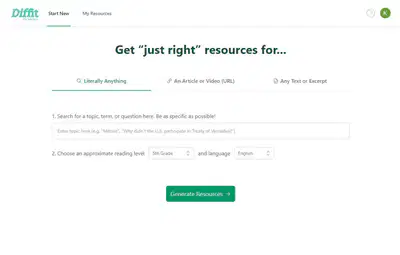

● Learn What Diffit Does
● Create a Resource Set
● Customize that Resource
● Create Student Activity
● Customize that Activity
● Explore Examples of How
Teachers Use Diffit
Agenda
3


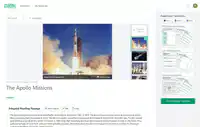
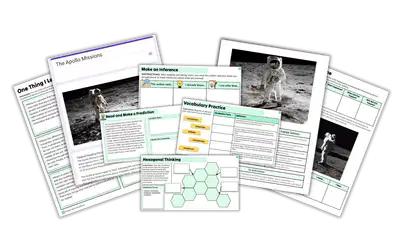

What does Diffit do?
Step 1: Whatever you’re teaching, we’ve got
you covered
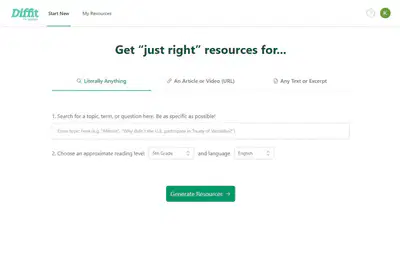
Use existing curriculum, or generate content from
scratch with real, cited sources. Choose a standard,
grade level and language, and watch Diffit create a
complete, differentiated resource. ✅
Step 2: Customize - because teachers know
best.
Instantly re-level text, customize vocabulary, add
questions at different DOK levels, translate, and
lots more. 📝
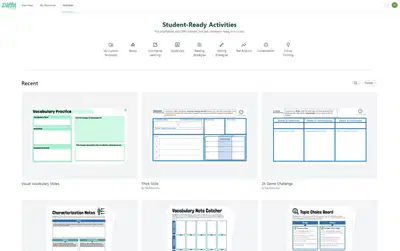
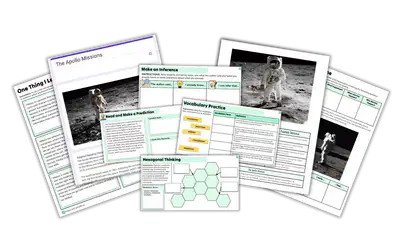
Step 3: Get student-ready activities
Turn your content into “just right” activities with our
library of high-quality, student-ready exports. ✨
4


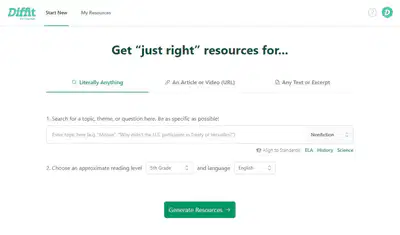
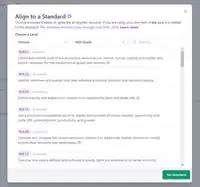

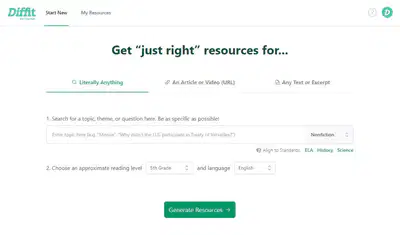
● Go to app.diffit.me and
start on the “Literally
Anything” tab
● Type in a topic or select a
Standard you are teaching
in the next couple weeks.
● Pick a grade level and
language then click
“Generate Resource”
Let’s Start Lesson Planning with Diffit
5



You can adapt or make resources in Diffit using all of the following:
● Article Links
● PDFs
● YouTube Video Links
● Or Copy Paste!
Let’s try it! Find an article of video
link then pick the grade level and
language.
What if I already have content?
6

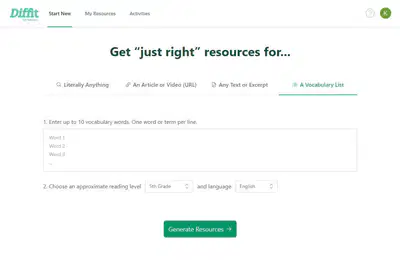
Generate Resources from a Vocabulary List
●Start at app.diffit.me and click the "Vocabulary List" tab
●Enter up to ten words
●Pick a grade level and language and
click “Generate Resources”
Diffit will create a short fictional reading
passage with all your terms included and
a summary, text dependent questions, and
more!
7


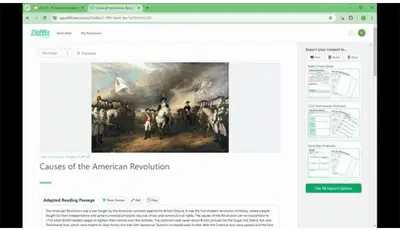
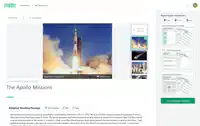
The resource it creates will include:
●
A suggested image
●
A reading passage
●
Summary
●
Key Vocabulary
●
Multiple Choice Questions
●
Short Answer Questions
●
Open Ended Prompts
All of these you can edit or add more!
The Diffit Resource Set
8


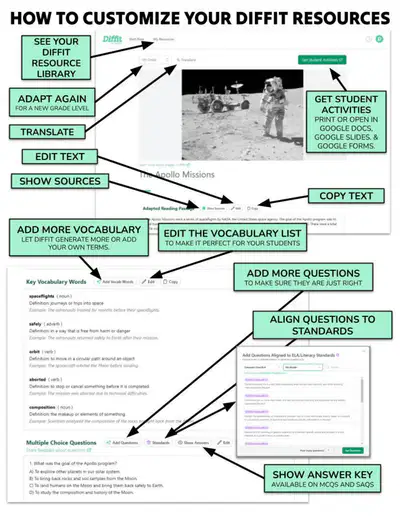
Once you create or adapt a resource with Diffit you can:
●
Translate it
●
Adapt it to a new reading level
●
Add more vocabulary
●
Add more questions (By ELA Standards, Literacy Skills or DOK Level)
●
Edit the text in each section
Let’s Try It: Explore this one pager
and then try it yourself!
https://bit.ly/HowToDiffit
Customize The Resource Set
9

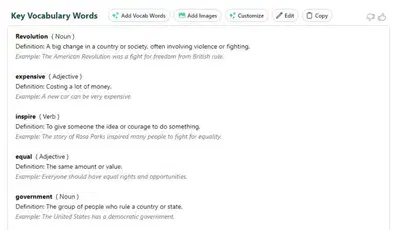
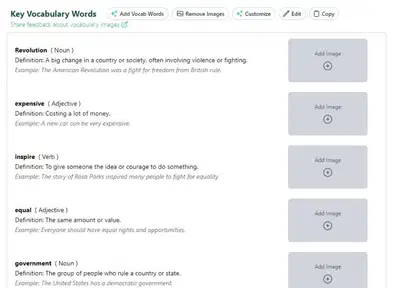
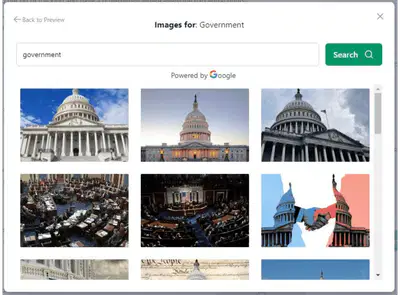

Add Vocabulary Images
●Click “Add Images” above your vocabulary list.
●For each term, search for the image that is just right for your students or upload your own!
●Then you can export the vocabulary list with images to Google Docs and Slides activities to share with students.
10


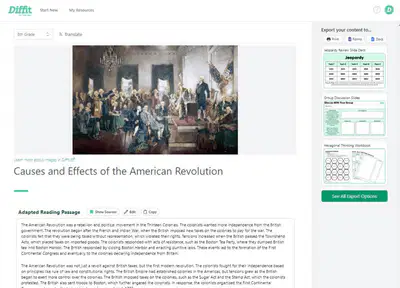
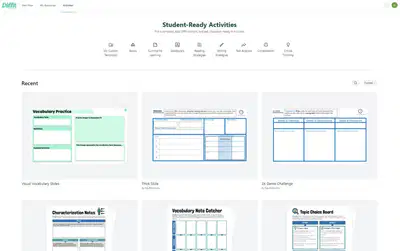

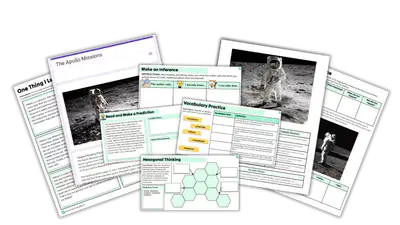
Once the content is just-right for your
students, pick an activity to export it
to!
Diffit has digital and printable
activities for vocabulary, summarizing
learning, text analysis, reading
strategies, writing strategies, and
more.
You can export to Google Slides,
Docs, PPT, and PDF.
Let’s Try It: Explore the activities
library and select one for your
content.
Pick a Student Activity
11


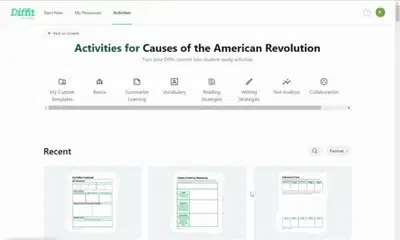
Select an Activity to start with then
click “Customize”
●
Swap specific graphic organizers
or strategies
●
Add more activities to your slide
deck or workbook
●
Delete or reorder the activities as
needed
●
Name it and save it to use with
future content
Hit Export when it is “Just-Right”
Let’s Customize A Student Activity
12


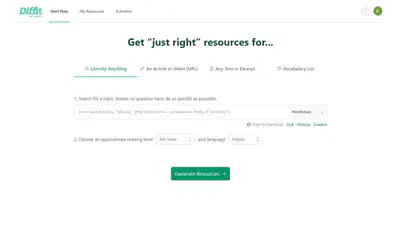
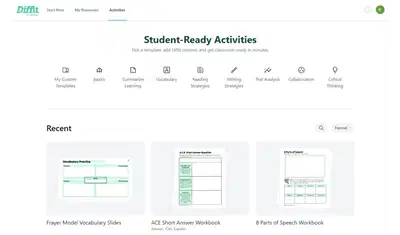

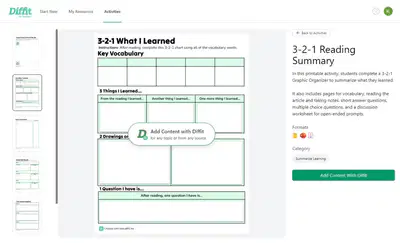
●
Click Activities from the
top menu
●
Browse or search until you
find the right one
●
Click the activity and then
add your content!
●
Then you can customize
the activity.
Let’s Try It: Explore activities
here!
You can start with an Activity!
13


Start with a standard, topic, or objective.
Pick grade level and language.
Export to a Student
Activity
Regenerate for a new
reading level.
Translate for Emergent
Bilingual Students
Export to another
Student Activity to give
students choice.
Export to a Student
Activity
Export to a Student
Activity
Export to another
Student Activity to give
students choice.
Export to another
Student Activity to give
students choice.
Make sure the resource is just right.
2
1
3
4
5
6
With Diffit, teachers
can differentiate a
high quality lesson
for multiple students
in minutes.
14


● They need supplemental materials to
engage students or reinforce learning.
● To support Project Based Learning
and create activities aligned to
student interests.
● They do not have an adopted
curriculum or their adopted
curriculum does not meet the needs
of students.
Why do teachers use “Literally Anything?”
15


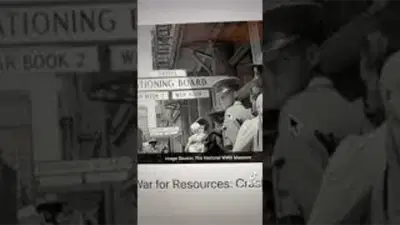
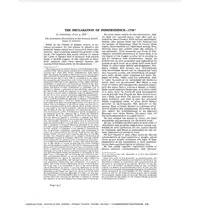
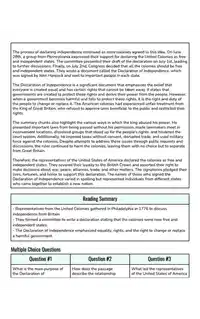
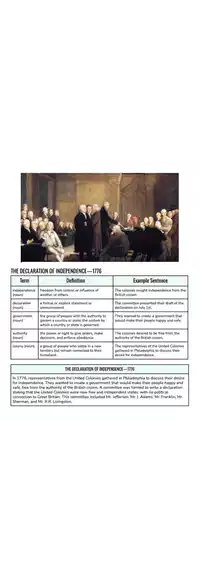

●
Found the perfect article, video, or text
can immediately get supporting
resources and activities.
●
Adapt research, primary sources, and
mentor texts to make them more
accessible to more students.
●
Bring more current events and real world
examples into the classroom without a
ton of lift and prep.
Why do teachers use a Video,
Article, PDF, or Excerpt
16


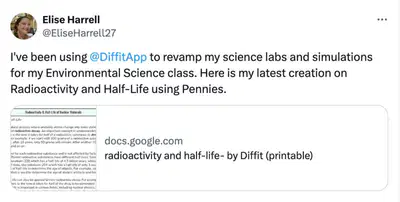
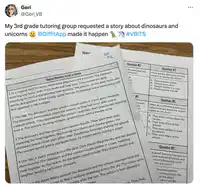
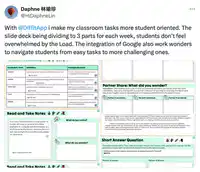
● Explore this ELA Lesson Plan
built entirely with Diffit.
● A Science teacher used Diffit to
add more context and
background knowledge to their
lab.
● See more examples of teachers
using Diffit: Explore this Wakelet.
What does Diffit look like in the classroom?
17


Activities Deep Dive
Slides that focus on student activities
18

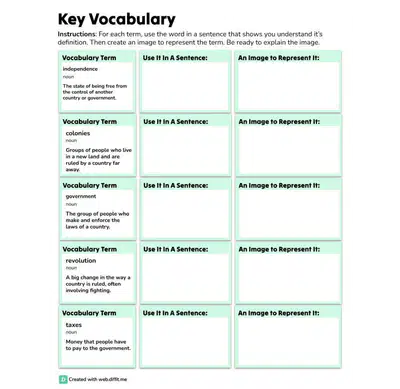
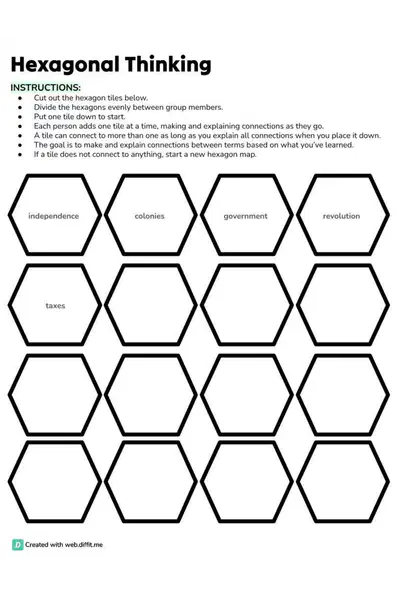
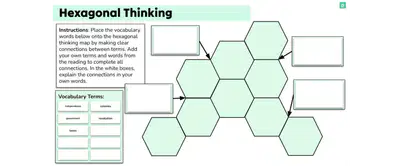
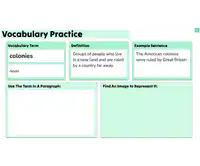
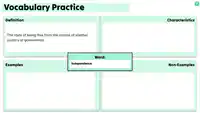
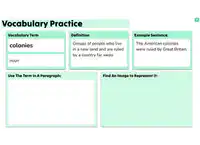
For Vocabulary
Explore them all at:
app.diffit.me/activities
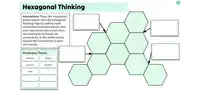
From Frayer Model to
Hexagonal thinking, Diffit has
a wide variety of vocabulary
activities for you to use
including…
●Drag and Drop Slides
●Matching
●Frayer Model
●And more!
19

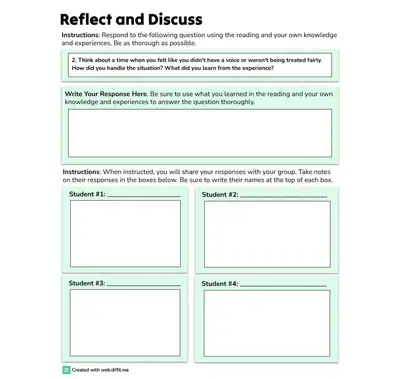
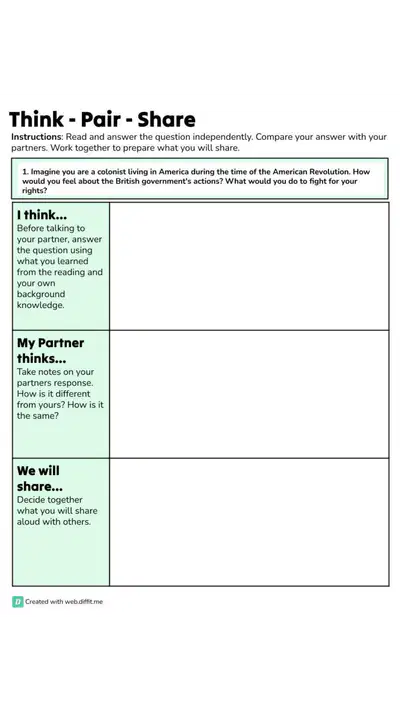
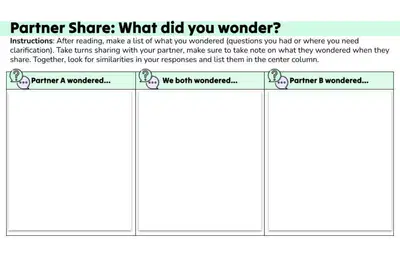
For Collaboration
Some of the collaboration
activities on Diffit include:
●Think, Pair, Share
●Discussion Packets
●Partner Discussions
●Group Discussions
●Partner Slide Decks
Explore them all at:
app.diffit.me/activities
20

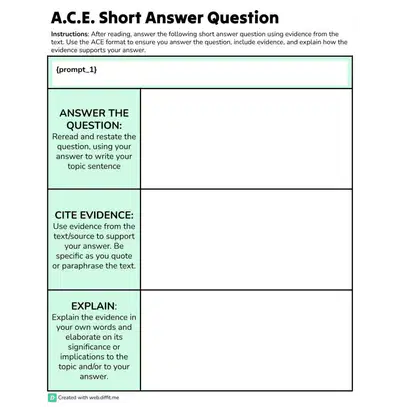
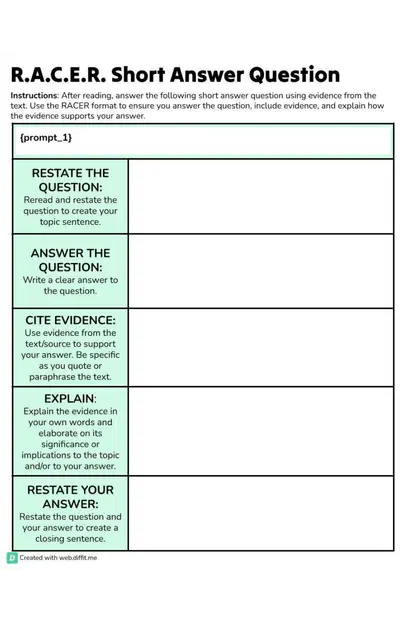
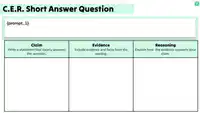
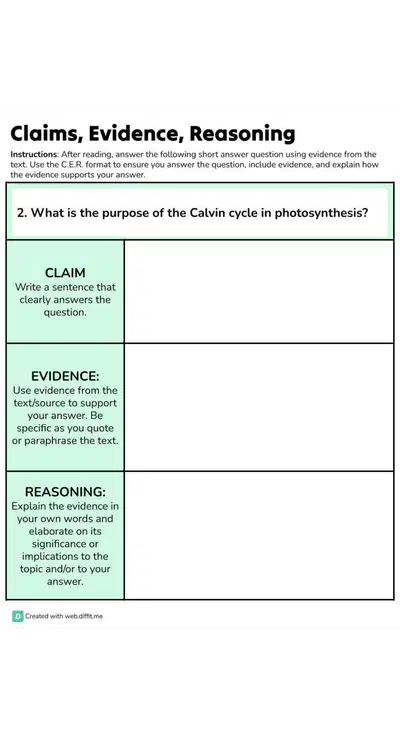
For Constructed Response
There are so many ways to
teach students how to write
with evidence:
●ACE
●CER
●RACER
●PEEL
●And more!
Preview them all at:
app.diffit.me/activities
21

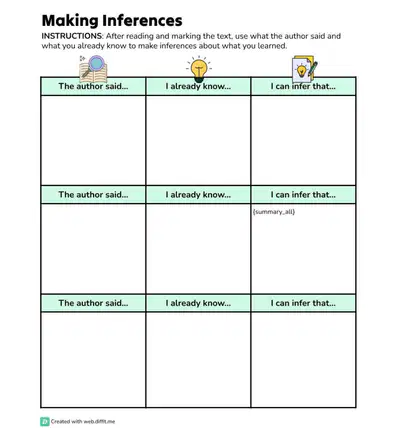
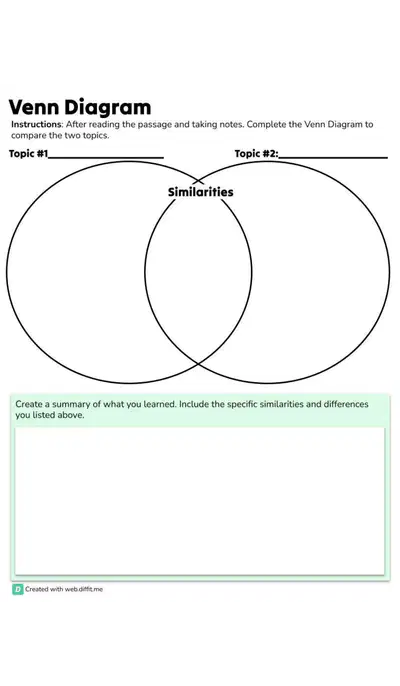
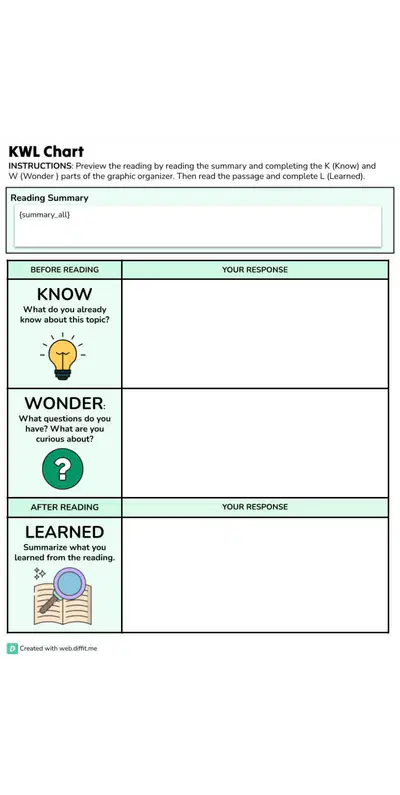
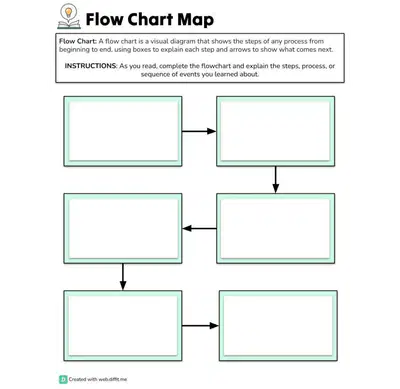
Graphic Organizers
There are so many ways to
help students show what
they’ve learned:
●Bubble Map
●Venn Diagram
●KWL
●And more!
Preview them all at:
app.diffit.me/activities
22

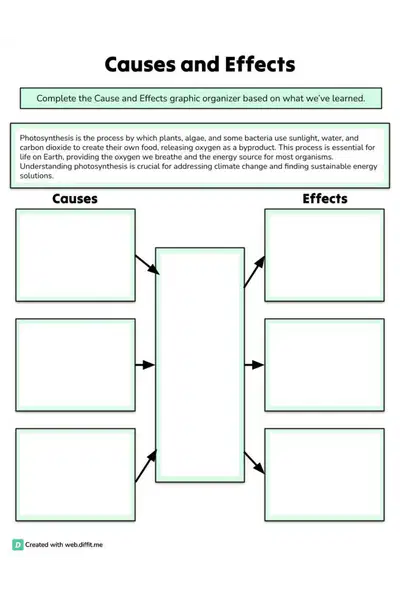
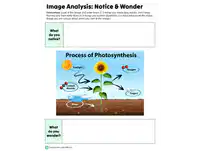
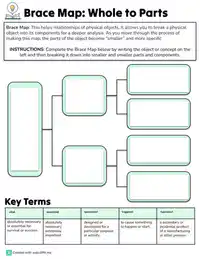
For the Science Classroom
How Science Teachers use
Diffit:
●More resources to develop
background knowledge
●Vocabulary building
●Writing with evidence
●Partner and group
discussion
●Adapt science articles and
videos for students
Preview them all at:
app.diffit.me/activities
23


Classroom Ideas
and Examples
Organized by Content Area
24


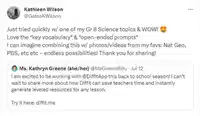
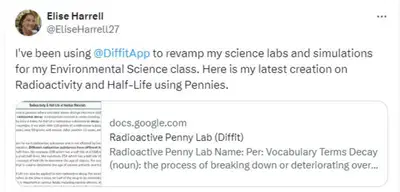
Diffit in the Science Classroom
●Incorporate current events articles to make real-world
tie-ins, regardless of student reading level
●Generate grade appropriate readings with questions
and vocabulary for stations and centers.
●Generate a grade appropriate reading of the latest
science news to add more current events.
●Generate readings and question sets on science
concepts to help build background knowledge for
students.
25




Diffit in the Science Classroom
Presented by Kelly Bettencourt
Instructional Technology Coordinator for Twin Rivers USD and Former Science Teacher
Just Press Play
In this 14 minute video
Kelly Bettencourt
shares how teachers
can use Diffit in the
science classroom.
26


Features Deep Dive
Step by step slides for individual features
27


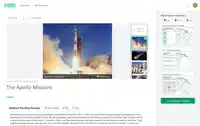

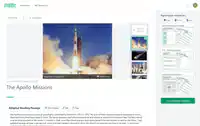
Agenda
What does Diffit do?
→ Literally Anything
→ An Article or Video
→ Any Text or Excerpt
The Diffit Resource Set
→ “Just Right” Reading
→ Summary
→ Multiple Choice Questions
→ Short Answer Questions
→ Open Ended Prompts
→ Open with Google Docs⭐
→ Open with Google Forms⭐
→ Open with Google Slides⭐
Lesson Planning with Diffit
28




What does Diffit do?
Step 1: Whatever you’re teaching,
we’ve got you covered
Use existing curriculum, or generate
content from scratch with real, cited
sources.
Choose a grade level and language, and
watch Diffit create a complete,
differentiated resource. ✅
29



What does Diffit do?
Step 2: Customize - because
teachers know best.
Instantly re-level text, customize
vocabulary, add questions at different
DOK levels, translate, and lots more. 📝
30



What does Diffit do?
Step 3: Get student-ready activities
Turn your content into “just right”
activities with our library of
high-quality, student-ready exports. ✨
31


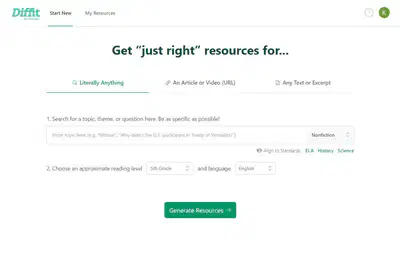
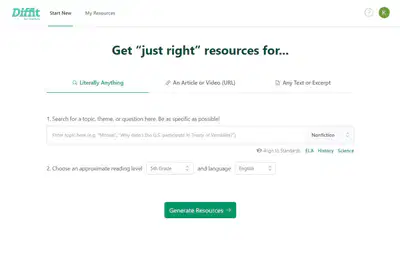
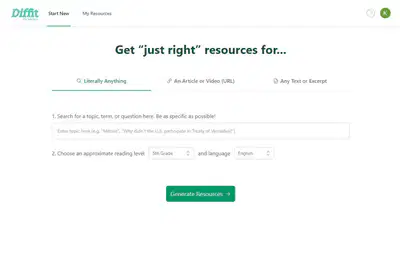
Literally Anything
With Literally Anything you can give
Diffit a prompt, question, topic, or concept
and it will generate a leveled reading and
resource set. You can even select State
Standards for ELA, History and Science!
1. Search for a topic, term, or question
here. Be as specific as possible!
2. Choose an approximate reading level
and language.
Try it now at Diffit.Me
32


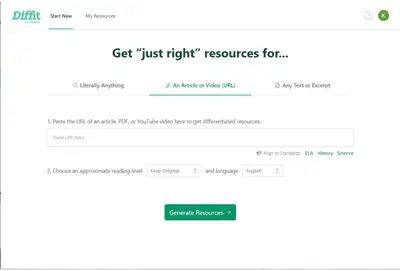
An Article or Video URL
With An Article or Video URL you can
give Diffit a link to an article or YouTube
video and it will adapt it into a leveled
reading and resource set.
1. Paste the URL of an article (or PDF).
We'll adapt it for any reading level, and
then some!
2. Choose an approximate reading level
and language if you want to adapt the
reading or keep “Original Text.”
Try it now at Diffit.Me
33


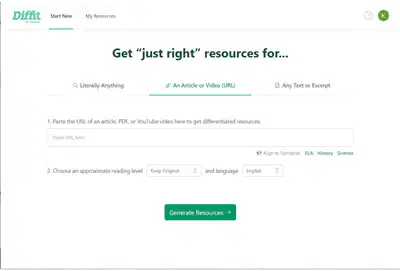
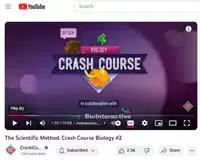

A Video
With An Article or Video Diffit can
generate resources for YouTube videos
that have a transcript.
1. Paste the link in the “An Article or
Videl (URL)” Tab
2. Choose an approximate reading level
you want the resources in or choose
“Original Text” to use the full transcript.
Try it now at Diffit.Me
34


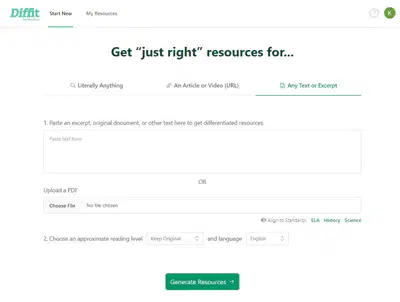
Any Text or Excerpt
With Excerpt or Text you can copy a text
or reading passage and it will adapt it into
a leveled reading and resource set.
1. Paste an excerpt, original document, or
other text here to get differentiated
resources. Or you can upload a PDF here.
2. Keep the “Original Text” as is or choose
an approximate reading level to adapt the
reading.
Try it now at Diffit.Me
35


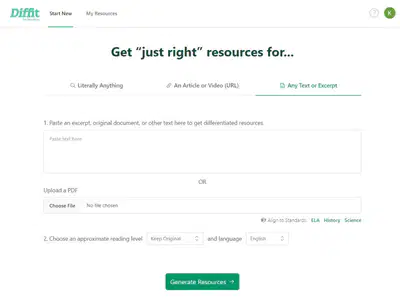
Turn PDFs into Student Activities
With Excerpt or Text you can upload a
PDF and turn it into a ready to use
student activity.
1. Upload the PDF
2. Keep “Original Text”
3. Click “Generate Resources”
4. Click “Get Student Activities”
Try it now at Diffit.Me
36


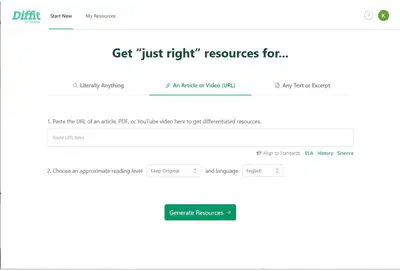


Let’s Try It Out!
1.
Head to Diffit.Me
2.
Click “Login”
3.
Click “Continue with
Google” or “More sign-in
options”
4.
Create your first resource
using “Literally Anything”
by giving it a topic and
selecting a grade level.
37



Create an Account
●Click Login on the top right
corner.
●You can either “Sign in with
Google” or click “More sign-in
options”
●When you click “More sign-in
options” you can sign in with
Microsoft, Google, or use and
email and password to sign in.
38


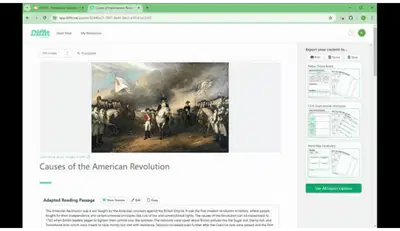
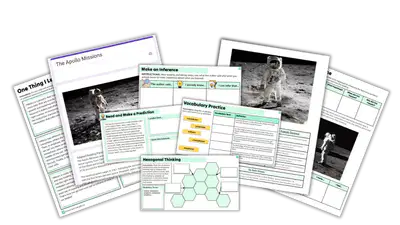
The Diffit Resource Set
Every time you use Diffit it generates a
Resource Set for you that includes…
→ A “Just Right” Reading
→ A Suggested Title Image
→ Summary
→ Multiple Choice Questions
→ Short Answer Questions
→ Open Ended Prompts
Resource sets can be edited, re-leveled,
easily copied, and translated.
You can quickly generate more questions and
vocabulary as needed.
39


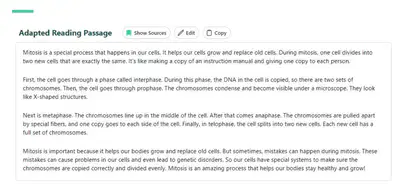
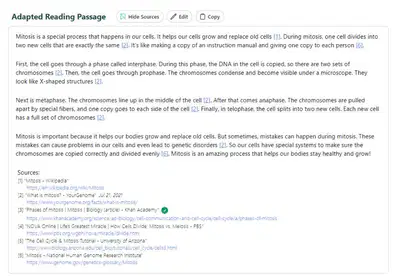

Show Sources on Resources
When generating a reading, Diffit pulls
from real cited sources!
●On a Generated Text using the
“Literally Anything” tab
○Generate a text
○Click “Show Sources” and it will
show all the sources it used to
create the text.
●On an Adapted Article or Link
○“Show Sources” will include the
source link and information for
you.
40


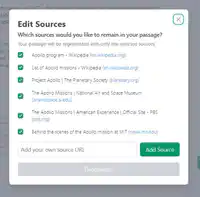

Edit Sources
●When using “Literally Anything” you can now
exclude unwanted sources and add a new
source.
●After generating a reading click “Show
Sources”
●Review the sources, if there is one you’d like to
exclude click “Edit Sources and Regenerate”
●Deselect the source or sources you’d like to
exclude and then click “Regenerate”
●A new reading will be created that excludes the
source(s) you deselected.
41


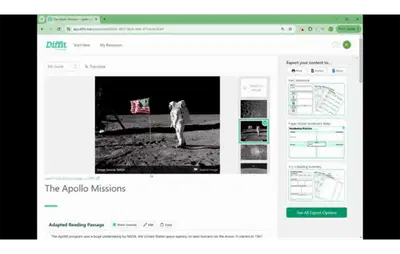
Customize Your Resources
●Each section allows you to edit
the text so you can customize as
needed.
●For the vocabulary terms and
questions generated you can
generate more of them as
needed.
●Adjust the length of the reading
to meet the needs of your
students.
●Add an image to your Resource
Set
42


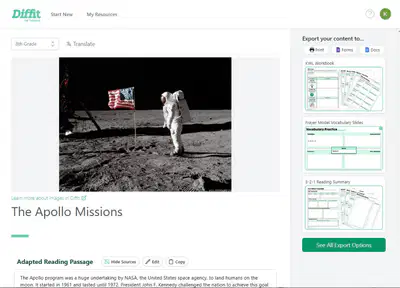
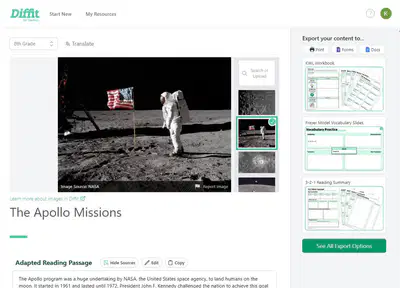

Automatic Images
●When generating or adapting a resource Diffit
suggests an image to go with your content.
●To change the image hover or click on the title
image to choose alternate options, or add your
own!
●To remove the image, hover or click on the title
image and scroll down to select “No Image”
●All exports now include images - including
specific slides designed to engage students
around your chosen image!
●Will it import images from links or PDFs? Not
at this time but you can always upload your
own!
43


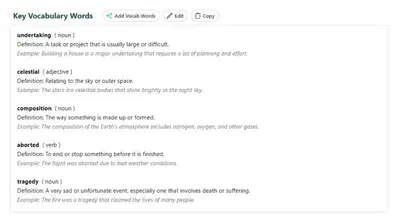
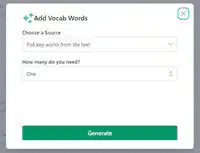

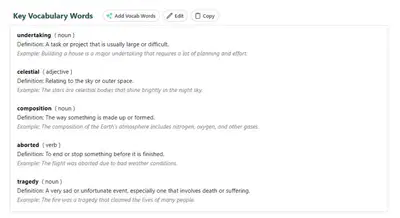
Adding Vocabulary
You can edit the Vocabulary list and add
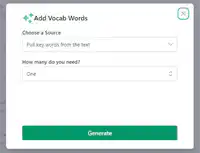
more words.
Click Add Vocab Words
You get the option for Diffit to generate
more from the reading.
Or add your own list of terms and it will
create definitions, parts of speech, and
example sentences.
44


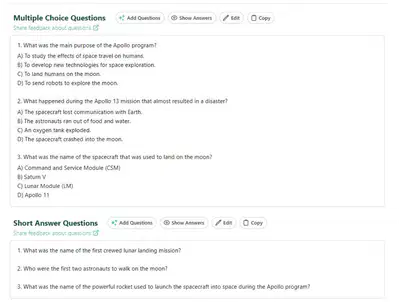
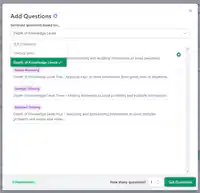

Generating Questions
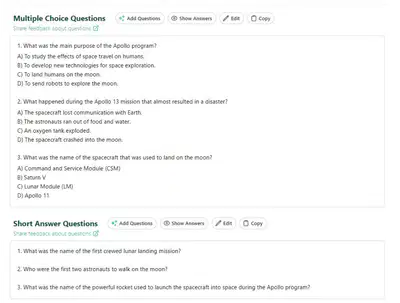
There are three types of questions in a
Diffit Resource:
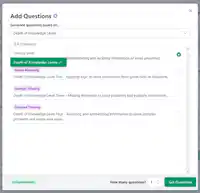
●Multiple Choice Questions
○Answers provided.
○Can add more MCQ’s by
standard, DOK level, or literacy
skill.
●Short Answer Questions
○Sample answers provided.
○Can add more MCQ’s by
standard, DOK level, or literacy
skill.
●Open Ended Prompts
○Can generate more.
45


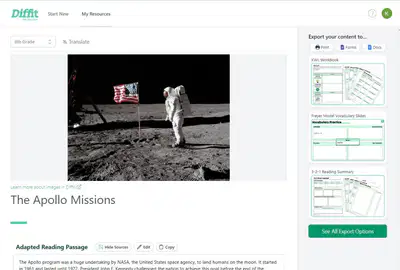
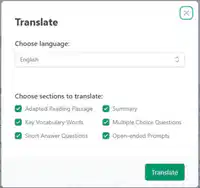

Translate
●Once you create a resource set
by generating or adapting a
reading, you can translate the
resources.
●Above the title click “Translate”
●Choose the language you want.
●You can translate the entire
resource or you can select
specific sections to translate.
46


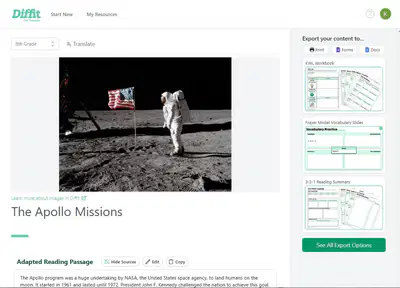
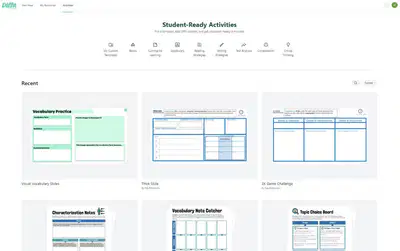

Get Student Activities
Once you use Diffit to generate
your Resource Set you can save it
as a PDF and Print it.
1.
Create your Resource Set
2.
Review the Resource Set and
edit as needed.
3.
Click “Get Student Activities”
and select the template you
want to use.
See a Google Doc Example Here
47


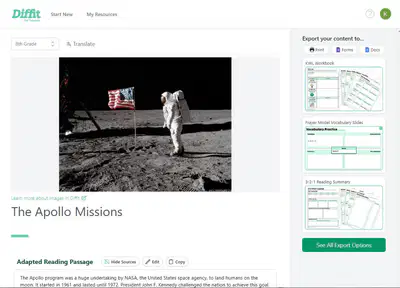
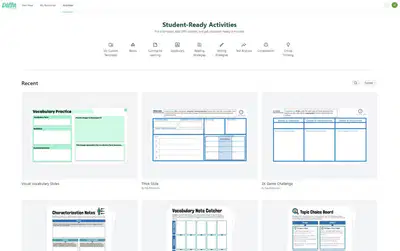

Get Student Activities
Student Activities are organized by
different activity types:
●Summarize Learning
●Vocabulary
●Reading Strategies
●Writing Strategies
●Text Analysis
●Collaboration
●Critical Thinking
See A Full List of Activities Here!
48


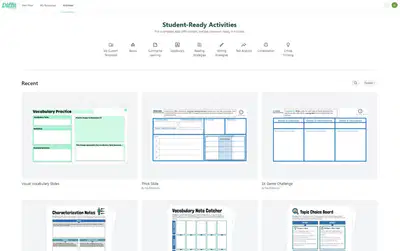
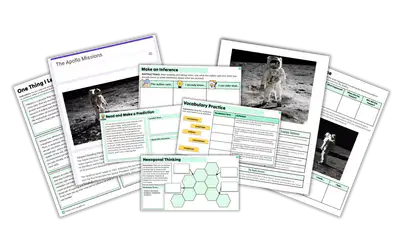
Get Student Activities
You can filter activities in the
following ways:
●Category
●Grade Level
●Content Area
●Format (Workbook or Slides)
Explore The Activities Here!
49


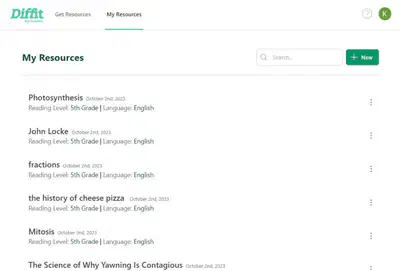

See Your Resource Sets
To see previously generated
Resource Sets:
1.
Log In
2.
Click “My Resources:
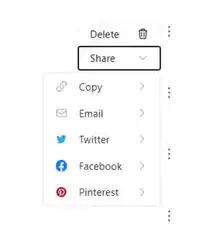
From here you can access the
sets again, edit sets, create new
ones, delete sets, and get a link
to share with colleagues.
50


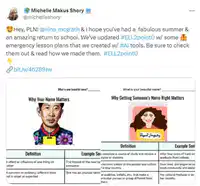
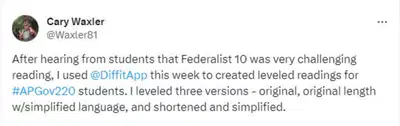
Lesson Planning with Diffit
●Use Diffit to create daily warm up
Google Forms on any topic.
●Easily bring in more Current Events
to engage learners.
●Get more resources to help your
students practice reading, writing,
and speaking.
●Google Slides for self-paced
learning!
See More Ideas Here
Dive Into Diffit
We recommend teachers follow along on their own devices
when leading a PD with the following slides. Diffit PD’s work
best when teachers get to stop and try it themselves.
Show answer
Auto Play
Slide 1 / 50
SLIDE
Similar Resources on Wayground

48 questions
Shifting from Procedural to Investigative Labs- Astronomy
Presentation
•
Professional Development
46 questions
5.2 The Modern Periodic Table Slides
Presentation
•
KG - University
43 questions
Science Subject Training Introduction
Presentation
•
KG - University
47 questions
The Musculoskeletal System
Presentation
•
KG - University
41 questions
Theme(Food) for Reception
Presentation
•
KG
48 questions
SEV4b land pollution prevention Lesson
Presentation
•
KG - University
45 questions
Loop 1
Presentation
•
Professional Development
43 questions
ตัวดำเนินการบูลีน แก้ไขจากคุณ Narin Sintharom
Presentation
•
KG
Popular Resources on Wayground
10 questions
Safety Day 2026 – Student Review

Quiz
•
9th Grade
21 questions
Continents and Oceans
Quiz
•
6th Grade
20 questions
Parts of Speech
Quiz
•
5th Grade
16 questions
Subject & Predicate
Quiz
•
5th Grade
25 questions
Multiplication Facts
Quiz
•
5th Grade
12 questions
Map Skills
Quiz
•
3rd Grade
22 questions
Continents and Oceans
Quiz
•
5th Grade
15 questions
Rounding Decimals
Quiz
•
5th Grade