

GRADE 10 ICT Q3-LAS 5

Presentation
•
Computers
•
10th Grade
•
Practice Problem
•
Hard

MAILENE SALES
FREE Resource
10 Slides • 0 Questions
1

SCHOOLS DIVISION OFFICE OF CAMARINES NORTE
Eco Athletic Field, F. Pimentel Ave., Daet, Camarines Norte 4600
camarines.norte@deped.gov.ph
DepEd Camarines Norte
Technology and Livelihood
Education
COMPUTER SYSTEMS
SERVING
Quarter 3, LAS 5: SETTING UP
COMPUTER SERVERS (SUCS)
Image source: https://www.zielotech.com/img/services/Server-Setup.jpg
10
2


SCHOOLS DIVISION OFFICE OF CAMARINES NORTE
Eco Athletic Field, F. Pimentel Ave., Daet, Camarines Norte 4600
camarines.norte@deped.gov.ph
DepEd Camarines Norte
Technology and Livelihood Education – Computer Systems Servicing; Grade 10,
Quarter 3 – LAS 5: SETTING UP COMPUTER SERVERS (SUCS)
Republic Act 8293, section 176 states that: No copyright shall subsist in any work of the
Government of the Philippines. However, prior approval of the government agency or office
wherein the work is created shall be necessary for exploitation of such work for profit. Such
agency or office may, among other things, impose as a condition the payment of royalties.
Borrowed materials (i.e., songs, stories, poems, pictures, photos, brand names, trademarks,
etc.) included in this book are owned by their respective copyright holders. Every effort has
been exerted to locate and seek permission to use these materials from their respective
copyright owners. The publisher and authors do not represent nor claim ownership over them.
Development Team of the Module
Writer
:
CARREN D. SALEN
Editor
:
JEFFERSON G. ELPEDES
Reviewer
:
DR.NIXON S. OLFINDO, EPS-EPP/TLE/TVL
Illustrator
:
CARREN D. SALEN
Layout Artist:CARREN D. SALEN
3


SCHOOLS DIVISION OFFICE OF CAMARINES NORTE
Eco Athletic Field, F. Pimentel Ave., Daet, Camarines Norte 4600
camarines.norte@deped.gov.ph
DepEd Camarines Norte
LEARNING ACTIVITY SHEET 5
Name of Student: ___________________________ Section_________________
Learning Area: TLE 10 – Computer System Servicing Date: _________________
I. INTRODUCTORY CONCEPT
When building a network, it is necessary that we know how to check the
connectivity of each devices. This will enable us to identify what are the possible errors
that occur during our network connectivity. As an ICT learner, it is necessary for you
to check and make sure the computer is working within a network.
II. LEARNING SKILLS FROM THE MELCs
LO 1: Set up user access TLE_IACSS9-12SUCS-IIIa-e-37
1.3 Establish network access policies/end user requirements
1.4 Perform security check in accordance with established network access
policies/end user requirements
III. ACTIVITIES
Information Sheet
Checking Network Connectivity
On the Taskbar of a computer that is a member of
the network, you should see the icon for the network
connectivity. The icon may appear empty:
That's good (this is not a guaranty that everything is
alright but probably everything is fine).
If the icon appears with a rotating cursor, the computer is
probably looking for a network:
In this case, you should let it continue searching. The
icon may appear with an orange ball:
Click that icon to show a list of available networks
(from your neighbors) and click the name of your network.
If the icon appears with a red X or any suspicious
sign, it means something is wrong:
If the computer connects using a cable (wired
connection), the first thing you should check is whether the
network cable is connected. If it's not, connect it and check the icon again. If the
cable is connected, the next thing is to check whether the driver for the network card
is installed and up-to-date.
To check it, click Start, right-click Computer, and click Manage. On the left,
click Device Manager. Check how Ethernet Controller and/or Network Controller
appear. If either or both have an exclamation mark in their icon, right-click the item
and click Properties (you can also double-click it). A dialog box would come up. It
may display a message that the drivers are not installed:
4

SCHOOLS DIVISION OFFICE OF CAMARINES NORTE
Eco Athletic Field, F. Pimentel Ave., Daet, Camarines Norte 4600
camarines.norte@deped.gov.ph
DepEd Camarines Norte
There are various ways you can get the drivers. One way is to get to the web
site of the manufacturer, download the driver, and install it. Then check the icon
again.
Network Discovery
Network discovery makes it
possible for a computer to allow
other computers to "see" it on the
network. If you have a computer
that needs to participate in a
network, you should allow
network discovery on it. To do
that, open Windows Explorer and
click Network (you can click the
Start button and click the Network
option). A message should
appear under the toolbar stating
"Network discovery is turned
off...": Click to Change
Routine Operations of a Network
User Accounts
A peer-to-peer network, also called a workgroup, is a network where each
computer owns its own resources and can make them available. Each computer may
or may not present much security. One way to secure a computer is to make sure that
anybody who wants to use it must be identified. That is, everyone who wants to use
the computer must have a user account on that computer.
5


SCHOOLS DIVISION OFFICE OF CAMARINES NORTE
Eco Athletic Field, F. Pimentel Ave., Daet, Camarines Norte 4600
camarines.norte@deped.gov.ph
DepEd Camarines Norte
To create a user account
a. Click Start -> Control Panel
b. Under User Accounts and
Family Safety, click Add Or
Remove User Accounts
c. Click Create a New Account
d. Specify a user name
e. You have the option of
making it a regular account
(Standard option) or an
account that can perform
more advanced options
(such as managing other
account and/or controlling
various operations on the
computer).
When you are ready, click Create
Account
f. To assign a password to the
account, click the account to open
its properties
g. Click Create a Password
h. Type a password in the first text
box and press Tab
i. Type the same password and press
Tab twice
j. Type something that can help you
remember the password if you
happen to forget it
k. Click Create Password
Sharing a Folder
Probably
the
most
fundamental way a computer can
make a resource available is to
share one or its resources or files.
Of course, you must first create the
resources.
Of course, to create a folder,
open Windows Explorer or any file
utility of your choice. select the
drive. Right-click it or right-click the
right frame, position the mouse on
New, and click Folder:
Give a name to the folder
and press Enter
6

SCHOOLS DIVISION OFFICE OF CAMARINES NORTE
Eco Athletic Field, F. Pimentel Ave., Daet, Camarines Norte 4600
camarines.norte@deped.gov.ph
DepEd Camarines Norte
After creating a folder, to share it:
a. Start Windows Explorer and display the drive where the folder is located
b. Right-click the folder -> Share With -> Specific People...
c. Click the arrow of the
combo box:
d. Then:
i. If you want to control
access of the folder
for all user accounts,
click Everyone
ii. If you want to control
access for a specific
account
and
that
account is in the list,
select it
iii. If you want to control access for a certain user but his or her account is not
listed, click Create A New User... and create the new account
e. Under Permission Level click the down-pointing arrow for the account you
selected
f. Select the desired permission
g. Click Share
h. Click Done
7


SCHOOLS DIVISION OFFICE OF CAMARINES NORTE
Eco Athletic Field, F. Pimentel Ave., Daet, Camarines Norte 4600
camarines.norte@deped.gov.ph
DepEd Camarines Norte
Accessing a Shared Folder
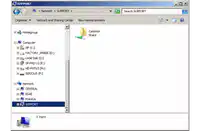
When a folder is shared in a computer, the other computers can access it. To
access such a folder from another computer, you must use an account that exists in
the computer where the folder is shared.
To access a shared folder:
a. Open Windows Explorer
b. In the left frame, click Network.
The right should play the names of the computers of the same network
c. Double-click the icon of the computer where the desired folder is located
d. A Windows Security
dialog box may
come. In the top
text box, type the
name of the
computer that has
the folder, followed
by \, followed by the
user account you
created in that
computer
e. Press Tab
f. Type the password that was
given to that account
About the check box:
oIf you leave
Remember My
Credentials
unchecked, the next
time you try
accessing the folders
of that computer, you
will be asked to
provide the
credentials (user
name and password)
again
oIf you check Remember My Credentials, next time, you can access the
folders of that computer
g. When you are ready, click OK
The computer should then show its shared folder(s)
You can then:
oDouble-click the folder to see its contents
oOpen a file that is in that folder
oCreate a file and save it in that folder
oCopy files and put them in that folder
8


SCHOOLS DIVISION OFFICE OF CAMARINES NORTE
Eco Athletic Field, F. Pimentel Ave., Daet, Camarines Norte 4600
camarines.norte@deped.gov.ph
DepEd Camarines Norte
oYou may put various types of files in that folder like pictures, music,
videos, presentation, and many more
Activity 1 “WE ARE CONNECTED”
Directions: Identify the Network Connectivity Status base from the illustrations below
and cite the steps to fix the network connectivity.
Illustrations
Network Connectivity
Status
How to Fix the Network
Connectivity
Activity 2 “COMPLETE ME”
Directions: Complete the following steps for each topic below. Write your answers
in the space provided.
Turn On Network Discovery
I. _________________________ (1)
II. click Network. A message should appear under the toolbar stating "Network
discovery is turned off...":
III.
______________ (2)
9


SCHOOLS DIVISION OFFICE OF CAMARINES NORTE
Eco Athletic Field, F. Pimentel Ave., Daet, Camarines Norte 4600
camarines.norte@deped.gov.ph
DepEd Camarines Norte
Sharing a Folder
I. Create a folder
II. Start Windows Explorer and display the drive where the folder is located
III.
Right-click the folder -> Share With -> Specific People...
IV.
_____________________________________ (3)
V. Then:
i. If you want to control access of the folder for all user accounts, click
Everyone
ii. If you want to control access for a specific account and that account is in
the list, select it
iii. If you want to control access for a certain user but his or her account is
not listed, click Create A New User... and create the new account
VI.
Under Permission Level click the down-pointing arrow for the account
you selected
VII.
___________________________________ (4)
VIII.
Click Share
IX.
______________________ (5)
Create a User Account
I. Click Start -> Control Panel
II. Under User Accounts and Family Safety, click Add Or Remove User
Accounts
III.
______________________________ (6)
IV.
______________________________ (7)
V. You have the option of making it a regular account (Standard option) or an
account that can perform more advanced options (such as managing other
account and/or controlling various operations on the computer).
When you are ready, click Create Account
VI.
To assign a password to the account, click the account to open its
properties
VII.
_____________________________________ (8)
VIII.
Type a password in the first text box and press Tab
IX.
_____________________________________ (9)
X. Type something that can help you remember the password if you happen to
forget it
XI.
_____________________________________ (10)
10


SCHOOLS DIVISION OFFICE OF CAMARINES NORTE
Eco Athletic Field, F. Pimentel Ave., Daet, Camarines Norte 4600
camarines.norte@deped.gov.ph
DepEd Camarines Norte
V. ANSWER KEY
Activity 1
Illustrations
Network Connectivity
Status
How To Fix the Network
Connectivity
Network connected
Looking for a network/
processing.
Let it continue searching.
Available networks
detected.
Click that icon to show a
list of available networks
and click the name of
your network.
Network connection
error.
Check is whether the
network cable is
connected.
Check whether the driver
for the network card is
installed and up-to-date.
Driver for the network
card is not installed or
up-to-date.
Install or update Network
Card Driver
Activity 2
1. Open Windows Explorer
2. Click to Change
3. Click the arrow of the combo box:
4. Select the desired permission
5. Click Done
6. Click Create a New Account
7. Specify a user name
8. Click Create a Password
9. Type the same password and press Tab twice
10.Click Create Password
VI. REFERENCES
“Peer-To-Peer Network Setup”
http://www.functionx.com/networking/Lesson04.htm
“Setting up a Peer to Peer Network”
http://www2.southeastern.edu/Academics/Faculty/nadams/etec650/peertopee
r.html
SCHOOLS DIVISION OFFICE OF CAMARINES NORTE
Eco Athletic Field, F. Pimentel Ave., Daet, Camarines Norte 4600
camarines.norte@deped.gov.ph
DepEd Camarines Norte
Technology and Livelihood
Education
COMPUTER SYSTEMS
SERVING
Quarter 3, LAS 5: SETTING UP
COMPUTER SERVERS (SUCS)
Image source: https://www.zielotech.com/img/services/Server-Setup.jpg
10
Show answer
Auto Play
Slide 1 / 10
SLIDE
Similar Resources on Wayground

6 questions
ΜΗΧΑΝΕΣ ΑΝΑΖΗΤΗΣΗΣ - ΠΩΣ ΛΕΙΤΟΥΡΓΟΥΝ
Presentation
•
10th Grade
9 questions
Year 10 ICT Effects of ICT
Presentation
•
10th Grade
10 questions
INFORMATIKA 8
Presentation
•
10th Grade
7 questions
Realidades 1 2a Listening Activity 6
Presentation
•
9th Grade
8 questions
Semicolons
Presentation
•
10th Grade
8 questions
Chapter 9-Creating Presentations
Presentation
•
10th Grade
7 questions
Ice Breaker: What would it be, what would you be?
Presentation
•
10th Grade
8 questions
Chapter 1: Robot Year 6
Presentation
•
10th Grade
Popular Resources on Wayground
10 questions
Safety Day 2026 – Student Review

Quiz
•
9th Grade
21 questions
Continents and Oceans
Quiz
•
6th Grade
20 questions
Parts of Speech
Quiz
•
5th Grade
16 questions
Subject & Predicate
Quiz
•
5th Grade
25 questions
Multiplication Facts
Quiz
•
5th Grade
12 questions
Map Skills
Quiz
•
3rd Grade
22 questions
Continents and Oceans
Quiz
•
5th Grade
15 questions
Rounding Decimals
Quiz
•
5th Grade