

Introduction to Google Sheets-Unit 1 Getting Started

Presentation
•
Information Technology (IT)
•
9th - 12th Grade
•
Practice Problem
•
Easy

Kyle Gordon
Used 1+ times
FREE Resource
75 Slides • 28 Questions
1

2

3
Open Ended
How do you think learning about Google Sheets can help you in your studies or future career?
4
Multiple Choice
Which of the following is a key benefit of using Google Sheets for managing data?
It allows real-time collaboration with others.
It is only accessible offline.
It does not support keyboard shortcuts.
It cannot be used for calculations.
5

6

7

8

9
Multiple Select
Which of the following are features of spreadsheets in Google Sheets™?
Grids of columns and rows
Ability to enter text, numbers, and calculations
Offline-only access
Professional formatting tools
10
Open Ended
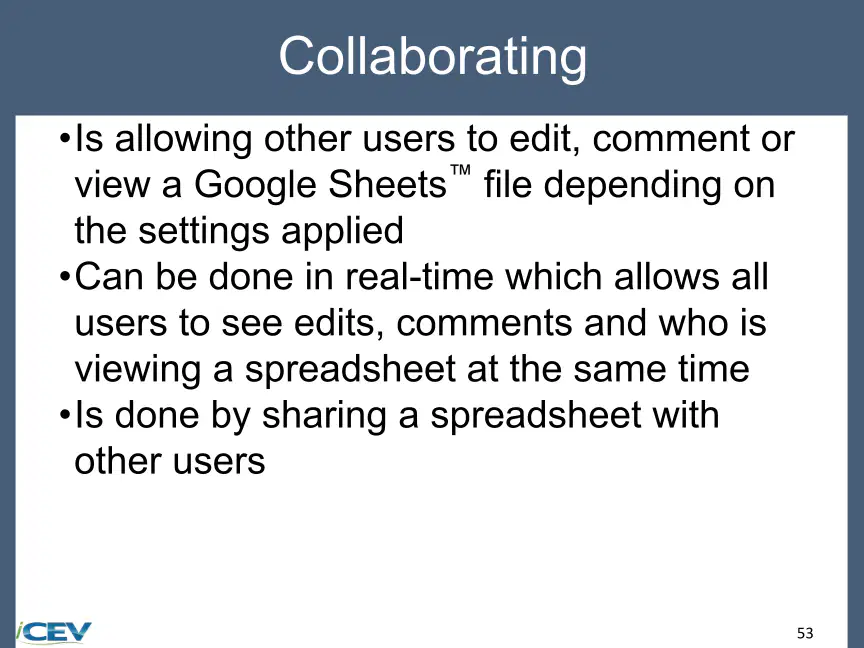
Explain how Google Sheets™ supports collaboration and sharing among users.
11
Multiple Choice
Which of the following best describes the main purpose of Google Sheets™ as presented in the lesson?
A tool for creating presentations
A cloud-based spreadsheet program for creating, editing, and sharing professional spreadsheets
A website for social networking
A platform for video streaming
12
13
Multiple Choice
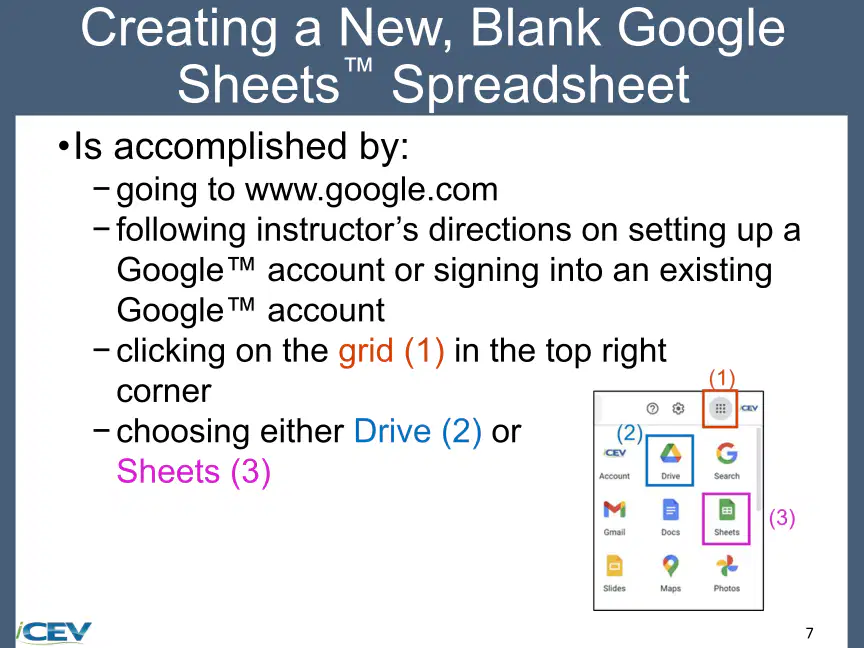
Which steps are necessary to create a new, blank Google Sheets™ spreadsheet?
Sign into a Google™ account, click the grid icon, and select Sheets
Download Google Sheets™ software, install it, and open it
Go to www.google.com, click on Gmail, and select Sheets
Sign into a Google™ account, click on Drive, and select Docs
14

15
Open Ended
Compare the functions of Google Sheets™ and Google Drive™ as described in the lesson.
16
Fill in the Blanks
Google Drive™ is a free, online cloud storage provider used for storing and
Type answer...
17

18
Multiple Choice
What are the steps to create a new, blank spreadsheet from Google Drive?
Click Drive, then New, then Google Sheets, then Blank spreadsheet
Click Drive, then File, then New spreadsheet
Click Sheets, then New, then Blank spreadsheet
Click Docs, then New, then Google Sheets
19

20
Open Ended
Compare the process of creating a new blank spreadsheet from Google Drive and Google Sheets. What are the key differences?
21
22
Multiple Choice
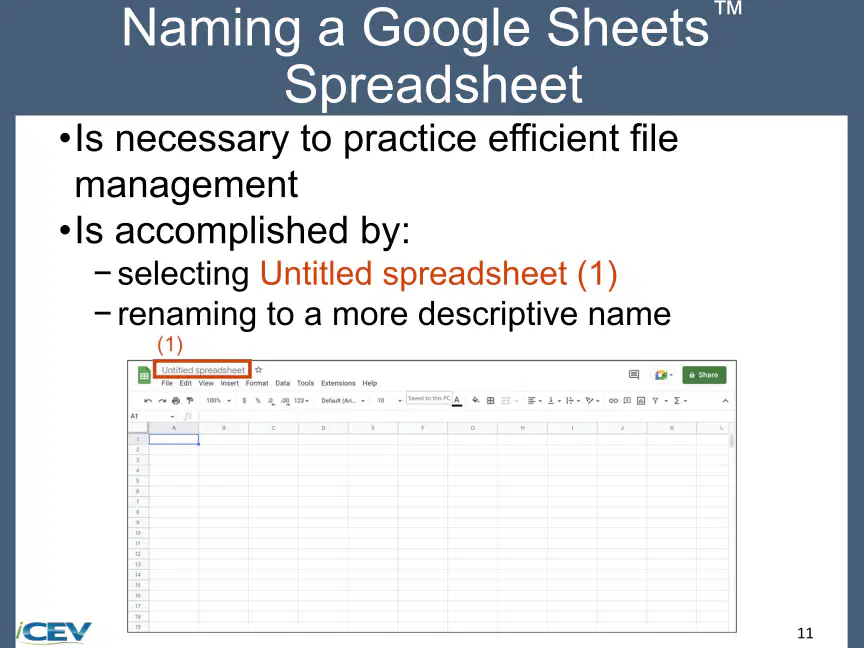
Which actions are necessary to efficiently name a Google Sheets spreadsheet?
Select 'Untitled spreadsheet' and rename it
Click File and choose Rename
Right-click the tab and select Rename
Go to Tools and select Rename
23

24
Fill in the Blanks
To open an existing Google Sheets file, you must first go to www.
Type answer...
25

26
Multiple Choice
What is the purpose of the side pane in Google Drive when opening an existing file from Google Sheets?
To locate the saved spreadsheet
To change spreadsheet settings
To share the spreadsheet
To delete files
27
28
Open Ended
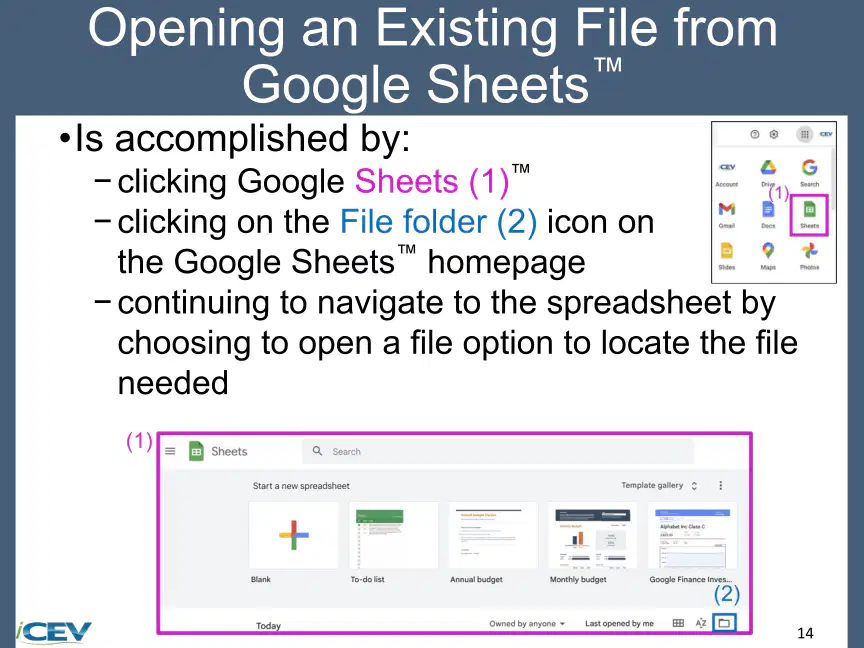
Describe the steps to open an existing file from Google Sheets using the file folder icon.
29

30
Multiple Choice
Which option in Google Sheets allows you to view files that other users have given you access to?
Recent
My Drive
Shared with Me
Starred
31

32
Open Ended
Explain the difference between the 'Computers' and 'Upload' options when opening an existing file in Google Sheets.
33

34
Multiple Select
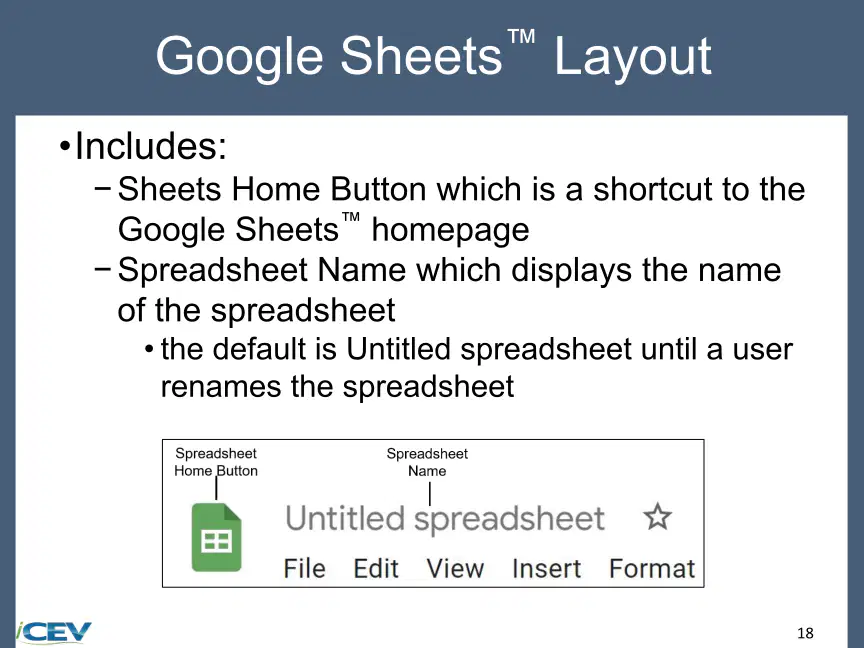
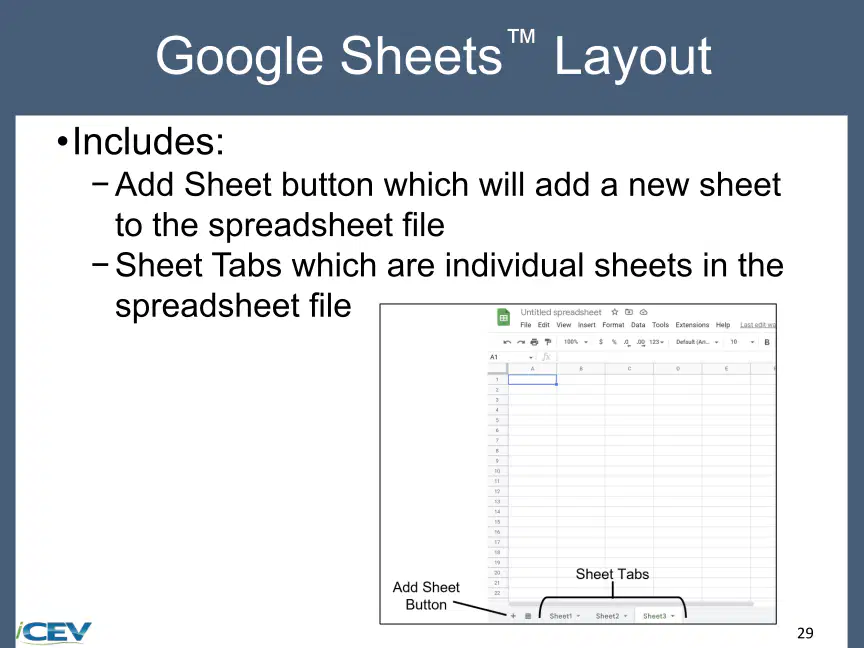
Which of the following are components of the Google Sheets layout?
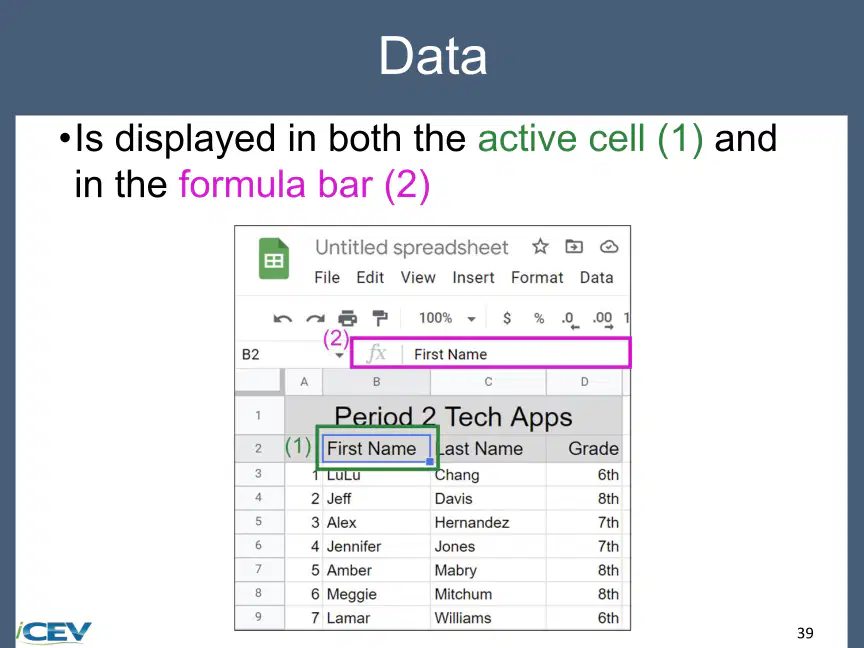
Formula Bar
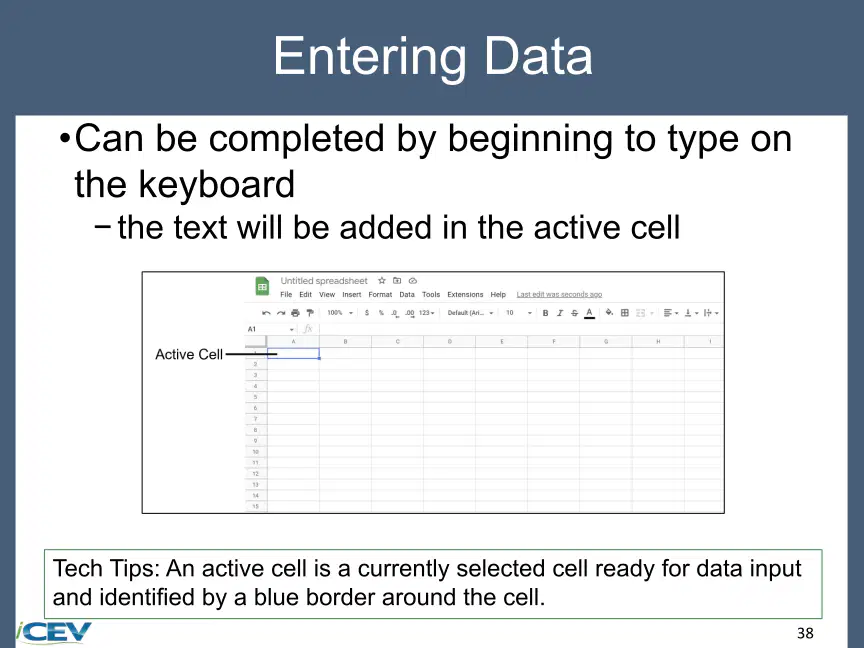
Active Cell
Upload Button
Rows
35
36
Fill in the Blanks
The default name of a new spreadsheet in Google Sheets is
Type answer...
37

38
Multiple Choice
What is the purpose of the Move Button in Google Sheets?
To rename the spreadsheet
To transfer a file to a specific folder in Google Drive
To save the spreadsheet
To share the spreadsheet with others
39

40
Open Ended
Describe how the Menu Bar and Save Status features help users when working with Google Sheets.
41

42
Multiple Choice
Which button in Google Sheets allows users to make suggestions or remarks on a spreadsheet?
Comments Button
Join Call Button
Share Button
Formula Bar
43

44
Open Ended
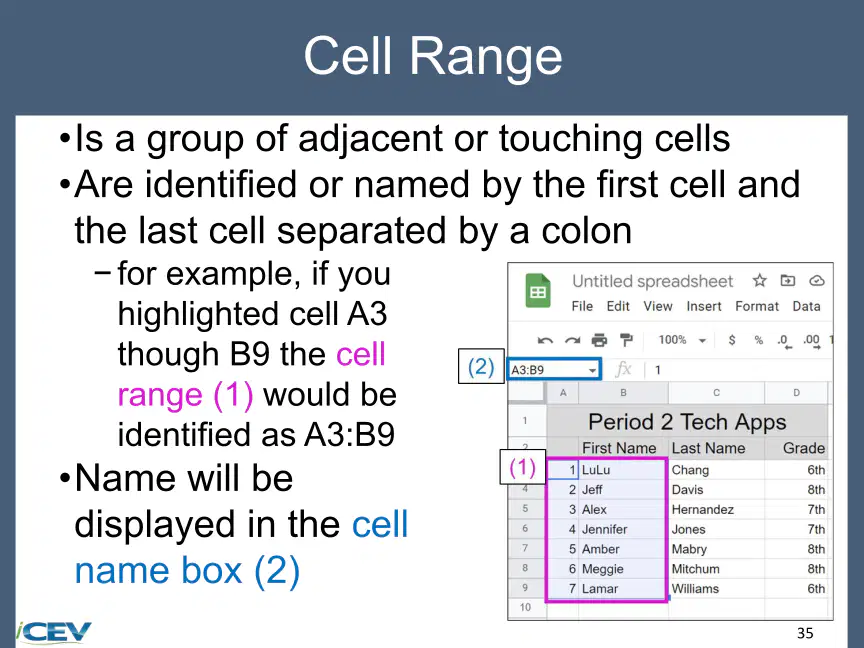
Explain the difference between the Name Box and the Active Cell in Google Sheets.
45
46
Fill in the Blanks
The
Type answer...
47
Multiple Choice
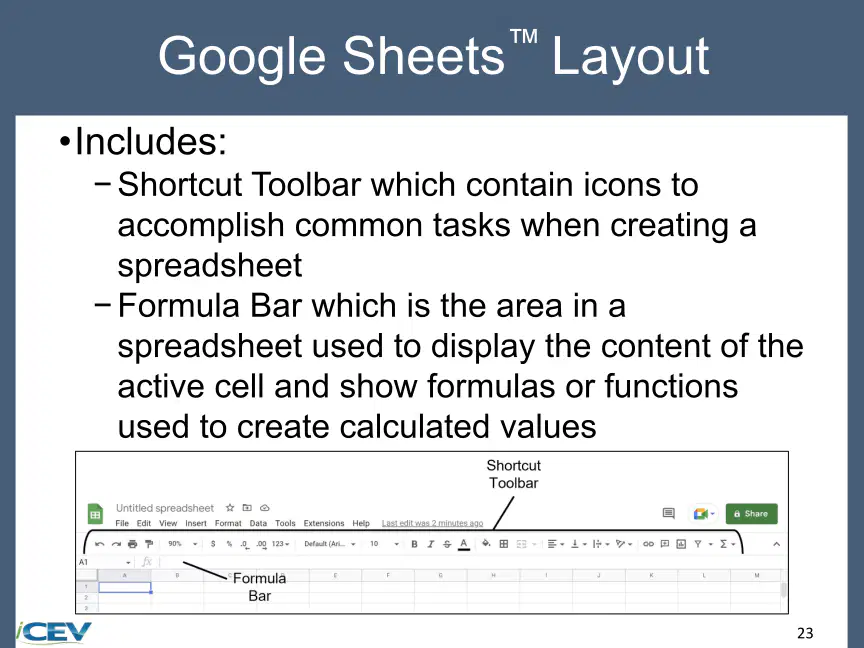
Which toolbar in Google Sheets contains icons to accomplish common tasks when creating a spreadsheet?
Shortcut Toolbar
Formula Bar
Name Box
Comments Button
48

49
Multiple Select
Select all the options that are part of the Shortcut Toolbar in Google Sheets.
Undo and Redo
Paint Format
Active Cell
Zoom
50

51

52
Open Ended
How do the Insert Link and Insert Comment features in the Shortcut Toolbar enhance collaboration and data organization in Google Sheets?
53

54

55
56

57

58

59

60

61
62

63

64
65
66

67

68
69

70

71

72
73

74

75

76

77

78

79
80

81

82
83

84

85

86

87

88

89
90

91

92

93
94

95

96

97

98

99

100

101

102
Open Ended
Reflecting on today's lesson, which objective do you feel most confident about, and which would you like to explore further?
103
Multiple Choice
Which of the following is NOT an objective of learning Google Sheets as outlined in the lesson?
To examine ways of creating and opening files in Google Sheets
To explore the Google Sheets layout
To learn advanced programming in Google Sheets
To identify useful keys and keyboard shortcuts
Show answer
Auto Play
Slide 1 / 103
SLIDE
Similar Resources on Wayground

95 questions
TSIA2 Boot Camp - Solving Linear Equations, Inequalities, & Sys
Presentation
•
9th Grade - University
97 questions
MonTeen6 GV review U1-3
Presentation
•
10th - 12th Grade
100 questions
TRANSIENTS
Presentation
•
KG - University
94 questions
Unit 1 LS Week 1 Day 3
Presentation
•
9th - 12th Grade
97 questions
National 5 Biology Problem Solving
Presentation
•
10th - 11th Grade
97 questions
E1 U3Asi se dice +estar, ser, tener vs tener que, ir
Presentation
•
9th - 12th Grade
100 questions
Ecosystems STAAR Questions
Presentation
•
9th - 12th Grade
Popular Resources on Wayground
10 questions
Safety Day 2026 – Student Review

Quiz
•
9th Grade
21 questions
Continents and Oceans
Quiz
•
6th Grade
20 questions
Parts of Speech
Quiz
•
5th Grade
16 questions
Subject & Predicate
Quiz
•
5th Grade
25 questions
Multiplication Facts
Quiz
•
5th Grade
12 questions
Map Skills
Quiz
•
3rd Grade
22 questions
Continents and Oceans
Quiz
•
5th Grade
15 questions
Rounding Decimals
Quiz
•
5th Grade
Discover more resources for Information Technology (IT)
10 questions
Safety Day 2026 – Student Review
Quiz
•
9th Grade
20 questions
REGULAR Present tense verbs
Quiz
•
8th - 9th Grade
26 questions
SLIME!!!!!
Quiz
•
KG - 12th Grade
20 questions
Cell organelles and functions
Quiz
•
10th Grade
10 questions
Test Your Knowledge on Bullying
Quiz
•
9th Grade
12 questions
Absolute Value Equations
Quiz
•
9th Grade
20 questions
Position vs. Time Graphs
Quiz
•
9th Grade
20 questions
Function or Not a Function
Quiz
•
8th - 9th Grade