
 Worksheets
PhotoPea Skills
Total questions: 48
Worksheet time: 24mins
If you want to scale and image, click this box
Auto Select
Transform Controls
Distances
If you want to save a project that you will edit later, choose this option:
Export as PNG
Export as JPG
Save As PSD

Check all that apply. This tool does the following:
Moves an image or shape
Rotates an image or shape
Scales an image or shape
Selects and image or shape to make changes

Name this tool
Object Selection Tool
Brush Tool
Quick Selection Tool

Name this tool
Rectangle Shape Tool
Rectangle Selection Tool
Quick Mask Tool

Name this tool
Rectangle Shape Tool
Rectangle Selection Tool
Quick Mask Tool

Identify the correct option for A (Hint: hover mouse over image for larger view)
Font Style
Font Size
Font Name
Identify the correct option for B (Hint: hover mouse over image for larger view)
Font Style
Font Size
Font Name
How do you feel about your Photopea skills so far?
I am comfortable and understand how to use the tools
I'm still learning and sometimes get confused
I don't know how to use the program
Gives you a soft edge to draw with
Brush tool
Filter
Gradient tool
Lasso select tool
Hand tool
Allows you to move the canvas around
Lets you draw an area to select
Lets you quickly "paint" a selection using an adjustable round brush tip
Allows you to add alphanumeric characters in a variety of fonts
Has the opposite function of a brush in that it eliminates pixels on a layer
Eraser tool
Brush tool
Zoom tool
Quick selection tool

Gradient tool
Magic wand tool
Polygonal lasso tool
Shape tool
Allows you to choose colors throughout the image
Eyedropper tool
Lasso select tool
Paint bucket tool
Quick selection tool

Zoom tool
Polygonal lasso tool
Magic wand tool
Gradient tool
File
Menu you use to open or save
Menu you use to add effects
Allows you to click through the changes you've made to the image. Kind of like "undo" but better.
Lets you see all of the different layers of your design and move them around.
Menu you use to add effects
File
Filter
Layers window
History window

Lasso select tool
Move tool
Quick selection tool
Zoom tool
Lets you see all of the different layers of your design and move them around.
Layers window
File
Filter
History window
Magic wand tool
Automatically selects areas of similar color
Lets you quickly "paint" a selection using an adjustable round brush tip.
Allows you to create a variety of pre-set objects
Allows you to select rectangular areas
Move tool
Allows you to move elements in the image
Lets you create a straight-edged area to select
Allows you to move the canvas around
Has the opposite function of a brush in that it eliminates pixels on a layer
Fills an area with a color or pattern
Paint bucket tool
Gradient tool
Brush tool
Allows you to create a variety of pre-set objects

Polygonal lasso tool
Hand tool
Brush tool
Rectangle Select tool
Lets you quickly "paint" a selection using an adjustable round brush tip.
Quick selection tool
Rectangle Select tool
Polygonal lasso tool
Magic wand tool
Shape tool
Allows you to create a variety of pre-set objects
Allows you to add alphanumeric characters in a variety of fonts
Fills an area with a color or pattern
Creates a smooth transition between 2 colors
Allows you to add alphanumeric characters in a variety of fonts
Type tool
Move tool
Lasso select tool
Eyedropper tool

Identify the area of the Photopea interface shown in the image.
main toolbar
menu bar
options bar
palettes
workspace

Identify the area of the Photopea interface shown in the image.
main toolbar
menu bar
options bar
palettes
workspace

Identify the area of the Photopea interface shown in the image.
main toolbar
menu bar
options bar
palettes
workspace

Identify the area of the Photopea interface shown in the image.
main toolbar
menu bar
options bar
palettes
workspace
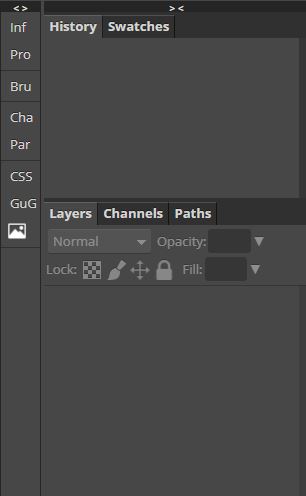
Identify the area of the Photopea interface shown in the image.
main toolbar
menu bar
options bar
palettes
workspace
If you wanted to open an existing project in Photopea, which part of the interface would you access?
main toolbar
menu bar
options bar
palettes
workspace
If you wanted to change from using a pencil to an eraser, which area of the Photopea interface would you access?
main toolbar
menu bar
options bar
palettes
workspace
If you wanted to change how a tool works, which area of the Photopea interface would you access?
main toolbar
menu bar
options bar
palettes
workspace
What format is used when you would like to come back to working on a project?
PNG
PSD
JPG
GIF
Which format(s) would you use to save your project that is ready to be turned in? (choose any that may apply)
PNG
PSD
JPG
GIF
TIFF
Which icon allows you to make a New Layer?


What is the name of the tool that, without the use of selections, removes small color or texture errors?
Content Aware Fill
Ctrl+Alt+Delete
Spot Healing Brush
The Delete Key
Photopea is a ________________ software
video editing
Image editing
Font editing
format editing
Default file format of Photopea
PNG
GIF
JPG
PSD

What is this tool and what is it's function?
Crop Tool: Trims or expands the edges of an image
Lasso Tool: Makes freehand selections
It's a bean, no function
Quick Selection Tool: Makes a selection by finding and following the edge of an image

What tool is this and what is it's function?
Spot Healing Tool: Removes marks and blemishes
Bandaid Tool: Heals mistakes
Eyedropper: Selects colors from images
Brush tool: Paints custom brush strokes

What tools is this and what is it's function?
Erase Tool: Changes pixels to the background color makes them transparent
Clone Stamp Tool: Paints with pixels from another part of the image
Hand Tool: Pass over different parts of an image
Dodge Tool: Lightens areas in an image
Where is the Menu Bar located?
At the bottom left corner of PhotoPea
Top left corner of Photoshop
Top of the PhotoPea window. Similar to the main menus you are used to in other software programs.
There is no menu bar.
What is the Layers Panel?
Where you add images to create a picture.
A floating panel located in the cetical dock on the right side of the PhotoPea window.
Located on the left of the PhotoPea window.
Located under the Menu Bar of PhotoPea.
What does the Options Bar do?
Shows you the options you can select when you use the different tools on the Tools panel.
Give you options of tools to use.
Blends layers.
Adds a new layer.
How do you create a new layer?
Click the new folder button
Go to the layers panel and click the new layer button
File - New layer
Keep adding design elements and layers will create themselves.
Where is the Tools Panel located?
On the left side of the PhotoPea window
Bottom of the PhotoPea window
Right side of the PhotoPea window
Bottom left corner of the PhotoPea window

