
 Worksheets
BB1 F: ID Formative
Total questions: 35
Worksheet time: 19mins
What does the Screen Mode in Adobe InDesign control?
The color of the document
The view of a document (Normal, Preview, Presentation)
The font size of the text
The alignment of images
Which panel contains all the tools necessary to draw, add, or edit items in your document?
Control Panel
Pasteboard
Tools Panel
Workspace Switcher
What is the function of the Ruler Guide in Adobe InDesign?
To change the color of the text
To arrange and align items in your document
To display specific panels
To store objects outside the page
What does the Workspace Switcher do in Adobe InDesign?
Changes the font style
Displays information about elements
Makes it easy to display specific panels and menus
Controls the view of a document
What indicates where a panel will be dropped when docking in Adobe InDesign?
A red line
A glowing blue line
A dotted line
A green arrow
How are nested tools indicated in Adobe InDesign?
By a red dot
By a small triangle in the bottom corner of the tool
By a blue square
By a yellow star
What does selecting the Preview option in the New Document Dialog allow?
It shows the document's file size.
It displays the document's metadata.
It shows what your published document will look like.
It changes the document's color scheme.
How do you change the color theme of the interface?
InDesign > Preferences > Interface > Color Theme
Edit > Preferences > Color Settings
File > Preferences > Color Management
View > Interface > Color Options
What is a panel group?
A collection of tools for editing text.
Panels that are docked together with tabs.
A set of color swatches.
A group of document templates.
Where is the Workspace Switcher located and why would you change your workspace?
Bottom left corner; to change document size.
Upper right corner; to display specific panels and menus.
Top center; to adjust color settings.
Lower right corner; to save the document.
What are the purple lines around the edges of the page called?
Borders
Guides
Margins
Frames
What is the purpose of ruler guides?
To add color to the document.
To create text boxes.
To help position text and objects.
To adjust the document size.
To ensure that you have a straight vertical or horizontal line, what do you need to do?
Hold down the Alt key.
Hold down the Shift key.
Hold down the Ctrl key.
Hold down the Tab key.
Name three different places you can change the color of an object.
The Toolbar, the Control bar, and the Properties panel
The Menu bar, the Status bar, and the Layers panel
The Tools panel, the Pages panel, and the Swatches panel
The Text panel, the Links panel, and the History panel
Identify three ways to duplicate an element on the page.
Copy, Paste, and Print
Select, Delete, and Redo
Edit > Copy > Paste, Ctrl+C then Ctrl+V, Alt/Opt button and drag
Save, Export, and Import
How do you create a new swatch using specific color value percentages?
From the Layers panel, choose New Layer.
From the Swatches panel, choose New Swatch.
From the Tools panel, select New Tool.
From the Pages panel, create New Page.
Holding which key on the keyboard allows you to drag a duplicate of any shape you select?
Ctrl
Alt
Shift
What is the difference between Normal and Preview Screen Modes?
Normal mode shows only the page boundaries.
Preview mode shows everything including margins and guides.
Normal mode shows everything including margins and guides.
Preview mode shows the pasteboard and slugs.
Why is it important to use layers in your document?
Layers make the document colorful.
Layers help organize and control element display.
Layers increase the file size.
Layers are only for aesthetic purposes.
What are two ways to create a new layer?
Use the Text Tool or the Shape Tool.
Open the fly-out menu in the Layers Panel or select "Create New Layer" at the bottom of the Layers Panel.
Use the Eraser Tool or the Paintbrush Tool.
Open the File menu or the Edit menu.
_______ is the horizontal loosening or tightening of a block of text. While _______ is the process of adding or subtracting space between specific pairs of characters.
Tracking; Kerning
Leading; Tracking
Kerning; Leading
Spacing; Leading
Kerning; Tracking
When resizing a shape, which option should you enable in the Options bar to keep the width and height of the shape within their original ratio?
Constrain Proportions
Free Transform
Scale to Fit
Lock Aspect Ratio
How can you tell that a document has been altered and needs to be saved?
A red dot appears on the toolbar.
An asterisk appears next to the file's name in the document tab.
The document tab turns blue.
A pop-up message appears.
What tool allows the user to select the element's anchor points?
The Move Tool
The Direct Selection Tool
The Magic Wand Tool
The Lasso Tool
What steps would a user need to take in order to round the edges of ONLY the top corners of a rectangle?
Use the Eraser Tool and manually round the corners.
Select the rectangle, go to Object > Select Corner Options, and select "Rounded" from the drop-down menu.
Use the Paintbrush Tool to draw rounded corners.
Select the rectangle and use the Free Transform Tool.
In the Layers panel, what does a filled box (square) indicate?
It indicates that certain items are selected.
It shows the layer is locked.
It means the layer is hidden.
It indicates the layer is empty.
How do you create a group out of multiple objects?
Use the Pen tool to connect them.
Select the objects and go to Object > Group or select Group at the bottom of the Properties Panel
Click on each object while holding Alt.
Use the Text tool to combine them.
What does a user need to do to select only one element in a set of grouped elements?
Right-click the element.
Double click the element you want selected.
Use the Eraser tool on the element.
Drag a marquee around the element.
Which menu item allows you to add effects like Drop Shadow and Outer Glow to objects?
Go to Object > Effects OR go to your Properties Panel
Use the Text tool.
Select the Eraser tool.
Go to File > Export.
Which option in the View menu allows you to see the entire page as large as it can fit on your screen?
Go to View > Fit Page in Window.
Go to File > Open.
Use the Zoom tool.
Go to Edit > Preferences.
How do you create a tint of an existing swatch?
Use the Eraser tool.
In the Swatches panel, select the Swatch and choose New Tint Swatch.
Go to File > Save As.
Use the Text tool to change color.
What is the difference between the rectangle frame tool and the rectangle tool?
The Rectangle Frame tool is used as a placeholder for images.
The Rectangle tool is only for text.
The Rectangle Frame tool creates circles.
The Rectangle tool is used for animations.
What is the purpose in giving a document a bleed?
To add more text to the document.
To ensure elements go to the edge of a page and avoid white lines.
To make the document smaller.
To change the color of the document.
How do you move an image inside of a frame?
Use the Eraser tool.
With the Selection tool, use the Content Grabber to drag the image.
Go to File > Save As.
Use the Text tool to move it.
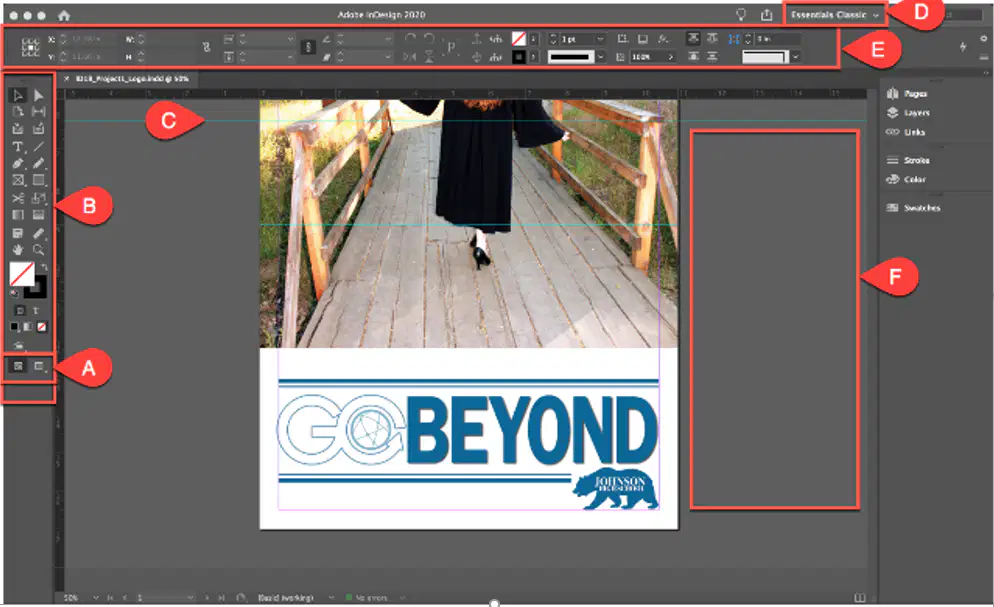
Match the Indesign Workspace to the correct term
Screen Mode
A
Tools Panel
B
Ruler Guide
C
Workspace Switcher
D
Control Panel
E

