
Font size
 Worksheets
ICT 2 - 3QRT
Total questions: 48
Worksheet time: 25mins
Parts of the computer where you can place data on the computer. It give commands to the computer so you can enter data.
Input Devices
processing devices
output devices
storage devices
It is the primary input device used for entering letters, numbers, symbols, or other commands. It is composed of 101-104 keys that are arranged in four groups according to what they can do.
keyboard
mouse
game controller
Parts of keyboard that are located at the topmost part of the keyboard. It allows you to give commands without entering long instructions.
Function Key
Alphanumeric Keys
Cursor Keys
Numeric keys
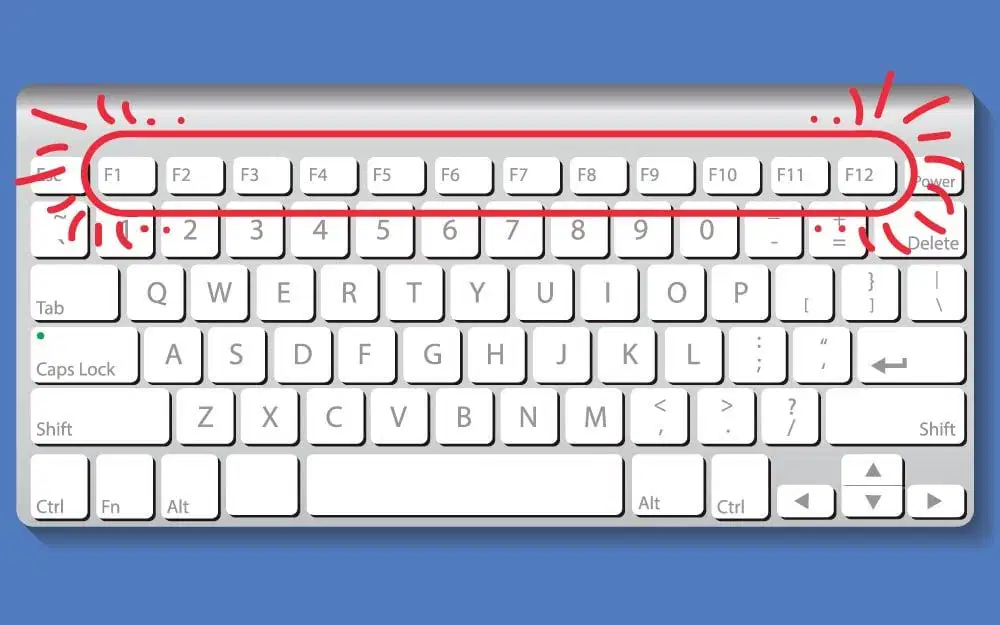
What parts of the keyboard shown encircle in the picture
Function Key
Alphanumeric Keys
Cursor Keys
Numeric keys
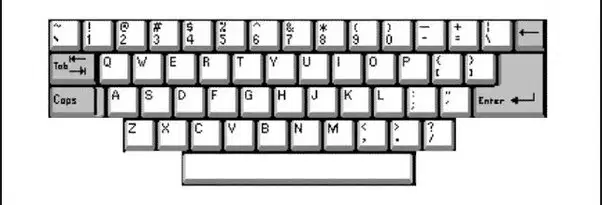
What parts of the keyboard shown in the picture
Function Key
Alphanumeric Keys
Cursor Keys
Numeric keys
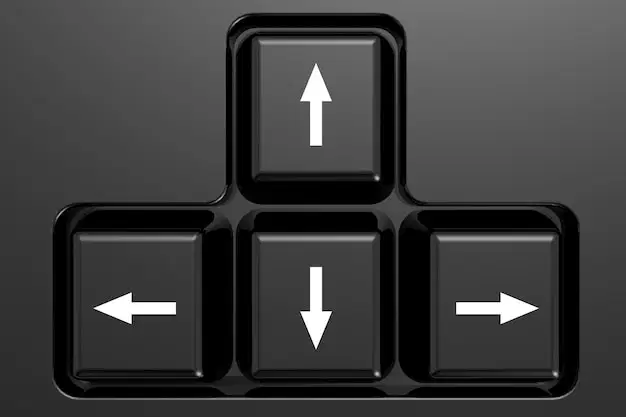
What parts of the keyboard shown in the picture
Function Key
Alphanumeric Keys
Cursor Keys
Numeric keys

What parts of the keyboard shown in the picture
Function Key
Alphanumeric Keys
Cursor Keys
Numeric keys
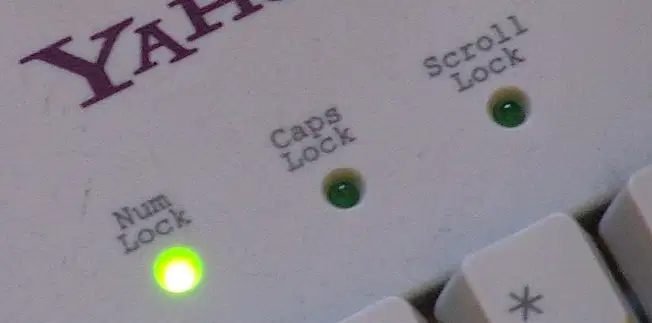
What parts of the keyboard shown in the picture
Function Key
Alphanumeric Keys
Status Light
Numeric keys
Parts of keyboard that composed of alphabets, numbers, and other keys that we frequently use. This is the biggest group part of the keyboard
Function Key
Alphanumeric Keys
Cursor Keys
Numeric keys
Parts of keyboard where you can find the arrows that are used to change the location or movement of the cursor on the screen.
Function Key
Alphanumeric Keys
Cursor Keys
Numeric keys
Parts of keyboard that looks like a calculator. It includes the four mathematical symbols
Function Key
Alphanumeric Keys
Cursor Keys
Numeric keys
Lights in the keyboard such as Num Lock, Caps lock and Scroll lock that are located at the upper part of the numeric keys, It tells us if the key is activated
Function Key
Alphanumeric Keys
Cursor Keys
Status Light
What group of letters are belong to Top Row Keys?
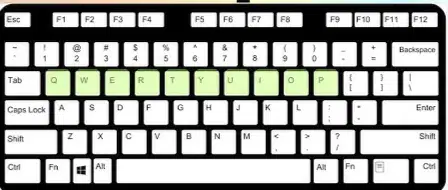

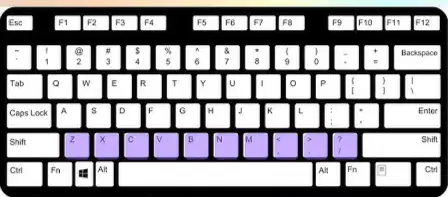
What group of letters are belong to Home Row Keys?
What group of letters are belong to Bottom Row Keys?
By pressing this key it will move the cursor down to the next line
Enter
Backspace
Space bar
By pressing this key it will delete letters or numbers at the left side of the cursor
Enter
Backspace
Space bar
It is used to put space between words or letters that we type.
Enter
Backspace
Space bar
This key is used to type a single capital letter. It can also be used to type all symbols that can be found in the Alphanumeric key.
Enter
Shift
Space bar
This key is used to make all the letters that you type capitalized
Caps lock
Shift
Space bar
Pressing this key will delete letters or numbers at the right side of the cursor
Caps lock
Shift
Delete
It is an input device that is used by gliding around the pad
Mouse
Keyboard
Joystick
These are usually used when playing games on a computer
Mouse
Keyboard
Joystick and game controller
It is usually used for a tablet PC, on a Personal Digital Assistant (PDA), and even on some smartphones to easily access or open a command or program.
Stylus or Pen input
Keyboard
Joystick and game controller
These are similar to a mouse but used with the help of a stylus to draw or write on a special tablet that is connected to a computer
Digitizers and Graphic Tablet
Digital camera
Scanner
It is used to take pictures that can be placed and downloaded to your computer.
Digitizers and Graphic Tablet
Digital camera
Scanner
It is used to copy or scan documents just like a photocopying machine.
Digitizers and Graphic Tablet
Digital camera
Scanner
It is an electronic device that is used to read barcodes on the product you see in store
Barcode Reader
Remote Control
Touch Screen
It can control a computer system from a distance location
Barcode Reader
Remote Control
Touch Screen
This device is used to select by just touching the screen
Barcode Reader
Remote Control
Touch Screen
It helps convert all the data into useful information. It is also known as the brain of the computer
Central Processing Unit (CPU)
Monitor
Hard Disk
It is like a television set that shows information through the screen
Central Processing Unit (CPU)
Monitor
Hard Disk
It is also considered as an output devi because it produces sound from the computer
Projector
Speaker
Headphone or Headset
You can use them if you want to hear sounds on your own.
Projector
Speaker
Headphone or Headset
It allows you to print data on paper.
Central Processing Unit (CPU)
Monitor
Printer
It is typically used for seminars and even in the classroom discussions, so that everyone can see the output through a blank wall or a projection screen
Projector
Monitor
Printer
It looks like a giant printer. It prints pictures and text as a poster and tarpaulins that can be posted on billboards.
Projector
Platter
Braille Transistor
This device is usually used by the visually impaired.
Projector
Platter
Braille Transistor
Choose the input devices
Keyboard
mouse
controller
Printer
Monitor
Choose the output devices
Keyboard
Speaker
controller
Printer
Monitor
These are small graphical pictures or folders which will allow you to open files, folders, or programs
Desktop Icon
Wallpaper
Taskbar
It is the background image on the desktop
Desktop Icon
Wallpaper
Taskbar
It is a long rectangular bar found at the bottom of the desktop. It contains the Start Button, Search Button, Task View Icon, and Notification Area
Desktop Icon
Wallpaper
Taskbar
It is used to type and search for apps, files, and settings.
Desktop Icon
Search Box
Taskbar
Clicking this icon will show you thumbnails (small picture) of all application programs that are currently open
Desktop Icon
Search Box
Taskbar View Icon
Clicking this icon will show you thumbnails (small picture) of all application programs that are currently open
Desktop Icon
Search Box
Taskbar View Icon
It is located at the bottom-right side of the taskbar. It contains Sound Status, Network Status, Current Date and Time, Notifications
Desktop Icon
Search Box
Notification Area
It is easy access to the apps installed on your computer, folders, and settings. It contains Power button, Settings, All apps list, Tiles
Start Menu
Search Box
Notification Area

