
 Worksheets
Computer G8 Q1
Total questions: 91
Worksheet time: 46mins
• A _____ is a group of computers connected to each other. • They share things like files, information, and hardware (such as printers). • _____s can be small (like in a school) or large (like the internet).
Network
Internet
World Wide Web
• The _____ is a massive global network that connects millions of computers. • It allows people to share and access information from anywhere in the world, either through wired or wireless connections. • You use the _____ at home, in schools, offices, and many other places.
Network
Internet
World Wide Web
• The _____ is a part of the internet that contains websites and web pages. • It is a system of linked information and resources you can explore using a web browser. • Think of it as the "information space" of the internet.
Network
Internet
World Wide Web
• A _____is a single page on the internet. • It can include text, pictures, videos, and multimedia. • You view _____s using a program called a web browser (like Chrome or Safari).
web page
home page
splash page
• The _____ is usually the first page you see when you visit a website. • It gives you a welcome message and shows what the site is about. • From here, you can click on links to go to other pages on the same website.
web page
home page
splash page
• A _____ sometimes appears before the home page. • It often has animation, video, or eye-catching graphics to get your attention. • Its goal is to make you curious and excited to explore the rest of the website.
web page
home page
splash page
Started as a U.S. Defense Department project using packet switching.
Origins in ARPANET
Birth of “Internet”
World Wide Web
Expanding to the Public
ARPANET formally adopted TCP/IP on January 1, marking when distinct networks began communicating widely.
Origins in ARPANET
Birth of “Internet”
World Wide Web
Expanding to the Public
Tim Berners-Lee proposed and developed HTTP, URLs, and HTML at CERN, enabling a user-friendly web.
Origins in ARPANET
Birth of “Internet”
World Wide Web
Expanding to the Public
Rise of ISPs, email, DNS, and early browsers transformed it into a consumer and commercial network.
Origins in ARPANET
Birth of “Internet”
World Wide Web
Expanding to the Public
Tim Berners-Lee, working at CERN, proposed a linked information system using hypertext—this was the birth of the Web.
Origin at CERN (1989)
First Website and Browser (1990–1991)
Mosaic Browser Sparks Growth (1993)
The Browser Wars & Dot-Com Boom (Mid-1990s)
By December 1990, the first web server and browser were operational at CERN. The Web became available publicly in August 1991.
Origin at CERN (1989)
First Website and Browser (1990–1991)
Mosaic Browser Sparks Growth (1993)
The Browser Wars & Dot-Com Boom (Mid-1990s)
The introduction of Mosaic (later Netscape Navigator) added graphics to web pages, making the Web accessible to everyday users and fueling rapid expansion.
Origin at CERN (1989)
First Website and Browser (1990–1991)
Mosaic Browser Sparks Growth (1993)
The Browser Wars & Dot-Com Boom (Mid-1990s)
Netscape and Internet Explorer competed fiercely, leading to mass commercialization of the Web and the dot-com boom.
Origin at CERN (1989)
First Website and Browser (1990–1991)
Mosaic Browser Sparks Growth (1993)
The Browser Wars & Dot-Com Boom (Mid-1990s)
• Uses regular telephone lines and a modem to "dial" into the internet. • Works like making a phone call—only one device (internet or phone) can be used at a time. • Slow and outdated by today’s standards. • Mostly replaced by faster and more modern methods.
Used today? Rarely — very slow. Can’t use the phone while connected.
Dial-Up Connection
Digital Subscriber Line
Cable Internet
Wireless Internet
• Also uses telephone lines, but faster and more advanced than dial-up. • Lets you use the internet and telephone at the same time. • Provides better speed and reliability for home and small office use.
Still used in some areas. Better than dial-up, but slower than cable or fiber.
Dial-Up Connection
Digital Subscriber Line
Cable Internet
Wireless Internet
• Uses the same cable lines as cable TV to deliver internet. • Much faster than telephone-based connections. • Widely available in homes that already have cable TV. • Great for streaming, online classes, and gaming.
Still popular today in many households. Fast and reliable.
Dial-Up Connection
Digital Subscriber Line
Cable Internet
Wireless Internet
• Connects to the internet using Wi-Fi signals or mobile networks (like 4G or 5G). • No cables needed — just a wireless signal from a Wi-Fi router or a cellular network. • Used in homes, schools, offices, cafes, and public places. • Very convenient for laptops, tablets, and smartphones.
Most common method today. You can go online anywhere with a signal.
Dial-Up Connection
Digital Subscriber Line
Cable Internet
Wireless Internet
• Developer: Microsoft Corporation • Engine: Trident layout engine • Initial Release: August 16, 1995 (IE 1.0) • Final Version: _____ 11 (released October 17, 2013) • Officially Retired: June 15, 2022
Key Facts: • Was the default web browser for Windows for many years • Once held over 60% of the global browser market share • Supported many W3C web standards • Versions were available for Windows, Mac, and mobile devices • Now replaced by Microsoft Edge, a faster and more secure browser • No longer receives updates or support from Microsoft
Internet Explorer
Microsoft Edge
Mozilla Firefox
Safari
Google Chrome
• Developer: Microsoft Corporation • Engine: Chromium-based (Blink) (since 2020) • Initial Release: July 29, 2015 (original Edge) • Latest Version (as of 2025): _____ 126
Key Facts: • Replaced Internet Explorer as the default browser on Windows • Redesigned in 2020 using Chromium (same as Chrome) for better performance and compatibility • Works on Windows, macOS, iOS, Android, and Linux • Integrated with Microsoft services like Bing, Office, and OneDrive • Offers features like vertical tabs, collections, and AI integration • Designed for speed, security, and productivity
Internet Explorer
Microsoft Edge
Mozilla Firefox
Safari
Google Chrome
• Developer: Mozilla Corporation • Engine: Gecko layout engine • Initial Release: November 9, 2004 (Firefox 1.0) • Latest Version (as of 2025): Firefox 126 Key Facts: • A free and open-source web browser • Known for strong privacy features and customization • Supports the latest W3C web standards • Runs on Windows, macOS, Linux, and Android • Constantly updated to stay compatible with modern web technologies • One of the most trusted browsers for safe and secure browsing
Internet Explorer
Microsoft Edge
Mozilla Firefox
Safari
Google Chrome
• Developer: Apple Inc. • Engine: Uses the WebKit engine (based on KHTML) • Initial Release: June 23, 2003 (_____ 1) • Latest Version (as of 2025): _____ 17
Key Facts: • Default browser on all Mac and iOS (iPhone, iPad) devices • Designed to be fast, secure, and energy-efficient • Supports W3C web standards, making it compatible with most modern websites • Previously available for Windows, but support ended in 2012 (_____ 5.1.7) • Popular especially among Apple users, and widely used on mobile devices
Internet Explorer
Microsoft Edge
Mozilla Firefox
Safari
Google Chrome
• Developer: Google LLC
• Engine: Blink (Chromium-based)
• Initial Release: September 2, 2008
• Latest Version (as of 2025): _____ 126
Key Facts:
• Currently the most popular web browser in the world
• Known for speed, simplicity, and strong web standard support
• Available on all major platforms: Windows, macOS, Linux, iOS,
Android, and _____ OS
• Syncs with Google Account for bookmarks, history, and extensions
• Supports thousands of extensions via the _____ Web Store
• Powers many other browsers, including Microsoft Edge and Opera
Internet Explorer
Microsoft Edge
Mozilla Firefox
Safari
Google Chrome
• _____ is how you arrange things (like text and images) on a page. • If both sides of the page look the same = symmetrical _____ (looks neat, calm, and professional). • If the sides are different = asymmetrical _____ (looks fun, modern, and dynamic). • Choose the style that matches your website’s purpose and audience.
Balance
Proximity
White Space
Contrast
Focus
• _____ means putting related items close together. • For example, keep a photo and its caption side by side. • This helps users quickly understand how things are connected. • Good _____ = less clutter and better organization.
Balance
Proximity
White Space
Contrast
Focus
• _____ is the empty area around text, images, and buttons. • It makes your page easier to read and gives it room to "breathe.“ • It also helps users focus on what’s important. • Don’t try to fill every inch—blank space is your friend!
Balance
Proximity
White Space
Contrast
Focus
• _____ means using differences (like size, color, or font) to make something stand out. • Example: A big red heading will stand out from small black text. • Helps show what's important and what's supporting info. • Use _____ to guide the viewer’s attention.
Balance
Proximity
White Space
Contrast
Focus
• Every web page should have a main focal point. • This is the thing you want visitors to notice first—like a logo, image, or slogan. • Use contrast and white space to highlight this element. • Ask yourself: “What do I want people to remember when they visit this page?”
Balance
Proximity
White Space
Contrast
Focus
• _____ means everything on your website looks like they belong together. • Use the same colors, fonts, and style throughout the site. • Repeating your logo, buttons, and layout creates a strong brand or theme. • A united look makes your site feel professional and trustworthy.
Unity
Alignment
• _____ is how you line up the elements on the page (left, center, or right). • Using columns and rows help keep things neat and easy to read. • Poor _____ makes the site look messy. • Good _____ = easier for users to read and navigate.
Unity
Alignment
• Make sure the information on your site is correct and up-to-date. • Double-check spelling and grammar to avoid mistakes. • Mistakes can make your site look unprofessional and less trustworthy. Tip: Use a spell checker and ask someone to proofread your content before publishing.
Accuracy
Readability
Understandability
Conciseness
Ethical and Legal
• Make your content easy to read and scan. • Use: • Headings and subheadings • Bullet points or numbered lists • Tables and highlighted text • Use text and background colors that contrast well so everything is visible and clear.
Accuracy
Readability
Understandability
Conciseness
Ethical and Legal
• Write in a way that’s simple and easy to follow. • Use the inverted pyramid style: start with the summary or conclusion, followed by key points, then full details. This helps visitors quickly understand what the page is about.
Accuracy
Readability
Understandability
Conciseness
Ethical and Legal
• Keep your content short and to the point. • Avoid long paragraphs. Use short sentences and clear ideas. • Use bullets and lists to summarize information quickly.
Accuracy
Readability
Understandability
Conciseness
Ethical and Legal
• Use only content you created yourself or have permission to use. • Add a copyright notice to protect your work (e.g., © 2025 Your Name). • Always respect others’ rights and opinions. Avoid copying or using someone else’s work without permission.
Accuracy
Readability
Understandability
Conciseness
Ethical and Legal
• Ask: “Why am I building this website?” • Examples of goals: • To educate students • To sell products • To entertain or share hobbies • Your goal will help guide your design and content.
1. Define the Goal of Your Website
2. Know Your Audience
3. Plan the Content
4. Organize the Website Structure
5. Plan Each Web Page’s Details
• Think about who your website is for: • Kids? Teens? Adults? • Students or professionals? • Knowing your audience helps you choose the right words, images, and style.
1. Define the Goal of Your Website
2. Know Your Audience
3. Plan the Content
4. Organize the Website Structure
5. Plan Each Web Page’s Details
• Based on your goal and audience, decide what to include: • Text (articles, tips, instructions) • Images or videos • Animations, music, or quizzes • Make sure your content is useful, interesting, and easy to understand.
1. Define the Goal of Your Website
2. Know Your Audience
3. Plan the Content
4. Organize the Website Structure
5. Plan Each Web Page’s Details
Choose a layout that fits your website’s goal:
1. Define the Goal of Your Website
2. Know Your Audience
3. Plan the Content
4. Organize the Website Structure
5. Plan Each Web Page’s Details
• Design important pages, like the home page and splash page, carefully. • Use: • A catchy title • Clear layout • Engaging images or animations • Easy-to-read fonts and colors • Use templates for a consistent look across all pages.
1. Define the Goal of Your Website
2. Know Your Audience
3. Plan the Content
4. Organize the Website Structure
5. Plan Each Web Page’s Details
• Help users move around your website easily. • Use: • Menus • Buttons • Hyperlinks • Search bars • Good navigation helps people stay longer and find what they need.
6. Design Easy Navigation
7. Gather Your Resources
• Collect and organize everything you'll use: • Images • Videos • Music/sounds • Text files • Animations • Save them in folders to stay organized. • Create page templates to speed up the website development process.
6. Design Easy Navigation
7. Gather Your Resources
• HTML stands for _____. It's the language used to create and design web pages.
HyperText Markup Language
markup language
HTML editor
Basic Text Editors
Advanced Code Editors
• A _____ is used to tell the browser how to organize, display, and format content like text, images, and videos.
HyperText Markup Language
markup language
HTML editor
Basic Text Editors
Advanced Code Editors
• An _____ is a program used to write HTML code. • Since HTML files are plain text, you can use any basic text editor.
HyperText Markup Language
markup language
HTML editor
Basic Text Editors
Advanced Code Editors
1. _____ – These are simple programs with no extra features.
HyperText Markup Language
markup language
HTML editor
Basic Text Editors
Advanced Code Editors
2. _____ – These come with features like syntax highlighting, auto-complete, and error checking, which make coding easier and faster.
HyperText Markup Language
markup language
HTML editor
Basic Text Editors
Advanced Code Editors
_____ – displays the file name
Title Bar
Menu Bar
Scroll Bar
Text Area
Control Buttons
_____ – contains commands (File, Edit, etc.)
Title Bar
Menu Bar
Scroll Bar
Text Area
Control Buttons
• _____ – lets you scroll through the contents
Title Bar
Menu Bar
Scroll Bar
Text Area
Control Buttons
_____ – where you type your code
Title Bar
Menu Bar
Scroll Bar
Text Area
Control Buttons
• _____ – minimize, maximize, and close
Title Bar
Menu Bar
Scroll Bar
Text Area
Control Buttons
• HTML _____ are the building blocks of web pages. • They tell the browser how to display and organize content. • Every element on a web page—like text, images, or links—uses _____.
tags
Start tag
Attributes
Content
End tag
The opening tag (<p>)
tags
Start tag
Attributes
Content
End tag
Extra details inside the start tag
tags
Start tag
Attributes
Content
End tag
What the tag displays
tags
Start tag
Attributes
Content
End tag
The closing tag (</p>)
tags
Start tag
Attributes
Content
End tag
• _____ have both start and end tags.
Container tags
Empty tags
Attributes
• _____ don’t need an end tag.
Container tags
Empty tags
Attributes
• _____ give extra information about an HTML element. • They are always included inside the start tag and follow this format: <tagname attribute="value">Content</tagname> Example: <body style="background-color:lightblue;">Content</body > • style is the attribute • "background-color:lightblue;" is the value
Container tags
Empty tags
Attributes
• The _____ section is placed inside the <_____></_____> tags and contains information about the webpage—not what is shown directly on the page.
head
<title>
body
Attributes
Headings
• The <_____> tag defines the text that appears on the browser tab.
head
<title>
body
Attributes
Headings
• The _____ is where all visible content goes—like text, images, videos,
links, and more.
• It is placed inside the <_____></_____> tags.
Anything inside the _____ will appear on the actual webpage that
users see.
• Attributes provide extra information about HTML elements.
• They are added inside the start tag like this:
<_____style="background-color:lightblue;">
head
<title>
body
Attributes
Headings
• _____ provide extra information about HTML elements.
• They are added inside the start tag like this:
<body style= "background-color:lightblue;">
head
<title>
body
Attributes
Headings
• _____ are block-level elements, meaning they take up the full width of a line. • By default, browsers make <h1> the largest and <h6> the smallest. • _____ also add extra spacing above and below for clarity. _____ can be aligned to the document's left, right, or center. _____ can be aligned to the document's left, right, or center.
head
<title>
body
Attributes
Headings
You can create an HTML document using:
• A _____ like Notepad (Windows)
text editor
code editor
Start
All Programs
HTML Code
You can create an HTML document using:
• A _____ like Visual Studio Code, Sublime Text, or Atom (modern and preferred)
text editor
code editor
Start
All Programs
HTML Code
Steps to Create an HTML Document (Using Notepad)
1. Click the _____ button.
text editor
code editor
Start
All Programs
HTML Code
Steps to Create an HTML Document (Using Notepad)
2. Go to _____ > Accessories > Notepad.
text editor
code editor
Start
All Programs
HTML Code
3. Type the _____ (we’ll give you a sample on the next slide).
text editor
code editor
Start
All Programs
HTML Code
The <_____> is used for the top part of your web page. It usually includes: • Your website name or logo • Navigation links • A short introduction
header
nav
article
section
The <t> element is for your navigation menu — the links that help users move around your website.
header
nav
article
section
The <_____> tag is used for self-contained content, like: • A blog post • A news _____ • A product description
header
nav
article
section
Use the <_____> tag to divide your content into different parts or topics.
header
nav
article
section
The <_____> usually appears at the bottom of the page and contains: • Copyright • Contact info • Additional links
footer
div
• The <_____> element is a generic container used to group content. • It doesn’t add meaning to your page, but it helps with styling using CSS or scripting with JavaScript. Tip: You can give your <t> a name using id or class to style it later.
footer
div
In HTML, the _____</p> tag is used to create paragraphs. It is a container tag, which means it needs both opening and closing tags. Tip: Type the opening t and closing </p> tags first, then write your text in between. This helps avoid forgetting to close your tags.
<p>
style
blockquote
Adding Line Breaks
Creating Multiple Line Breaks
You can align text inside a paragraph using the _____ attribute with the text-align property:
<p _____="text-align: left;">Left-aligned paragraph.</p>
<p _____="text-align: center;">Centered paragraph.</p>
<p _____="text-align: right;">Right-aligned paragraph.</p>
<p _____="text-align: justify;">Justified paragraph with equal margins.</p>
Note: The old method using <p align="center"> is outdated. Use _____="text-align" instead.
<p>
style
blockquote
Adding Line Breaks
Creating Multiple Line Breaks
Use the <_____> tag to show long quotes. This tag automatically indents the text.
<_____>
“The only limit to our realization of tomorrow is our doubts of today.”
</_____>
<p>
style
blockquote
Adding Line Breaks
Creating Multiple Line Breaks
• Browsers ignore extra spaces and line breaks in HTML. • To create a new line within a paragraph, use the <br> tag.
<p>
style
blockquote
Adding Line Breaks
Creating Multiple Line Breaks
• To create more space, use more <br> tags.
<p>
style
blockquote
Adding Line Breaks
Creating Multiple Line Breaks
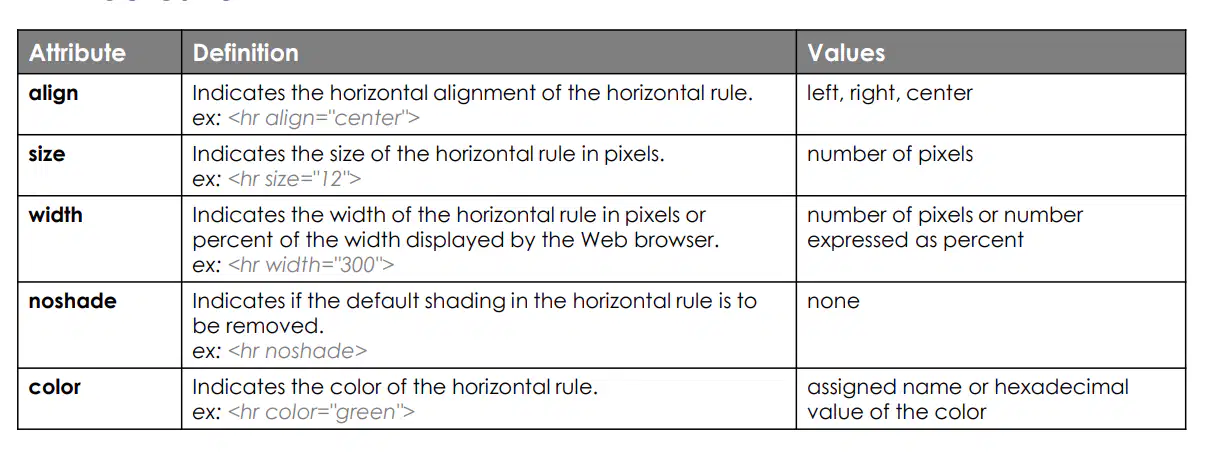
• To insert a horizontal line between sections, use the <hr> tag.
• This is useful for separating topics or sections visually.
Note:
These attributes were used in older versions of HTML (especially HTML 4.01 and earlier). In modern HTML (HTML5),
many of these attributes are deprecated. Instead, it's recommended to style <hr> using CSS.
Adding a Horizontal Rule
Modifying a Horizontal Rule
Ordered List
Unordered List
Definition List
You can also align or adjust the width, length, and shading of the rule or line.
You can style the horizontal line using the style attribute.
You can also use images (e.g., .gif files) to create custom dividers.
<hr style="width: 50%; height: 3px; background-color: gray; border: none;">
Adding a Horizontal Rule
Modifying a Horizontal Rule
Ordered List
Unordered List
Definition List
An _____ uses numbers or letters:
<ol>
<li>Wake up</li>
<li>Brush teeth</li>
<li>Eat breakfast</li>
</ol>
Attributes for <ol>:
You can change the type of numbering using the type attribute:
• 1 – Numbers (1, 2, 3...)
• a – Lowercase letters (a, b, c...)
• A – Uppercase letters (A, B, C...)
• i – Lowercase Roman numerals (i, ii, iii...)
• I – Uppercase Roman numerals (I, II, III...)
You can also start the list from a different number using start:
<ol type="i" start="4">
<li>Fourth</li>
<li>Fifth</li>
</ol>
Adding a Horizontal Rule
Modifying a Horizontal Rule
Ordered List
Unordered List
Definition List
_____s use bullet points instead of numbers.
<ul>
<li>Milk</li>
<li>Eggs</li>
<li>Bread</li>
</ul>
Attributes for <ul>:
You can change the bullet style:
• disc (default)
• circle
• square
<ul type="square">
<li>Item 1</li>
<li>Item 2</li>
</ul>
Adding a Horizontal Rule
Modifying a Horizontal Rule
Ordered List
Unordered List
Definition List
Use a _____ to create a glossary or terms list.
<dl>
<dt>HTML</dt>
<dd>HyperText Markup Language</dd>
<dt>CSS</dt>
<dd>Cascading Style Sheets</dd>
</dl>
•
: _____ • : term •
: definition
Adding a Horizontal Rule
Modifying a Horizontal Rule
Ordered List
Unordered List
Definition List
Use <pre> to display text with exact formatting, including line breaks and spaces. It’s useful for code or tabular text.
Preformatting Text
Progress Element
Nesting tags
Nesting Lists
Adding Invisible Comments
The <progress> tag shows the completion of a task:
This creates a progress bar filled to 75%.
Preformatting Text
Progress Element
Nesting tags
Nesting Lists
Adding Invisible Comments
You can place one tag inside another. This is called nesting. Important: Always close the inner tag before closing the outer one.
Preformatting Text
Progress Element
Nesting tags
Nesting Lists
Adding Invisible Comments
Lists can be nested to show subcategories:
Preformatting Text
Progress Element
Nesting tags
Nesting Lists
Adding Invisible Comments
• Use comments in your code to leave notes or reminders.
• Browsers ignore these comments.
Aside from white spaces, there are other things your Web browser
ignores. These are comments. The comment tag is a container tag that
uses <!-- as a starting tag and --> as an end tag.
Preformatting Text
Progress Element
Nesting tags
Nesting Lists
Adding Invisible Comments

