

Create, Send and Reply to an email in Outlook-SEN

Presentation
•
Computers
•
6th - 8th Grade
•
Practice Problem
•
Hard

Maria Balamoti
Used 6+ times
FREE Resource
16 Slides • 0 Questions
1

How to create, send and reply to an email using Outlook.
2

Create and Send an email
3

Open Microsoft Outlook
From the Ribbon click New Email
4

3. A new blank email message will appear.
5

In the To field type the email address of the person you wish to email.
Move your cursor to the Subject field and add a suitable subject to the email.
6

Now move your cursor into the message area of the email and begin typing your email by starting off with a suitable salutation.
7

Finish off the email message with a closing such as “Kind Regards”, “Yours sincerely” or “I look forward to hearing from you ”and your name.
8

Read back over your message and check for correct grammar and any spelling issues which may be highlighted with a red underline. Press F7 to perform a spell check.
9

When you are happy with the message, click the Send button:
10

The message will now be sent and should appear in your Sent Items folder.
Congratulations, you have now sent an email using Outlook. The recipient should receive your email shortly and will be able to reply as needed.
11

Reply to an email
12

Ensure you have selected the Inbox
Double-click to open the email you want to read and/or reply to.
13

The email message will open
From the Ribbon, click the Reply button
14
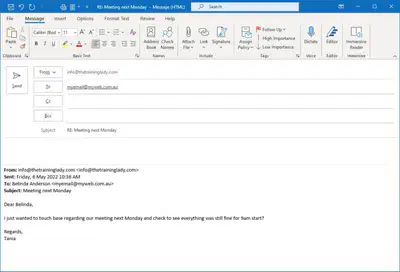
The reply window will now appear with the original sender already listed in the To field.
You will also notice the subject has now been appended with the prefix RE: to let the sender know this is a reply.
15
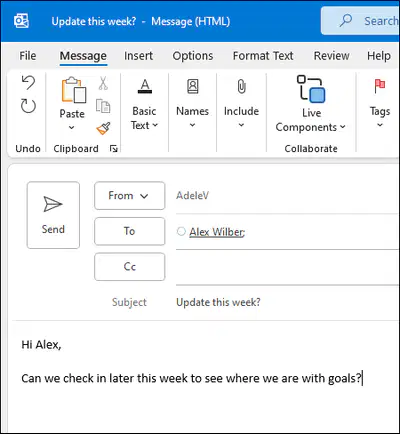
Type your response into the message body area.
When you are finished typing the reply, read over your response.
Click Send when you are ready.
16

You can now send and reply to an email. Keep practising!
Congratulations!
How to create, send and reply to an email using Outlook.
Show answer
Auto Play
Slide 1 / 16
SLIDE
Similar Resources on Wayground

11 questions
Teenager 5 Session 24: Pronunciation & Speaking
Presentation
•
KG
11 questions
Writing an Introduction
Presentation
•
6th - 8th Grade
11 questions
Independent and Subordinate Clauses
Presentation
•
6th - 8th Grade
10 questions
Homeostasis
Presentation
•
6th - 8th Grade
10 questions
Spanish Greetings, introductions, and farewells
Presentation
•
6th - 8th Grade
9 questions
Web output
Presentation
•
6th - 8th Grade
10 questions
HTML Editors
Presentation
•
7th Grade
11 questions
Paired Text
Presentation
•
6th - 8th Grade
Popular Resources on Wayground
16 questions
Grade 3 Simulation Assessment 2

Quiz
•
3rd Grade
19 questions
HCS Grade 5 Simulation Assessment_1 2526sy
Quiz
•
5th Grade
10 questions
Cinco de Mayo Trivia Questions

Interactive video
•
3rd - 5th Grade
17 questions
HCS Grade 4 Simulation Assessment_2 2526sy
Quiz
•
4th Grade
24 questions
HCS Grade 5 Simulation Assessment_2 2526sy
Quiz
•
5th Grade
13 questions
Cinco de mayo
Interactive video
•
6th - 8th Grade
20 questions
Math Review
Quiz
•
3rd Grade
30 questions
GVMS House Trivia 2026
Quiz
•
6th - 8th Grade