

Interactive lesson-Gr9+10(ArduinoWithBuzzer)

Presentation
•
Computers
•
6th - 8th Grade
•
Practice Problem
•
Easy

why you black me Mouawad
Used 12+ times
FREE Resource
8 Slides • 12 Questions
1
Connecting and Programming a Buzzer in Arduino.
By Dania Mouawad
2
Multiple Choice

What the name of this compnent?
LED
Ultrasonic sensor
Infraed sensor
Buzzer
3
Multiple Choice
What does AI stand for?
a. Artificial Intelligence
b. Automated Intelligence
c. Advanced Intelligence
d. Automated Informatics
4
Multiple Choice

Where are you most likely to find microchips?
on a lunch tray
inside a computer
on a movie screen
in an email account
5
Open Ended
Where do we hear buzzing or beeping sounds in our daily lives?
6
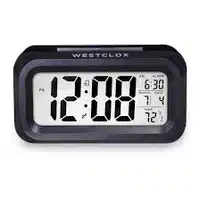


Makes sound to wake you up |
alarm clock
Plays a short tune
Doorbell
Makes loud continuous beep |
Smoke detector |
7
Objective:
Explain what a buzzer is and how it works.
Connect a buzzer to an Arduino Uno correctly.
Program the Arduino to make the buzzer beep.
Run and test your program using Tinkercad.”
Relate the use of buzzers in Arduino to real-life applications such as alarms, timers, and notifications.
8
1- Passive:
Needs a signal to create sound (we program the tone).
2- Active:
Makes sound automatically when powered.
Types of a buzzer
A buzzer is used to create sound or beeps to give audio feedback, alarms, or notifications in an Arduino project.
What is a buzzer
Buzzer:
9
🔌 Circuit Connection (Buzzer):
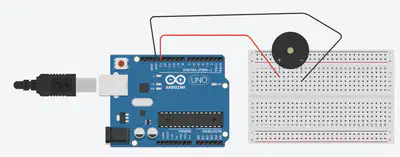
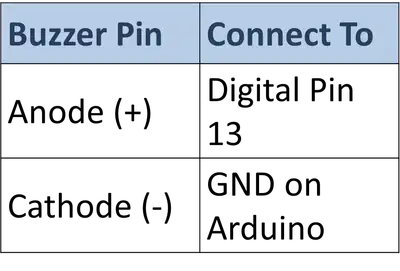
10
💻 Sample Arduino Code:
void setup() {
pinMode(buzzer, OUTPUT);
}
void loop() {
digitalWrite(buzzer, HIGH); // turn buzzer ON
delay(500); // wait 0.5 second
digitalWrite(buzzer, LOW); // turn buzzer OFF
delay(500); // wait 0.5 second
}
11
💻 Sample Arduino Code:
pinMode tells Arduino that pin 13 is an output.
digitalWrite(HIGH) makes sound.
digitalWrite(LOW) turns it off.
delay() pauses the program temporarily.
Explaining the code:
void setup() {
pinMode(13, OUTPUT);
}
void loop() {
digitalWrite(buzzer, HIGH); // turn buzzer ON
delay(500); // wait 0.5 second
digitalWrite(buzzer, LOW); // turn buzzer OFF
delay(500); // wait 0.5 second
}
The Arduino code
12
Multiple Choice
delay (1000);
1000 in delay is equivalent to how many second?
10s
2s
60s
1s
13
💻 Make a Melody Code:
pinMode tells Arduino that pin 13 is an output.
tone(pin, frequency) sets the pitch.
Higher number = higher sound.
delay() pauses the program temporarily.
Explaining the code:
void setup() {
pinMode(13, OUTPUT);
}
void loop() {
tone(13, 500); // play note
delay(500);
noTone(13); // stop
delay(500);
}
The Arduino code
14
Multiple Choice

Identify this component
Arduino Uno board
Raspberry Pi
Breadboard / Protoboard
White Plastic Board
15
Multiple Choice
Which command is called repetitively over and over again as long as the Arduino has power.
loop ( )
(output)
setup ( )
(input)
16
Multiple Choice
✔ What a buzzer is
Output component used to create sound or beeps
Robotics
17
Multiple Choice

18
Open Ended
I want you to use your imagination and think creatively about how we can apply this lesson in our real life.
19
Poll
Rate your understanding today:
⭐ I need more help
⭐⭐ I understand the basics
⭐⭐⭐ I can explain how to connect and code a buzzer
⭐⭐⭐⭐ I can modify the sound
⭐⭐⭐⭐⭐ I can design my own project using a buzzer
20
Word Cloud
How did you feel when you made the buzzer play a sound successfully?
Connecting and Programming a Buzzer in Arduino.
By Dania Mouawad
Show answer
Auto Play
Slide 1 / 20
SLIDE
Similar Resources on Wayground

17 questions
Three Types of Mechanical Waves
Presentation
•
6th - 8th Grade
15 questions
Word Meanings
Presentation
•
6th - 8th Grade
15 questions
Resistance
Presentation
•
6th - 7th Grade
15 questions
Activity 2.2
Presentation
•
6th - 8th Grade
15 questions
Ocean Floor and Mapping
Presentation
•
6th - 8th Grade
17 questions
Types of Conflict
Presentation
•
6th - 8th Grade
17 questions
Micro Bit Introduction Presentation
Presentation
•
6th - 8th Grade
18 questions
🎯Animation and Games -Lesson 8 Drawing
Presentation
•
6th - 8th Grade
Popular Resources on Wayground
5 questions
A Home on the Shore

Quiz
•
3rd Grade
28 questions
US History Regents Review
Quiz
•
11th Grade
6 questions
A Horse Tale
Quiz
•
3rd Grade
20 questions
Math Review
Quiz
•
3rd Grade
10 questions
Juneteenth History and Significance

Interactive video
•
5th - 8th Grade
20 questions
Dividing Fractions
Quiz
•
5th Grade
55 questions
A Long Walk to Water Final Review
Quiz
•
6th - 8th Grade
10 questions
Equation Word Problems
Quiz
•
7th Grade
Discover more resources for Computers
10 questions
Juneteenth History and Significance
Interactive video
•
5th - 8th Grade
55 questions
A Long Walk to Water Final Review
Quiz
•
6th - 8th Grade
10 questions
Equation Word Problems
Quiz
•
7th Grade
15 questions
Soccer World Cup Quiz Questions
Quiz
•
7th Grade
20 questions
Math Review - Grade 6
Quiz
•
6th Grade
10 questions
Juneteenth: History and Significance
Interactive video
•
7th - 12th Grade
30 questions
Circles, Area, & Volume II 2026
Quiz
•
8th Grade
10 questions
Static and Dynamic Characters
Quiz
•
6th Grade