

ICT9 Requirements for Internet Search

Presentation
•
Other
•
9th Grade
•
Practice Problem
•
Medium

Jerome Suelto
Used 4+ times
FREE Resource
35 Slides • 18 Questions
1

Requirements for Internet
Search
2
At the end of the learning period, the students should be able to: A. discuss the requirements for internet search; B. use basic functions in different browsers to locate information; and
|
3
Multiple Choice
Web browser is a software application for accessing information on the World Wide Web.
4
Multiple Choice
Also known as a web address, a URL (Uniform Result Locator) a standardized naming convention for addressing documents accessible over the Internet and Intranet.
5
Multiple Choice
A Link is short for hyperlink. It could be an image or any HTML elements that direct you to a new page.
True
False
6
Multiple Choice
Web browser is a software application for accessing information on the World Wide Web.
7
Multiple Choice
When you bookmark a web page, you are creating a shortcut for quick access to that web page and can be accessed anytime even without internet.
8
Fill in the Blanks
9
Fill in the Blanks
10
Fill in the Blanks
11
Requirements for Internet Search
“Collect What You Need, Discard What You Don't Need”
Web searching can be a frustrating task. In a search engine, you enter a word
or phrase and comes to a stack of irrelevant information. The ability to refine your
search is what you need to learn to get exactly what you want on the net.

12
Strategies for finding the latest and most appropriate content include the following:
● Use different search engine: get used in using multiple search engines as they have different strengths.
● Use specific keywords: In searching, be as specific as you can.
● Simplify search terms: remove needless word stops and avoid suffixes.
● Use quotation marks: It narrows the searches for words and phrases in particular.
● Remove unhelpful words: just remove confusing or misleading terms from your searches with the - (minus) operator.
● Refine your search using operator: use an operator to search for specific sites, related or relevant sites, and specific combinations of terms.
● Avoid pitfalls in searching: the internet is a selling tool as well as a fantastic resource. Be sure you’re only looking at advertisements if you want to.
13
Browsers
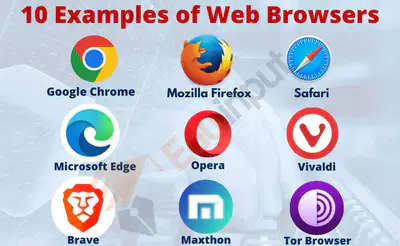
A web browser (commonly referred to as a browser) is a software application to obtain information on the World Wide Web. The web browser will retrieve the necessary content from a web server and then display the page on the screen once a user requests a web page from a specific website.
14
Search engine
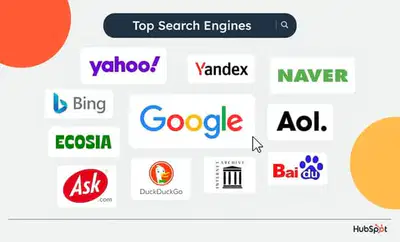
A search engine is not the same as a web browser although they are often
confused. Usually, a search engine is just a website, such as Google Search, Bing,
Yahoo, Yandex, or DuckduckGo, which stores searchable information about other
websites. A user must have a web browser installed to connect to a web server and
display its web pages.
15
World Wide Web
Sir Tim Berners-Lee developed the first web browser, called the World Wide
Web in, 1990.
On the year 1991 Nicola Pellow joined to write the Line Mode Browser which showed the web pages on dumb terminals.


16
Internet Explorer
In 1995, Microsoft debuted Internet Explorer which led to a browser war with
Netscape. For two reasons, Microsoft was able to achieve a dominant position: it
bundled Internet Explorer with its iconic Microsoft Windows operating system and
did so as freeware without use restrictions.
17
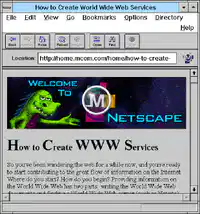
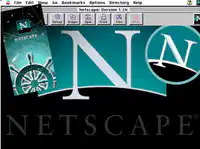
Netscape
In 1998, Netscape released what would become the Mozilla Framework, using
the open-source software model to build a new browser. Firefox achieved a 28% in
market share in 2011 which was first released by Mozilla in 2004.

18
Apple
In 2003 Apple released its browser Safari. It remains the dominant browser
on Apple platforms, although not popular elsewhere.
19
Chrome browser
Google launched its Chrome
browser in 2008, since then,
Chrome has remained dominant.

20
Function of Web Browsers
1. To provide the user with resources or information when needed.
2. It processes user inputs in the form of URL like http://www.google.com in the browser and allow access to that website.
3. It allows users to browse through the entire web page and view the source code in HTML format.

21
Function of Web Browsers
4. It provides access to the data and service available on the network by the use of encrypted methods. Web pages usually contain hyperlinks to other sites and resources. To retrieve information by the user through a browser and URL a link may help you to redirect to a new page or site.
5. It uses web page resources internal cache to improve loading times for
subsequent visits to the same page an internal cache of web page resources to improve loading times for subsequent visits to the same page. Many items such as large images cache stored in the cache so they do not need to be downloaded from the server.
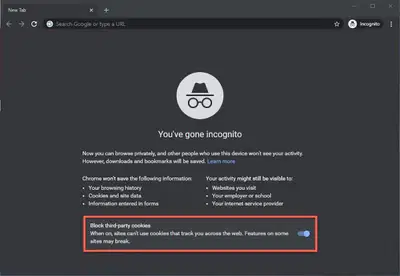
6. It has incognito surfing that requires the use of firewalls and proxy servers to
avoid actions conducted by the user. It prevents the world from viewing the
activity and allows limited sharing to be done in incognito mode.

22
Function of Web Browsers
6. It has incognito surfing that requires the use of firewalls and proxy servers to avoid actions conducted by the user. It prevents the world from viewing the activity and allows limited sharing to be done in incognito mode.
23
Privacy Rules
- Cookies received from various websites are stored by the browser while
browsing. Some have login credentials or preferences for the site. While others
used to monitor user activity over a long period, so browsers usually have
cookie removal settings when exiting the new window.

24
Features
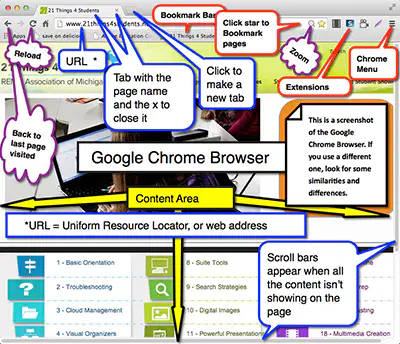
1. It grants users to browse in a private mode and use bookmarks. Some of them provide a sync service and can be customized with extensions.
2. It allows several pages to be opened simultaneously, either in different browser windows or in separate tabs of the same window.
3. It has a back and forward button to go back to the previous page you have visited. The back button was originally invented around 1967 by Ted Nelson
at Brown University.
25
Features
4. It has a reload and refresh button to restore the current tab.
5. It also has a stop button to cancel the page loading. (Stop button emerged with reload button in some browser.)
26
Features
6. It has a home button to get back to the home page of the user.
7. It has an address bar to input and display the page of the URL.
8. It has a search bar to input words. (The search bar emerged with the address bar in some browsers.) Other browsers also offer distinct features. One example is text-only browsers that can benefit slow Internet connection even those with visual impairments.
27
Security
- Most hackers use the browser to destroy files, steal information, and other malicious activities.
- Such security holes are frequently fixed by browser so users are strongly encouraged to upgrade their browsers.
- Anti-virus software and the avoidance of suspected malicious websites are two security measures.

28
URL
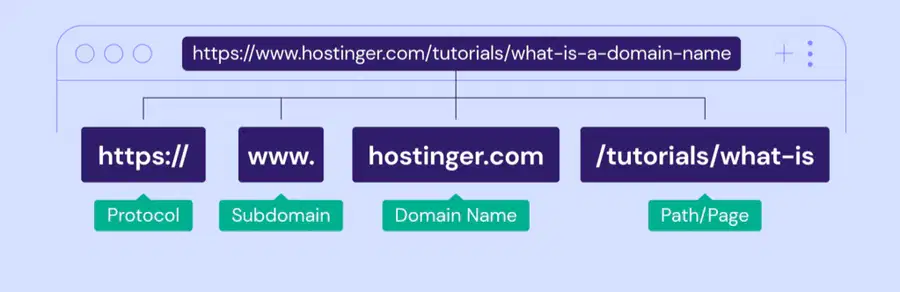
Otherwise known as a web address or URL stands for Uniform Resource Locator. It is a structured naming convention for Internet and Intranet accessible file address.
An example of a URL is https://www.depedcalamba.com which is the
website URL for the division of Calamba. Additional information about the URL is listed below:
29
URL
30
http:// or https://
- The "HTTP" stands for Hypertext Transfer Protocol.
- It lets the browsers know which protocol they will use to access the data specified in the domain.
- The "https" protocol is short for "Hypertext Transfer Protocol Secure" and indicates that the data transmitted through HTTP is encrypted
- HTTP or https is followed with colon (:) and two forward slashes (/) hat separate the protocol of the URL.
31
www
- "www" is the World Wide Web and is used to distinguish the content.
- This part of the URL is not required and might be left out.
- Typing http://www.depedpasig.com for instance will still get to the
DepEd Division of Pasig website.
- This portion of the address can also be substituted for an important
sub-page known as a subdomain.
32
Deped.pasig.com
- The domain name for the website is "depedpasig.com".
The last part of the domain is known as the suffix of the domain, or top-level domain (TLD).
This is used to describe the website type or location “.com” for example is short for
commercial purposes, “.org” is short for an agency, and “. gov.ph” is a shortcut for the Philippine government.
33
/memo/u/
The directories where the web page is
located on the server are "memo" and "u" which contains memorandum. For this case, the web page is two directories deep so it will be in the /public_html/memo/u directory to find the file
on the server. The public_html directory is the default directory that contains the HTML files.
34
Wordpress.htm
- Finally, the real web page on the domain that you are browsing is url.htm.
- The .htm is the file extension of the web page showing that the script is an HTML file. A lot of file extensions are used like .jpg, .gif, .php, .asp, .html .cgi, and .xml.
- Each of these file extensions has a different purpose, much like all
of the other file types on your computer.
35
Where is the URL located?
Depending on your browser window a URL is located at the top of the browser window in the address bar or Omnibox. On desktop computers and laptops, the URL will always be visible unless your browser is displayed on the full screen.
The address bar containing the URL will disappear in most smartphone and tablet browsers as you scroll down and only show the domain when viewable.
36
How to open an URL?
A URL can be opened by clicking on a hyperlink.
For example, if in this paragraph you click on “hyperlink,”
it opens a page explaining the content of the hyperlinks. If a URL is written in a magazine where it is not a hyperlink, the page may be accessed by typing the URL in the address bar of the browser. But if it is in an e-mail, you may copy and paste the URL into the Omnibox of the browser. Nevertheless, it is also necessary to note that the URL can contain only alphanumeric characters like! $-+*(). Any other characters needed to be encoded in the URL.
37
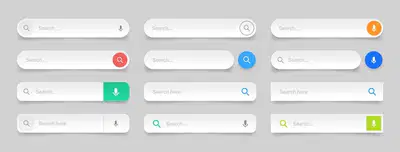
Search engine
A web search engine or Internet search engine is a software program
designed to search the web, meaning systematically searching the World Wide Web for the relevant information described in a textual web search query.
The results of the search engine are generally presented in a result line, also referred to as the Search Engine Results Page (SERPs).
38
Bookmark
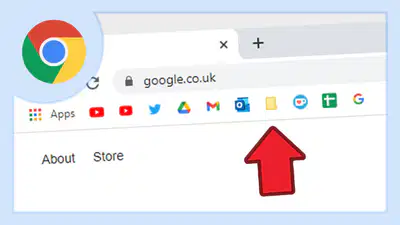
A bookmark may refer to the following:
- A bookmark or electronic
bookmark is a way of saving the address of a web page when connecting to an Internet browser.
- While using most browsers, pressing Ctrl+D bookmarks the page you are viewing.
- Are called favorites in Microsoft Internet Explorer.
Tip: You can access your user history if you want to bookmark a page and have
forgotten its URL.
39
Why uses a bookmark?
Using a bookmark help you find a web page that you want to look for the following day because the webpage remembers it.
Once you bookmark a web page, a shortcut is created to allow easy access to that web page. You can always access that bookmark and view the web page as many times as you want without having to
search the web to find it again.
40
How to use shortcuts to view bookmarks?
Below is a list of keyboard shortcuts used to view bookmarks in your browsers:
● Google Chrome - Ctrl+Shift+O or Cmd+Shift+B on
● Mozilla Firefox - Ctrl+B or Ctrl+Shift+B
● Microsoft Edge - Ctrl+I
● Internet Explorer - Ctrl+I
● Opera - Ctrl+Shift+B
41
Link
A link is an HTML element or short for a hyperlink that allows you to jump to
a new location when you click or tap. Links are found on nearly every web page and
provide a simple way to navigate between web pages.
Links can be part of the images, text or other HTML elements. Many text links
are blue since this is the normal web browser color that is used to view links.
Nevertheless, links can be any color because the link style can be modified using
either HTML or CSS styles. By default, links were underlined blue text. Today,
underlining links is less common.

42
HTML links are hyperlinks
A link does not have to be text. It could be an image to link a link. If you put the cursor to the link its arrow turns into a tiny hand.
The method maybe used to add links to other components, such objects <div>
and <span>. Nonetheless, a <a> tag with a CSS class or ID attribute is sometimes
used in place of a <div> or <span> tag as CSS may apply to stylize a connection.
Below is an example of the HTML for a text and image link:
Text Link: <a href="/definition/computer">Computer Definition</a>
Image Link: <a href="https://techterms.com/definition/computer"><img
src="/images/computer.jpg" alt="desktop PC"></a>
43
Relative and Absolute Links
The first link above is an example of a relative link since the domain name is
not included. Instead its link to the current website is relative. The path starts with
the root directory because the connection starts with a forward slash. Also, the path
is relative to the current URL if there is no relative relation starting with a forward
slash.
While an absolute links includes a domain name just like on the second link
above.
Note: Hypertext documents are mostly connected to anchors (or markers) inside a
page rather than other pages, the “a” in the <a> tag stands for “anchor”. The
“href” inside a <a> stands for “reference to hypertext.”

44
Fill in the Blanks
45
Fill in the Blanks
46
Open Ended
47
Fill in the Blanks
48
Fill in the Blanks
49
Open Ended
50
Fill in the Blanks
51
Open Ended
What are the requirements for internet search? Give at least three (3). Discuss
each briefly.
52
Open Ended
List down top 5 most popular browsers
1. ________________________
2. ________________________
3. ________________________
4. ________________________
5. ________________________
53
Open Ended
Browsing the internet requires proper etiquette. As a student, what do you think
are the good conducts that you should practice in using the search engine?
Requirements for Internet
Search
Show answer
Auto Play
Slide 1 / 53
SLIDE
Similar Resources on Wayground

48 questions
Plate Tectonics
Presentation
•
8th Grade
48 questions
El Nino and La Nina Presentation
Presentation
•
9th Grade
47 questions
Kaligirang Pangkasaysayan ng Florante at Laura
Presentation
•
8th Grade
47 questions
DNA and Mitosis Review 22-23
Presentation
•
9th Grade
53 questions
Understanding and Writing ECR
Presentation
•
9th Grade
50 questions
Practice Test / Study Guide Nutrition Final DLH-Health Science
Presentation
•
9th Grade
49 questions
LESSON: Translating Expressions/Equations/Inequalities
Presentation
•
8th Grade
45 questions
Life Cycle of a Star
Presentation
•
KG - 8th Grade
Popular Resources on Wayground
11 questions
Hallway & Bathroom Expectations

Quiz
•
6th - 8th Grade
10 questions
HCS SCI 03 Summer School Assessment 2
Quiz
•
3rd Grade
11 questions
Home Scope
Quiz
•
7th - 8th Grade
12 questions
2026 TAP Technology in the Classroom
Presentation
•
Professional Development
15 questions
HCS SCI 05 Summer School Assessment 2 Review
Quiz
•
5th Grade
15 questions
HCS SCI 04 Summer School Review 2
Quiz
•
4th Grade
59 questions
Geometry Unit 3 Review
Quiz
•
9th - 12th Grade
14 questions
FAST ELA READING SMAPLE TEST MATERIALS

Passage
•
3rd Grade