
Best AI Chrome Extensions for Teachers in 2026 (Tested by Educators)
Every tab you open to use a different AI tool is a minute you're not teaching.
The best AI Chrome extensions for teachers work inside the browser you're already using, with no extra login and no platform switching. They sit in your Chrome toolbar, activate in your current tab, and work directly inside Google Docs, Google Classroom, and any webpage. This guide covers eight extensions worth your time, with a comparison table on grading, generation, and recording support.
Why Chrome extensions beat standalone AI tools for teachers
Most AI tools for teachers live on separate platforms. You open a new tab, log in, upload student work, wait for results, download a report, and manually re-enter grades into your LMS. Each step is friction that adds up across a teaching day.
Chrome extensions eliminate that loop. They activate inside the tab you're already working in: a student's Google Doc, a Classroom assignment queue, a YouTube video you're planning to use in a lesson. The AI is right there when you need it, not one login and three steps away.
For teachers in Google Workspace schools (the majority of K-12 in the US), this matters most for grading: instead of downloading 30 submissions, uploading them to a grading platform, and re-entering results in Classroom, a Chrome extension with gradebook sync handles the entire loop in one browser window.
Best AI Chrome extensions for teachers in 2026
01 Wayground: Best all-in-one AI teaching extension
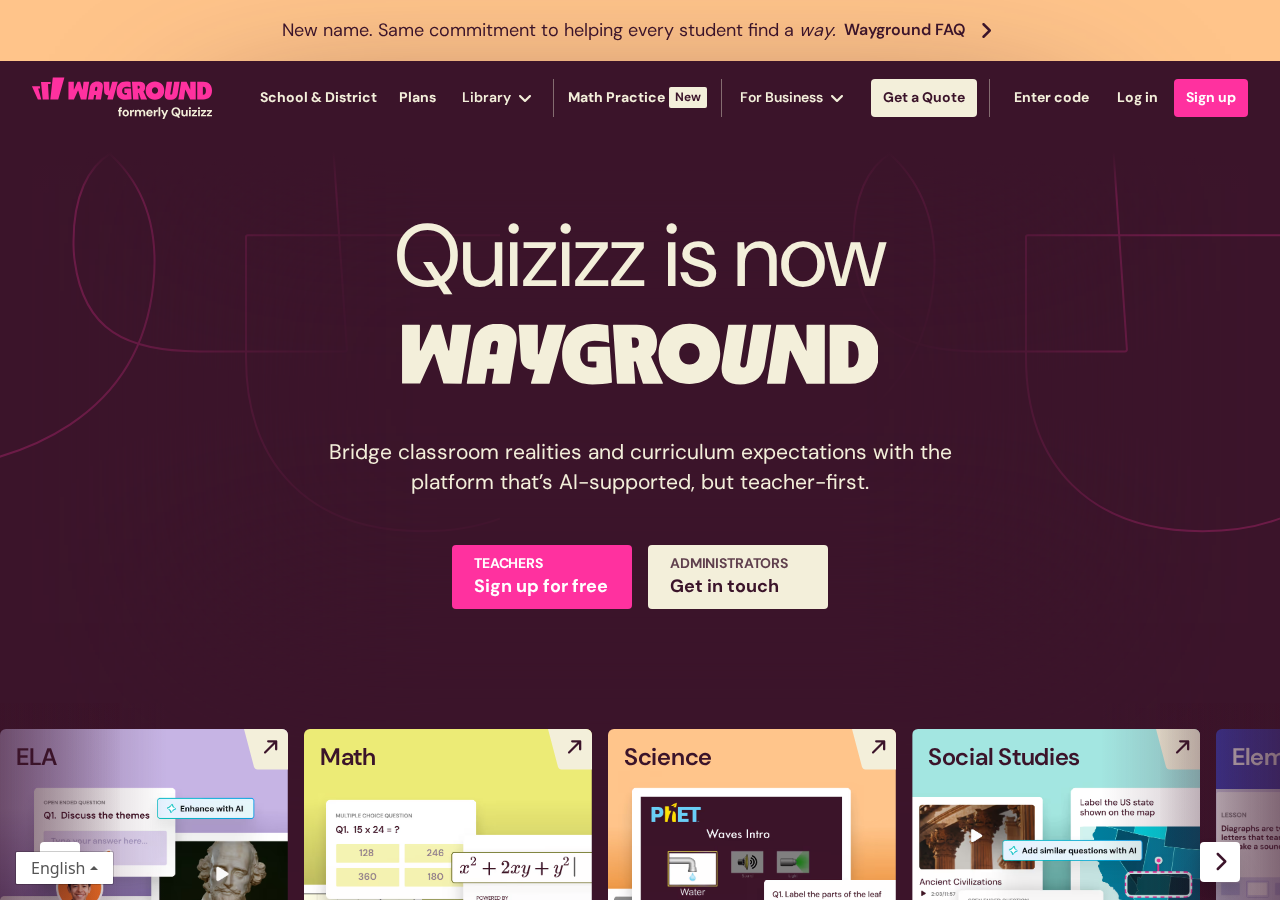
Wayground's Chrome sidebar covers four phases of teaching from a single extension: generate content, grade student work, comment on every doc, and record lessons.
Teachers open the sidebar from the Chrome toolbar and it activates contextually. On a YouTube video, it can generate a quiz from the content; on a student Google Doc, it can apply a rubric (build one with Wayground's AI rubric generator) and generate margin comments; in Google Classroom, it can push AI-drafted scores directly to the gradebook. The extension works across YouTube, Google Docs, PDFs, Wikipedia, NatGeo, Britannica, ChatGPT, and more, including generating a quiz from a PDF or running Wayground's AI lesson plan generator from any source.
The grading workflow specifically replaces what most teachers currently do across multiple tools: Wayground reads the student's submission, applies your saved rubric, generates criterion-level scores and inline margin comments, and queues them for your review. You approve, adjust any scores, and publish to Classroom, without leaving the page.
Key features
| Generate quizzes, lessons, and passages from YouTube, PDFs, Google Docs, and 10+ sources | |
| Rubric-based AI grading with inline margin comments, direct to Google Classroom gradebook | |
| Comment on every Doc: reads each student paper, writes inline feedback following your rubric | |
| Record lessons with screen + webcam; AI drops in quiz checkpoints automatically | |
| AI integrity flags: AI-written and copy-pasted passages highlighted in class report |
| Works with | Google Classroom (native), Google Docs, YouTube, PDFs, Wikipedia, Britannica, NatGeo |
| Chromebook | Full support |
| Best for | K-12 all subjects; any Google Workspace school; teachers who want one extension for their full teaching day |
02 Brisk Teaching: Best for content generation and formative feedback
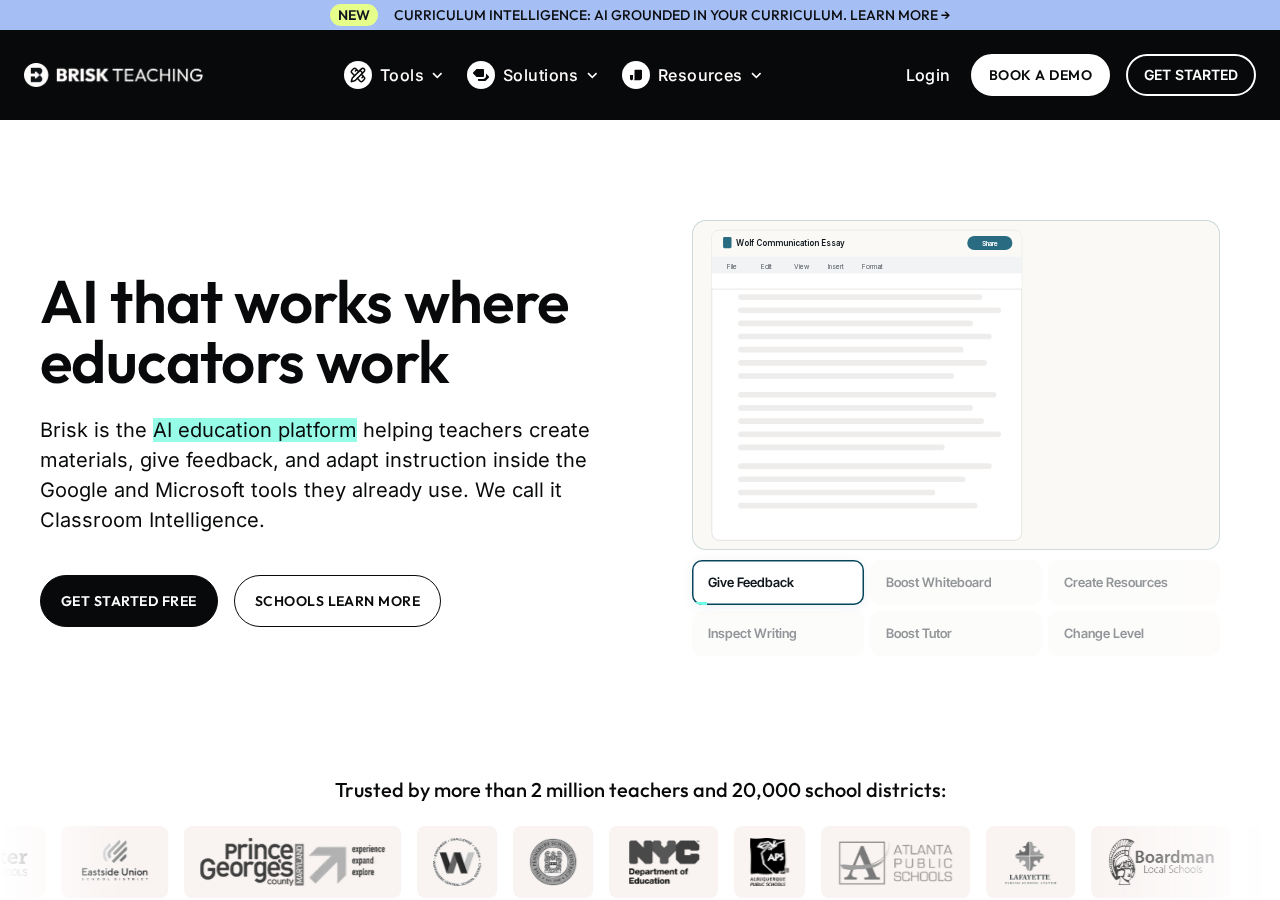
Brisk Teaching is the most widely adopted AI Chrome extension in K-12, used by over 30 million teachers. Open any article, textbook chapter, or Google Doc, click the Brisk icon, and select what you need: a quiz, a worksheet, a reading-level adaptation, a study guide, a rubric, feedback on student writing. The output appears in your current tab in seconds.
The feedback tool is particularly strong: Brisk reads student Google Docs and generates inline comments that function as formative guidance: specific observations tied to rubric criteria, written in the margin. It's excellent for the writing process.
One important distinction: Brisk provides formative feedback, not gradebook grading. It doesn't produce rubric-based scores, and it doesn't sync grades to Google Classroom. If you need in-draft writing feedback, Brisk is outstanding. If you need final scores posted to your gradebook, that step still requires a different tool.
Key features
| Content generation from any webpage: quizzes, worksheets, rubrics, lesson plans, study guides | |
| Formative feedback: inline comments on student Google Docs aligned to your criteria | |
| Reading level adaptations and differentiation support | |
| IEP, scaffold, and multilingual support generation |
| Works with | Google Docs, Google Classroom, any webpage |
| Chromebook | Full support |
| Best for | K-12 ELA and content teachers; lesson planning; teachers focused on the writing process |
03 MagicSchool AI: Best for breadth of AI tools
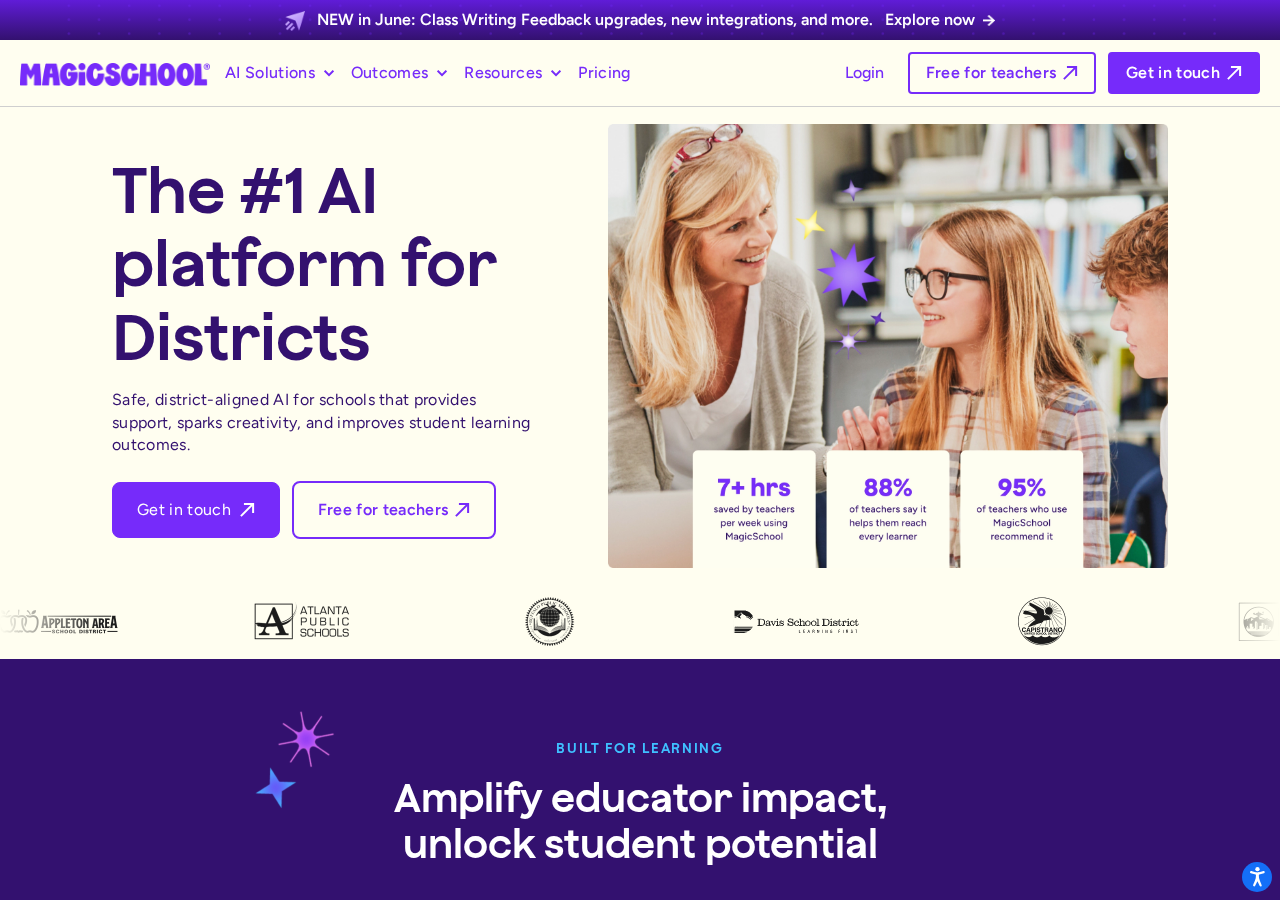
MagicSchool AI offers over 60 AI tools for teachers, covering more of the teacher workday than any other platform. Lesson plans, rubrics, differentiated materials, email drafts, IEP generators, behavior intervention plans, quiz generators, discussion prompts. Most tasks teachers do outside of actual instruction have a MagicSchool tool built for them.
The Chrome extension brings a subset of these tools into any tab. For teachers who want maximum variety without managing multiple accounts, MagicSchool is the most comprehensive single-tool option.
Key features
| 60+ AI tools covering instruction, assessment, communication, and admin | |
| Chrome extension for in-browser access; full web platform also available | |
| Google Classroom integration; supports Canvas and Word | |
| Common Sense Privacy certified; widely adopted at district level |
| Works with | Google Classroom, Canvas, Microsoft Word |
| Chromebook | Full support |
| Best for | Teachers wanting maximum AI tool variety; curriculum planning; administrative communication at scale |
04 Diffit: Best for differentiated reading materials
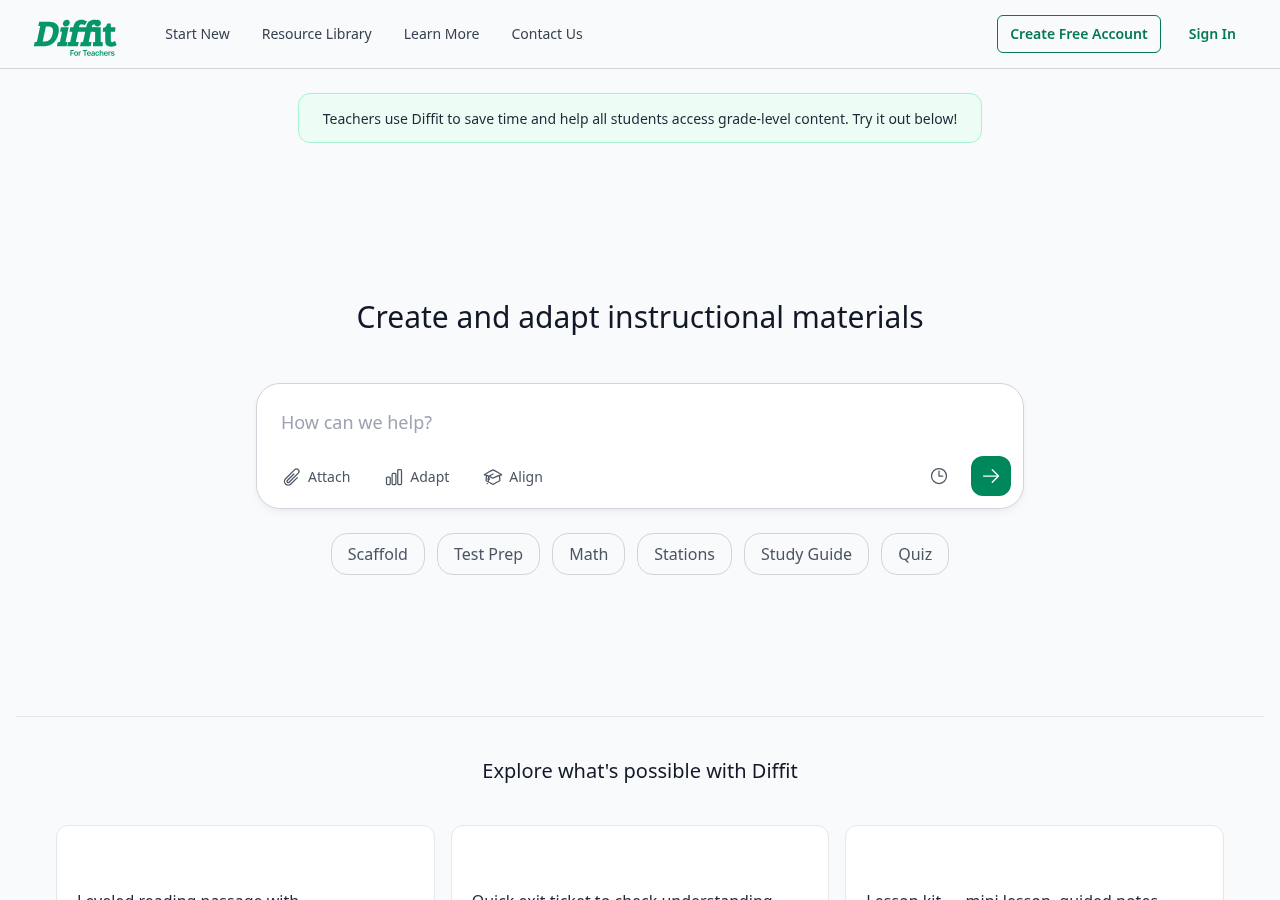
Diffit solves one of the most time-consuming differentiation tasks: creating the same text at multiple reading levels. Paste any URL or describe a topic, and Diffit generates differentiated versions with built-in comprehension questions at three Lexile levels. Assign directly to Google Classroom.
For ELA and content-area teachers with mixed-ability readers, this extension turns a 30-minute differentiation task into a two-minute one.
Key features
| Differentiated reading levels from any URL or topic prompt | |
| Built-in comprehension questions at each level | |
| Google Classroom direct assign | |
| Vocabulary support and translation options |
| Works with | Google Classroom; any URL |
| Chromebook | Full support |
| Best for | ELA, social studies, and science teachers with mixed reading levels (grades 3-12) |
05 MOTE: Best for voice feedback in Google Docs and Classroom
MOTE lets teachers leave voice notes directly inside Google Docs comments, Google Slides, Google Forms, and Classroom feedback fields. Click the MOTE microphone, record a 30-second comment, and students receive the audio note with a transcript.
Voice feedback is faster than typed comments for most teachers, and research on student response to feedback consistently shows that personalized, specific feedback is more effective than generic marks. For ELL students especially, hearing the teacher's voice reading feedback has clear accessibility benefits.
Key features
| Voice notes embedded directly in Google Docs, Slides, Forms, and Classroom comments | |
| Auto-transcription for accessibility | |
| Read-aloud and text prediction features for students | |
| Shareable links for video and audio feedback |
| Works with | Google Docs, Slides, Forms, Classroom |
| Chromebook | Full support |
| Best for | Writing-intensive teachers; ELL-serving classrooms; any teacher who types slowly or wants more personal student feedback |
06 Kami: Best for interactive PDFs and document annotation
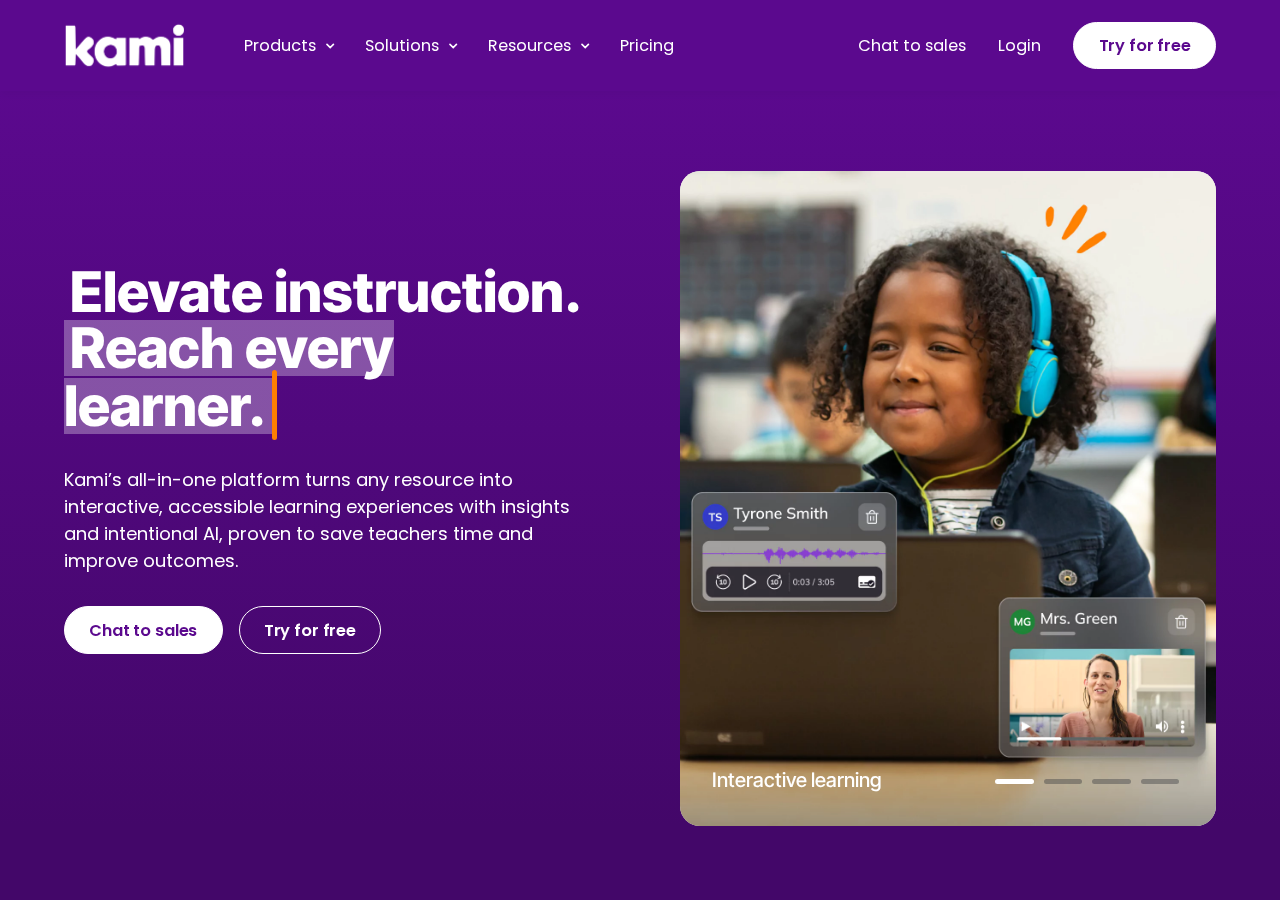
Kami transforms static PDFs and scanned documents into interactive annotatable files that students can work on directly in Chrome. Students highlight, annotate, draw diagrams, type responses, and record audio comments on any document, without needing to print anything.
For teachers working with PDF textbooks, scanned worksheets, or digital reading materials, Kami makes it possible to assign, annotate, and return documents entirely within the browser.
Key features
| Interactive PDF and document annotation in Chrome | |
| Text-to-speech for accessibility (built in) | |
| OCR: converts scanned documents to searchable, editable text | |
| Google Classroom assignment integration | |
| Drawing tools, sticky notes, and audio recording on documents |
| Works with | Google Classroom; PDFs; scanned documents |
| Chromebook | Full support |
| Best for | Teachers working with PDF textbooks, printed worksheet scans, or reading materials; accessibility-focused classrooms |
07 Merlin: Best general-purpose AI assistant in Chrome
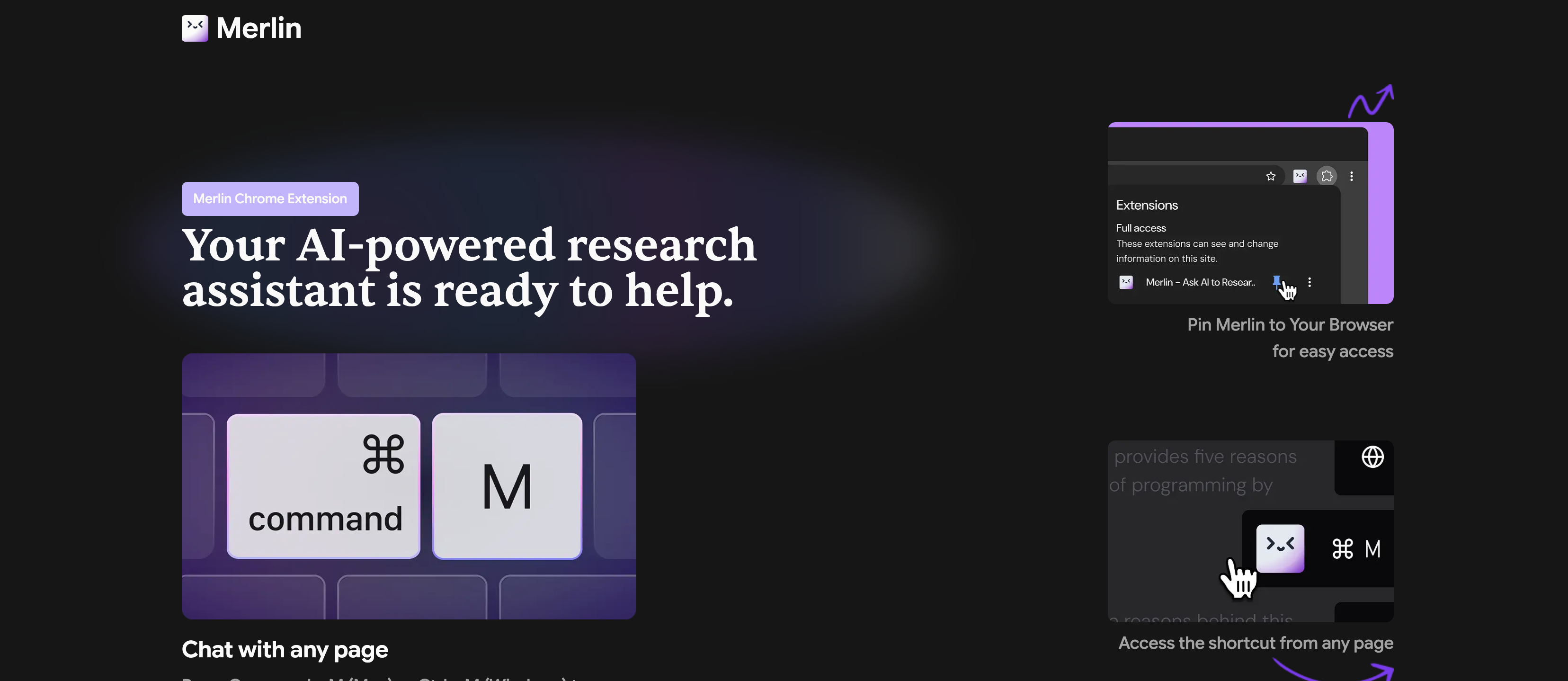
Merlin brings access to GPT-4, Claude, and other major AI models into a Chrome sidebar that works on any webpage. It's not education-specific, but it handles a wide range of teacher administrative tasks: drafting parent emails, summarizing long research articles, generating ideas from browsed content, and answering questions about the page you're currently reading.
For teachers who want a general AI assistant without building education-specific workflows, Merlin is a capable all-purpose option.
Key features
| Multi-model access (GPT-4, Claude, and others) in one sidebar | |
| Page summarization on any website | |
| Email and document drafting from context | |
| Translation and content generation in multiple languages |
| Works with | Any webpage |
| Chromebook | Full support |
| Best for | Teachers who want general AI help for admin tasks; email drafting; research summarization |
08 Screencastify: Best for screen recording and async video
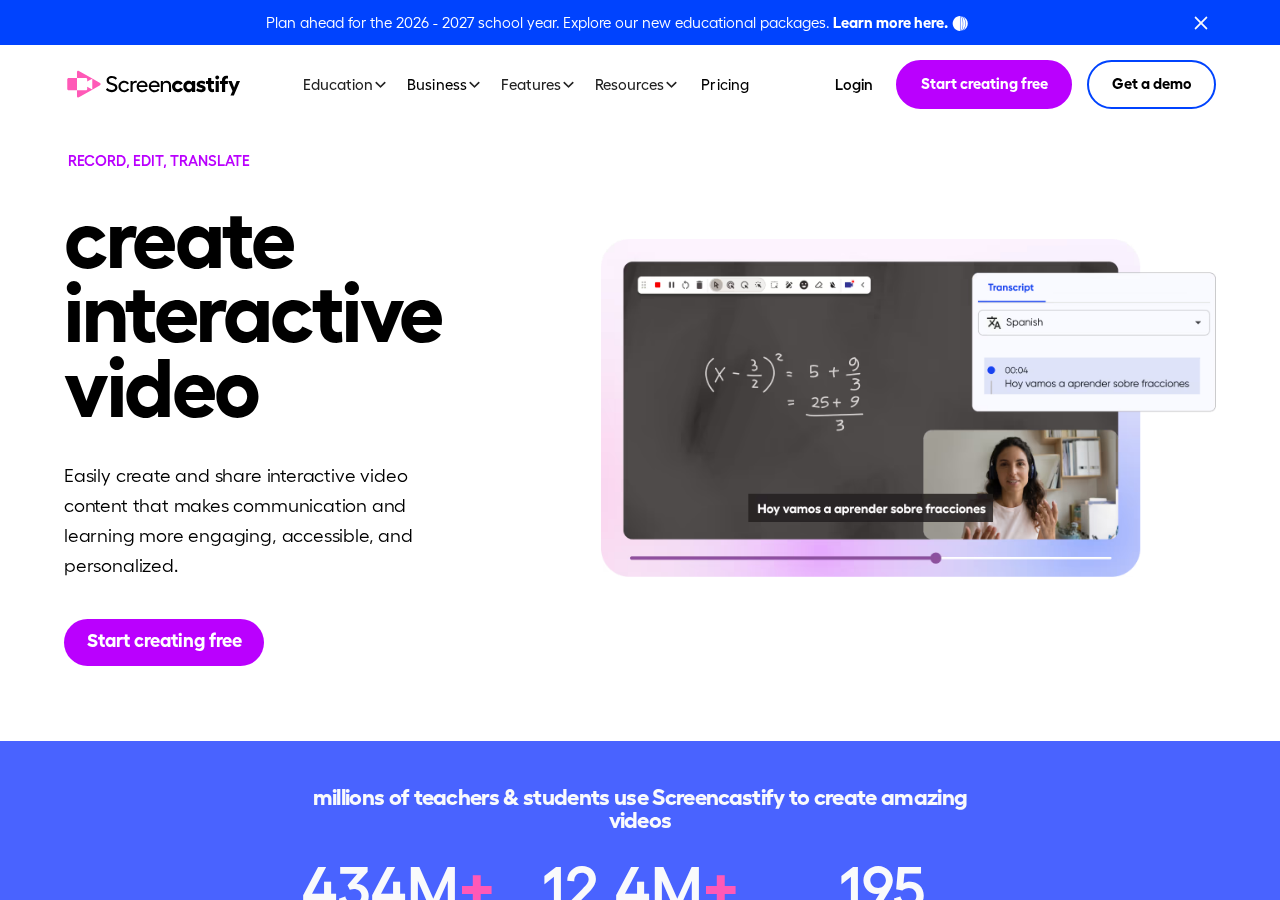
Screencastify lets teachers record their screen, webcam, and audio directly from Chrome. No additional software required. The recordings can be shared via link, embedded in Google Classroom, and edited directly in the browser. For flipped classroom content, absent-student recordings, sub plans, and video feedback on student work, Screencastify removes the technical friction that usually makes video creation feel too time-consuming.
Key features
| Screen + webcam + audio recording from Chrome | |
| In-browser video editing and trim | |
| Direct Google Classroom embed | |
| Student video response collection | |
| Interactive questions embedded in videos |
| Works with | Any webpage; Google Classroom |
| Chromebook | Full support |
| Best for | Flipped learning; absent-student recording; video feedback; sub plan creation |
How AI Chrome extensions for teachers compare
| Extension | Generate content | Grade + sync | In-Doc comments | Record | Google Classroom | Free tier | Chromebook |
|---|---|---|---|---|---|---|---|
| Wayground | Yes | Yes | Yes | Yes | Yes (native) | Yes (Starter) | Yes |
| Brisk Teaching | Yes | Formative only | Yes | × | Yes | Yes | Yes |
| MagicSchool AI | Yes | Limited | × | × | Yes | Yes | Yes |
| Diffit | Reading only | × | × | × | Yes | Yes | Yes |
| MOTE | × | × | Voice | × | Yes | Yes | Yes |
| Kami | Limited | × | Annotation | Audio | Yes | Yes | Yes |
| Merlin | General | × | × | × | × | Yes | Yes |
| Screencastify | × | × | × | Yes | Embed | Yes | Yes |
Wayground is the only extension in this comparison that covers all four core teaching phases: content generation, gradebook-synced grading, in-document feedback, and lesson recording.
TL;DR — Pick by use case
| Grading + gradebook sync | → Wayground |
| Content generation breadth | → Brisk Teaching or MagicSchool AI |
| Differentiated reading | → Diffit |
| Voice feedback | → MOTE |
| PDF annotation | → Kami |
| General AI admin tasks | → Merlin |
| Flipped classroom video | → Screencastify |
| One extension for everything | → Wayground |
Which AI Chrome extension should you start with?
The answer depends on what's costing you the most time right now.
If your biggest pain is lesson planning and content creation: Start with Brisk Teaching. It covers the most ground for teachers who need to generate materials from existing content quickly: quizzes from articles, differentiated worksheets from Google Docs, rubrics from scratch. MagicSchool AI is worth exploring alongside it for the administrative tasks Brisk doesn't cover.
If your biggest pain is grading: Start with Wayground. It's the only Chrome extension that grades student work and pushes scores directly to your Google Classroom gradebook. For middle and high school teachers with regular written assessment, the Starter tier covers this use case at no cost.
If you want one extension that handles everything: Wayground covers the full cycle: generate content from any source, grade and sync to Classroom, comment on every student doc, and record lessons. Most teachers currently doing all four of these tasks are using 3–4 separate tools.
Grade-band guidance:
- ›Elementary (K-5): Wayground + Kami (for PDF and printed worksheet workflows) + MOTE (voice feedback is particularly accessible for young learners)
- ›Middle school (6-8): Wayground + Brisk Teaching (for in-draft writing feedback) + Diffit (reading differentiation)
- ›High school (9-12): Wayground + Brisk (writing process feedback) + Merlin (admin tasks); Screencastify for flipped learning units
The case for fewer, better tools
The average K-12 teacher uses seven or more EdTech tools in a given week. Adding more tools isn't the goal. The goal is spending less time on logistics and more time with students.
Chrome extensions that work where you already teach reduce friction. The best ones in 2026 don't ask you to change your workflow. They augment it. Whether that's Brisk helping you turn an article into a differentiated worksheet in 30 seconds, or Wayground grading a class of essays while you're still in the Classroom tab, the value is always time returned to actual teaching.
If you're starting from zero, install one extension and use it for one task this week. Wayground's free Starter tier covers grading and content generation with no commitment required. Install it from the Chrome Web Store in seconds.
References
- ›EduGenius. (2026, January 13). Chrome extensions for teachers: the best AI-powered picks. https://www.edugenius.app/blog/chrome-extensions-teachers-ai-powered-picks
- ›Bell, K. (2025, November 4). The best Chrome extensions for teachers. Shake Up Learning. https://shakeuplearning.com/blog/the-best-chrome-extensions-for-teachers/
- ›Sowash, J. (2024, January 5). 5 great AI extensions for classroom teachers. [Video]. YouTube. https://www.youtube.com/watch?v=bKU1PokFU4M
- ›Brisk Teaching. (2025). The best Chrome extension for teachers in 2025: Why Brisk is the #1 choice for educators. https://www.briskteaching.com/post/the-best-chrome-extension-for-teachers-2025
- ›Wayground. (2026). Achieving 70% teacher adoption and reclaiming hundreds of grading hours. https://wayground.com
Find your way forward
Frequently Asked Questions
What is the best AI Chrome extension for teachers?
The best overall AI Chrome extension for teachers in 2026 is Wayground for teachers who need grading, generation, feedback, and recording from one tool. It's the only extension covering all four phases. Brisk Teaching is the best single-purpose option for content generation and formative writing feedback.
Are AI Chrome extensions for teachers free?
Most have free tiers. Wayground, Brisk Teaching, MagicSchool AI, Diffit, MOTE, Kami, and Merlin all offer free plans with meaningful access. Screencastify's free tier limits recording length. For teachers who need unlimited access, paid plans range from $0 to approximately $60/year for most tools.
Do AI Chrome extensions work on Chromebook?
Yes. All eight extensions in this guide work on Chromebook. Chrome extensions are natively supported on Chrome OS, and since most K-12 schools issue Chromebooks, this is a meaningful advantage over standalone web platforms or desktop software.
What is the difference between Brisk Teaching and Wayground?
Both are Chrome extensions, and both work with Google Docs and Google Classroom. The key difference is grading: Brisk Teaching generates formative feedback comments on student writing drafts, but it does not produce rubric-based scores or sync grades to your Classroom gradebook. Wayground does both: it grades, generates criterion-level scores, and posts results directly to Classroom. For content generation and lesson planning, both tools have strong capabilities.
Can Chrome extensions for teachers grade student work?
Wayground and CoGrader (which has a Chrome extension for Canvas/Schoology users) both grade student work and sync scores to LMS gradebooks. Brisk Teaching provides formative feedback on writing but doesn't score or sync. Other general-purpose extensions like Merlin can assist with grading-related tasks but don't have integrated rubric-scoring workflows.
Does Wayground have a Chrome extension?
Yes. Wayground is a Chrome extension. It installs directly from the Chrome Web Store and runs as a sidebar in your browser. It works across Google Classroom, Google Docs, YouTube, PDFs, and numerous other sources. The Starter tier is free with no credit card required.
Which Chrome extension works best in Google Classroom?
Wayground integrates most deeply with Google Classroom. It can grade submissions directly from the Classroom assignment queue and push scores to the gradebook without any manual re-entry. Brisk Teaching, MagicSchool AI, Diffit, and Kami also integrate with Google Classroom for assignment creation and management.
What sources can Wayground generate content from?
Wayground can generate quizzes, lessons, and passages from YouTube videos, PDFs, Google Docs, Wikipedia, NatGeo, Britannica, ChatGPT, and more. Teachers open any source in Chrome, open the Wayground sidebar, and select the type of content to generate. No upload to a separate platform required.